

S3 Secrets
S3 secrets store the AWS credentials Gameye uses to write session logs, and optional artifact files, into a bucket you own. Credentials are encrypted at rest and are never shown again after you create the secret.
Each secret belongs to one organization. You attach it to an application together with a bucket name, region, and the container paths to copy.
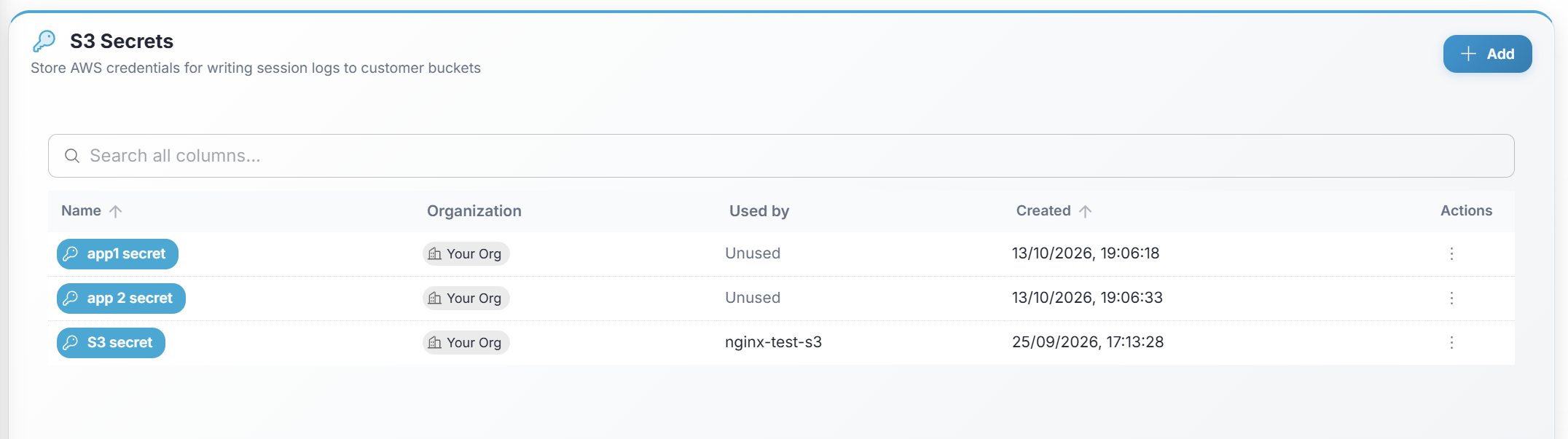
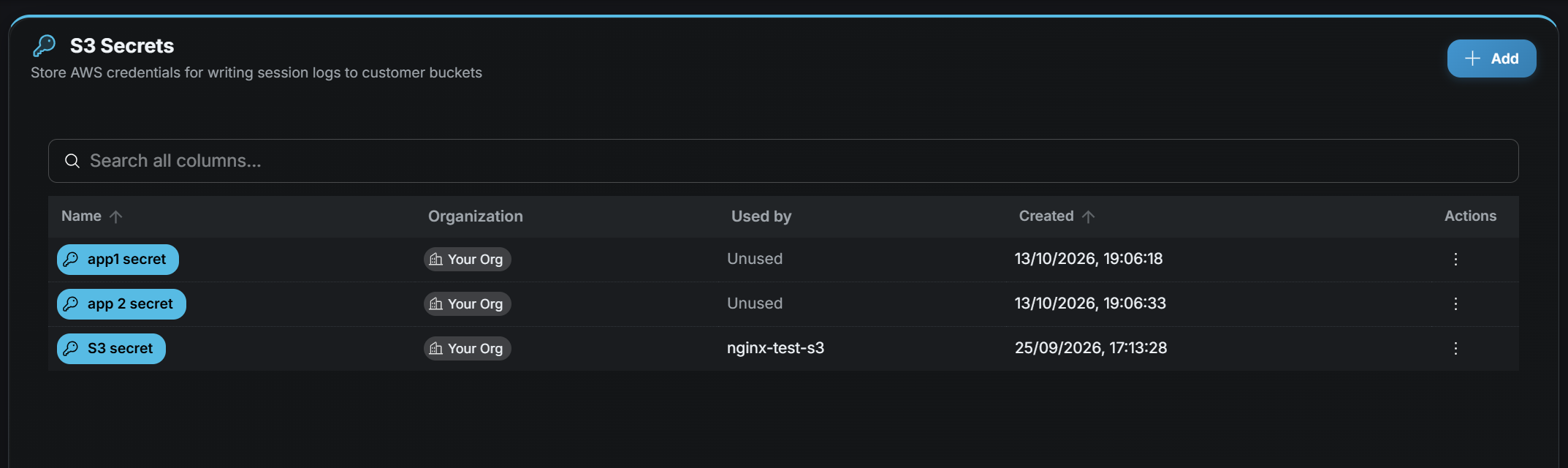
Table columns
Section titled “Table columns”Use the search bar above the table to filter secrets.
| Column | Description |
|---|---|
| Name | Secret name. |
| Organization | Organization the secret belongs to. |
| Used by | Applications that reference this secret, or Unused. |
| Created | When the secret was created. |
There is no edit or reveal action. To rotate a key, create a new secret, point the application at it, then delete the old one.
Creating a secret
Section titled “Creating a secret”- Click Add (top-right).
- In the Create S3 secret dialog, fill in:
- Name — A label you will recognize when attaching the secret to an application.
- Organization — Locked to your organization.
- S3 access key ID
- S3 secret access key
- Click Create.
The access key must be able to write objects to the bucket you will set on the application. The key ID and secret are not displayed again.
Deleting a secret
Section titled “Deleting a secret”- Click Delete (trash icon) on the secret row.
- Confirm Delete S3 secret. The dialog warns that this cannot be undone.
If any application still uses the secret, deletion is blocked. The Cannot delete S3 secret dialog lists those applications. Open each one, clear the S3 secret on the application form, save, then delete the secret.
Using a secret
Section titled “Using a secret”Creating a secret does not copy anything by itself. On the application create or edit form, open S3 log and artifact storage, pick the secret, and set the bucket, region, and artifact paths. See Applications.