

Applications
Applications represent the deployable units you run containers for. Each application maps to a Docker image repository and defines the resource requirements for containers.
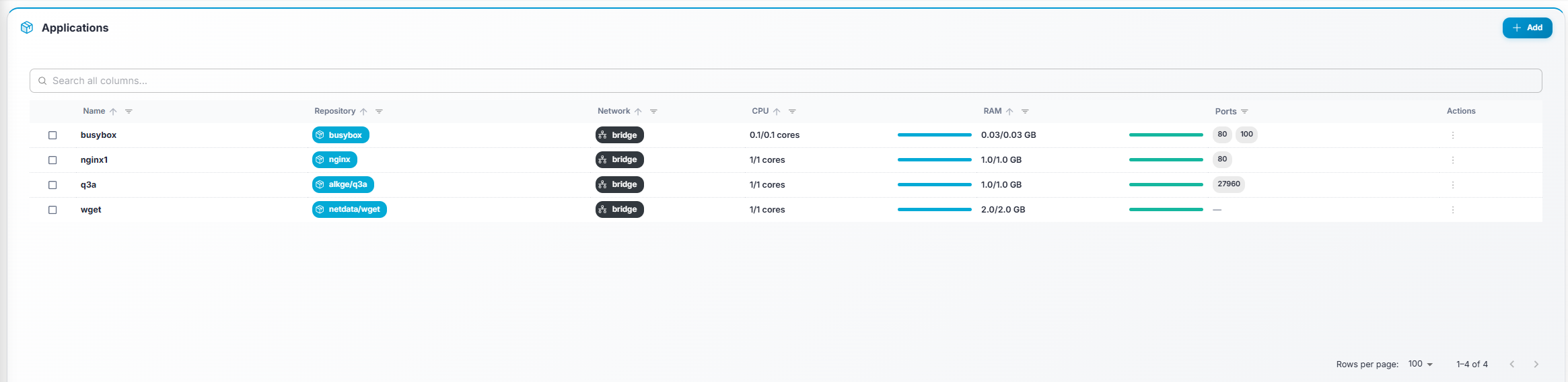
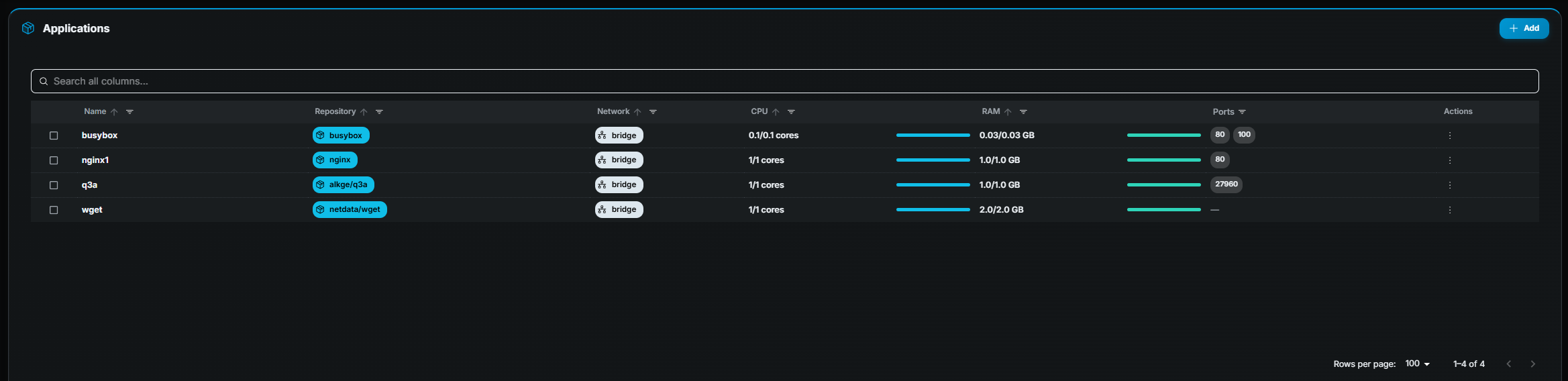
Table columns
Section titled “Table columns”| Column | Description |
|---|---|
| ☐ (checkbox) | Select one or more rows for bulk actions. |
| Name | Application name (bold). |
| Repository | Docker Hub repository URL, shown as a chip. |
| Network | Network mode (e.g. host, bridge). |
| CPU | Limit cores. |
| RAM | Limit in GB. |
| Ports | Up to four port chips; a “+N” chip if more exist. |
Row actions
Section titled “Row actions”| Action | Description |
|---|---|
| Details (eye icon) | Open the Application Details page. Requires read permission. |
| Edit (pencil icon) | Open the edit form. Requires edit permission. |
| Clone (copy icon) | Create a new application pre-filled with this application’s settings. Requires create permission. |
| Delete (trash icon) | Remove the application and its tags. Requires delete permission. A confirmation dialog appears. |
Bulk actions
Section titled “Bulk actions”Select one or more applications using checkboxes. A toolbar appears at the top:
- Mass Edit — Opens a dialog where you can update shared fields (regions, node pool, CPU, RAM, network mode, port bindings, registry, tags-to-keep) for all selected applications at once. A confirmation step shows the changes before applying. Mass edit does not change S3 log and artifact storage.
- Update Tags — Fetches the latest available Docker image tag for each selected application and shows a comparison table (current tag → latest tag). Click Update Tags to pull the newest tag for all applications that have an update available.
Creating an application
Section titled “Creating an application”- Click Add (top-right).
- Fill in the form fields:
- Name — Unique name for the application.
- Repository — Docker Hub repository (e.g.
mygame/server). - Tags to keep — How many image tags to retain (recommended: 2).
- Network mode —
hostorbridge. - Node pool — Which pool of nodes this application should run on.
- Regions — One or more regions where containers may be started.
- Port bindings — Add ports with protocol (TCP/UDP) and container port.
- CPU / RAM — Limit values.
- S3 log and artifact storage — Optional. See below.
- Click Save.
S3 log and artifact storage
Section titled “S3 log and artifact storage”Use this section to write session logs, and selected files from the container, to a bucket you own. Create the credentials first on S3 Secrets.
- S3 secret — Credentials for your organization. Leave it empty to disable storage. The secret must belong to the same organization as the application.
- S3 bucket name — Required when a secret is selected.
- S3 region — Required when a secret is selected (for example
eu-central-1). - Artifact paths — Absolute paths inside the container to copy as
artifacts, such as
/var/game/artifacts. Paths must be unique and at most 1024 characters. You can add up to 2 paths. Super-admins are not limited. If an application already has more than 2, you can edit or remove them, but you cannot add beyond the current count.
Clear the S3 secret and save to stop writing logs and artifacts for that application.