

Application Details
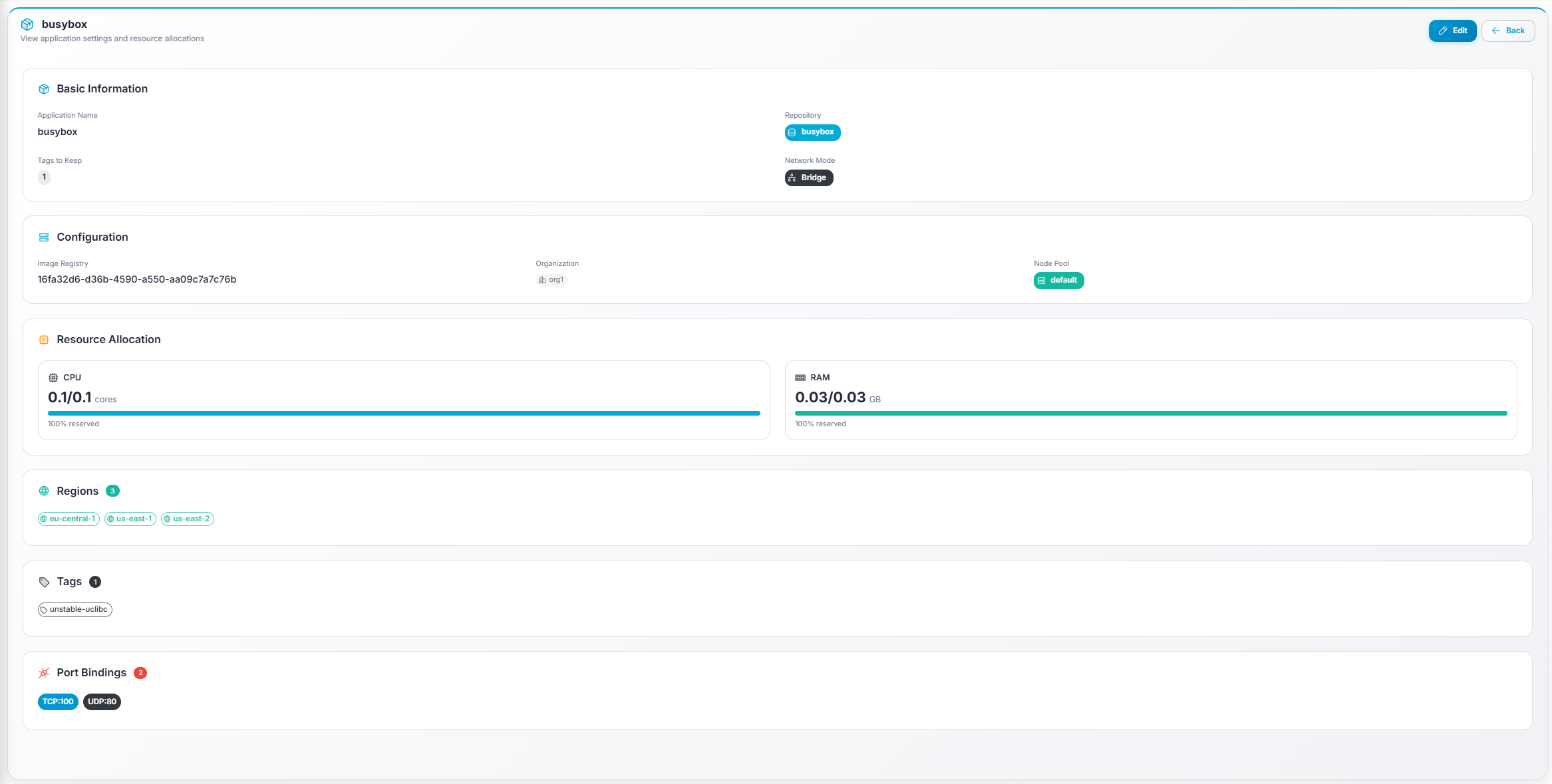
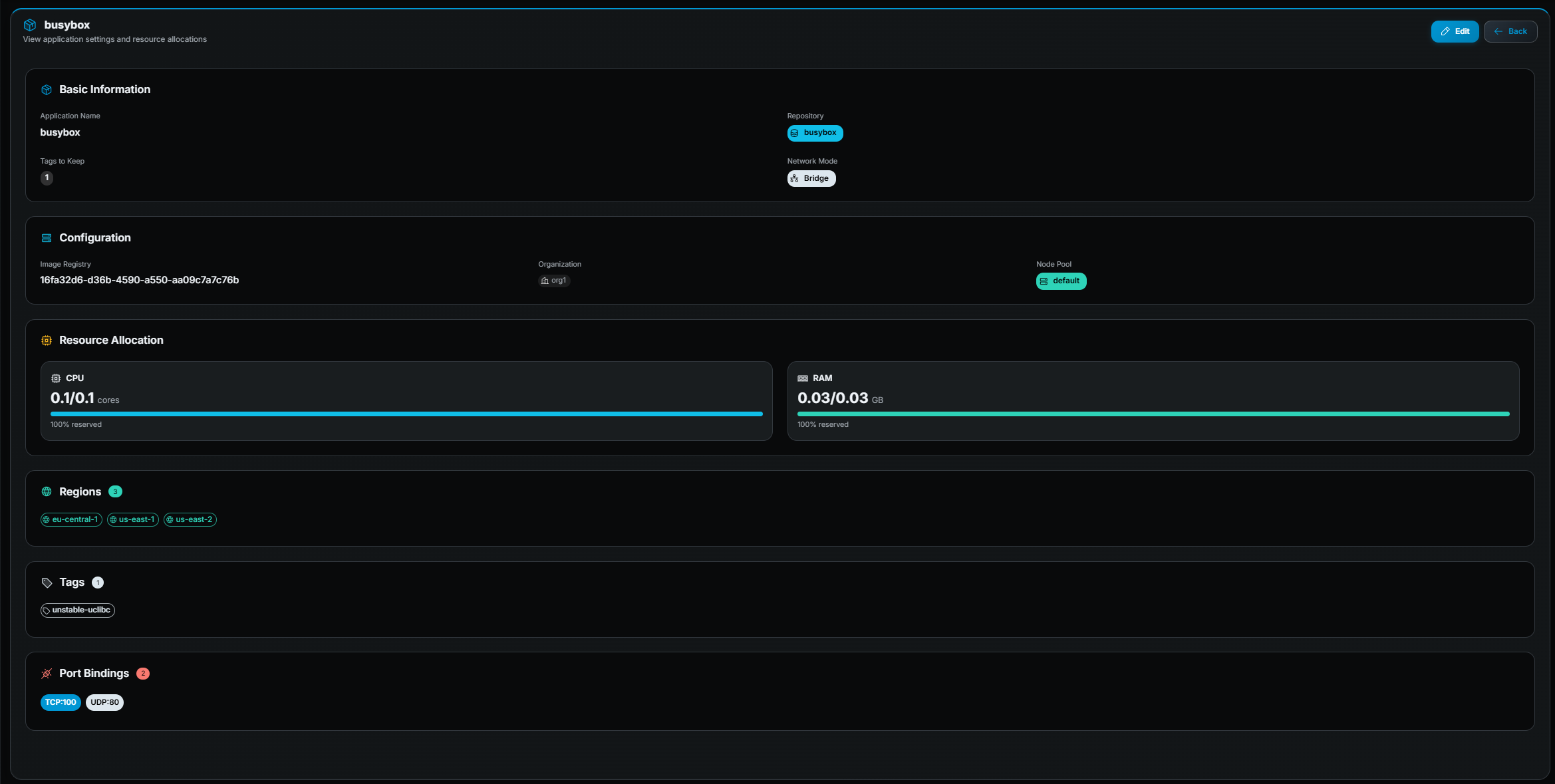
When you click Details (eye icon) on an application row, you open the Application Details page. This is a read-only overview of the application’s full configuration.
What you see
Section titled “What you see”The page is organized into the following sections:
Basic Information
Section titled “Basic Information”| Field | Description |
|---|---|
| Application Name | The unique name of the application. |
| Repository | Docker Hub repository path. |
| Tags to Keep | How many image tags are retained on nodes. |
| Network Mode | Host or Bridge. |
Configuration
Section titled “Configuration”| Field | Description |
|---|---|
| Image Registry | The configured image registry. |
| Organization | The organization this application belongs to. |
| Node Pool | The node pool assigned to this application. |
Resource Allocation
Section titled “Resource Allocation”Two cards showing CPU and RAM with:
- Reserved / Limit values (e.g.
2/4 cores). - A progress bar showing the reservation percentage.
Regions
Section titled “Regions”A list of region chips showing all regions assigned to the application, with a count badge.
A list of tag chips showing all Docker image tags currently associated with the application, with a count badge.
Port Bindings
Section titled “Port Bindings”A list of port chips in PROTOCOL:PORT format (e.g. TCP:7777, UDP:7778),
with a count badge.
S3 log and artifact storage
Section titled “S3 log and artifact storage”Shown when your role can read S3 secrets. If no secret is attached, S3 secret is None and the other fields are empty.
| Field | Description |
|---|---|
| S3 secret | Name of the stored AWS credentials, or None. |
| S3 bucket name | Customer bucket session logs and artifacts are written to. |
| S3 region | Region of that bucket. |
| Artifact paths | Absolute container paths copied as artifacts. |
Actions available
Section titled “Actions available”| Action | Description |
|---|---|
| Edit (pencil icon, top-right) | Open the edit form. Requires edit permission. |
| Back (arrow icon, top-right) | Return to the applications list. |
Editing an application
Section titled “Editing an application”- Click Edit on the detail page or from the row action in the table.
- Update any fields. All fields from the creation form are editable.
- Click Save.