

Users
Users are the accounts that can sign in to Gameye Admin.
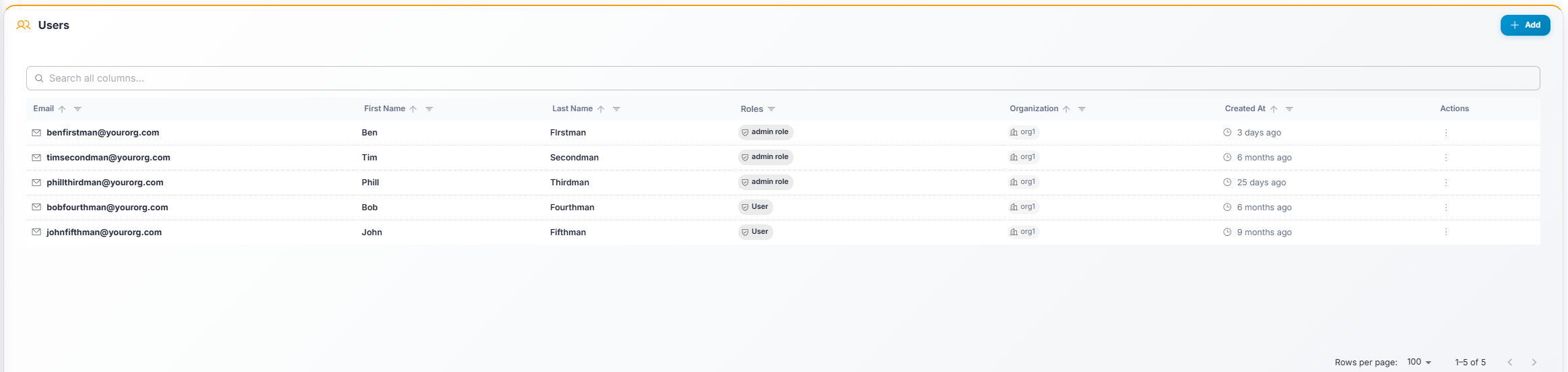
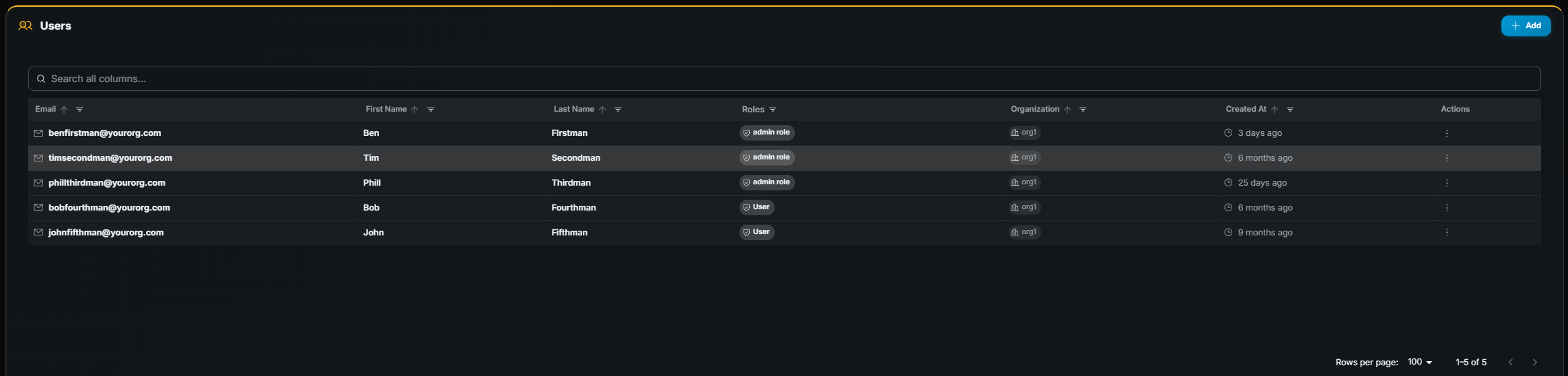
Table columns
Section titled “Table columns”| Column | Description |
|---|---|
| Name | Full name of the user. |
| Login email address. | |
| Organization | Organization the user belongs to. |
| Roles | Assigned roles. |
| Created At | Account creation date. |
Creating a user
Section titled “Creating a user”Requires user create permission.
- Click Add (top-right).
- Fill in name, email, password, organization, and role.
- Click Save.
Editing a user
Section titled “Editing a user”Requires user edit permission.
- Click Edit (pencil icon) on the row.
- Update the desired fields.
- Click Save.
Role assignment
Section titled “Role assignment”Each user is assigned one or more roles. Roles are collections of permissions that determine what pages and actions the user can access. Contact your administrator to understand which roles are available and what each role grants.
API tokens
Section titled “API tokens”The user edit page includes an API Tokens panel where you can manage tokens for programmatic access to the Gameye API. Each token can be scoped to specific permissions, giving fine-grained control over what the token is allowed to do.
Token table columns
Section titled “Token table columns”| Column | Description |
|---|---|
| Name | A descriptive label you chose when creating the token. |
| Token | The token value (masked by default). Click the eye icon to reveal / hide it. |
| Scopes | Color-coded chips showing the API scopes assigned to this token. Scopes are grouped by category. |
| Status | Active (green) or Disabled (grey). |
| Created | Date the token was created. |
| Actions | Enable / Disable and Delete buttons. |
Creating a token
Section titled “Creating a token”- On the user edit page, scroll to the API Tokens panel.
- Click Add Token.
- In the dialog:
- Token name — Enter a descriptive name (e.g.
ci-deploy,monitoring-read-only). - Scopes — Check the scopes this token should have access to. Scopes are organized by category; use the category checkbox to select or deselect all scopes in a group at once.
- Token name — Enter a descriptive name (e.g.
- Click Create Token.
- The new token appears in the table. Copy the token value immediately — it is displayed in full only at creation time.
Disabling / enabling a token
Section titled “Disabling / enabling a token”- Click the disable icon (⊘) on an active token to temporarily revoke its access. The token status changes to Disabled and any API calls using it will be rejected.
- Click the enable icon (✓) on a disabled token to re-activate it.
Disabling is useful when you want to temporarily revoke access without permanently deleting the token and losing its configuration.
Deleting a token
Section titled “Deleting a token”Click the delete icon (trash) on the token row and confirm. This action is permanent — the token cannot be recovered.