

Tags
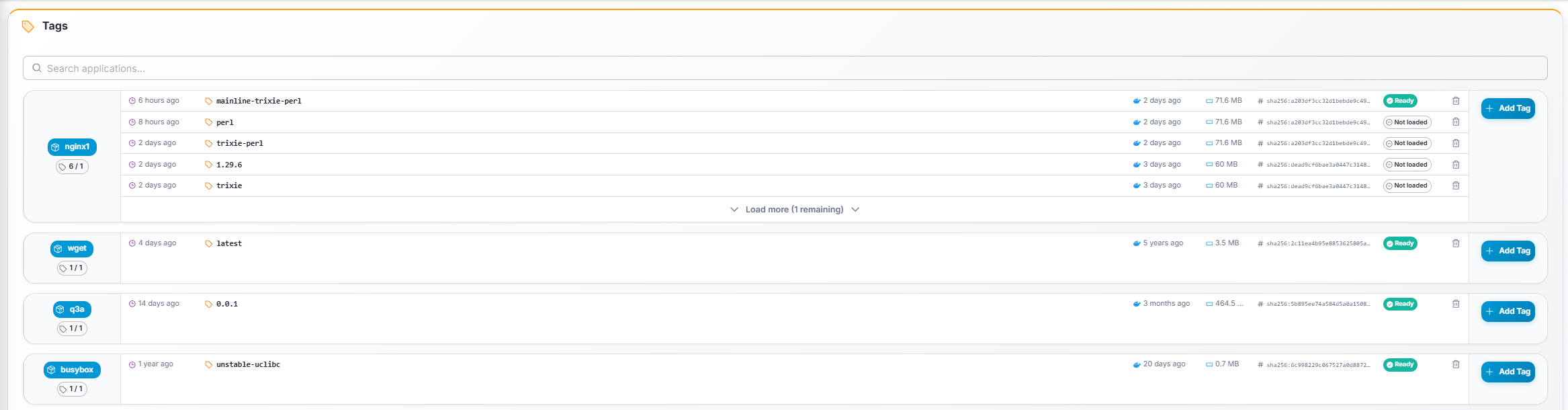
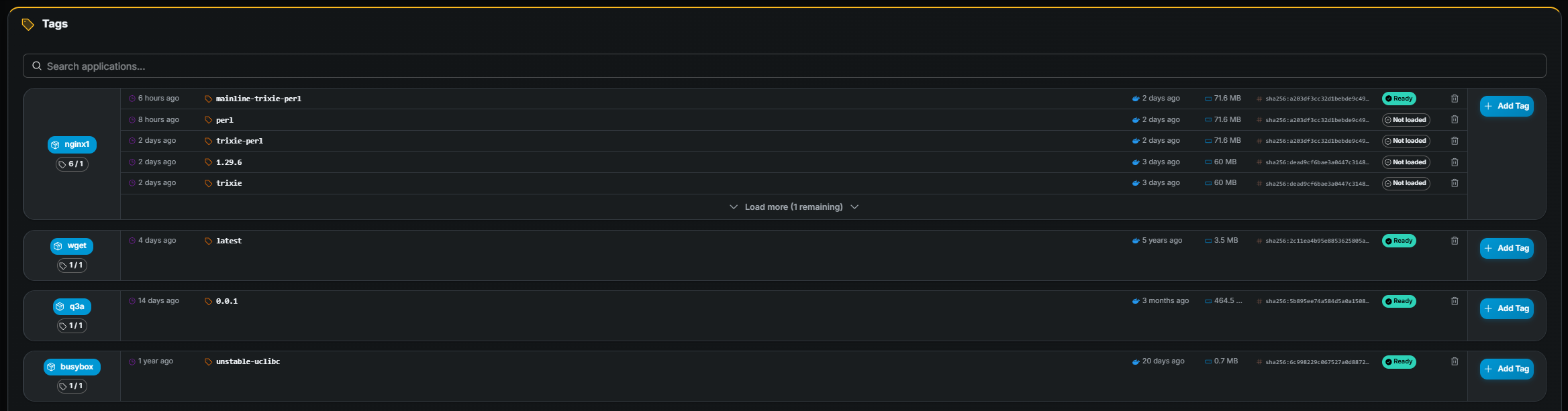
Tags represent Docker image versions associated with an application. The Tags page shows tags grouped by application in horizontal cards.
Search
Section titled “Search”Use the search field at the top to filter applications by name. The page auto-refreshes every 10 seconds so status changes (Preloading → Ready, etc.) appear without manual reload.
Card layout
Section titled “Card layout”Each application card displays:
- Application name chip (click to navigate to the application detail page).
- Tag count / Tags to keep (e.g.
3 / 5). - A tag table with the following columns:
| Column | Description |
|---|---|
| Added | When the tag was added (relative time). |
| Version | The image tag name (monospace). |
| Docker Hub pushed | When the tag was pushed to the registry. |
| Size | Compressed image size (MB). |
| Digest | Short SHA digest (hover for full value). |
| Status | Load state on nodes (see below). |
- Add Tag button (right side of the card). Requires tag create permission.
Tag load status
Section titled “Tag load status”| Status | Meaning |
|---|---|
| Ready | Image is fully downloaded on nodes and available for starting containers. |
| Preloading | Image is currently being pulled onto nodes. |
| Unloading | Image is being removed from nodes. |
| Not loaded | Image is registered but not yet pulled onto any node. |
Adding a tag from Docker Hub
Section titled “Adding a tag from Docker Hub”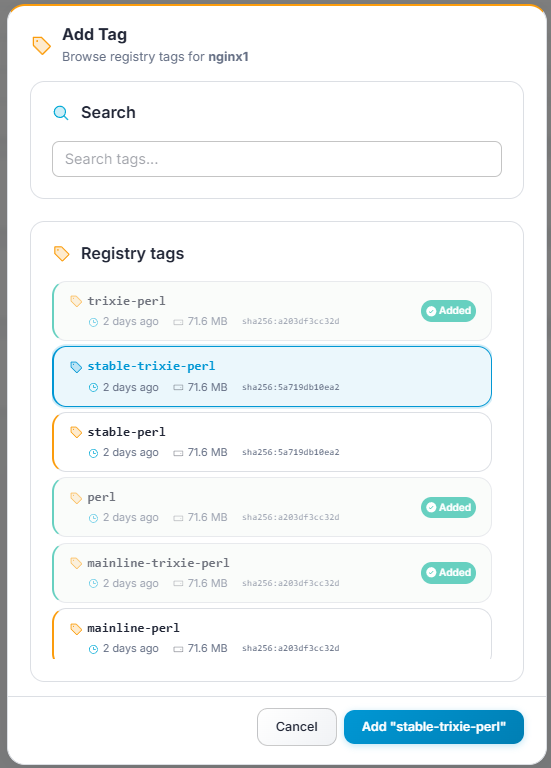
- Click Add Tag on the application card (requires create permission).
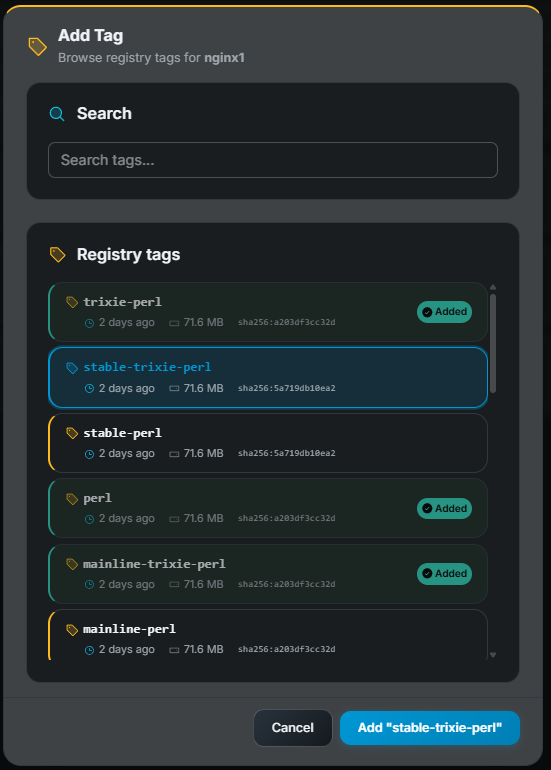
- A modal shows tags available in the Docker Hub registry for that application, including their pushed date, size, and digest.
- Search or scroll to find the desired tag.
- Click to select it, then click Confirm.
Deleting a tag
Section titled “Deleting a tag”Click Delete (trash icon) on a tag row. Confirm the deletion in the dialog. Requires tag delete permission.