

Application Details
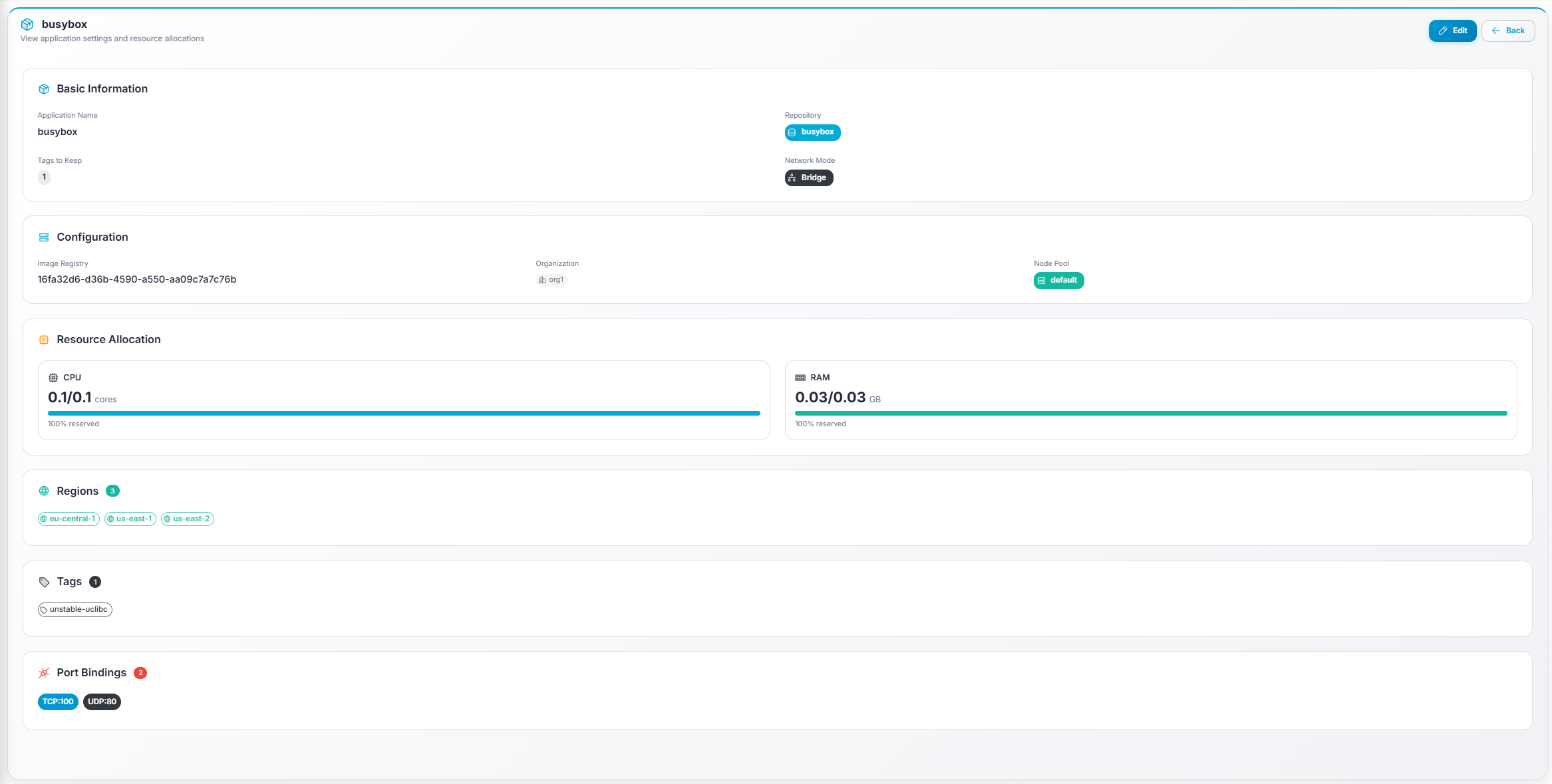
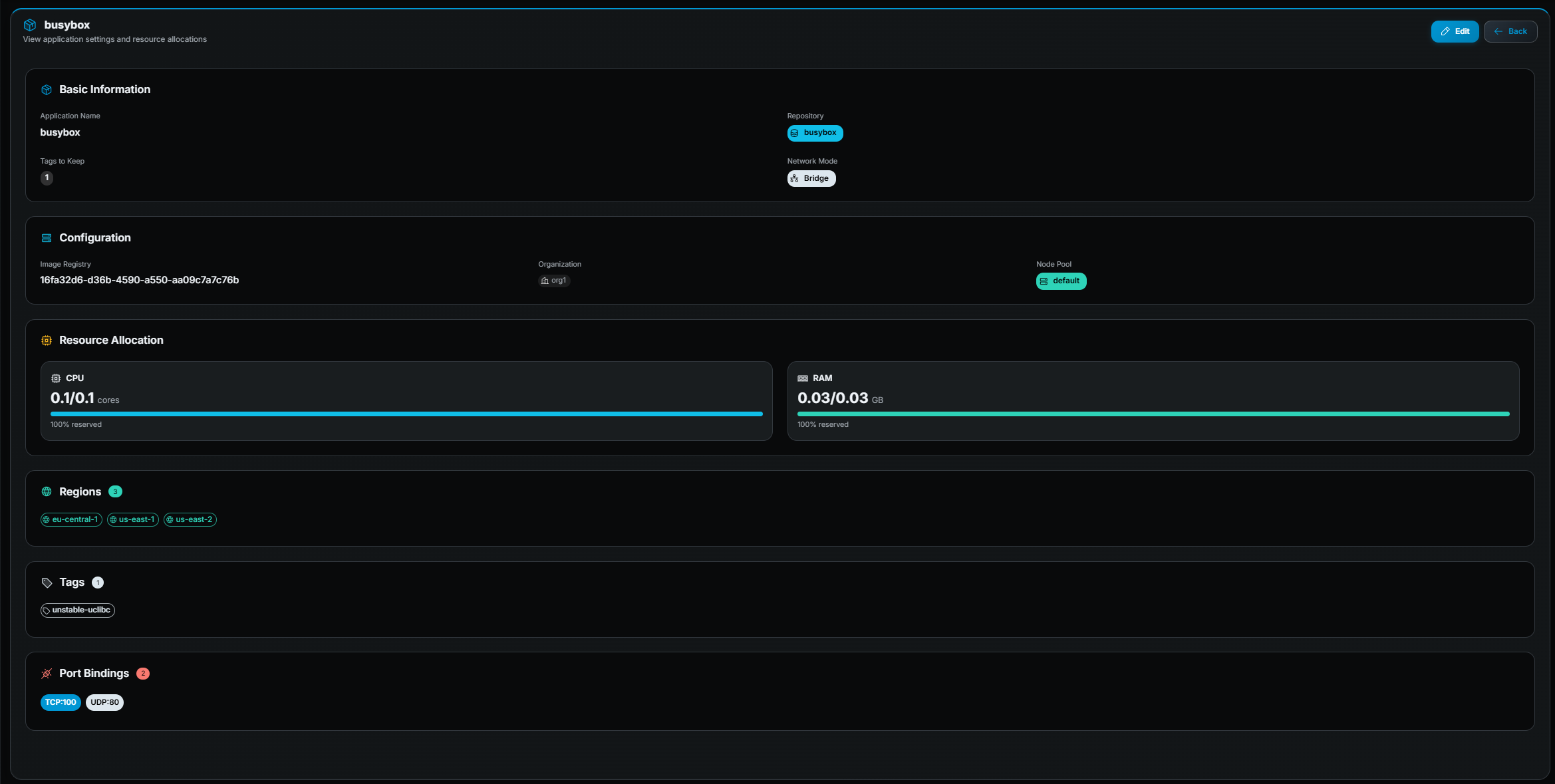
When you click Details (eye icon) on an application row, you open the Application Details page. This is a read-only overview of the application’s full configuration.
What you see
Section titled “What you see”The page is organized into the following sections:
Basic Information
Section titled “Basic Information”| Field | Description |
|---|---|
| Application Name | The unique name of the application. |
| Repository | Docker Hub repository path. |
| Tags to Keep | How many image tags are retained on nodes. |
| Network Mode | Host or Bridge. |
Configuration
Section titled “Configuration”| Field | Description |
|---|---|
| Image Registry | The configured image registry. |
| Organization | The organization this application belongs to. |
| Node Pool | The node pool assigned to this application. |
Resource Allocation
Section titled “Resource Allocation”Two cards showing CPU and RAM with:
- Reserved / Limit values (e.g.
2/4 cores). - A progress bar showing the reservation percentage.
Regions
Section titled “Regions”A list of region chips showing all regions assigned to the application, with a count badge.
A list of tag chips showing all Docker image tags currently associated with the application, with a count badge.
Port Bindings
Section titled “Port Bindings”A list of port chips in PROTOCOL:PORT format (e.g. TCP:7777, UDP:7778),
with a count badge.
Actions available
Section titled “Actions available”| Action | Description |
|---|---|
| Edit (pencil icon, top-right) | Open the edit form. Requires edit permission. |
| Back (arrow icon, top-right) | Return to the applications list. |
Editing an application
Section titled “Editing an application”- Click Edit on the detail page or from the row action in the table.
- Update any fields. All fields from the creation form are editable.
- Click Save.