# Gameye Documentation (full text)
> Every page of the Gameye docs in one file, for AI agents and LLM tools. Index: https://gameye.com/docs/llms.txt
> 108 pages. Generated at build time from the docs source.
---
# What is Gameye?
URL: https://gameye.com/docs/
> Gameye documentation: learn how to deploy, scale, and manage containerized game server sessions globally using the Session API and Admin Panel.
Gameye is a managed container orchestration platform for multiplayer game servers. You build a Docker image of your game server, push it to a container registry, and Gameye handles deployment, scaling, and lifecycle management across globally distributed infrastructure.
The core interaction model is simple: call `POST /session` with a region and your configuration. Gameye returns an IP address and ports. Your players connect. When the session ends, call stop — or set a TTL and let Gameye terminate it automatically.
**What Gameye replaces:** provisioning cloud or bare metal servers, configuring firewalls and networks, writing Terraform or Ansible, managing Docker runtimes on remote machines, and building custom autoscaling logic.
**Who it is for:** Backend and multiplayer developers at game studios who want to ship game server infrastructure without hiring a dedicated DevOps engineer or maintaining cloud infrastructure themselves.
## How it works
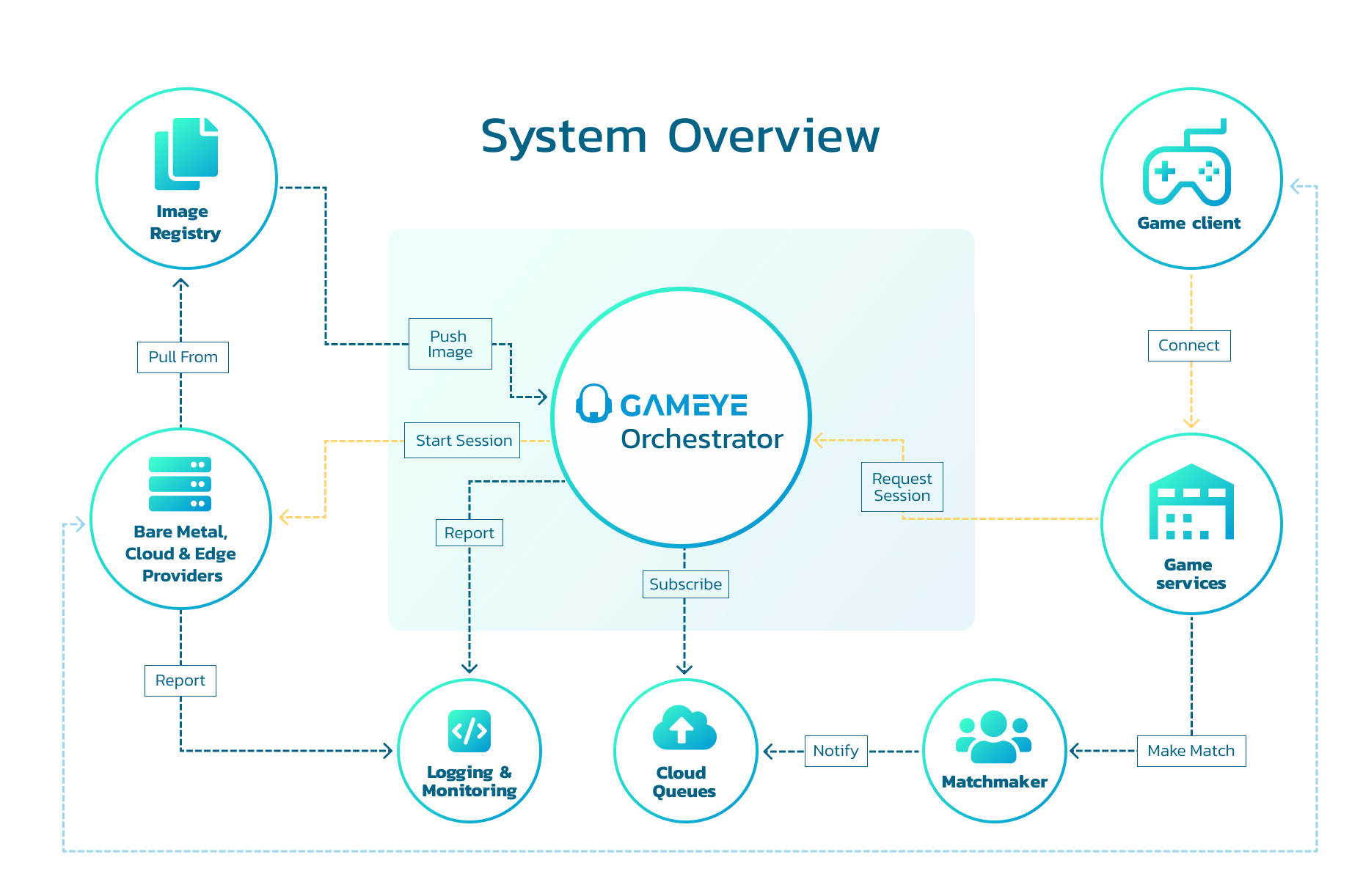
Gameye maintains a fleet of bare metal servers per region. When demand exceeds bare metal capacity, it bursts into cloud infrastructure automatically — no configuration required. Sessions are isolated in Docker containers: what you configure in your resource profile is what your container gets, with no oversubscription.
:::note
**Redundancy by default.** Gameye maintains redundancy in each region. If one provider has a problem, sessions automatically move to an alternative.
:::
## Key capabilities
- **Global deployment** — start sessions across regions with a single API call
- **Provider-agnostic** — bare metal, cloud, and flex-metal; multiple providers per region
- **Sub-second allocation** — sessions spin up in ~0.5 seconds on average
- **No DevOps required** — no Kubernetes, no Terraform, no infrastructure to maintain
- **Matchmaker-ready** — integrates with Nakama, Pragma Engine, PlayFab, FlexMatch, and any HTTP-capable backend
- **Pay for what you run** — billing is per second of actual container runtime, no minimum session length
## Where to start
- [Getting Started](https://gameye.com/docs/getting-started/) — set up Docker Hub, push your image, make your first API call
- [Core Concepts](https://gameye.com/docs/concepts/) — understand Applications, Sessions, Regions, Resource Profiles, TTLs, and Labels
- [API V2 Reference](https://gameye.com/docs/api-v2/) — full endpoint documentation
- [Integrations](https://gameye.com/docs/guides/integrations/) — Nakama, Photon Fusion, PlayFab, FlexMatch
- [Troubleshooting](https://gameye.com/docs/troubleshooting/)
- [FAQs](https://gameye.com/docs/faqs/)
---
# User Manual
URL: https://gameye.com/docs/admin-panel/
> Gameye Admin User Manual — manage applications, containers, tags, warm pools, and more from the admin panel.
**Gameye Admin** is a web-based operations panel for managing game-server
infrastructure powered by the Gameye orchestrator. From the admin panel you can:
- Monitor running containers and resource usage.
- Create and configure **applications** (the deployable units that wrap your
Docker images).
- Manage **tags** (Docker image versions) and control which tags are loaded onto
nodes.
- Configure **warm pools** so containers are pre-started and ready for instant
player allocation.
- Start and stop **containers** on demand, and inspect their live logs and
resource metrics.
- Write session logs and selected container paths to a customer S3 bucket.
Store the AWS credentials under [S3 Secrets](https://gameye.com/docs/admin-panel/s3-secrets/)
and attach them on the application.
This guide covers the pages visible to a **normal user**. Admin-only pages
(Nodes, Node Pools, Images, Image Registries, Regions, Port Bindings,
Organizations, Roles, Permissions, API Scopes, Contracts, Billing Types,
Currencies) are not included here.
:::tip[New to the platform?]
Start with the [Getting Started](https://gameye.com/docs/getting-started/3-admin-panel/) guide for a step-by-step onboarding walkthrough.
:::
## How access affects what you see
Gameye Admin uses a role-based permission system. Your administrator assigns you
a **role**, and each role contains a set of permissions that control what you can
see and do.
- **Menu items** are **hidden** (not greyed out) when your role lacks the
required permission.
- **Action buttons** (Add, Edit, Delete, Start, Stop) are hidden when you have
read-only access to a section.
- **Data** is filtered by your **organization** — you only see resources
belonging to your organization.
:::note
Throughout this guide, phrases like *"requires edit permission"* or
*"if you have create permission"* refer to whatever permission your
administrator has configured for that action. You do not need to know the
internal permission names — if a button or page is missing, ask your
administrator to review your role.
:::
If something described in this guide is not visible in your account, contact
your administrator.
---
# Active Containers
URL: https://gameye.com/docs/admin-panel/active-containers/
> View and manage currently running or starting containers in Gameye Admin — start, stop, and inspect containers in real time.
Active Containers shows containers that are currently running (or starting).
## Table columns
| Column | Description |
|---|---|
| **Session ID** | Container name / identifier. |
| **Application** | Application the container belongs to. |
| **Hostname** | Node hostname where the container runs. |
| **IP** | Node IP address. |
| **Ports** | Mapped ports for this container. |
| **Status** | Current state — *Running* or *Starting*. |
| **Region** | Region where the container is deployed. |
| **Node Pool** | Node pool assignment. |
| **Created At** | When the container was started (relative time). |
## Starting a container
:::note
Requires container create permission. If you don't see the **Start** button,
contact your administrator.
:::
1. Click **Start** (top-right).
2. In the dialog, fill in the required fields:
- **Application** — Select the application to run.
- **Region** — Where to start the container.
- **Environment variables** *(optional)* — Key-value pairs to inject.
- **Arguments** *(optional)* — Command-line arguments.
- **Labels** *(optional)* — Key-value metadata.
3. Click **Submit**.
4. The new container appears in the table; it may show *Starting* briefly before
transitioning to *Running*.
:::note[Not appearing?]
The table refreshes periodically. Click the refresh button
or wait a few seconds. If the container still doesn't show, it may have failed
to start — check with your administrator.
:::
## Stopping a container
1. Find the container row.
2. Click **Stop** (requires stop/delete permission).
3. Confirm in the dialog.
## Opening container details
Click a row to navigate to the [Container Details](https://gameye.com/docs/admin-panel/container-details/) page.
---
# Application Details
URL: https://gameye.com/docs/admin-panel/application-details/
> Read-only overview of an application's full configuration in Gameye Admin — basic info, resources, regions, tags, port bindings, and S3 storage.
When you click **Details** (eye icon) on an application row, you open the
Application Details page. This is a read-only overview of the application's
full configuration.
## What you see
The page is organized into the following sections:
### Basic Information
| Field | Description |
|---|---|
| **Application Name** | The unique name of the application. |
| **Repository** | Docker Hub repository path. |
| **Tags to Keep** | How many image tags are retained on nodes. |
| **Network Mode** | `Host` or `Bridge`. |
### Configuration
| Field | Description |
|---|---|
| **Image Registry** | The configured image registry. |
| **Organization** | The organization this application belongs to. |
| **Node Pool** | The node pool assigned to this application. |
### Resource Allocation
Two cards showing CPU and RAM with:
- Reserved / Limit values (e.g. `2/4 cores`).
- A progress bar showing the reservation percentage.
### Regions
A list of region chips showing all regions assigned to the application, with a
count badge.
### Tags
A list of tag chips showing all Docker image tags currently associated with the
application, with a count badge.
### Port Bindings
A list of port chips in `PROTOCOL:PORT` format (e.g. `TCP:7777`, `UDP:7778`),
with a count badge.
### S3 log and artifact storage
Shown when your role can read S3 secrets. If no secret is attached, **S3
secret** is **None** and the other fields are empty.
| Field | Description |
|---|---|
| **S3 secret** | Name of the stored AWS credentials, or **None**. |
| **S3 bucket name** | Customer bucket session logs and artifacts are written to. |
| **S3 region** | Region of that bucket. |
| **Artifact paths** | Absolute container paths copied as artifacts. |
## Actions available
| Action | Description |
|---|---|
| **Edit** (pencil icon, top-right) | Open the edit form. Requires edit permission. |
| **Back** (arrow icon, top-right) | Return to the applications list. |
## Editing an application
1. Click **Edit** on the detail page or from the row action in the table.
2. Update any fields. All fields from the creation form are editable.
3. Click **Save**.
---
# Applications
URL: https://gameye.com/docs/admin-panel/applications/
> Browse and manage deployable application units in Gameye Admin, including repository, network mode, CPU, RAM, and exposed port configurations.
Applications represent the deployable units you run containers for. Each
application maps to a Docker image repository and defines the resource
requirements for containers.
## Table columns
| Column | Description |
|---|---|
| ☐ (checkbox) | Select one or more rows for bulk actions. |
| **Name** | Application name (bold). |
| **Repository** | Docker Hub repository URL, shown as a chip. |
| **Network** | Network mode (e.g. `host`, `bridge`). |
| **CPU** | Limit cores. |
| **RAM** | Limit in GB. |
| **Ports** | Up to four port chips; a "+N" chip if more exist. |
## Row actions
| Action | Description |
|---|---|
| **Details** (eye icon) | Open the [Application Details](https://gameye.com/docs/admin-panel/application-details/) page. Requires read permission. |
| **Edit** (pencil icon) | Open the edit form. Requires edit permission. |
| **Clone** (copy icon) | Create a new application pre-filled with this application's settings. Requires create permission. |
| **Delete** (trash icon) | Remove the application and its tags. Requires delete permission. A confirmation dialog appears. |
## Bulk actions
Select one or more applications using checkboxes. A toolbar appears at the top:
- **Mass Edit** — Opens a dialog where you can update shared fields (regions,
node pool, CPU, RAM, network mode, port bindings, registry, tags-to-keep) for
all selected applications at once. A confirmation step shows the changes before
applying. Mass edit does not change S3 log and artifact storage.
- **Update Tags** — Fetches the latest available Docker image tag for each
selected application and shows a comparison table (current tag → latest tag).
Click **Update Tags** to pull the newest tag for all applications that have an
update available.
## Creating an application
:::note
If you don't see the **Add** button, your role does not include application
create permission. Contact your administrator.
:::
1. Click **Add** (top-right).
2. Fill in the form fields:
- **Name** — Unique name for the application.
- **Repository** — Docker Hub repository (e.g. `mygame/server`).
- **Tags to keep** — How many image tags to retain (recommended: 2).
- **Network mode** — `host` or `bridge`.
- **Node pool** — Which pool of nodes this application should run on.
- **Regions** — One or more regions where containers may be started.
- **Port bindings** — Add ports with protocol (TCP/UDP) and container port.
- **CPU / RAM** — Limit values.
- **S3 log and artifact storage** — Optional. See below.
3. Click **Save**.
### S3 log and artifact storage
:::note
This section is hidden if your role cannot read S3 secrets. If you can create
or edit applications, that access is normally included.
:::
Use this section to write session logs, and selected files from the container,
to a bucket you own. Create the credentials first on
[S3 Secrets](https://gameye.com/docs/admin-panel/s3-secrets/).
- **S3 secret** — Credentials for your organization. Leave it empty to disable
storage. The secret must belong to the same organization as the application.
- **S3 bucket name** — Required when a secret is selected.
- **S3 region** — Required when a secret is selected (for example
`eu-central-1`).
- **Artifact paths** — Absolute paths inside the container to copy as
artifacts, such as `/var/game/artifacts`. Paths must be unique and at most
1024 characters. You can add up to 2 paths. Super-admins are not limited. If
an application already has more than 2, you can edit or remove them, but you
cannot add beyond the current count.
Clear the S3 secret and save to stop writing logs and artifacts for that
application.
:::caution[Billing Impact Warning]
**Changing CPU or RAM values has a direct impact on billing.**
Any modification to resource allocation will immediately affect your costs.
Before saving changes, make sure you fully understand the financial implications.
:::
---
# Common Screen Patterns
URL: https://gameye.com/docs/admin-panel/common-screen-patterns/
> UI patterns shared across Gameye Admin: tables, forms, confirmation dialogs, and the date range picker.
These UI patterns are shared across most pages.
## Tables
| Feature | How to use |
|---|---|
| **Search** | Type in the search field above the table. Results filter server-side as you type. |
| **Sort** | Click a sortable column header. Click again to toggle ascending ↔ descending. |
| **Pagination** | Use the page controls below the table to navigate. |
| **Rows per page** | Change the dropdown to show more or fewer rows. |
| **Row actions** | Hover a row to reveal an actions menu (e.g. Details, Edit, Clone, Delete). |
| **Checkbox selection** | Some tables allow selecting rows via checkboxes. A toolbar appears with bulk actions. |
## Forms (Create / Edit)
- **Required fields** show a validation error if left empty on save.
- **Save / Submit** persists the change; **Cancel / Back** discards it.
- Forms that include **port bindings** let you add multiple ports with a
protocol (TCP / UDP) and container port number.
## Confirmation dialogs
Destructive actions (**Delete**, **Stop**) always show a confirmation dialog
before proceeding. Read the message carefully — some deletions cascade (e.g.
deleting an application also removes its tags).
## Date range picker
The **date range picker** appears on the Dashboard and Container Details pages. It
controls the time range for charts, metrics, and logs.
| Feature | Description |
|---|---|
| **Quick presets** | Common ranges such as *Last 15 minutes*, *Last 1 hour*, *Last 24 hours*, *Last 7 days*. |
| **Relative dates** | Define a range relative to "now", e.g. `now-6h` to `now`. |
| **Absolute dates** | Pick exact start and end timestamps from a calendar. |
| **Auto-refresh** | Set an interval (e.g. every 30 s) to automatically refresh data. A spinner appears while refreshing. |
| **Manual refresh** | Click the refresh button next to the date picker. |
---
# Container Details
URL: https://gameye.com/docs/admin-panel/container-details/
> Deep-dive into a single container in Gameye Admin — info panel, live metrics (CPU, memory, network, disk), and real-time logs with ANSI color support.
The Container Details page gives a deep view into a single container — whether
it is currently running or has already finished. The page has three sections,
each reachable via jump-chips in the sticky header: **Info**, **Metrics**, and
**Logs**.
## Sticky header
- **Back button** — Returns to the previous page.
- **Status chip** — Shows *Running* (green) or *Finished* (grey).
- **Container name** (and external ID if available).
- **Section chips** — Click **Info**, **Metrics**, or **Logs** to scroll to that
section.
- **Date range picker** — Controls the time range for metrics and logs. Defaults
to the container's start time → now (if running) or start → finish (if
finished). A special *"Container start → Container end"* preset is available.
## Info panel
Displays key metadata in a grid:
| Field | Description |
|---|---|
| Status | Running / Finished. |
| Application | Application name. |
| Organization | Owning organization. |
| Region | Where the container is running. |
| Hostname | Node hostname. |
| IP Address | Node IP. |
| Tag | Docker image tag in use. |
| Node Pool | Pool assignment. |
| Started At | Start timestamp. |
| Finished At | End timestamp (only shown if the container has finished). |
| CPU Cores | Allocated CPU. |
| Memory | Allocated RAM. |
| External ID | External reference (if applicable). |
| Ports | Mapped port list. |
## Metrics
Four interactive line charts with summary statistics:
| Chart | Metrics shown |
|---|---|
| **CPU Usage** | CPU %, with Current / Avg / Peak stats. |
| **Memory Usage** | Memory %, with Current / Avg / Peak stats (and MB values when available). Shows the limit if a memory cap is set. |
| **Network Bandwidth** | In / Out bytes/s, with Avg / Peak / Total for each direction. |
| **Disk I/O** | Read / Write bytes/s, with Avg / Peak / Total for each direction. |
**Brush-to-zoom:** Click and drag on any chart to zoom into a time range. The
date range picker updates automatically.
## Logs
- **Server-side search** — Type a query in the search field. Matching logs are
highlighted and the total count updates.
- **ANSI color support** — Logs are rendered with full ANSI color codes, so
colored output from your game server is displayed correctly.
- **Live tail** — Click the **▶ Tail** button to stream new log lines in real
time. The log view auto-scrolls to the bottom. Click **⏸ Pause** to stop.
- **Infinite scroll** — Scroll up to load older log lines, scroll down to load
newer lines.
- **Download** — Click the **Download** button to download the full log file
(from container start to end) as a `.txt` file.
- **Log histogram minimap** — A small bar chart above the log panel shows log
density over time, giving a quick visual overview of when activity occurred.
- **New-logs notification** — If you scroll up while tailing, a notification
shows how many new lines arrived. Click it to jump to the latest.
---
# Containers History
URL: https://gameye.com/docs/admin-panel/containers-history/
> Review finished containers in Gameye Admin — session details, status, tags, and links to historical metrics and logs.
Containers History lets you review containers that have already finished.
## Table columns
| Column | Description |
|---|---|
| **Session ID** | Container name / identifier (monospace). |
| **Application** | Application the container belonged to. |
| **Tag** | Docker image tag that was used. |
| **Started At** | Start timestamp (relative time, hover for exact). |
| **Finished At** | End timestamp (relative time, hover for exact). |
| **Status** | Final state — typically *Finished*. May also show *Error* or *Crashed* if the container exited abnormally. Color-coded chips. |
| **IP** | Node IP address (copyable). |
| **Region** | Region where the container ran. |
| **Node Pool** | Node pool the container was assigned to. |
| **External ID** | External reference (if applicable). |
## Row actions
| Action | Description |
|---|---|
| **View Details** | Navigate to the [Container Details](https://gameye.com/docs/admin-panel/container-details/) page for this container, with full metrics and logs. |
| **Raw Data** | Open a modal showing the raw container data (useful for debugging). |
## Common interactions
- **Search, sort, and paginate** — Standard table interactions.
- **Click a row** — Same as **View Details**: opens the Container Details page.
---
# Dashboard
URL: https://gameye.com/docs/admin-panel/dashboard/
> The Gameye Admin Dashboard — summary metrics, filters, and container activity charts for your environment.
The Dashboard gives a high-level overview of your environment for a selected
time range.
## Filters
At the top-right you will find:
- **Node Pool filter** — shown only when more than one node pool exists.
- **Region filter** — filter data to one or more regions.
- **Application filter** — narrow everything to specific applications.
- **Date range picker** — choose the time window (default: last 24 hours).
All filters apply simultaneously to the summary metrics and charts below.
## Summary metrics
Eight KPI tiles are displayed:
| Metric | Description |
|---|---|
| **Running** | Containers currently running. |
| **Peak Running** | Highest concurrent container count in the selected period. |
| **Started** | Total containers started in the period. |
| **CPU Alloc.** | Total CPU cores allocated to running containers. |
| **CPU Peak** | Peak CPU allocation during the period. |
| **RAM Alloc.** | Total RAM allocated to running containers. |
| **RAM Peak** | Peak RAM allocation during the period. |
| **Warm** | Number of warm-pool containers currently pre-started. |
## Charts (2 × 2 grid)
| Chart | Breakdown |
|---|---|
| **Containers Started by Application** | Stacked bar chart, one color per application. |
| **Containers Running by Application** | Stacked bar chart, one color per application. |
| **Containers Started by Region** | Stacked bar chart, one color per region. |
| **Containers Running by Region** | Stacked bar chart, one color per region. |
When a chart has more than 12 series the legend is hidden to save space; hover a
bar to see its label in the tooltip.
## Tips
- If numbers look lower than expected, check whether a filter is active or
whether your organization only has access to a subset of the data.
---
# Layout and Navigation
URL: https://gameye.com/docs/admin-panel/layout-and-navigation/
> Understand the Gameye Admin layout: sidebar navigation, permission-based visibility, page structure, and keyboard navigation.
## Sidebar
The left-hand sidebar is the primary way to move between sections. The items
you see depend on your role's permissions — Dashboard, Applications, Warm
Pools, Active Containers, Containers History, Tags, and Users are the most
common.
**Infrastructure** is a separate group lower in the sidebar. It includes
**S3 Secrets** when your role can manage AWS credentials used to write session
logs and artifacts to your bucket. See [S3 Secrets](https://gameye.com/docs/admin-panel/s3-secrets/).
## Permission-based visibility
Every menu item is tied to a permission. If your role does not include the
required permission, the corresponding menu item is automatically hidden — you
will not see a greyed-out or disabled link. If a page you expect to see is
missing, ask your administrator to verify your role's permissions.
## Page layout
Each page follows a consistent structure:
- **Page header** — Title, optional icon, and page-level actions (e.g. an **Add**
button).
- **Content area** — Usually a data table or a set of dashboard cards.
## Keyboard navigation
All interactive elements (buttons, links, table rows, dialogs) are reachable via
**Tab** / **Shift+Tab**. Press **Escape** to close any open dialog or modal
without saving.
## Signing in / Signing out
### Sign in
1. Open the Gameye Admin URL provided by your team.
2. Enter your **email** and **password**.
3. Click **Sign in**.
### Sign out
Click **Logout** in the bottom of the sidebar.
---
# Profile
URL: https://gameye.com/docs/admin-panel/profile/
> Manage your Gameye Admin Panel profile — view account details, update your password, and check your API access permissions.
Your Profile page lets you view your account information and change your
password.
## What you see
- **Account information** panel — Displays your name, email, organization, and
role.
- **Change password** form.
## How to change your password
1. Open **Profile** (click your name or avatar in the sidebar).
2. Enter your **current password**.
3. Enter and confirm your **new password**.
4. Click **Submit**.
---
# S3 Secrets
URL: https://gameye.com/docs/admin-panel/s3-secrets/
> Store AWS credentials in Gameye Admin and use them so session logs and selected container paths are written to your S3 bucket.
:::note
This page may not be visible if your role does not include S3 secret
permissions. It lives under **Infrastructure** in the sidebar.
:::
S3 secrets store the AWS credentials Gameye uses to write session logs, and
optional artifact files, into a bucket you own. Credentials are encrypted at
rest and are never shown again after you create the secret.
Each secret belongs to one organization. You attach it to an
[application](https://gameye.com/docs/admin-panel/applications/) together with a bucket name,
region, and the container paths to copy.
## Table columns
Use the search bar above the table to filter secrets.
| Column | Description |
|---|---|
| **Name** | Secret name. |
| **Organization** | Organization the secret belongs to. |
| **Used by** | Applications that reference this secret, or **Unused**. |
| **Created** | When the secret was created. |
There is no edit or reveal action. To rotate a key, create a new secret, point
the application at it, then delete the old one.
## Creating a secret
:::note
If you don't see the **Add** button, your role does not include S3 secret
create permission. Contact your administrator.
:::
1. Click **Add** (top-right).
2. In the **Create S3 secret** dialog, fill in:
- **Name** — A label you will recognize when attaching the secret to an application.
- **Organization** — Locked to your organization.
- **S3 access key ID**
- **S3 secret access key**
3. Click **Create**.
The access key must be able to write objects to the bucket you will set on the
application. The key ID and secret are not displayed again.
## Deleting a secret
1. Click **Delete** (trash icon) on the secret row.
2. Confirm **Delete S3 secret**. The dialog warns that this cannot be undone.
If any application still uses the secret, deletion is blocked. The **Cannot
delete S3 secret** dialog lists those applications. Open each one, clear the
S3 secret on the application form, save, then delete the secret.
## Using a secret
Creating a secret does not copy anything by itself. On the application create
or edit form, open **S3 log and artifact storage**, pick the secret, and set
the bucket, region, and artifact paths. See
[Applications](https://gameye.com/docs/admin-panel/applications/).
---
# Tags
URL: https://gameye.com/docs/admin-panel/tags/
> View and manage Docker image tags associated with applications in Gameye Admin — grouped by application, with load status and Docker Hub integration.
Tags represent Docker image versions associated with an application. The Tags
page shows tags **grouped by application** in horizontal cards.
## Search
Use the search field at the top to filter applications by name. The page
auto-refreshes every **10 seconds** so status changes (Preloading → Ready, etc.)
appear without manual reload.
## Card layout
Each application card displays:
- **Application name** chip (click to navigate to the application detail page).
- **Tag count / Tags to keep** (e.g. `3 / 5`).
- A tag table with the following columns:
| Column | Description |
|---|---|
| **Added** | When the tag was added (relative time). |
| **Version** | The image tag name (monospace). |
| **Docker Hub pushed** | When the tag was pushed to the registry. |
| **Size** | Compressed image size (MB). |
| **Digest** | Short SHA digest (hover for full value). |
| **Status** | Load state on nodes (see below). |
- **Add Tag** button (right side of the card). Requires tag create permission.
## Tag load status
| Status | Meaning |
|---|---|
| **Ready** | Image is fully downloaded on nodes and available for starting containers. |
| **Preloading** | Image is currently being pulled onto nodes. |
| **Unloading** | Image is being removed from nodes. |
| **Not loaded** | Image is registered but not yet pulled onto any node. |
## Adding a tag from Docker Hub
1. Click **Add Tag** on the application card (requires create permission).
2. A modal shows tags available in the Docker Hub registry for that application,
including their pushed date, size, and digest.
3. Search or scroll to find the desired tag.
4. Click to select it, then click **Confirm**.
## Deleting a tag
Click **Delete** (trash icon) on a tag row. Confirm the deletion in the dialog.
Requires tag delete permission.
---
# Troubleshooting
URL: https://gameye.com/docs/admin-panel/troubleshooting/
> Common Gameye Admin issues and how to resolve them — missing pages, hidden buttons, empty data, stuck tags, and more.
## I can't see a page in the menu
Your role does not include the required permission for that page. Menu items are
hidden (not greyed out) when you lack access. Ask your administrator to add the
missing permission to your role.
## I can't see an action button (Add / Edit / Delete / Start / Stop)
Your role grants read access but not the corresponding write permission for that
action. Ask your administrator to adjust your role.
## A page shows "No data"
- There may genuinely be no data yet (e.g. no containers have been started).
- Your organization may only have access to a subset of the data. If you belong
to a specific organization, you will only see resources linked to that
organization.
## I get an access error when opening a page
This usually means the URL requires a permission your role doesn't include.
Return to the Dashboard and use the sidebar to navigate. If the issue persists,
contact your administrator with the page URL.
## Tags are stuck in "Preloading"
Image downloads can take several minutes for large images. Wait and let the
auto-refresh (every 10 seconds) update the status. If a tag stays in
*Preloading* for an unusually long time, contact your administrator — a node may
be unreachable or the Docker Hub credentials may be misconfigured.
## Dashboard charts show "No data for this time range"
Adjust the time range using the date range picker. The default range is the last
24 hours; if no containers ran during that window, the charts will be empty. Try
*Last 7 days* or *Last 30 days*.
## A container I started doesn't appear in the table
The table refreshes periodically. Click the refresh button or wait a few
seconds. If the container still doesn't appear, it may have failed to start —
check with your administrator.
## I can't change my password
Make sure you enter your **current** password correctly. If you have forgotten
it, ask your administrator to reset it for you.
---
# Users
URL: https://gameye.com/docs/admin-panel/users/
> View and manage user accounts in Gameye Admin — create, edit, and assign roles to users within your organization.
:::note
This page may not be visible if your role does not include user
management permissions. Many normal-user roles do not have access to this page.
:::
Users are the accounts that can sign in to Gameye Admin.
## Table columns
Use the search bar above the table to filter by name or email.
| Column | Description |
|---|---|
| **Email** | Login email address. |
| **First Name** | User's first name. |
| **Last Name** | User's last name. |
| **Roles** | Assigned roles. |
| **Organization** | Organization the user belongs to. |
| **Created At** | Account creation date. |
| **Actions** | Row menu (⋮) with **Edit** and **Delete**. |
## Creating a user
Requires user create permission.
1. Click **+ Add** (top-right).
2. Fill in name, email, password, organization, and role.
3. Click **Save**.
## Editing a user
Requires user edit permission.
1. Open the row **Actions** menu (⋮) and choose **Edit**.
2. On the **Update User** page, change the desired fields (email, first name, last name, organization).
3. Click **Update User** to save.
## Role assignment
Each user is assigned one or more **roles**. Roles are collections of
permissions that determine what pages and actions the user can access. Contact
your administrator to understand which roles are available and what each role
grants.
## API tokens
The **Update User** page includes an **API Tokens** section below the user
details form. Use it to create and manage tokens for programmatic access to the
Gameye API. Each token can be scoped to specific permissions, giving fine-grained
control over what the token is allowed to do.
To manage API tokens, open **Users**, edit the relevant user account, then
scroll to **API Tokens** on the **Update User** page.
### Token table columns
| Column | Description |
|---|---|
| **Name** | A descriptive label you chose when creating the token. |
| **Token** | The token value (masked by default). Click the eye icon to reveal / hide it. |
| **Scopes** | Color-coded chips showing the API scopes assigned to this token. Scopes are grouped by category. |
| **Status** | **Active** (green) or **Disabled** (grey). |
| **Created** | Date the token was created. |
| **Actions** | Disable and Delete controls. |
### Creating a token
1. On the **Update User** page, scroll to the **API Tokens** section.
2. Click **+ Add Token**.
3. In the dialog:
- **Token name** — Enter a descriptive name (e.g. `ci-deploy`,
`monitoring-read-only`).
- **Scopes** — Check the scopes this token should have access to. Scopes are
organized by category; use the category checkbox to select or deselect all
scopes in a group at once.
4. Click **Create Token**.
5. The new token appears in the table. **Copy the token value immediately** — it
is displayed in full only at creation time.
:::caution[Security tip]
Treat API tokens like passwords. Do not share them in plain text or commit them
to source control. If a token is compromised, disable or delete it immediately.
:::
### Disabling / enabling a token
- Use the **disable** control in the **Actions** column on an active token to
temporarily revoke its access. The token status changes to *Disabled* and any
API calls using it will be rejected.
- Use the **enable** control on a disabled token to re-activate it.
Disabling is useful when you want to temporarily revoke access without
permanently deleting the token and losing its configuration.
### Deleting a token
Click the **delete** icon (trash) on the token row and confirm. This action is
**permanent** — the token cannot be recovered.
---
# Warm Pools
URL: https://gameye.com/docs/admin-panel/warm-pools/
> Configure warm pools in Gameye Admin — pre-start containers for instant player allocation by application and region.
Warm pools let you pre-start a fixed number of containers for a specific
application + region combination, so they are immediately available when a player
requests one.
## Table columns
| Column | Description |
|---|---|
| **Application** | Name of the application. |
| **Region** | Target region. |
| **Desired Size** | How many warm containers to keep running. |
| **Enabled** | Whether the warm pool is active. |
## Creating a warm pool
:::note
Requires warm-pool create permission. If you don't see the **Add** button,
contact your administrator.
:::
1. Click **Add** (top-right).
2. In the modal form:
- **Application** — Select an application. The region dropdown is then
filtered to regions assigned to that application.
- **Region** — Pick a region.
- **Desired Size** — Number of pre-started containers.
- **Enabled** — Toggle on/off.
- **Environment Variables** *(optional)* — Key-value pairs injected into
warm containers.
- **Arguments** *(optional)* — Command-line arguments passed to the
container entry point.
- **Labels** *(optional)* — Key-value metadata labels.
3. Click **Save**.
## Editing a warm pool
Click **Edit** (pencil icon) on the row. The same modal opens pre-filled with
current values. Requires edit permission.
## Deleting a warm pool
Click **Delete** (trash icon) on the row and confirm. Requires delete
permission. Once a warm pool is removed, the orchestrator will no longer
maintain pre-started containers for that application + region combination.
---
# Gameye Session API Overview
URL: https://gameye.com/docs/api-v2/
> Overview of the Gameye Session API: start and stop game sessions, check available regions, stream container logs, download artifacts, and verify image tags.
The Gameye Session API provides a simple, agnostic way to host containerized game sessions. It handles all the complexity of geographic distribution, capacity management, and scaling so you can focus on delivering great gaming experiences.
## Key Features
- **Global Deployment** - Host sessions in various regions worldwide to minimize latency
- **Containerized Sessions** - Each game session runs in its own isolated container
- **Easy Scaling** - No need to worry about server capacity or hardware management
- **Session Management** - Start, list, and stop game sessions with simple API calls
- **Artifact Collection** - Download files (like logs or save data) from game servers
- **Location Monitoring** - Check which regions are available for hosting your game
- **Tag Verification** - Verify if specific image versions are available in the fleet
- **Log Streaming** - Access server logs for debugging and monitoring
- **Enhanced Error Handling** - Detailed error responses with correlation IDs
## V2 Improvements
The latest version of our API includes significant improvements:
- **Standardized Region Names** - Using a mix of standardized region names including both cloud regions (like `eu-west-1`) and data center locations for clearer geographic understanding
- **Advanced Session Filtering** - New filtering options including the ability to exclude sessions based on specific criteria
- **Detailed Container States** - More granular status information for containers
- **Improved Error Responses** - Structured error format with correlation IDs for better debugging
- **Dedicated Port Range** - Updated port range (20000-30000) to prevent conflicts with Linux ephemeral ports
- **Optional Session IDs** - System can generate RFC4122-compliant UUIDs when session ID is not provided
- **Enhanced Logging Options** - Standard API access and advanced Elastic-based solution
## How It Works
1. **Authentication** - Every request requires a bearer token for authentication
2. **Session Creation** - You request a session in a specific region with your game image
3. **Session Allocation** - Gameye finds an available server in the requested region
4. **Container Deployment** - Your game server is deployed as a container
5. **Session Management** - You can list active sessions and stop them when needed
6. **Cleanup** - After stopping a session, you can download artifacts if needed
## Use Cases
- **Multiplayer Game Servers** - Host game matches in containers
- **Tournament Infrastructure** - Scale up for esports events
- **Global Gaming** - Provide low-latency experiences worldwide
- **Development & Testing** - Use the sandbox environment for testing
## Getting Started
To start using the API:
1. [Create or retrieve an API token](https://gameye.com/docs/api-v2/authentication/#obtaining-a-token) in the Admin Panel
2. Choose which environment to use (production or sandbox)
3. Make your first API call to create a session
Check the [**Authentication**](https://gameye.com/docs/api-v2/authentication/) guide to learn how to properly authenticate your requests.
## API Versioning
This documentation covers version 1.2.1 of the Gameye Session API, which incorporates the enhanced features described in our migration guide.
---
# Artifacts
URL: https://gameye.com/docs/api-v2/artifacts/
> Download files from terminated Gameye game server containers using the artifacts endpoint — retrieve logs, save files, or any session-generated data.
The artifacts endpoint allows you to download files from game session containers after they've been terminated. This is useful for retrieving logs, save files, or any other data generated during the session.
To have Gameye write session logs and selected container paths into your own S3 bucket, configure [S3 Secrets](https://gameye.com/docs/admin-panel/s3-secrets/) and the application's [S3 log and artifact storage](https://gameye.com/docs/admin-panel/applications/#s3-log-and-artifact-storage). The download endpoint below still works either way.
## Downloading Artifacts
### Endpoint
```text
GET /artifacts
```
### Query Parameters
| Parameter | Type | Required | Description |
| --------- | ------ | -------- | --------------------------------------------------------------------------------- |
| `session` | string | Yes | The ID of the session to download artifacts from |
| `path` | string | Yes | The absolute path inside the container to the file or folder you want to download |
### Example Request
```http
GET /artifacts?session=c595bc6f-8522-4a62-95cd-8742136643ea&path=/home/gameserver/logs/server.log HTTP/1.1
Host: api.production-gameye.gameye.net
Authorization: Bearer YOUR_TOKEN_HERE
```
### Response
When successful, the response will be a `200 OK` with the artifact file in `.tar.gz` format. The content type will be `application/x-tar`.
### Error Responses
| Status Code | Description |
| ----------- | --------------------------------------------------------------------------- |
| 401 | Unauthorized - Invalid bearer token |
| 404 | Not Found - Session doesn't exist or has been removed from the host machine |
### Error Response Example
```json
{
"statusCode": 404,
"code": "RESOURCE_NOT_FOUND",
"message": "Could not find a session with the given session id.",
"details": "It is possible that either the session has never existed at all or the container's lifespan on the machine has expired.",
"identifier": "3bc545b7-4750-47e6-a918-c93debc58663",
"path": "/artifacts",
"timestamp": "2023-04-01T12:00:00Z"
}
```
:::BlockQuote
🔍 **Tip**: Always include the `identifier` when contacting support about errors. This helps us quickly trace the exact issue in our systems.
:::
## Important Notes
Here are some key things to know about downloading artifacts:
1. **Session Must Be Stopped** - Artifacts are only available after a session has been terminated
2. **Limited Availability** - Artifacts are only available until the container is removed from its host machine. This means your logs may not be available indefinitely after termination.
3. **Path Format** - Use absolute Unix paths (starting with `/`) when specifying the path to the artifact
4. **Downloading Folders** - You can specify a folder path to download all of its contents
## Common Use Cases
- Downloading game server logs for debugging purposes
- Retrieving player statistics or match results
- Collecting crash dumps for analysis
- Backing up save files or game state
## Best Practices
- Download important artifacts as soon as possible after stopping a session
- Use specific paths to download only what you need
- Consider implementing automatic artifact collection in your workflow
- Parse and process the downloaded data to extract useful information
## Example Applications
### Downloading Server Logs
```http
GET /artifacts?session=c595bc6f-8522-4a62-95cd-8742136643ea&path=/home/gameserver/logs HTTP/1.1
```
### Retrieving a Specific Match Report
```http
GET /artifacts?session=c595bc6f-8522-4a62-95cd-8742136643ea&path=/home/gameserver/matches/match_123.json HTTP/1.1
```
### Getting a Crash Dump
```http
GET /artifacts?session=c595bc6f-8522-4a62-95cd-8742136643ea&path=/home/gameserver/crashdump.log HTTP/1.1
```
---
# Authentication
URL: https://gameye.com/docs/api-v2/authentication/
> How to authenticate with the Gameye Session API using Bearer Token authentication — add your API token to the Authorization header of every request.
All endpoints in the Gameye Session API require authentication. This guide explains how to properly authenticate your requests.
## Bearer Token Authentication
The Gameye Session API uses Bearer Token Authentication, which means you need to include an API token in the header of every request.
### How to Use Your Token
Add your token to the `Authorization` header in this format:
```text
Authorization: Bearer YOUR_TOKEN_HERE
```
### Example
```http
GET /session HTTP/1.1
Host: api.production-gameye.gameye.net
Authorization: Bearer eyJhbGciOiJIUzI1NiIsInR5cCI6IkpXVCJ9...
```
## Obtaining a Token
Create or retrieve an API token in the [Gameye Admin Panel](https://gameye.com/docs/admin-panel/):
1. Sign in to the Admin Panel.
2. Open **Users** and find the account that will own the token (use the search bar if needed).
3. Open the row **Actions** menu (⋮) and choose **Edit**.
4. On the **Update User** page, scroll to **API Tokens**:
- **New token:** click **+ Add Token**, set a name and scopes, then create the token. Copy the value immediately — the full token is only shown at creation time.
- **Existing token:** click the **eye** icon next to the masked token to reveal it.
5. Store the token securely (environment variables or a secret manager).
For scope selection, disabling or deleting tokens, and security practices, see [API tokens](https://gameye.com/docs/admin-panel/users/#api-tokens).
## Creating Scoped Tokens Programmatically
You can create short-lived, scoped tokens via the API itself using `POST /token`. This is useful for delegation — for example, generating a token with only `session:start` permission to hand to a game client, or creating tokens that expire after a match ends.
```bash title="cURL"
curl -X POST https://api.sandbox-gameye.gameye.net/token \
-H 'Authorization: Bearer YOUR_MASTER_TOKEN' \
-H 'Content-Type: application/json' \
-d '{
"name": "match-server-token",
"scopes": ["session:start", "session:read"],
"expires_after": "2h"
}'
```
The response contains the new token string. Valid time units for `expires_after` are `m` and `h` (e.g. `"30m"`, `"1h"`, `"2h30m"`); omit it for a token that never expires. A token can only delegate scopes it already holds — it cannot grant more permissions than the issuing token. The exception is `webhook:github`, which any token with `token:write` can grant.
See the [**POST /token reference**](https://gameye.com/docs/api-v2/reference/create-token/) for the full parameter list and error codes.
## Token Security
Here are some best practices for keeping your token secure:
- Never share your token in public repositories or client-side code
- Use environment variables to store your token in your applications
- Consider rotating your token periodically
- Use the sandbox environment for testing
## Authentication Errors
If authentication fails, you'll receive a `401 Unauthorized` response with details about the error. Common reasons for authentication failure include:
- Missing token
- Invalid token format
- Expired token
- Token doesn't have permission for the requested resource
### Example Error Response
```json
{
"statusCode": 401,
"code": "UNAUTHORIZED",
"message": "Authentication failed",
"details": "Invalid bearer token",
"path": "/session",
"identifier": "abc123",
"timestamp": "2023-04-01T12:00:00Z"
}
```
## Next Steps
Once you've set up authentication, you can:
- [**Create your first game session**]()
- [**Check available locations**]() for hosting your game
---
# Available Locations
URL: https://gameye.com/docs/api-v2/available-locations/
> Query the Gameye API for regions currently able to host your game image, including IP addresses you can ping to measure latency before session placement.
The available locations endpoint helps you determine which regions are currently able to host your game image. This is particularly useful for:
- Finding the best location for a new game session
- Checking server availability in different regions
- Measuring latency to different hosting locations
## Getting Available Locations
### Endpoint
```text
GET /available-location/{image}
```
### Path Parameters
| Parameter | Type | Required | Description |
| --------- | ------ | -------- | -------------------------------------------------------- |
| `image` | string | Yes | The ID of the game image you want to check locations for |
### Example Request
```http
GET /available-location/my-game-server HTTP/1.1
Host: api.production-gameye.gameye.net
Authorization: Bearer YOUR_TOKEN_HERE
```
### Success Response
On success, you'll receive a `200 OK` response with a list of available locations. Regions use standardized names for clearer geographic understanding:
```json
{
"locations": [
{
"id": "eu-west-1",
"ips": [
"203.0.113.42"
]
},
{
"id": "eu-central-1",
"ips": [
"198.51.100.24"
]
},
{
"id": "us-east-1",
"ips": [
"192.0.2.15"
]
}
]
}
```
### Error Responses
| Status Code | Description |
| ----------- | -------------------------------------------------------------- |
| 401 | Unauthorized - Invalid bearer token |
| 404 | Not Found - Image not found or you're not authorized to use it |
## Using Location Information
### IP Addresses for Latency Testing
Each location in the response includes a pingable IP address that you can use to test network latency. These IPs accept ICMP ping messages, allowing you to determine which location will provide the best performance for your players.
### Example: Ping Test
```bash
# Testing latency to EU West region
ping 203.0.113.42
# Testing latency to EU Central region
ping 198.51.100.24
```
## Best Practices
Here are some recommended practices when working with location data:
1. **Don't Cache Location Data** - The list of available locations may change, so it's best to request fresh data when needed rather than caching it
2. **Latency-Based Location Selection** - Test latency to each location to determine the best one for your players
3. **Fallback Locations** - Have backup locations in case your preferred location is unavailable
4. **Regular Availability Checks** - If your application needs to create sessions frequently, periodically check location availability
## Common Usage Patterns
### Player-Optimized Location Selection
1. Retrieve the list of available locations
2. Test latency from your player's location to each available location
3. Select the location with the lowest latency
4. Create a new session in that location
### Geographic Distribution
If you have players from different regions:
1. Group players by geographic proximity
2. Find the best available location for each group
3. Create sessions in multiple locations to minimize latency for all players
### Availability Monitoring
For applications that need high availability:
1. Regularly check which locations are available
2. If a previously available location becomes unavailable, redirect new sessions to alternative locations
---
# Log Streaming
URL: https://gameye.com/docs/api-v2/log-streaming/
> Stream stdout and stderr output from Gameye game server containers in real time using the log streaming endpoint — essential for debugging and monitoring.
The log streaming endpoint allows you to access the stdout and stderr output from your game server containers. This is invaluable for debugging issues, monitoring game server behavior, and gathering runtime information.
## Streaming Logs
### Endpoint
```text
GET /logs
```
### Query Parameters
| Parameter | Type | Required | Description |
| --------- | ------- | -------- | -------------------------------------------------------------------- |
| `id` | string | Yes | The unique ID of the session you want logs from |
| `follow` | boolean | No | Whether to keep the stream open for new log entries (default: false) |
### Example Request
```http
GET /logs?id=c595bc6f-8522-4a62-95cd-8742136643ea&follow=true HTTP/1.1
Host: api.production-gameye.gameye.net
Authorization: Bearer YOUR_TOKEN_HERE
```
### Success Response
On success, you'll receive a `200 OK` response with the log output as a text stream:
```text
2023-04-01T12:00:00Z [INFO] Game server starting...
2023-04-01T12:00:01Z [INFO] Loading map: de_dust2
2023-04-01T12:00:02Z [INFO] Waiting for players to connect...
2023-04-01T12:01:15Z [INFO] Player connected: Player1
2023-04-01T12:01:30Z [INFO] Player connected: Player2
...
```
### Error Responses
| Status Code | Description |
| ----------- | ----------------------------------- |
| 401 | Unauthorized - Invalid bearer token |
| 404 | Not Found - Session doesn't exist |
### Error Response Example
```json
{
"statusCode": 404,
"code": "RESOURCE_NOT_FOUND",
"message": "That session doesn't seem to exist.",
"details": "Double-check the ID.",
"identifier": "3bc545b7-4750-47e6-a918-c93debc58663",
"path": "/logs",
"timestamp": "2023-04-01T12:00:00Z"
}
```
:::BlockQuote
🔍 **Tip**: Always include the `identifier` when contacting support about errors. This helps us quickly trace the exact issue in our systems.
:::
:::note
**Why there is no full log dump endpoint.** Gameye previously supported a single endpoint that returned the complete log output for a session. It was removed due to memory pressure — game engines produce very high log volumes, potentially gigabytes per session. Use the stream endpoint and consume logs incrementally. For indexed, searchable log access, ask support about Kibana dashboard access.
:::
## Usage Modes
### Historical Logs
To get all available logs up to the current moment:
```http
GET /logs?id=c595bc6f-8522-4a62-95cd-8742136643ea HTTP/1.1
```
This will return all logs that the container has written to stdout/stderr so far and then close the connection.
### Live Log Streaming
To keep the connection open and receive new log entries as they occur:
```http
GET /logs?id=c595bc6f-8522-4a62-95cd-8742136643ea&follow=true HTTP/1.1
```
This is useful for real-time monitoring of game server activity.
## Enhanced Logging Options
Two options are available for accessing logs:
1. **Session logs API endpoint** (standard method)
- Described in this document
- Simple streaming of container logs
- Suitable for most use cases
2. **Elastic-based solution** (advanced)
- Real-time log access with advanced search capabilities
- Indexed and searchable logs
- Advanced filtering and analysis options
- Contact support for access to this feature
## Use Cases
### Debugging Issues
When players report problems, you can stream logs to:
- Identify error messages
- See warning signs
- Track down the source of the issue
### Monitoring Game Activity
Real-time log streaming can help you:
- See player connections and disconnections
- Monitor match progress
- Track game events
### Operational Insights
Logs can provide insights about:
- Server performance
- Resource usage
- Configuration issues
## Best Practices
1. **Stream Management** - For long-running streams with `follow=true`, implement proper timeout and reconnection logic in your client
2. **Log Parsing** - Consider implementing a log parser to extract structured data from the log stream
3. **Sequential Analysis** - For debugging complex issues, first get historical logs, then keep the stream open for follow-up activities
4. **Log Retention** - Remember that logs are only available while the session is running and shortly after it stops
5. **Consider Elastic Logging** - For advanced use cases, ask about our Elastic-based logging solution
## Implementation Examples
### Simple HTTP Client
```python
# Stream logs with follow mode
response = requests.get(
"https://api.production-gameye.gameye.net/logs",
params={"id": "c595bc6f-8522-4a62-95cd-8742136643ea", "follow": True},
headers={"Authorization": "Bearer YOUR_TOKEN_HERE"},
stream=True # Important for handling streaming responses
)
# Process the log stream
for line in response.iter_lines():
if line:
decoded_line = line.decode('utf-8')
print(decoded_line)
# Process log line here
```
### Web Dashboard Integration
For web applications, you might want to:
1. Fetch logs on demand when an admin views a session
2. Display logs in a scrollable, searchable interface
3. Highlight errors and warnings
4. Allow filtering by log level or keywords
---
# Open API spec
URL: https://gameye.com/docs/api-v2/open-api-spec/
> Download the Gameye Session API OpenAPI YAML spec for use with API clients, Postman, code generators, and developer tooling.
If you need these commands on hand, you can **download the Open API **[**YAML**](https://api.production-gameye.gameye.net/openapi.yaml) file.
The Gameye Session API offers an agnostic way of hosting containerized game sessions without needing to worry about geographic capacity or scalability issues. The API gives you a suite of features to host your multiplayer game.
### How do you authenticate?
All our endpoints need authorization. You can do this through Bearer Token Authentication.
You'll need to ask our support team for your Bearer Token. Then, make sure you add it in the header of each request.
For example, if you wanted to use the endpoint to list current sessions, you'd write:
::::CodeDrawer{title="Authorization: Bearer " codeEditorData="[object Object]" isResponseExpanded="false" responsesEditorData="[object Object]"}
:::CodeblockTabsExamples
```bash
$curl \
-X GET https://api.production-gameye.gameye.net/session \
-H "Authorization: Bearer $ACCESS_TOKEN"
```
:::
:::CodeblockTabsResponses
```javascript
```
:::
::::
### Api token (HTTP)
Send a bearer token (“token” Formatted) in the `Authorization` http header to authenticate with the API.
**
---
# GET /tag — Check image version availability
URL: https://gameye.com/docs/api-v2/reference/check-tag/
> API reference for checking whether a specific image tag is available in a Gameye region before starting a game session.
## `GET https://api.sandbox-gameye.gameye.net/tag/{region}/{image}/{version}`
### Code Examples
```bash title="cURL"
curl --location --globoff 'https://api.sandbox-gameye.gameye.net/tag/{region}/{image}/{version}' \
--header 'Accept: application/json' \
--header 'Content-Type: application/json'
```
```javascript title="javascript"
var myHeaders = new Headers();
myHeaders.append("Accept", "application/json");
myHeaders.append("Content-Type", "application/json");
var requestOptions = {
method: 'GET',
headers: myHeaders,
redirect: 'follow'
};
fetch("https://api.sandbox-gameye.gameye.net/tag/{region}/{image}/{version}", requestOptions)
.then(response => response.text())
.then(result => console.log(result))
.catch(error => console.log('error', error));
```
```ruby title="Ruby"
require "uri"
require "json"
require "net/http"
url = URI("https://api.sandbox-gameye.gameye.net/tag/{region}/{image}/{version}")
https = Net::HTTP.new(url.host, url.port)
https.use_ssl = true
request = Net::HTTP::Get.new(url)
request["Accept"] = "application/json"
request["Content-Type"] = "application/json"
response = https.request(request)
puts response.read_body
```
```python title="Python"
url = "https://api.sandbox-gameye.gameye.net/tag/{region}/{image}/{version}"
payload = {}
headers = {
'Accept': 'application/json',
'Content-Type': 'application/json'
}
response = requests.request("GET", url, headers=headers, data=payload)
print(response.text)
```
### Responses
#### `200`
Ok
| Field | Type | Required |
|-------|------|----------|
| `exists` | `boolean` | Yes |
```json
// Ok
{
"exists": false
}
```
#### `400`
Bad request.
| Field | Type | Required |
|-------|------|----------|
| `statusCode` | `integer` | Yes |
| `code` | `string` | Yes |
| `message` | `string` | Yes |
| `details` | `string` | Yes |
| `path` | `string` | Yes |
| `timestamp` | `string` | Yes |
| `identifier` | `string` | Yes |
| `violations` | `array` | No |
```json
// Bad request.
{
"statusCode": 0,
"code": "",
"message": "",
"details": "",
"path": "",
"timestamp": "",
"identifier": "",
"violations": [
{
"field": "",
"description": ""
}
]
}
```
#### `401`
You are not authorized. Please make sure that
the included bearer token is correct.
| Field | Type | Required |
|-------|------|----------|
| `statusCode` | `integer` | Yes |
| `code` | `string` | Yes |
| `message` | `string` | Yes |
| `details` | `string` | Yes |
| `path` | `string` | Yes |
| `timestamp` | `string` | Yes |
| `identifier` | `string` | Yes |
| `violations` | `array` | No |
```json
// You are not authorized. Please make sure that
the included bearer token is correct.
{
"statusCode": 0,
"code": "",
"message": "",
"details": "",
"path": "",
"timestamp": "",
"identifier": "",
"violations": [
{
"field": "",
"description": ""
}
]
}
```
#### `404`
Image not found or you are not authorized to use this image.
| Field | Type | Required |
|-------|------|----------|
| `statusCode` | `integer` | Yes |
| `code` | `string` | Yes |
| `message` | `string` | Yes |
| `details` | `string` | Yes |
| `path` | `string` | Yes |
| `timestamp` | `string` | Yes |
| `identifier` | `string` | Yes |
| `violations` | `array` | No |
```json
// Image not found or you are not authorized to use this image.
{
"statusCode": 0,
"code": "",
"message": "",
"details": "",
"path": "",
"timestamp": "",
"identifier": "",
"violations": [
{
"field": "",
"description": ""
}
]
}
```
---
# POST /application — Create an application
URL: https://gameye.com/docs/api-v2/reference/create-application/
> API reference for creating a new Gameye application — register a container image repository with resource limits, port bindings, and target regions.
## `POST https://api.sandbox-gameye.gameye.net/application`
Creates a new application. An application is the registration of a container image repository with its resource requirements and regional availability. Once created, you can enable specific image tags for pre-loading and then start sessions using the application name.
Requires the `application:write` scope.
### Request Body
| Field | Type | Required | Description | Example |
|-------|------|----------|-------------|---------|
| `name` | `string` | Yes | The name of the application. Used as the `image` field when starting sessions. | `"my-game-server"` |
| `registry` | `string` | Yes | The container registry to pull images from. | `"dockerhub"` |
| `repository` | `string` | Yes | The repository path within the registry. | `"myorg/my-game-server"` |
| `tagKeep` | `integer` | Yes | The number of image tags to retain in the fleet. | `5` |
| `networkMode` | `string` | Yes | The container networking mode. | `"bridge"` |
| `nodePool` | `string` | Yes | The node pool to deploy this application onto. | `"default"` |
| `regions` | `array` | Yes | The list of region names where this application is available. | `["europe", "us-east"]` |
| `limits` | `object` | Yes | Hard resource limits for the container. See below. | |
| `reservation` | `object` | Yes | Soft resource reservations used for scheduling. See below. | |
| `ports` | `array` | Yes | Port bindings to expose from the container. See below. | |
#### `limits` and `reservation` objects
| Field | Type | Required | Description |
|-------|------|----------|-------------|
| `cpu` | `number` | Yes | CPU cores (e.g. `1.0` = 1 core). |
| `ram` | `number` | Yes | RAM in megabytes. |
| `gpu` | `number` | No | GPU units (omit if not needed). |
#### Port binding object
| Field | Type | Required | Description |
|-------|------|----------|-------------|
| `requested` | `integer` | Yes | The container port to expose. |
| `protocol` | `string` | Yes | Protocol: `"tcp"` or `"udp"`. |
| `tls` | `boolean` | Yes | Whether TLS termination is applied at the host. |
### Code Examples
```bash title="cURL"
curl -X POST 'https://api.sandbox-gameye.gameye.net/application' \
--header 'Authorization: Bearer YOUR_TOKEN' \
--header 'Content-Type: application/json' \
--data '{
"name": "my-game-server",
"registry": "dockerhub",
"repository": "myorg/my-game-server",
"tagKeep": 5,
"networkMode": "bridge",
"nodePool": "default",
"regions": ["europe"],
"limits": { "cpu": 2.0, "ram": 4096 },
"reservation": { "cpu": 1.0, "ram": 2048 },
"ports": [
{ "requested": 7777, "protocol": "udp", "tls": false }
]
}'
```
```javascript title="JavaScript"
const response = await fetch('https://api.sandbox-gameye.gameye.net/application', {
method: 'POST',
headers: {
'Authorization': 'Bearer YOUR_TOKEN',
'Content-Type': 'application/json',
},
body: JSON.stringify({
name: 'my-game-server',
registry: 'dockerhub',
repository: 'myorg/my-game-server',
tagKeep: 5,
networkMode: 'bridge',
nodePool: 'default',
regions: ['europe'],
limits: { cpu: 2.0, ram: 4096 },
reservation: { cpu: 1.0, ram: 2048 },
ports: [{ requested: 7777, protocol: 'udp', tls: false }],
}),
});
```
### Responses
#### `201`
The application was successfully created.
#### `401`
You are not authorized. Make sure your bearer token is correct.
#### `409`
An application with the given name already exists.
#### `422`
Bad request. The given request has invalid syntax.
---
# POST /token — Create a scoped API token
URL: https://gameye.com/docs/api-v2/reference/create-token/
> API reference for creating a short-lived, scoped Gameye API token programmatically — delegate narrower permissions or set an expiry for a token.
## `POST https://api.sandbox-gameye.gameye.net/token`
Creates a new API token with a specified set of scopes and optional expiry. The calling token can only grant scopes it already holds — it cannot create a token with broader permissions than itself. The one exception is `webhook:github`: any token with `token:write` can grant it, so you can create a GitHub webhook secret without holding that scope yourself.
Requires the `token:write` scope on the calling token.
### Request Body
| Field | Type | Required | Description | Example |
|-------|------|----------|-------------|---------|
| `name` | `string` | Yes | A human-readable name for this token. Must be unique among the tokens of the user that owns the calling token. | `"match-server-token"` |
| `scopes` | `array` | Yes | The list of permission scopes to assign to the new token. | `["session:start", "session:read"]` |
| `expires_after` | `string` | No | How long until the token expires, as a duration string with units `m` and `h`, e.g. `"30m"`, `"1h"`, `"2.5h"`, `"2h30m"`. Values under a minute (including `"0m"`) are rounded up to a minute. Negative values are rejected. Omit the field, or send an empty string, for a non-expiring token. | `"2h"` |
The field name is `expires_after` (snake_case). Unknown fields are ignored, so a misspelt name such as `expiresAfter` creates a token that never expires. If the duration can't be parsed, the `400` response names the field `expiresAfter` in its `violations` list.
#### Available Scopes
| Scope | Description |
|-------|-------------|
| `session:start` | Start new game sessions |
| `session:read` | List and describe sessions |
| `session:stop` | Stop running sessions |
| `artifact:read` | Download session artifacts |
| `logs:read` | Stream session logs |
| `session:write` | Register players joining and leaving a session |
| `regions:read` | Check image and tag availability, and enable application tags |
| `region:read` | List regions (`GET /region`) |
| `token:write` | Create new tokens (delegation) |
| `application:read` | List applications and registry tags |
| `application:write` | Create and modify applications |
| `webhook:dockerhub` | Authenticate Docker Hub webhook deliveries |
| `webhook:github` | Sign GitHub Container Registry webhook deliveries. Use this token as the webhook secret; see [Getting started with GHCR](https://gameye.com/docs/getting-started/ghcr/). |
Requesting a scope that doesn't exist returns `400`.
### Code Examples
```bash title="cURL"
curl -X POST 'https://api.sandbox-gameye.gameye.net/token' \
--header 'Authorization: Bearer YOUR_TOKEN' \
--header 'Content-Type: application/json' \
--data '{
"name": "match-server-token",
"scopes": ["session:start", "session:read"],
"expires_after": "2h"
}'
```
```javascript title="JavaScript"
const response = await fetch('https://api.sandbox-gameye.gameye.net/token', {
method: 'POST',
headers: {
'Authorization': 'Bearer YOUR_TOKEN',
'Content-Type': 'application/json',
},
body: JSON.stringify({
name: 'match-server-token',
scopes: ['session:start', 'session:read'],
expires_after: '2h',
}),
});
const { token } = await response.json();
```
```python title="Python"
response = requests.post(
'https://api.sandbox-gameye.gameye.net/token',
headers={
'Authorization': 'Bearer YOUR_TOKEN',
'Content-Type': 'application/json',
},
json={
'name': 'match-server-token',
'scopes': ['session:start', 'session:read'],
'expires_after': '2h',
},
)
token = response.json()['token']
```
### Responses
#### `201`
A new API token was successfully created. This is the only API response that contains the token value, so store it securely straight away.
| Field | Type | Required |
|-------|------|----------|
| `token` | `string` | Yes |
```json
{
"token": "3f2c8a9e-6b1d-4c7a-9e2f-8d5b1a0c4e7f"
}
```
#### `400`
Invalid request body (including malformed JSON), duration format, or scope name.
#### `401`
You are not authorized. Make sure your bearer token is correct, active, and not expired.
#### `403`
The calling token doesn't have the `token:write` scope, or it doesn't hold one or more of the requested scopes and can't delegate them.
#### `413`
The request body exceeds 64 KiB.
#### `500`
Internal error. A duplicate token `name` currently returns this status rather than `409`; choose a new name and retry.
---
# DELETE /session — Stop a game server session
URL: https://gameye.com/docs/api-v2/reference/delete-session/
> API reference for stopping an active Gameye game session by sending DELETE to /session/{id}, which sends a SIGTERM signal to the container.
## `DELETE https://api.sandbox-gameye.gameye.net/session/{id}`
Stops an active session from running by killing the underlying container. The container is killed by sending in a SIGTERM signal.
### Code Examples
```bash title="cURL"
curl --location --globoff --request DELETE 'https://api.sandbox-gameye.gameye.net/session/{id}' \
--header 'Accept: application/json' \
--header 'Content-Type: application/json'
```
```javascript title="javascript"
var myHeaders = new Headers();
myHeaders.append("Accept", "application/json");
myHeaders.append("Content-Type", "application/json");
var requestOptions = {
method: 'DELETE',
headers: myHeaders,
redirect: 'follow'
};
fetch("https://api.sandbox-gameye.gameye.net/session/{id}", requestOptions)
.then(response => response.text())
.then(result => console.log(result))
.catch(error => console.log('error', error));
```
```ruby title="Ruby"
require "uri"
require "json"
require "net/http"
url = URI("https://api.sandbox-gameye.gameye.net/session/{id}")
https = Net::HTTP.new(url.host, url.port)
https.use_ssl = true
request = Net::HTTP::Delete.new(url)
request["Accept"] = "application/json"
request["Content-Type"] = "application/json"
response = https.request(request)
puts response.read_body
```
```python title="Python"
url = "https://api.sandbox-gameye.gameye.net/session/{id}"
payload = {}
headers = {
'Accept': 'application/json',
'Content-Type': 'application/json'
}
response = requests.request("DELETE", url, headers=headers, data=payload)
print(response.text)
```
### Responses
#### `204`
The session has successfully been terminated.
```json
// The session has successfully been terminated.
```
#### `401`
You are not authorized to stop a session. Please make sure that the
included bearer token is correct.
| Field | Type | Required |
|-------|------|----------|
| `statusCode` | `integer` | Yes |
| `code` | `string` | Yes |
| `message` | `string` | Yes |
| `details` | `string` | Yes |
| `path` | `string` | Yes |
| `timestamp` | `string` | Yes |
| `identifier` | `string` | Yes |
| `violations` | `array` | No |
```json
// You are not authorized to stop a session. Please make sure that the
included bearer token is correct.
{
"statusCode": 0,
"code": "",
"message": "",
"details": "",
"path": "",
"timestamp": "",
"identifier": "",
"violations": [
{
"field": "",
"description": ""
}
]
}
```
#### `404`
The specified session does not exist. Please provide a correct session id.
| Field | Type | Required |
|-------|------|----------|
| `statusCode` | `integer` | Yes |
| `code` | `string` | Yes |
| `message` | `string` | Yes |
| `details` | `string` | Yes |
| `path` | `string` | Yes |
| `timestamp` | `string` | Yes |
| `identifier` | `string` | Yes |
| `violations` | `array` | No |
```json
// The specified session does not exist. Please provide a correct session id.
{
"statusCode": 0,
"code": "",
"message": "",
"details": "",
"path": "",
"timestamp": "",
"identifier": "",
"violations": [
{
"field": "",
"description": ""
}
]
}
```
#### `409`
This session has already been terminated.
| Field | Type | Required |
|-------|------|----------|
| `statusCode` | `integer` | Yes |
| `code` | `string` | Yes |
| `message` | `string` | Yes |
| `details` | `string` | Yes |
| `path` | `string` | Yes |
| `timestamp` | `string` | Yes |
| `identifier` | `string` | Yes |
| `violations` | `array` | No |
```json
// This session has already been terminated.
{
"statusCode": 0,
"code": "",
"message": "",
"details": "",
"path": "",
"timestamp": "",
"identifier": "",
"violations": [
{
"field": "",
"description": ""
}
]
}
```
---
# GET /artifact — Download session files
URL: https://gameye.com/docs/api-v2/reference/download-artifact/
> API reference for downloading artifact files or folders from a terminated Gameye session container as a .tar.gz archive (max 100MB).
## `GET https://api.sandbox-gameye.gameye.net/artifacts`
Initiates a download of an artifact which could be a file or a folder inside the underlying
container. The path should be an absolute Unix path to a specific file or folder.
The artifact will be provided in the form of a .tar.gz archive that contains your requested
file or folder. Please limit your download in size to a maximum of 100mb.
Please note that the artifact is only available for download after the session has been
terminated and will be downloaded directly from the container itself.
The artifacts are available for download from the underlying container up until the
container is removed from its host machine. This means that your logs may or
may not be available post-termination.
### Code Examples
```bash title="cURL"
curl --location 'https://api.sandbox-gameye.gameye.net/artifacts?session=string&path=string' \
--header 'Accept: application/json' \
--header 'Content-Type: application/json'
```
```javascript title="javascript"
var myHeaders = new Headers();
myHeaders.append("Accept", "application/json");
myHeaders.append("Content-Type", "application/json");
var requestOptions = {
method: 'GET',
headers: myHeaders,
redirect: 'follow'
};
fetch("https://api.sandbox-gameye.gameye.net/artifacts?session=string&path=string", requestOptions)
.then(response => response.text())
.then(result => console.log(result))
.catch(error => console.log('error', error));
```
```ruby title="Ruby"
require "uri"
require "json"
require "net/http"
url = URI("https://api.sandbox-gameye.gameye.net/artifacts?session=string&path=string")
https = Net::HTTP.new(url.host, url.port)
https.use_ssl = true
request = Net::HTTP::Get.new(url)
request["Accept"] = "application/json"
request["Content-Type"] = "application/json"
response = https.request(request)
puts response.read_body
```
```python title="Python"
url = "https://api.sandbox-gameye.gameye.net/artifacts?session=string&path=string"
payload = {}
headers = {
'Accept': 'application/json',
'Content-Type': 'application/json'
}
response = requests.request("GET", url, headers=headers, data=payload)
print(response.text)
```
### Responses
#### `200`
A download of the artifact in .tar.gz format has been initiated.
```json
// A download of the artifact in .tar.gz format has been initiated.
```
#### `401`
You are not authorized to fetch an artifact. Please make sure that the included bearer token is correct.
| Field | Type | Required |
|-------|------|----------|
| `statusCode` | `integer` | Yes |
| `code` | `string` | Yes |
| `message` | `string` | Yes |
| `details` | `string` | Yes |
| `path` | `string` | Yes |
| `timestamp` | `string` | Yes |
| `identifier` | `string` | Yes |
| `violations` | `array` | No |
```json
// You are not authorized to fetch an artifact. Please make sure that the included bearer token is correct.
{
"statusCode": 0,
"code": "",
"message": "",
"details": "",
"path": "",
"timestamp": "",
"identifier": "",
"violations": [
{
"field": "",
"description": ""
}
]
}
```
#### `404`
Could not find a session with the given session id. It is possible that either the session has never existed at all or the container's lifespan on the machine has expired.
| Field | Type | Required |
|-------|------|----------|
| `statusCode` | `integer` | Yes |
| `code` | `string` | Yes |
| `message` | `string` | Yes |
| `details` | `string` | Yes |
| `path` | `string` | Yes |
| `timestamp` | `string` | Yes |
| `identifier` | `string` | Yes |
| `violations` | `array` | No |
```json
// Could not find a session with the given session id. It is possible that either the session has never existed at all or the container's lifespan on the machine has expired.
{
"statusCode": 0,
"code": "",
"message": "",
"details": "",
"path": "",
"timestamp": "",
"identifier": "",
"violations": [
{
"field": "",
"description": ""
}
]
}
```
---
# PUT /application/{name} — Edit an application
URL: https://gameye.com/docs/api-v2/reference/edit-application/
> API reference for updating an existing Gameye application's configuration — change repository, resource limits, regions, or port bindings.
## `PUT https://api.sandbox-gameye.gameye.net/application/{name}`
Updates the configuration of an existing application. All fields are optional — include only the fields you want to change.
### Path Parameters
| Parameter | Type | Required | Description |
|-----------|------|----------|-------------|
| `name` | `string` | Yes | The name of the application to edit. |
### Request Body
All fields are optional. Omit any field you do not want to change.
| Field | Type | Description |
|-------|------|-------------|
| `registry` | `string` | The container registry to pull images from. |
| `repository` | `string` | The repository path within the registry. |
| `tagKeep` | `integer` | Number of image tags to retain in the fleet. |
| `networkMode` | `string` | Container networking mode. |
| `nodePool` | `string` | The node pool to deploy this application onto. |
| `regions` | `array` | List of region names where this application is available. |
| `limits` | `object` | Hard resource limits (`cpu`, `ram`, optional `gpu`). |
| `reservation` | `object` | Soft resource reservations (`cpu`, `ram`, optional `gpu`). |
| `ports` | `array` | Port bindings (`requested`, `protocol`, `tls`). Replaces the existing list. |
### Code Examples
```bash title="cURL"
curl -X PUT 'https://api.sandbox-gameye.gameye.net/application/my-game-server' \
--header 'Authorization: Bearer YOUR_TOKEN' \
--header 'Content-Type: application/json' \
--data '{
"regions": ["europe", "us-east"],
"tagKeep": 10
}'
```
```javascript title="JavaScript"
const response = await fetch('https://api.sandbox-gameye.gameye.net/application/my-game-server', {
method: 'PUT',
headers: {
'Authorization': 'Bearer YOUR_TOKEN',
'Content-Type': 'application/json',
},
body: JSON.stringify({
regions: ['europe', 'us-east'],
tagKeep: 10,
}),
});
```
### Responses
#### `204`
The application was successfully updated. No response body.
#### `401`
You are not authorized. Make sure your bearer token is correct.
#### `404`
The application does not exist, or an entity referenced in the body could not be found.
---
# POST /application/{name}/tags — Enable an image tag
URL: https://gameye.com/docs/api-v2/reference/enable-application-tag/
> API reference for enabling and pre-loading a specific Docker image tag across Gameye's fleet for a given application.
## `POST https://api.sandbox-gameye.gameye.net/application/{name}/tags`
Enables a specific image tag for an application and triggers pre-loading across Gameye's fleet. Once a tag is pre-loaded, sessions using that tag start faster. If the tag is already enabled, calling this endpoint again may bring it forward in preload priority. Publish a unique tag for each new build: nodes cache repository/tag pairs, so re-enabling a mutable tag does not guarantee a fresh download.
Use a setup token with both `application:write` and `regions:read` scopes. For a private GitHub Container Registry image, see [Getting started with GHCR](https://gameye.com/docs/getting-started/ghcr/), which can also register new tags automatically with a webhook.
### Path Parameters
| Parameter | Type | Required | Description |
|-----------|------|----------|-------------|
| `name` | `string` | Yes | The name of the application. |
### Request Body
| Field | Type | Required | Description | Example |
|-------|------|----------|-------------|---------|
| `tag` | `string` | Yes | The Docker image tag to enable. | `"v1.2.3"` |
### Code Examples
```bash title="cURL"
curl -X POST 'https://api.sandbox-gameye.gameye.net/application/my-game-server/tags' \
--header 'Authorization: Bearer YOUR_TOKEN' \
--header 'Content-Type: application/json' \
--data '{ "tag": "v1.2.3" }'
```
```javascript title="JavaScript"
const response = await fetch('https://api.sandbox-gameye.gameye.net/application/my-game-server/tags', {
method: 'POST',
headers: {
'Authorization': 'Bearer YOUR_TOKEN',
'Content-Type': 'application/json',
},
body: JSON.stringify({ tag: 'v1.2.3' }),
});
```
```python title="Python"
response = requests.post(
'https://api.sandbox-gameye.gameye.net/application/my-game-server/tags',
headers={
'Authorization': 'Bearer YOUR_TOKEN',
'Content-Type': 'application/json',
},
json={'tag': 'v1.2.3'},
)
```
### Responses
#### `204`
The tag was successfully enabled. Pre-loading has been initiated. No response body.
#### `401`
You are not authorized. Make sure your bearer token is correct.
#### `403`
Your API token does not have the required permissions to invoke this endpoint.
#### `404`
The application could not be found. Tag enablement does not verify upstream availability; confirm that the publishing workflow succeeded and check fleet availability before starting a session.
#### `422`
Bad request. The given request has invalid syntax.
---
# GET /location — List available regions
URL: https://gameye.com/docs/api-v2/reference/get-locations/
> API reference for retrieving all Gameye locations currently able to host your image, including latency ping IP addresses.
## `GET https://api.sandbox-gameye.gameye.net/available-location/{image}`
Retrieve all locations that are currently able to host your image. This includes an IPV4 address that you may send ICMP ping messages to, to figure out the latency to this location. Please do not cache this list anywhere as it may change.
### Code Examples
```bash title="cURL"
curl --location --globoff 'https://api.sandbox-gameye.gameye.net/available-location/{image}' \
--header 'Accept: application/json' \
--header 'Content-Type: application/json'
```
```javascript title="javascript"
var myHeaders = new Headers();
myHeaders.append("Accept", "application/json");
myHeaders.append("Content-Type", "application/json");
var requestOptions = {
method: 'GET',
headers: myHeaders,
redirect: 'follow'
};
fetch("https://api.sandbox-gameye.gameye.net/available-location/{image}", requestOptions)
.then(response => response.text())
.then(result => console.log(result))
.catch(error => console.log('error', error));
```
```ruby title="Ruby"
require "uri"
require "json"
require "net/http"
url = URI("https://api.sandbox-gameye.gameye.net/available-location/{image}")
https = Net::HTTP.new(url.host, url.port)
https.use_ssl = true
request = Net::HTTP::Get.new(url)
request["Accept"] = "application/json"
request["Content-Type"] = "application/json"
response = https.request(request)
puts response.read_body
```
```python title="Python"
url = "https://api.sandbox-gameye.gameye.net/available-location/{image}"
payload = {}
headers = {
'Accept': 'application/json',
'Content-Type': 'application/json'
}
response = requests.request("GET", url, headers=headers, data=payload)
print(response.text)
```
### Responses
#### `200`
Ok
| Field | Type | Required |
|-------|------|----------|
| `locations` | `array` | Yes |
```json
// Ok
{
"locations": [
{
"id": "",
"ips": [
""
]
}
]
}
```
#### `401`
You are not authorized to list available locations. Please make sure that
the included bearer token is correct.
| Field | Type | Required |
|-------|------|----------|
| `statusCode` | `integer` | Yes |
| `code` | `string` | Yes |
| `message` | `string` | Yes |
| `details` | `string` | Yes |
| `path` | `string` | Yes |
| `timestamp` | `string` | Yes |
| `identifier` | `string` | Yes |
| `violations` | `array` | No |
```json
// You are not authorized to list available locations. Please make sure that
the included bearer token is correct.
{
"statusCode": 0,
"code": "",
"message": "",
"details": "",
"path": "",
"timestamp": "",
"identifier": "",
"violations": [
{
"field": "",
"description": ""
}
]
}
```
#### `404`
Image not found or you are not authorized to use this image.
| Field | Type | Required |
|-------|------|----------|
| `statusCode` | `integer` | Yes |
| `code` | `string` | Yes |
| `message` | `string` | Yes |
| `details` | `string` | Yes |
| `path` | `string` | Yes |
| `timestamp` | `string` | Yes |
| `identifier` | `string` | Yes |
| `violations` | `array` | No |
```json
// Image not found or you are not authorized to use this image.
{
"statusCode": 0,
"code": "",
"message": "",
"details": "",
"path": "",
"timestamp": "",
"identifier": "",
"violations": [
{
"field": "",
"description": ""
}
]
}
```
---
# GET /logs — Stream session logs
URL: https://gameye.com/docs/api-v2/reference/get-logs/
> API reference for streaming stdout and stderr output from a running Gameye game server container for real-time debugging.
## `GET https://api.sandbox-gameye.gameye.net/logs`
Streams the output that the game server writes. You can use it to debug server issues.
### Code Examples
```bash title="cURL"
curl --location 'https://api.sandbox-gameye.gameye.net/logs?id=string' \
--header 'Accept: application/json' \
--header 'Content-Type: application/json'
```
```javascript title="javascript"
var myHeaders = new Headers();
myHeaders.append("Accept", "application/json");
myHeaders.append("Content-Type", "application/json");
var requestOptions = {
method: 'GET',
headers: myHeaders,
redirect: 'follow'
};
fetch("https://api.sandbox-gameye.gameye.net/logs?id=string", requestOptions)
.then(response => response.text())
.then(result => console.log(result))
.catch(error => console.log('error', error));
```
```ruby title="Ruby"
require "uri"
require "json"
require "net/http"
url = URI("https://api.sandbox-gameye.gameye.net/logs?id=string")
https = Net::HTTP.new(url.host, url.port)
https.use_ssl = true
request = Net::HTTP::Get.new(url)
request["Accept"] = "application/json"
request["Content-Type"] = "application/json"
response = https.request(request)
puts response.read_body
```
```python title="Python"
url = "https://api.sandbox-gameye.gameye.net/logs?id=string"
payload = {}
headers = {
'Accept': 'application/json',
'Content-Type': 'application/json'
}
response = requests.request("GET", url, headers=headers, data=payload)
print(response.text)
```
### Responses
#### `200`
#### `401`
You are not authorized. Make sure your bearer token is correct.
| Field | Type | Required |
|-------|------|----------|
| `statusCode` | `integer` | Yes |
| `code` | `string` | Yes |
| `message` | `string` | Yes |
| `details` | `string` | Yes |
| `path` | `string` | Yes |
| `timestamp` | `string` | Yes |
| `identifier` | `string` | Yes |
| `violations` | `array` | No |
```json
// You are not authorized. Make sure your bearer token is correct.
{
"statusCode": 0,
"code": "",
"message": "",
"details": "",
"path": "",
"timestamp": "",
"identifier": "",
"violations": [
{
"field": "",
"description": ""
}
]
}
```
#### `404`
That session doesn't seem to exist. Double-check the ID.
| Field | Type | Required |
|-------|------|----------|
| `statusCode` | `integer` | Yes |
| `code` | `string` | Yes |
| `message` | `string` | Yes |
| `details` | `string` | Yes |
| `path` | `string` | Yes |
| `timestamp` | `string` | Yes |
| `identifier` | `string` | Yes |
| `violations` | `array` | No |
```json
// That session doesn't seem to exist. Double-check the ID.
{
"statusCode": 0,
"code": "",
"message": "",
"details": "",
"path": "",
"timestamp": "",
"identifier": "",
"violations": [
{
"field": "",
"description": ""
}
]
}
```
---
# GET /session/{id} — Get session details
URL: https://gameye.com/docs/api-v2/reference/get-session-id/
> GET /session/{id} API reference — retrieve status, host IP, ports, and player count for a specific Gameye game session.
## `GET https://api.sandbox-gameye.gameye.net/session/{id}`
Describe a single session by ID.
### Code Examples
```bash title="cURL"
curl --location --globoff 'https://api.sandbox-gameye.gameye.net/session/{id}' \
--header 'Accept: application/json' \
--header 'Content-Type: application/json'
```
```javascript title="javascript"
var myHeaders = new Headers();
myHeaders.append("Accept", "application/json");
myHeaders.append("Content-Type", "application/json");
var requestOptions = {
method: 'GET',
headers: myHeaders,
redirect: 'follow'
};
fetch("https://api.sandbox-gameye.gameye.net/session/{id}", requestOptions)
.then(response => response.text())
.then(result => console.log(result))
.catch(error => console.log('error', error));
```
```ruby title="Ruby"
require "uri"
require "json"
require "net/http"
url = URI("https://api.sandbox-gameye.gameye.net/session/{id}")
https = Net::HTTP.new(url.host, url.port)
https.use_ssl = true
request = Net::HTTP::Get.new(url)
request["Accept"] = "application/json"
request["Content-Type"] = "application/json"
response = https.request(request)
puts response.read_body
```
```python title="Python"
url = "https://api.sandbox-gameye.gameye.net/session/{id}"
payload = {}
headers = {
'Accept': 'application/json',
'Content-Type': 'application/json'
}
response = requests.request("GET", url, headers=headers, data=payload)
print(response.text)
```
### Responses
#### `200`
Successfully looked up the specified session.
| Field | Type | Required |
|-------|------|----------|
| `id` | `string` | Yes |
| `image` | `string` | Yes |
| `tag` | `string` | Yes |
| `location` | `string` | Yes |
| `host` | `string` | Yes |
| `created` | `number` | Yes |
| `port` | `map` | Yes |
| `status` | `string` | Yes |
| `labels` | `map` | Yes |
| `players` | `object` | Yes |
| `playerCount` | `integer\|null` | No |
:::caution
`playerCount` is returned as `null` by this endpoint even when players have been registered via `PUT /session/player/join`. Use `players.joinedCount` for the tracked player count on a single session. The `GET /session` list endpoint returns the correct numeric `playerCount` — this discrepancy is a known platform issue.
:::
```json
// Successfully looked up the specified session.
{
"id": "f7965a22-e327-4541-a30e-8262890d3a29",
"image": "nginx",
"tag": "latest",
"location": "europe",
"host": "a.b.c.d",
"created": 1648472895000,
"port": "{\"port\":{\"80/tcp\":49160}}",
"status": "",
"labels": "{\"labels\":{\"env\":\"{\\\"GAMEYE_SESSION_ID\\\":\\\"c595bc6f-8522-4a62-95cd-8742136643ea\\\",\\\"GAMEYE_HOST\\\":\\\"a.b.c.d\\\"}\",\"tags\":\"{\\\"my-example-tag\\\":\\\"1\\\",\\\"another-example-tag\\\":\\\"3\\\"}\"}}",
"players": {
"joined": [
"player-uuid-1"
],
"joinedCount": 1
},
"playerCount": null
}
```
#### `401`
You are not authorized to describe sessions. Please make sure that the included bearer token is correct.
| Field | Type | Required |
|-------|------|----------|
| `statusCode` | `integer` | Yes |
| `code` | `string` | Yes |
| `message` | `string` | Yes |
| `details` | `string` | Yes |
| `path` | `string` | Yes |
| `timestamp` | `string` | Yes |
| `identifier` | `string` | Yes |
| `violations` | `array` | No |
```json
// You are not authorized to describe sessions. Please make sure that the included bearer token is correct.
{
"statusCode": 0,
"code": "",
"message": "",
"details": "",
"path": "",
"timestamp": "",
"identifier": "",
"violations": [
{
"field": "",
"description": ""
}
]
}
```
#### `404`
The specified session does not exist. Please provide a correct session id.
| Field | Type | Required |
|-------|------|----------|
| `statusCode` | `integer` | Yes |
| `code` | `string` | Yes |
| `message` | `string` | Yes |
| `details` | `string` | Yes |
| `path` | `string` | Yes |
| `timestamp` | `string` | Yes |
| `identifier` | `string` | Yes |
| `violations` | `array` | No |
```json
// The specified session does not exist. Please provide a correct session id.
{
"statusCode": 0,
"code": "",
"message": "",
"details": "",
"path": "",
"timestamp": "",
"identifier": "",
"violations": [
{
"field": "",
"description": ""
}
]
}
```
---
# GET /session — List active sessions
URL: https://gameye.com/docs/api-v2/reference/get-sessions/
> API reference for listing all active game sessions linked to your Gameye API token — stopped sessions are not included in the response.
## `GET https://api.sandbox-gameye.gameye.net/session`
Lists all active sessions tied to your API token. Stopped sessions are not included unless you pass `all=true`.
### Query Parameters
| Parameter | Type | Required | Description |
|-----------|------|----------|-------------|
| `all` | `boolean` | No | Return all sessions regardless of status (including stopped). Defaults to `false`. |
| `location` | `string` | No | Filter results by location/region, e.g. `europe`. |
| `image` | `string` | No | Filter results by application image name. |
| `tag` | `string` | No | Filter results by image tag/version. |
| `host` | `string` | No | Filter results by host IP address. |
| `playerCount[lt]` | `integer` | No | Return only sessions with fewer than this many players. Useful for matchmaking backfill. |
| `playerCount[gt]` | `integer` | No | Return only sessions with more than this many players. |
| `filter[key]` | `string` | No | Filter by a specific label key/value pair, e.g. `filter[game-mode]=ranked`. Multiple keys may be combined. |
### Code Examples
```bash title="cURL"
curl --location 'https://api.sandbox-gameye.gameye.net/session' \
--header 'Accept: application/json' \
--header 'Content-Type: application/json'
```
```javascript title="javascript"
var myHeaders = new Headers();
myHeaders.append("Accept", "application/json");
myHeaders.append("Content-Type", "application/json");
var requestOptions = {
method: 'GET',
headers: myHeaders,
redirect: 'follow'
};
fetch("https://api.sandbox-gameye.gameye.net/session", requestOptions)
.then(response => response.text())
.then(result => console.log(result))
.catch(error => console.log('error', error));
```
```ruby title="Ruby"
require "uri"
require "json"
require "net/http"
url = URI("https://api.sandbox-gameye.gameye.net/session")
https = Net::HTTP.new(url.host, url.port)
https.use_ssl = true
request = Net::HTTP::Get.new(url)
request["Accept"] = "application/json"
request["Content-Type"] = "application/json"
response = https.request(request)
puts response.read_body
```
```python title="Python"
url = "https://api.sandbox-gameye.gameye.net/session"
payload = {}
headers = {
'Accept': 'application/json',
'Content-Type': 'application/json'
}
response = requests.request("GET", url, headers=headers, data=payload)
print(response.text)
```
### Responses
#### `200`
Successfully looked up all of the active sessions that are tied to your API token.
| Field | Type | Required |
|-------|------|----------|
| `sessions` | `array` | Yes |
```json
// Successfully looked up all of the active sessions that are tied to your API token.
{
"sessions": [
{
"id": "f7965a22-e327-4541-a30e-8262890d3a29",
"image": "nginx",
"tag": "latest",
"location": "europe",
"host": "a.b.c.d",
"created": 1648472895000,
"port": "{\"port\":{\"80/tcp\":49160}}",
"status": "",
"labels": "{\"labels\":{\"env\":\"{\\\"GAMEYE_SESSION_ID\\\":\\\"c595bc6f-8522-4a62-95cd-8742136643ea\\\",\\\"GAMEYE_HOST\\\":\\\"a.b.c.d\\\"}\",\"tags\":\"{\\\"my-example-tag\\\":\\\"1\\\",\\\"another-example-tag\\\":\\\"3\\\"}\"}}",
"playerCount": 0
}
]
}
```
#### `401`
You are not authorized to fetch a list of active sessions. Please make sure that the included bearer token is correct.
| Field | Type | Required |
|-------|------|----------|
| `statusCode` | `integer` | Yes |
| `code` | `string` | Yes |
| `message` | `string` | Yes |
| `details` | `string` | Yes |
| `path` | `string` | Yes |
| `timestamp` | `string` | Yes |
| `identifier` | `string` | Yes |
| `violations` | `array` | No |
```json
// You are not authorized to fetch a list of active sessions. Please make sure that the included bearer token is correct.
{
"statusCode": 0,
"code": "",
"message": "",
"details": "",
"path": "",
"timestamp": "",
"identifier": "",
"violations": [
{
"field": "",
"description": ""
}
]
}
```
---
# GET /application/{name}/tags/available — List upstream tags
URL: https://gameye.com/docs/api-v2/reference/list-application-tags/
> API reference for listing all image tags available for a Gameye application in its upstream Docker registry, with pagination support.
## `GET https://api.sandbox-gameye.gameye.net/application/{name}/tags/available`
Returns all image tags available for a given application in its upstream Docker registry. Use this to discover which versions can be enabled via `POST /application/{name}/tags`.
Requires the `application:read` scope.
### Path Parameters
| Parameter | Type | Required | Description |
|-----------|------|----------|-------------|
| `name` | `string` | Yes | The name of the application. |
### Query Parameters
| Parameter | Type | Required | Description | Default |
|-----------|------|----------|-------------|---------|
| `page` | `integer` | No | Page number to retrieve. Min `1`, max `1000`. | `1` |
| `pageSize` | `integer` | No | Number of tags per page. Min `1`, max `1000`. | `20` |
### Code Examples
```bash title="cURL"
curl 'https://api.sandbox-gameye.gameye.net/application/my-game-server/tags/available?page=1&pageSize=20' \
--header 'Authorization: Bearer YOUR_TOKEN' \
--header 'Accept: application/json'
```
```javascript title="JavaScript"
const response = await fetch(
'https://api.sandbox-gameye.gameye.net/application/my-game-server/tags/available?page=1&pageSize=20',
{
headers: {
'Authorization': 'Bearer YOUR_TOKEN',
'Accept': 'application/json',
},
}
);
const { tags } = await response.json();
```
```python title="Python"
response = requests.get(
'https://api.sandbox-gameye.gameye.net/application/my-game-server/tags/available',
params={'page': 1, 'pageSize': 20},
headers={
'Authorization': 'Bearer YOUR_TOKEN',
'Accept': 'application/json',
},
)
tags = response.json()['tags']
```
### Responses
#### `200`
A paginated list of tags available in the upstream registry.
| Field | Type | Required | Description |
|-------|------|----------|-------------|
| `tags` | `array` | Yes | List of tag objects. |
| `tags[].version` | `string` | Yes | The tag version string. |
```json
{
"tags": [
{ "version": "v1.2.3" },
{ "version": "v1.2.2" },
{ "version": "latest" }
]
}
```
#### `401`
You are not authorized. Make sure your bearer token is correct.
#### `403`
Your API token does not have the required permissions to invoke this endpoint.
---
# GET /application/{name}/tags — List enabled tags
URL: https://gameye.com/docs/api-v2/reference/list-application-tags-enabled/
> API reference for listing the image tags currently enabled and loaded in the Gameye fleet for a given application, in priority order.
## `GET https://api.sandbox-gameye.gameye.net/application/{name}/tags`
Returns the image tags currently enabled in the Gameye fleet for a given application, ordered by priority. The first tag in the list is the one used when no `version` is specified in `POST /session`.
Requires the `application:read` scope.
:::note
This endpoint is not yet available. It will be added in an upcoming API release. Track the [changelog](https://gameye.com/docs/changelog/) for updates.
:::
### Path Parameters
| Parameter | Type | Required | Description |
|-----------|------|----------|-------------|
| `name` | `string` | Yes | The name of the application. |
### Responses
#### `200`
A list of tags currently enabled in the fleet, in priority order (highest first).
| Field | Type | Required | Description |
|-------|------|----------|-------------|
| `tags` | `array` | Yes | List of enabled tag objects. |
| `tags[].version` | `string` | Yes | The tag version string. |
```json
{
"tags": [
{ "version": "v1.2.3" },
{ "version": "v1.2.2" }
]
}
```
#### `401`
You are not authorized. Make sure your bearer token is correct.
#### `403`
Your API token does not have the required permissions to invoke this endpoint.
#### `404`
The specified application does not exist.
---
# GET /application — List applications
URL: https://gameye.com/docs/api-v2/reference/list-applications/
> API reference for listing all Gameye applications registered to your account, including their resource limits, port bindings, and target regions.
## `GET https://api.sandbox-gameye.gameye.net/application`
Returns all applications registered to your account.
Requires the `application:read` scope.
### Code Examples
```bash title="cURL"
curl 'https://api.sandbox-gameye.gameye.net/application' \
--header 'Authorization: Bearer YOUR_TOKEN' \
--header 'Accept: application/json'
```
```javascript title="JavaScript"
const response = await fetch('https://api.sandbox-gameye.gameye.net/application', {
headers: {
'Authorization': 'Bearer YOUR_TOKEN',
'Accept': 'application/json',
},
});
const { applications } = await response.json();
```
```python title="Python"
response = requests.get(
'https://api.sandbox-gameye.gameye.net/application',
headers={
'Authorization': 'Bearer YOUR_TOKEN',
'Accept': 'application/json',
},
)
applications = response.json()['applications']
```
### Responses
#### `200`
A list of all registered applications.
| Field | Type | Required | Description |
|-------|------|----------|-------------|
| `name` | `string` | Yes | The application name (used as `image` when starting sessions). |
| `repository` | `string` | Yes | The repository path within the registry. |
| `tagKeep` | `integer` | Yes | Number of tags retained in the fleet. |
| `networkMode` | `string` | Yes | Container networking mode. |
| `limits` | `object` | Yes | Hard resource limits (`cpu`, `ram`, optional `gpu`). |
| `reservation` | `object` | Yes | Soft resource reservations (`cpu`, `ram`, optional `gpu`). |
| `ports` | `array` | Yes | Port bindings (`requested`, `protocol`, `tls`). |
| `regions` | `array` | Yes | Regions where the application is available. |
| `registry` | `string` | No | The container registry. |
| `nodePool` | `string` | No | The node pool this application deploys onto. |
```json
{
"applications": [
{
"name": "my-game-server",
"repository": "myorg/my-game-server",
"tagKeep": 5,
"networkMode": "bridge",
"limits": { "cpu": 2.0, "ram": 4096 },
"reservation": { "cpu": 1.0, "ram": 2048 },
"registry": "dockerhub",
"nodePool": "default",
"regions": ["europe"],
"ports": [
{ "requested": 7777, "protocol": "udp", "tls": false }
]
}
]
}
```
#### `401`
You are not authorized. Make sure your bearer token is correct.
#### `403`
Your API token does not have the required permissions to invoke this endpoint.
---
# GET /region — List regions
URL: https://gameye.com/docs/api-v2/reference/list-regions/
> API reference for listing all Gameye regions available to your account.
## `GET https://api.sandbox-gameye.gameye.net/region`
Returns a list of all region names available for hosting sessions. Use these names as the `location` field when starting a session.
Requires the `region:read` scope.
### Code Examples
```bash title="cURL"
curl 'https://api.sandbox-gameye.gameye.net/region' \
--header 'Authorization: Bearer YOUR_TOKEN' \
--header 'Accept: application/json'
```
```javascript title="JavaScript"
const response = await fetch('https://api.sandbox-gameye.gameye.net/region', {
headers: {
'Authorization': 'Bearer YOUR_TOKEN',
'Accept': 'application/json',
},
});
const { regions } = await response.json();
```
```python title="Python"
response = requests.get(
'https://api.sandbox-gameye.gameye.net/region',
headers={
'Authorization': 'Bearer YOUR_TOKEN',
'Accept': 'application/json',
},
)
regions = response.json()['regions']
```
### Responses
#### `200`
A list of available region names.
| Field | Type | Required |
|-------|------|----------|
| `regions` | `array of strings` | Yes |
```json
{
"regions": [
"europe",
"us-east",
"ap-southeast"
]
}
```
#### `401`
You are not authorized. Make sure your bearer token is correct.
#### `403`
Your API token does not have the required permissions to invoke this endpoint.
---
# POST /session — Create a game server session
URL: https://gameye.com/docs/api-v2/reference/post-session/
> API reference for starting a new Gameye game session: specify region, image, and optional parameters to allocate a containerized server instance.
## `POST https://api.sandbox-gameye.gameye.net/session`
Allocate a new game session in a specific region. Each session is to be identified by a unique identifier that is provided by the caller. It is recommended to use a UUID.
### Request Body
| Field | Type | Required | Description | Example |
|-------|------|----------|-------------|---------|
| `id` | `string` | No | The unique identifier of the session. If undefined, Gameye will generate a UUIDV4 for you and return it in the API response. | `"f7965a22-e327-4541-a30e-8262890d3a29"` |
| `location` | `string` | Yes | The location or region that the game session is preferred to be hosted in. | `"europe"` |
| `image` | `string` | Yes | The name of the image of the game to host inside a container. | `"nginx"` |
| `env` | `map` | No | The list of environment variables to feed the container on startup. | `"{\"env\":{\"my-secret\":\"\"}}"` |
| `args` | `array` | No | The list of program console arguments to feed to the application hosted inside the underlying container. | `"[\"--max-players=8\",\"--match-type=quick-play\"]"` |
| `restart` | `boolean` | No | Indicates whether this session must be automatically restarted on failure. The underlying container will not be restarted in case of a manual termination. | `false` |
| `labels` | `map` | No | The collection of user-defined key/value metadata stored inside the configuration of the session. | `"{\"labels\":{\"my-example-tag\":\"1\",\"another-example-tag\":\"3\"}}"` |
| `version` | `string` | No | Tag of the image that the session will be run. This tag needs to be available or a 404 will be thrown. If not specified run the tag with the highest priority. | `""` |
| `ttl` | `string` | No | Maximum container lifetime as a duration string with unit `m` (minutes) or `h` (hours) — e.g. `"30m"` or `"2h"`. Values are rounded up to the nearest minute. An empty string (the default) means no TTL: the session runs until it is stopped via `DELETE /session`, the restart policy, or a crash. When the TTL expires, Gameye force-terminates the container and billing stops. Mutually exclusive with `restart: true` in most cases. | `"30m"` |
| `external_id` | `string` | No | An optional customer-provided identifier for this session. Useful for correlating Gameye sessions with your own internal IDs. | `"match-12345"` |
### Code Examples
```bash title="cURL"
curl --location 'https://api.sandbox-gameye.gameye.net/session' \
--header 'Accept: application/json' \
--header 'Content-Type: application/json' \
--data '{
"location": "europe",
"image": "nginx"
}'
```
```javascript title="javascript"
var myHeaders = new Headers();
myHeaders.append("Accept", "application/json");
myHeaders.append("Content-Type", "application/json");
var raw = JSON.stringify({
"location": "europe",
"image": "nginx"
});
var requestOptions = {
method: 'POST',
headers: myHeaders,
body: raw,
redirect: 'follow'
};
fetch("https://api.sandbox-gameye.gameye.net/session", requestOptions)
.then(response => response.text())
.then(result => console.log(result))
.catch(error => console.log('error', error));
```
```ruby title="Ruby"
require "uri"
require "json"
require "net/http"
url = URI("https://api.sandbox-gameye.gameye.net/session")
https = Net::HTTP.new(url.host, url.port)
https.use_ssl = true
request = Net::HTTP::Post.new(url)
request["Accept"] = "application/json"
request["Content-Type"] = "application/json"
request.body = JSON.dump({
"location": "europe",
"image": "nginx"
})
response = https.request(request)
puts response.read_body
```
```python title="Python"
url = "https://api.sandbox-gameye.gameye.net/session"
payload = json.dumps({
"location": "europe",
"image": "nginx"
})
headers = {
'Accept': 'application/json',
'Content-Type': 'application/json'
}
response = requests.request("POST", url, headers=headers, data=payload)
print(response.text)
```
### Responses
#### `201`
A session has successfully been started on a machine in the provided location.
| Field | Type | Required |
|-------|------|----------|
| `id` | `string` | No |
| `host` | `string` | Yes |
| `ports` | `array` | Yes |
```json
// A session has successfully been started on a machine in the provided location.
{
"id": "",
"host": "",
"ports": [
{
"type": "",
"container": 0,
"host": 0
}
]
}
```
#### `401`
You are not authorized to start a session. Please make sure that the included bearer
token is correct.
| Field | Type | Required |
|-------|------|----------|
| `statusCode` | `integer` | Yes |
| `code` | `string` | Yes |
| `message` | `string` | Yes |
| `details` | `string` | Yes |
| `path` | `string` | Yes |
| `timestamp` | `string` | Yes |
| `identifier` | `string` | Yes |
| `violations` | `array` | No |
```json
// You are not authorized to start a session. Please make sure that the included bearer
token is correct.
{
"statusCode": 0,
"code": "",
"message": "",
"details": "",
"path": "",
"timestamp": "",
"identifier": "",
"violations": [
{
"field": "",
"description": ""
}
]
}
```
#### `404`
The request contains a location, image or organization that does not exist.
| Field | Type | Required |
|-------|------|----------|
| `statusCode` | `integer` | Yes |
| `code` | `string` | Yes |
| `message` | `string` | Yes |
| `details` | `string` | Yes |
| `path` | `string` | Yes |
| `timestamp` | `string` | Yes |
| `identifier` | `string` | Yes |
| `violations` | `array` | No |
```json
// The request contains a location, image or organization that does not exist.
{
"statusCode": 0,
"code": "",
"message": "",
"details": "",
"path": "",
"timestamp": "",
"identifier": "",
"violations": [
{
"field": "",
"description": ""
}
]
}
```
#### `409`
Cannot start a session with the provided id. Please use a unique identifier
for your session. It is recommended to use a UUID.
| Field | Type | Required |
|-------|------|----------|
| `statusCode` | `integer` | Yes |
| `code` | `string` | Yes |
| `message` | `string` | Yes |
| `details` | `string` | Yes |
| `path` | `string` | Yes |
| `timestamp` | `string` | Yes |
| `identifier` | `string` | Yes |
| `violations` | `array` | No |
```json
// Cannot start a session with the provided id. Please use a unique identifier
for your session. It is recommended to use a UUID.
{
"statusCode": 0,
"code": "",
"message": "",
"details": "",
"path": "",
"timestamp": "",
"identifier": "",
"violations": [
{
"field": "",
"description": ""
}
]
}
```
#### `420`
This session can not be started in the provided location currently. This could also be the result of starting too many sessions in a short period of time. Please try again later!
| Field | Type | Required |
|-------|------|----------|
| `statusCode` | `integer` | Yes |
| `code` | `string` | Yes |
| `message` | `string` | Yes |
| `details` | `string` | Yes |
| `path` | `string` | Yes |
| `timestamp` | `string` | Yes |
| `identifier` | `string` | Yes |
| `violations` | `array` | No |
```json
// This session can not be started in the provided location currently. This could also be the result of starting too many sessions in a short period of time. Please try again later!
{
"statusCode": 0,
"code": "",
"message": "",
"details": "",
"path": "",
"timestamp": "",
"identifier": "",
"violations": [
{
"field": "",
"description": ""
}
]
}
```
#### `422`
Bad request. This may imply that the given request has invalid syntax.
| Field | Type | Required |
|-------|------|----------|
| `statusCode` | `integer` | Yes |
| `code` | `string` | Yes |
| `message` | `string` | Yes |
| `details` | `string` | Yes |
| `path` | `string` | Yes |
| `timestamp` | `string` | Yes |
| `identifier` | `string` | Yes |
| `violations` | `array` | No |
```json
// Bad request. This may imply that the given request has invalid syntax.
{
"statusCode": 0,
"code": "",
"message": "",
"details": "",
"path": "",
"timestamp": "",
"identifier": "",
"violations": [
{
"field": "",
"description": ""
}
]
}
```
---
# PUT /session/player/join — Track player connections
URL: https://gameye.com/docs/api-v2/reference/post-session-player-join/
> API reference for registering one or more players as joined to a Gameye game session using PUT /session/player/join.
## `PUT https://api.sandbox-gameye.gameye.net/session/player/join`
### Request Body
| Field | Type | Required | Description | Example |
|-------|------|----------|-------------|---------|
| `session` | `string` | Yes | The ID of the session. | `""` |
| `players` | `array` | Yes | The list of player ID's to join this session. | `""` |
### Code Examples
```bash title="cURL"
curl --location --request PUT 'https://api.sandbox-gameye.gameye.net/session/player/join' \
--header 'Accept: application/json' \
--header 'Content-Type: application/json' \
--data '{
"session": "",
"players": []
}'
```
```javascript title="javascript"
var myHeaders = new Headers();
myHeaders.append("Accept", "application/json");
myHeaders.append("Content-Type", "application/json");
var raw = JSON.stringify({
"session": "",
"players": []
});
var requestOptions = {
method: 'PUT',
headers: myHeaders,
body: raw,
redirect: 'follow'
};
fetch("https://api.sandbox-gameye.gameye.net/session/player/join", requestOptions)
.then(response => response.text())
.then(result => console.log(result))
.catch(error => console.log('error', error));
```
```ruby title="Ruby"
require "uri"
require "json"
require "net/http"
url = URI("https://api.sandbox-gameye.gameye.net/session/player/join")
https = Net::HTTP.new(url.host, url.port)
https.use_ssl = true
request = Net::HTTP::Put.new(url)
request["Accept"] = "application/json"
request["Content-Type"] = "application/json"
request.body = JSON.dump({
"session": "",
"players": []
})
response = https.request(request)
puts response.read_body
```
```python title="Python"
url = "https://api.sandbox-gameye.gameye.net/session/player/join"
payload = json.dumps({
"session": "",
"players": []
})
headers = {
'Accept': 'application/json',
'Content-Type': 'application/json'
}
response = requests.request("PUT", url, headers=headers, data=payload)
print(response.text)
```
### Responses
#### `200`
One or more player IDs have been registered as having joined this session.
| Field | Type | Required |
|-------|------|----------|
| `count` | `integer` | Yes |
| `players` | `array` | Yes |
```json
// One or more player IDs have been registered as having joined this session.
{
"count": 0,
"players": [
""
]
}
```
#### `401`
You are not authorized to start a session. Please make sure that the included bearer token is correct.
| Field | Type | Required |
|-------|------|----------|
| `statusCode` | `integer` | Yes |
| `code` | `string` | Yes |
| `message` | `string` | Yes |
| `details` | `string` | Yes |
| `path` | `string` | Yes |
| `timestamp` | `string` | Yes |
| `identifier` | `string` | Yes |
| `violations` | `array` | No |
```json
// You are not authorized to start a session. Please make sure that the included bearer token is correct.
{
"statusCode": 0,
"code": "",
"message": "",
"details": "",
"path": "",
"timestamp": "",
"identifier": "",
"violations": [
{
"field": "",
"description": ""
}
]
}
```
#### `404`
The provided session does not exist.
| Field | Type | Required |
|-------|------|----------|
| `statusCode` | `integer` | Yes |
| `code` | `string` | Yes |
| `message` | `string` | Yes |
| `details` | `string` | Yes |
| `path` | `string` | Yes |
| `timestamp` | `string` | Yes |
| `identifier` | `string` | Yes |
| `violations` | `array` | No |
```json
// The provided session does not exist.
{
"statusCode": 0,
"code": "",
"message": "",
"details": "",
"path": "",
"timestamp": "",
"identifier": "",
"violations": [
{
"field": "",
"description": ""
}
]
}
```
#### `422`
Bad request. This may imply that the given request has invalid syntax.
| Field | Type | Required |
|-------|------|----------|
| `statusCode` | `integer` | Yes |
| `code` | `string` | Yes |
| `message` | `string` | Yes |
| `details` | `string` | Yes |
| `path` | `string` | Yes |
| `timestamp` | `string` | Yes |
| `identifier` | `string` | Yes |
| `violations` | `array` | No |
```json
// Bad request. This may imply that the given request has invalid syntax.
{
"statusCode": 0,
"code": "",
"message": "",
"details": "",
"path": "",
"timestamp": "",
"identifier": "",
"violations": [
{
"field": "",
"description": ""
}
]
}
```
---
# DELETE /session/player/leave — Remove player from session
URL: https://gameye.com/docs/api-v2/reference/post-session-player-leave/
> API reference for removing one or more players from a Gameye game session using DELETE /session/player/leave.
## `DELETE https://api.sandbox-gameye.gameye.net/session/player/leave`
### Request Body
| Field | Type | Required | Description | Example |
|-------|------|----------|-------------|---------|
| `session` | `string` | Yes | The ID of the session to remove players from. | `"c595bc6f-8522-4a62-95cd-8742136643ea"` |
| `players` | `array` | Yes | The list of player IDs to remove from this session. | `["player-uuid-1"]` |
### Code Examples
```bash title="cURL"
curl --location --request DELETE 'https://api.sandbox-gameye.gameye.net/session/player/leave' \
--header 'Accept: application/json' \
--header 'Content-Type: application/json' \
--data '{
"session": "c595bc6f-8522-4a62-95cd-8742136643ea",
"players": ["player-uuid-1"]
}'
```
```javascript title="javascript"
var myHeaders = new Headers();
myHeaders.append("Accept", "application/json");
myHeaders.append("Content-Type", "application/json");
var raw = JSON.stringify({
"session": "c595bc6f-8522-4a62-95cd-8742136643ea",
"players": ["player-uuid-1"]
});
var requestOptions = {
method: 'DELETE',
headers: myHeaders,
body: raw,
redirect: 'follow'
};
fetch("https://api.sandbox-gameye.gameye.net/session/player/leave", requestOptions)
.then(response => response.text())
.then(result => console.log(result))
.catch(error => console.log('error', error));
```
```ruby title="Ruby"
require "uri"
require "json"
require "net/http"
url = URI("https://api.sandbox-gameye.gameye.net/session/player/leave")
https = Net::HTTP.new(url.host, url.port)
https.use_ssl = true
request = Net::HTTP::Delete.new(url)
request["Accept"] = "application/json"
request["Content-Type"] = "application/json"
request.body = JSON.dump({
"session": "c595bc6f-8522-4a62-95cd-8742136643ea",
"players": ["player-uuid-1"]
})
response = https.request(request)
puts response.read_body
```
```python title="Python"
url = "https://api.sandbox-gameye.gameye.net/session/player/leave"
payload = json.dumps({
"session": "c595bc6f-8522-4a62-95cd-8742136643ea",
"players": ["player-uuid-1"]
})
headers = {
'Accept': 'application/json',
'Content-Type': 'application/json'
}
response = requests.request("DELETE", url, headers=headers, data=payload)
print(response.text)
```
### Responses
#### `200`
One or more player IDs have been removed from the session.
| Field | Type | Required |
|-------|------|----------|
| `count` | `integer` | Yes |
| `players` | `array` | Yes |
```json
// One or more player IDs have been removed from the session.
{
"count": 0,
"players": [
""
]
}
```
#### `401`
You are not authorized to use this endpoint. Please make sure that the included bearer token is correct.
| Field | Type | Required |
|-------|------|----------|
| `statusCode` | `integer` | Yes |
| `code` | `string` | Yes |
| `message` | `string` | Yes |
| `details` | `string` | Yes |
| `path` | `string` | Yes |
| `timestamp` | `string` | Yes |
| `identifier` | `string` | Yes |
| `violations` | `array` | No |
```json
// You are not authorized to use this endpoint. Please make sure that the included bearer token is correct.
{
"statusCode": 0,
"code": "",
"message": "",
"details": "",
"path": "",
"timestamp": "",
"identifier": "",
"violations": [
{
"field": "",
"description": ""
}
]
}
```
#### `404`
The provided session does not exist.
| Field | Type | Required |
|-------|------|----------|
| `statusCode` | `integer` | Yes |
| `code` | `string` | Yes |
| `message` | `string` | Yes |
| `details` | `string` | Yes |
| `path` | `string` | Yes |
| `timestamp` | `string` | Yes |
| `identifier` | `string` | Yes |
| `violations` | `array` | No |
```json
// The provided session does not exist.
{
"statusCode": 0,
"code": "",
"message": "",
"details": "",
"path": "",
"timestamp": "",
"identifier": "",
"violations": [
{
"field": "",
"description": ""
}
]
}
```
#### `422`
Bad request. This may imply that the given request has invalid syntax.
| Field | Type | Required |
|-------|------|----------|
| `statusCode` | `integer` | Yes |
| `code` | `string` | Yes |
| `message` | `string` | Yes |
| `details` | `string` | Yes |
| `path` | `string` | Yes |
| `timestamp` | `string` | Yes |
| `identifier` | `string` | Yes |
| `violations` | `array` | No |
```json
// Bad request. This may imply that the given request has invalid syntax.
{
"statusCode": 0,
"code": "",
"message": "",
"details": "",
"path": "",
"timestamp": "",
"identifier": "",
"violations": [
{
"field": "",
"description": ""
}
]
}
```
---
# Session Management
URL: https://gameye.com/docs/api-v2/session-management/
> How to create, list, and stop game sessions using the Gameye Session API, including request parameters, response fields, and code examples.
Session management is at the core of the Gameye Session API. These endpoints allow you to create new game sessions, list active sessions, and stop sessions when they're no longer needed.
## Creating a Session
To start a new game session, you'll need to make a POST request to the `/session` endpoint.
### Endpoint
```text
POST /session
```
### Request Body
The request requires a JSON body with the following fields:
| Field | Type | Required | Description |
| ---------- | ------- | -------- | --------------------------------------------------------------------------------------------------- |
| `location` | string | Yes | The region where you want to host the session (e.g., "eu-west-1", "eu-central-1") |
| `image` | string | Yes | The name of the game image to run in the container |
| `id` | string | No | A unique identifier for the session. If omitted, the system will generate an RFC4122-compliant UUID |
| `env` | object | No | Custom environment variables to pass to the container (separate from the built-in `GAMEYE_*` variables Gameye injects automatically — see [Container environment variables](https://gameye.com/docs/guides/using-gameye/using-variables/)) |
| `args` | array | No | Command-line arguments to pass to the game server |
| `restart` | boolean | No | Whether to automatically restart the session on failure |
| `labels` | object | No | Custom metadata key-value pairs for the session |
| `version` | string | No | Tag of the image to run (defaults to highest priority tag) |
### Example Request
```json
{
"location": "eu-central-1",
"image": "my-game-server",
"env": {
"MAX_PLAYERS": "16",
"MAP_ROTATION": "de_dust2,de_inferno,de_nuke"
},
"args": [
"--tickrate=128",
"--competitive=true"
],
"labels": {
"game_mode": "competitive",
"tournament_id": "spring_cup_2023"
},
"restart": false
}
```
### Success Response
On success, you'll receive a `201 Created` response with details about the new session:
```json
{
"id": "c5c7c507-f5de-443e-b772-af4b444cfc21",
"host": "203.0.113.42",
"ports": [
{
"type": "tcp",
"container": 80,
"host": 25159
},
{
"type": "tcp",
"container": 80,
"host": 25160
}
]
}
```
:::BlockQuote
**Note**: Host ports are now allocated from the dedicated range of 20000-30000 to prevent conflicts with the Linux kernel's ephemeral port range, improving server startup reliability.
:::
### Error Responses
| Status Code | Description |
| ----------- | ------------------------------------------------------------------------- |
| 401 | Unauthorized - Invalid bearer token |
| 404 | Not Found - Requested location, image, or organization doesn't exist |
| 409 | Conflict - Session ID already exists |
| 420 | Enhance Your Calm - Location temporarily unavailable or too many requests |
| 422 | Unprocessable Entity - Invalid request syntax |
### Error Response Example
```json
{
"statusCode": 404,
"code": "RESOURCE_NOT_FOUND",
"message": "Unable to start session.",
"details": "Please make sure the correct image is specified.",
"identifier": "3bc545b7-4750-47e6-a918-c93debc58663",
"path": "/session",
"timestamp": "2023-04-01T12:00:00Z"
}
```
:::BlockQuote
🔍 **Tip**: Always include the `identifier` when contacting support about errors. This helps us quickly trace the exact issue in our systems.
:::
## Listing Sessions
To get a list of your active sessions, use the GET request to the `/session` endpoint.
### Endpoint
```text
GET /session
```
### Query Parameters
| Parameter | Type | Required | Description |
| ----------- | ------- | -------- | --------------------------------------------------------------------------------------------------- |
| `all` | boolean | No | Whether to return all sessions regardless of status (default: false, only returns running sessions) |
| `filter` | object | No | Filter sessions to include only those matching specific criteria (e.g., `?filter[tag]=v1.2.3`) |
| `filterNot` | object | No | Filter sessions to exclude those matching specific criteria (e.g., `?filterNot[status]=exited`) |
### Filtering Examples
1. **Include Filter** (`filter`):
:::CodeblockTabs{indent="2"}
```text
GET /session?filter[location]=eu-central-1&filter[tag]=latest
```
:::
2. Returns sessions matching ALL specified criteria.
3. **Exclude Filter** (`filterNot`):
:::CodeblockTabs{indent="2"}
```text
GET /session?filterNot[status]=exited&filterNot[tag]=beta
```
:::
4. Excludes sessions that match the specified criteria.
5. **Historical Sessions** (`all`):
:::CodeblockTabs{indent="2"}
```text
GET /session?all=true
```
:::
6. Include non-running sessions (like `exited` ones) in the results.
You can combine these filters for precise querying:
```text
GET /session?all=true&filter[location]=eu-central-1&filterNot[status]=dead
```
This would return all sessions (including exited ones) in eu-central-1, excluding dead sessions.
### Example Response
```json
{
"sessions": [
{
"id": "c595bc6f-8522-4a62-95cd-8742136643ea",
"image": "my-game-server",
"tag": "v1.2.3",
"location": "eu-central-1",
"host": "203.0.113.42",
"created": 1648472895000,
"port": {
"80/tcp": 25160
},
"status": "running",
"labels": {
"env": "{\"GAMEYE_CONTAINER\":\"c595bc6f-8522-4a62-95cd-8742136643ea\",\"GAMEYE_IP\":\"a.b.c.d\"}",
"tags": "{\"my-example-tag\":\"1\",\"another-example-tag\":\"3\"}"
}
}
]
}
```
The `labels.env` field is a JSON-encoded snapshot of the [built-in container environment variables](https://gameye.com/docs/guides/using-gameye/using-variables/) available inside the running container.
## Stopping a Session
When a game session is over, you can stop it using the DELETE request.
### Endpoint
```text
DELETE /session/{id}
```
### Path Parameters
| Parameter | Type | Required | Description |
| --------- | ------ | -------- | --------------------------------------------- |
| `id` | string | Yes | The unique ID of the session you want to stop |
### Success Response
On success, you'll receive a `204 No Content` response, indicating the session was successfully terminated.
### Error Responses
| Status Code | Description |
| ----------- | ------------------------------------- |
| 401 | Unauthorized - Invalid bearer token |
| 404 | Not Found - Session doesn't exist |
| 409 | Conflict - Session already terminated |
## Session Lifecycle
A typical session lifecycle looks like this:
1. **Creation** - You create a session with POST `/session`
2. **Running** - The session runs until you stop it or it crashes
3. **Termination** - You stop the session with DELETE `/session/{id}`
4. **Cleanup** - You can download artifacts if needed
## Session Status Values
When listing sessions, the `status` field will be one of:
| Status | Description |
| -------------------- | -------------------------------------------------------- |
| `created` | Session container is created but not started |
| `running` | Session is running normally |
| `restarting` | Session is restarting after a failure |
| `exited` | Session has exited (gracefully or by error) |
| `dead` | Session container is dead/unresponsive |
| `draining` | Host is preparing to shut down, session will be migrated |
| `shuttingdown` | Session is gracefully shutting down |
| `server_unreachable` | Cannot reach the server running this session |
## Best Practices
- Let the system generate session IDs when possible
- Use labels to organize and filter your sessions
- Always stop sessions when they're no longer needed to free up resources
- Check session status before performing operations on them
- Use the combined filtering capabilities to efficiently manage many sessions
---
# Tag Verification
URL: https://gameye.com/docs/api-v2/tag-verification/
> How to verify that a specific version of your game server image is available in a Gameye region before requesting a session start.
The tag verification endpoint allows you to check if a specific version (tag) of your game image is available in a particular region of the Gameye fleet. This is useful when you need to ensure that a specific version of your game server is ready to be deployed.
## Checking Tag Availability
### Endpoint
```text
GET /tag/{region}/{image}/{version}
```
### Path Parameters
| Parameter | Type | Required | Description |
| --------- | ------ | -------- | ------------------------------------------------------------ |
| `region` | string | Yes | The region name to check (e.g., "eu-west-1", "eu-central-1") |
| `image` | string | Yes | The ID of your game image |
| `version` | string | Yes | The image version (Docker tag) you want to check |
### Example Request
```http
GET /tag/eu-central-1/my-game-server/v1.2.3 HTTP/1.1
Host: api.production-gameye.gameye.net
Authorization: Bearer YOUR_TOKEN_HERE
```
### Success Response
On success, you'll receive a `200 OK` response with a simple JSON object indicating whether the tag exists:
```json
{
"exists": true
}
```
If the tag doesn't exist, the response will be:
```json
{
"exists": false
}
```
### Error Responses
| Status Code | Description |
| ----------- | -------------------------------------------------------------- |
| 400 | Bad Request - Invalid request format |
| 401 | Unauthorized - Invalid bearer token |
| 404 | Not Found - Image not found or you're not authorized to use it |
### Error Response Example
```json
{
"statusCode": 404,
"code": "RESOURCE_NOT_FOUND",
"message": "Image not found or you are not authorized to use this image.",
"details": "Please verify the image name and tag are correct.",
"identifier": "3bc545b7-4750-47e6-a918-c93debc58663",
"path": "/tag/eu-central-1/my-game-server/1.0.0",
"timestamp": "2023-04-01T12:00:00Z"
}
```
## Use Cases
### Version Validation
Before creating a session with a specific version, you can verify that the version is available in your target region:
1. Call the tag verification endpoint
2. If `exists` is `true`, proceed with creating the session
3. If `exists` is `false`, fall back to another version or notify administrators
### Rolling Updates
When rolling out a new version of your game server:
1. Deploy the new version to your container registry
2. Use the tag verification endpoint to monitor when the new version becomes available across regions
3. Begin creating new sessions with the new version once it's available
### Availability Monitoring
For operations monitoring:
1. Regularly check critical versions of your game server
2. Alert operations staff if a required version becomes unavailable
## Best Practices
1. **Version Strategy** - Use a clear versioning strategy for your game server images (e.g., semantic versioning)
2. **Pre-Flight Checks** - Before creating a session with a specific version, verify its availability
3. **Fallback Mechanisms** - Have a fallback strategy if your preferred version is unavailable
4. **Multiple Regions** - Remember that image availability can vary by region
## Example: Version Rollout Process
```text
1. Build new game server version v1.2.3
2. Push to container registry
3. Wait for distribution (may take some time)
4. Check availability in each region:
GET /tag/eu-west-1/my-game-server/v1.2.3
GET /tag/eu-central-1/my-game-server/v1.2.3
GET /tag/us-east-1/my-game-server/v1.2.3
5. When available in all regions, update session creation process
to use the new version
```
---
# Changelogs
URL: https://gameye.com/docs/changelogs/
> Gameye platform changelog and release notes. Monthly updates covering new features, improvements, and infrastructure changes since 2022.
## Latest platform updates
- [March 2026 Platform Update](https://gameye.com/blog/gameye-platform-update-march-2026/) — Warm pools, tags management, container metrics
- [February 2026 Platform Update](https://gameye.com/blog/gameye-platform-update-february-2026/) — Dashboard improvements, stability enhancements
- [January 2026 Platform Update](https://gameye.com/blog/gameye-platform-update-january-2026/) — Orchestrator V2 migration, new API features
[View all platform updates on the blog →](https://gameye.com/blog/)
---
## Historical changelog (pre-2024)
:::note
The entries below are from the legacy changelog. For current release notes, see the [blog](https://gameye.com/blog/).
:::
### July 2023
- **Added:** Smarthost predicts player demand and preloads sessions to create a buffer (BETA). See the [Smarthost documentation](https://gameye.com/docs/guides/using-gameye/smarthost/).
- **Improved:** Documentation updated for Photon Fusion integration and Docker Hub setup.
### October 2022
- **Fixed:** Session-locking bug where servers could overload themselves in rare cases.
- **Improved:** Label system separated into three types: `tags` (user-defined), `env`, and `gameye`.
### May 2022
- **Added:** Custom environment variables can now reference Gameye environment variables.
### April 2022
- **Added:** Port forwarding for Docker images with bridge networking.
- **Fixed:** Google Cloud hosted server integration issue.
- **Improved:** Internal database stability.
### March 2022
- **Improved:** Better error messages (standard HTTP codes: 404, 409, 420, 422).
- **Added:** User-defined tags on sessions via the `labels` property.
- **Added:** Session filtering by tags.
### February 2022
- **Fixed:** Background service shutdown issue.
- **Added:** Real-time logs for active sessions.
- **Improved:** Session distribution and internal stability.
---
# Core Concepts
URL: https://gameye.com/docs/concepts/
> Core concepts of the Gameye platform: what applications, sessions, images, regions, and nodes are and how they relate to each other.
This page defines the fundamental building blocks of the Gameye platform. Understanding these terms makes the API reference and Admin Panel documentation easier to follow.
## Application
An application is the top-level entity in Gameye. It maps to your game server image and its configuration — resource profile, regions, port bindings, and image tags. You create applications in the Admin Panel and reference them by name in API calls via the `image` field.
Think of an application as the definition of your game server. Sessions are running instances of it.
## Session
A session is a running container instance derived from your application's Docker image. Sessions have a defined lifecycle:
1. **Started** — container is allocated and spun up in the target region
2. **Running** — players connect and the match is in progress
3. **Stopped** — terminated manually, by TTL expiry, or by the restart policy
Each session returns a unique ID, an IP address, and port bindings. Gameye also injects these values as [environment variables](https://gameye.com/docs/guides/using-gameye/using-variables/) inside the running container (region, container ID, host IP, and mapped ports). Billing accrues while a session is running and stops at termination.
## Region
A region is a named geographic zone where Gameye has infrastructure. You specify a region by name when starting a session (e.g. `europe`, `us-east`). Region names are stable; the individual node locations within a region may change as Gameye manages its infrastructure.
Gameye maintains redundancy within each region — if one provider has an issue, sessions are placed on an alternative automatically. See [Available Locations](https://gameye.com/docs/api-v2/available-locations/) for how to query which regions have your image ready.
:::note
The full list of supported region names is maintained in the Admin Panel and provided during onboarding. Contact support if you need access to a region not currently configured.
:::
## Resource Profile
A resource profile defines guaranteed CPU and memory allocation for containers running under an application. **Gameye does not oversubscribe resources** — what you configure in a resource profile is what your container receives, regardless of what other sessions are running on the same node.
Resource profiles are configured per application in the Admin Panel.
## TTL (Time to Live)
A TTL is a maximum container lifetime set at session start time, given as a duration string with unit `m` (minutes) or `h` (hours) — for example `"30m"` or `"2h"`. When the TTL expires, Gameye force-terminates the container and billing stops. Leaving it empty (the default) means the session has no TTL and runs until it is stopped explicitly.
```json
{
"location": "europe",
"image": "your-game-server",
"ttl": "1h"
}
```
TTL is the recommended way to control costs in development and testing environments, where sessions may otherwise run indefinitely if not explicitly stopped. For production sessions, use either TTL or an explicit `DELETE /session` call when the match ends.
:::caution
`restart` and `ttl` are mutually exclusive in most use cases. A container set to restart will restart on failure — combined with a TTL, the TTL takes precedence at expiry.
:::
## Labels
Labels are arbitrary key-value metadata you attach to a session at start time. They are stored in the session configuration and can be used to identify, filter, or group sessions in your own systems.
```json
{
"location": "europe",
"image": "your-game-server",
"labels": {
"matchId": "abc123",
"gameMode": "ranked",
"lobbyId": "lobby-456"
}
}
```
Labels are not interpreted by Gameye — they are passed through and returned as-is when you query session state. Use them to correlate Gameye sessions with records in your own backend.
---
For a higher-level overview of how these concepts fit together end-to-end, see [How Gameye game server orchestration works](https://gameye.com/how-it-works/).
---
# FAQs
URL: https://gameye.com/docs/faqs/
> Frequently asked questions about Gameye: getting started, API auth, container registries, scaling, pricing, TTL billing, and Windows container support.
## How do I start using Gameye?
The first step is getting in touch with the support team via the [Gameye support portal](https://helpdesk.gameye.com/).
***
## Do you require authorisation to use the API
Yes, all customers are unable to utilize the platform without one. Please contact the support team if you have any issues in this regard.
***
## How does Gameye scale?
Because of the way we utilize our capacity in our managed solution, we are able to scale laterally via several locations within the region while also being able to burst into flexible bare metal & cloud solutions once capacity is reached.
***
## What is the difference between a location and a region?
For Gameye we use the **regions** to determine where players are placed when grouped together via your chosen matchmaker, we then utilise the **locations** as a way to load-balance the distribution of players across the region.
***
## Is Gameye free to use?
***
Gameye is not free but we do offer studios the opportunity to use the platform 'free of charge' early in the game process and as a way of testing the integration & application of the platform. In this phase of the Gameye ecosystem, no dynamic scaling is provided.
---
# Do you require authorisation to use the API?
URL: https://gameye.com/docs/faqs/api-authorisation/
> An API key is required to use the Gameye platform. Contact the support team to request your bearer token as part of the onboarding process.
Yes, an API key is required to use the Gameye platform, please reach out to the support team about onboarding if you are already not in the process.
---
# What container registries does Gameye support?
URL: https://gameye.com/docs/faqs/container-registries/
> Learn about Docker Hub, GitHub Container Registry (GHCR), image distribution, and requesting additional registries.
Gameye supports the following container registries:
- **Docker Hub** — the default and most commonly used option; see [Set up Docker Hub](https://gameye.com/docs/getting-started/1-docker-hub/) for setup
- **GitHub Container Registry (GHCR)** — public and private images; see [Getting started with GHCR](https://gameye.com/docs/getting-started/ghcr/) for setup
- **Other OCI-compatible registries** — available on request; contact [Gameye support](https://helpdesk.gameye.com/)
Gameye integrates with your registry and preloads images onto its infrastructure automatically. You push once to your registry and Gameye handles distribution to the nodes in your configured regions — you do not push images directly to Gameye.
## Image tag limits
Gameye allows up to **5 Docker image tags** simultaneously available to your application. When you push a new tag and the cap is reached, the new tag replaces the least recently used one. Do not rely on more than 5 tags being simultaneously accessible. Contact support if you need to adjust your tag limit.
---
# How does Gameye scale?
URL: https://gameye.com/docs/faqs/how-gameye-scales/
> How Gameye scales game server capacity: lateral scaling across locations within regions, then bursting to flex metal and cloud when capacity is reached.
Because of how we utilize our capacity in our managed solution, we can scale laterally via several locations within the region while also being able to burst into flexible bare metal & cloud solutions once capacity is reached.
The ease of Gameye also makes deploying your game globally so easy, once you push the game server build to the image repository we automatically distribute it across all our regions
Gameye immediately makes this available in all locations. With our ethos on usage, **you only pay for what you use**.
---
# How do I start using Gameye?
URL: https://gameye.com/docs/faqs/how-to-start/
> How to start using Gameye: sign up instantly at trial.gameye.com and receive your API key immediately — no sales call required.
Sign up instantly at [trial.gameye.com](https://trial.gameye.com/). Your API key is provided immediately after sign-up — no sales call required.
If you have questions before signing up, you can also reach the team via the [support portal](https://helpdesk.gameye.com/) or join the [Discord](https://discord.com/invite/QvJ3KH5max).
---
# What is the difference between a location and a region?
URL: https://gameye.com/docs/faqs/location-vs-region/
> The difference between Gameye regions (matchmaking grouping) and locations (load-balanced server distribution within a region).
For Gameye we use the **regions **to determine where players are placed when grouped together via your chosen matchmaker, we then utilise the **locations **as a way to load-balance the distribution of players across the region.
---
# Can Gameye be used for long-lived sessions (MMOs, persistent worlds)?
URL: https://gameye.com/docs/faqs/long-lived-sessions/
> Can Gameye run MMO-style persistent servers? Caveats on long-lived sessions: restart policies, billing behaviour, and session-scaling roadmap.
Gameye is currently optimised for short-lived, session-based multiplayer games — one match, fixed duration. Real-time strategy games, battle royale titles, and sports games are typical use cases.
Long-lived sessions (persistent world servers, MMOs, always-on game servers) work on the platform, but with some caveats:
- **No session-based autoscaling** — Gameye does not currently scale container inventory based on active player counts within running sessions. Session-based scaling is on the roadmap.
- **Restart policy** — if you need the container to survive crashes without manual intervention, use `"restart": true` in your session start call. This restarts the container automatically on failure, but not on manual termination.
- **Billing** — long-lived sessions accrue billing continuously for the duration. Ensure your shutdown and restart logic is reliable to avoid runaway costs.
If your architecture depends heavily on persistent long-running servers with dynamic player-count scaling, evaluate whether current behaviour meets your needs and check the [Changelogs](https://gameye.com/docs/changelogs/) for session scaling updates.
For most session-based games with matches under a few hours, Gameye works without issue. If you are unsure whether your use case is a good fit, contact [Gameye support](https://helpdesk.gameye.com/).
---
# Is Gameye free to use?
URL: https://gameye.com/docs/faqs/pricing/
> Gameye offers free sandbox access for testing. For production pricing, container profiles, and an interactive cost calculator, see the Gameye pricing page.
Gameye is not free but we do offer studios the opportunity to use the platform 'free of charge' early in the game process and as a way of testing the integration & application of the platform. In this phase of the Gameye ecosystem, no dynamic scaling is provided.
For full pricing details — including on-demand vs. reserved rates, container profiles, and an interactive cost calculator — see the [Gameye pricing page](https://gameye.com/pricing/).
---
# How does TTL work and how does billing stop?
URL: https://gameye.com/docs/faqs/ttl-billing/
> How TTL (Time to Live) works in Gameye: set a maximum session lifetime as a duration string like 30m or 2h so containers terminate automatically and billing stops at shutdown.
A TTL (Time to Live) is a maximum session lifetime you set at session start time, given as a duration string with unit `m` (minutes) or `h` (hours) — for example `"15m"` or `"2h"`. Leaving it empty means the session has no TTL and runs until it is stopped. When the TTL expires, Gameye force-terminates the container. Billing stops at the moment of termination.
```json
{
"location": "europe",
"image": "your-game-server",
"ttl": "1h"
}
```
The example above starts a session that will be automatically terminated after one hour (`"1h"`), regardless of what is happening inside the container.
## When to use TTL
**Development and testing** — set a short TTL to prevent containers running indefinitely when you forget to clean up. A TTL of `"10m"` is a reasonable default for test sessions.
**Matches with predictable maximum durations** — if your matches cannot exceed 30 minutes, set `ttl: "30m"` as a safety net, and also call `DELETE /session` when the match ends normally. Whichever happens first terminates the session.
## What happens at TTL expiry
Gameye force-terminates the container. The termination is immediate — there is no graceful shutdown signal before the TTL fires. If you need to preserve state (match results, logs, save files), ensure your server retrieves artifacts or writes to external storage before the TTL is reached.
To retrieve files from a container before or shortly after it terminates, use the [GET /artifact](https://gameye.com/docs/api-v2/artifacts/) endpoint.
## TTL vs explicit stop
Both TTL and `DELETE /session` stop billing at the moment the container terminates. Use whichever is appropriate for your architecture — TTL as a safety net, explicit stop as the primary lifecycle signal from your backend.
---
# Does Gameye support Windows game servers?
URL: https://gameye.com/docs/faqs/windows-containers/
> Gameye does not support Windows Docker containers — all game servers must run in Linux containers. Most engines support Linux dedicated server builds.
No. Windows-based Docker containers are not currently supported. Game servers must run in Linux containers.
Most game engines ([Unreal Engine](https://gameye.com/unreal-engine/), [Unity](https://gameye.com/unity-engine/), Godot) can produce Linux dedicated server builds. If your server currently only builds for Windows, you will need to add a Linux build target before integrating with Gameye.
There are no runtime or language restrictions beyond the Linux requirement. Any language or runtime that can be packaged in a Linux Docker container is supported — C#, C++, Go, Rust, Java, and others.
---
# Getting Started
URL: https://gameye.com/docs/getting-started/
> Go from zero to a running game server on Gameye: push your image to Docker Hub, create an application, and start your first session through the API.
Gameye runs your game server as a Docker container. You push an image to Docker Hub, register it as an **application** on Gameye, and start **sessions** (one running container each) through the API. Gameye pulls your image onto nodes in the regions you choose, so a session starts in seconds.
Is your image on GitHub Container Registry (GHCR) instead? Follow [Getting started with GHCR](https://gameye.com/docs/getting-started/ghcr/) in place of step 1, then continue with step 2.
## Prerequisites
| Requirement | Details |
|---|---|
| **Linux game server** | A dedicated-server build of your game that runs headless on Linux (x86-64). |
| **Docker** | Docker installed on the machine you build images on. |
| **Docker Hub repository** | A Docker Hub repository for your server image. Private repositories need a Docker Hub plan that lets you add collaborators; see [Docker pricing](https://www.docker.com/pricing/). |
| **Gameye account** | An Admin Panel login or an API token. Sign up at [trial.gameye.com](https://trial.gameye.com/) or contact [Gameye support](https://helpdesk.gameye.com/). |
---
## Setup steps
1. **[Set up Docker Hub](https://gameye.com/docs/getting-started/1-docker-hub/)**: create a repository, give Gameye read access, and add the webhook that tells Gameye about new tags.
2. **[Create and push your Dockerfile](https://gameye.com/docs/getting-started/2-docker-file/)**: containerize your server, choose a network mode, and push the image.
3. **[Set up the Admin Panel](https://gameye.com/docs/getting-started/3-admin-panel/)**: create your application, load an image tag, and test-start a container.
4. **[Start with the API](https://gameye.com/docs/getting-started/4-api-call/)**: start, inspect and stop sessions from your own backend or matchmaker. In production, every session is started through the API.
You can do step 3 through the API instead: see [Create an application](https://gameye.com/docs/api-v2/reference/create-application/).
---
# 1. Set up Docker Hub
URL: https://gameye.com/docs/getting-started/1-docker-hub/
> Step 1 of getting started with Gameye: create a Docker Hub repository, give Gameye read access, and add the webhook that registers new image tags.
Gameye pulls your game-server images from Docker Hub. A webhook tells Gameye each time you push a new tag, so it can start pulling the new version onto nodes.
## 1. Create a repository
Sign up at [hub.docker.com](https://hub.docker.com/) if you don't have an account, then create a repository for your server image. See Docker's [repository guide](https://docs.docker.com/docker-hub/repos/).
A **public** repository needs no further access setup. For a **private** repository, continue with step 2.
## 2. Give Gameye read access
Add the Docker Hub user **`gameyedocker`** as a collaborator with **read-only** access on your repository: open the repository, go to **Settings → Collaborators**, and add `gameyedocker`. See Docker's [collaborator documentation](https://docs.docker.com/docker-hub/repos/manage/access/).
## 3. Add the Gameye webhook
The webhook registers every tag you push with your Gameye application. Without it, you load tags yourself from the Admin Panel or the API.
In Docker Hub, open your repository → **Webhooks** and add the webhook URL that Gameye shared with you during onboarding (see Docker's [webhook guide](https://docs.docker.com/docker-hub/repos/manage/webhooks/)). It has this form, with your own webhook credentials:
```
https://:@api.production-gameye.gameye.net/v1/integrations/dockerhub
```
Use `api.sandbox-gameye.gameye.net` instead if you are integrating against the sandbox environment.
:::caution
Treat the webhook URL as a secret: it contains credentials. If you don't have it, ask [Gameye support](https://helpdesk.gameye.com/).
:::
Without the webhook, load new tags from the Admin Panel (**Update Tags** or **Add Tag**, see [step 3](https://gameye.com/docs/getting-started/3-admin-panel/#step-4--get-your-image-tag-loaded)) or with the API's [enable tag](https://gameye.com/docs/api-v2/reference/enable-application-tag/) endpoint.
:::note
Need help? Ask on [**Discord**](https://discord.com/invite/QvJ3KH5max).
:::
---
## Next step
With Docker Hub ready, continue to [Create and push your Dockerfile](https://gameye.com/docs/getting-started/2-docker-file/).
---
# 2. Create and push your Dockerfile
URL: https://gameye.com/docs/getting-started/2-docker-file/
> Step 2 of getting started with Gameye: containerize your game server, choose bridge or host networking, read your ports at startup, and push a uniquely tagged image.
## 1. Create your Dockerfile
Your image must contain everything the server needs at runtime: the server build, third-party libraries (anti-cheat, Steam SDK and so on) and an [**ENTRYPOINT**](https://docs.docker.com/reference/dockerfile/#entrypoint) that starts the server process. An invalid entrypoint stops the container from starting, so test it locally first.
A minimal template:
```dockerfile
FROM ubuntu:24.04
# add a non-root user to run the server
RUN useradd -m gameuser
# copy your server files, owned by that user
COPY --chown=gameuser:gameuser . /home/gameuser/MyGame/
RUN chmod +x /home/gameuser/MyGame/GameServer.sh
USER gameuser
# start the game server
ENTRYPOINT ["/home/gameuser/MyGame/GameServer.sh", "-log"]
```
Gameye nodes run **linux/amd64**. If you build on an Apple silicon Mac or another ARM machine, build for that platform explicitly:
```bash
docker build --platform linux/amd64 -t mygame/server:build-001 .
```
## 2. Choose your network mode
You pick the network mode when you create the application. It decides how your server finds the port players connect to.
| | Bridge | Host |
|---|---|---|
| **How ports work** | Your server listens on a fixed container port (for example 7777). Gameye maps it to a free port on the node. | The container uses the node's network directly. Your server must listen on the port Gameye assigns. |
| **Port conflicts** | None: each container has its own network namespace | Your server must use the assigned port, or it can collide with other containers |
| **What your server must do** | Nothing: listen on the container port you configured | Read its port from an environment variable at startup |
| **Overhead** | Small overhead from Docker's port mapping | None |
If you're unsure, use **bridge**. You can change it later by editing the application.
In both modes you declare your ports on the application (protocol and container port, for example UDP 7777). You don't need `EXPOSE` lines in the Dockerfile: Gameye publishes the ports configured on the application.
### Port environment variables
Gameye passes every assigned host port to the container as an environment variable, in both modes:
```
GAMEYE_PORT_{PROTOCOL}_{CONTAINER_PORT}
```
| Variable | Meaning |
|---|---|
| `GAMEYE_PORT_UDP_7777` | The host port players use for container port UDP 7777 |
| `GAMEYE_PORT_TCP_8080` | The host port players use for container port TCP 8080 |
In **host** mode your server must listen on these ports. In **bridge** mode they tell the server which public port players see, which is useful if it advertises its own address. Example entrypoint for host mode (`GameServer.sh`):
```bash
#!/bin/bash
exec "$HOME/MyGame/Binaries/Linux/GameServer" MyGame \
-port="$GAMEYE_PORT_UDP_7777" \
-QueryPort="$GAMEYE_PORT_UDP_27015" \
"$@"
```
Using `exec` makes the game server the container's main process, so it receives the stop signal directly when a session ends.
See [Container environment variables](https://gameye.com/docs/guides/using-gameye/using-variables/) for every variable Gameye sets, such as the session's region and host IP.
---
## 3. Build and push your image
Build, run the container locally to check that the server starts, then push:
```bash
docker build --platform linux/amd64 -t mygame/server:build-001 .
docker run --rm -p 7777:7777/udp mygame/server:build-001
docker push mygame/server:build-001
```
With the [webhook](https://gameye.com/docs/getting-started/1-docker-hub/#3-add-the-gameye-webhook) in place, the push registers the new tag with your application and Gameye starts pulling it onto nodes.
:::note[Image not appearing on nodes?]
Large images can take a few minutes to download. If the tag still isn't ready after 5 minutes, check that the webhook is configured and that `gameyedocker` has read access to a private repository.
:::
### Tagging rules
- **Use a new tag for every build**, such as a build number or git commit SHA. Nodes that already have a tag don't download it again, so re-pushing an existing tag (including `latest`) doesn't deliver your new build.
- **Keep images lean.** Smaller images reach nodes faster. Follow Docker's [best practices for building images](https://docs.docker.com/build/building/best-practices/).
---
## Next step
With your image on Docker Hub, continue with either:
- **[Set up the Admin Panel](https://gameye.com/docs/getting-started/3-admin-panel/)**: create your application, load a tag and start a test container from the web UI.
- **[Start with the API](https://gameye.com/docs/getting-started/4-api-call/)**: start your first session programmatically.
---
# 3. Set up the Admin Panel
URL: https://gameye.com/docs/getting-started/3-admin-panel/
> Step 3 of getting started with Gameye: sign in to the Admin Panel, create your application, load an image tag, and test-start a container.
A step-by-step onboarding guide for new users who just received their
credentials. By the end you will have an application configured, a Docker
image tag loaded, and a container started to verify everything is working.
In production, session starts happen through the [API](https://gameye.com/docs/getting-started/4-api-call/) — starting a container from the Admin Panel is useful for testing and debugging, but is not intended for continuous use.
**Estimated time:** 10–15 minutes.
For detailed reference on every page and feature, see the
[User Manual](https://gameye.com/docs/admin-panel/).
---
## Prerequisites
Before you begin, make sure the following are in place:
1. **Docker Hub setup complete** — You have finished [Set up Docker Hub](https://gameye.com/docs/getting-started/1-docker-hub/) and [Create and push your Dockerfile](https://gameye.com/docs/getting-started/2-docker-file/) (steps 1–2 of this guide).
2. **Gameye Admin credentials** — You need an email and password for the admin panel. Your administrator will provide these.
Once both are ready, you're good to go.
---
## Step 1 — Sign in
1. Open the **Gameye Admin** URL provided by your team.
2. Enter your **email** and **password**.
3. Click **Sign in**.
You land on the **Dashboard**. If you see an empty dashboard, don't worry — you
haven't created any applications or started any containers yet.
:::note[Something wrong?]
If you see an error after signing in, double-check your
credentials. If you've forgotten your password, ask your administrator to
reset it.
:::
---
## Step 2 — Explore the dashboard
Take a moment to orient yourself:
- The **sidebar** on the left is your main navigation. The items you see depend
on your role's permissions.
- The **Dashboard** page shows summary metrics (running containers, CPU / RAM
allocation, warm containers) and time-series charts.
- The **date range picker** in the top-right lets you change the time window.
Try clicking a quick preset like *Last 7 days* to see if there is any
historical data.
:::tip
If the sidebar only shows a few items, your role may be limited.
Contact your administrator if you need access to additional pages.
:::
---
## Step 3 — Create an application
An **application** represents a deployable game-server image and its
configuration (resources, regions, ports, etc.).
:::note
If you don't see the **Add** button on the Applications page, your role does
not include the required create permission. Ask your administrator to grant it
before continuing.
:::
1. Navigate to **Applications** in the sidebar.
2. Click the **Add** button (top-right).
3. Fill in the form:
| Field | What to enter |
|---|---|
| **Application Name** | A unique, descriptive name (e.g. `my-game`). You use this name as `image` when starting sessions through the API. |
| **Registry** | Where the image is hosted: Docker Hub. |
| **Repository URL** | Your Docker Hub repository, without a tag (e.g. `mygame/server`). |
| **Tags to Keep** | How many of the most recent image tags to keep on nodes. Recommended: **2** (the current and previous version, for quick rollback). |
| **Network Mode** | `bridge` (recommended: Gameye maps your container ports to free ports on the node) or `host` (the container uses the node's network and must listen on the ports Gameye assigns). See [Choose your network mode](https://gameye.com/docs/getting-started/2-docker-file/#2-choose-your-network-mode). |
| **Node pool** | Select the node pool your containers should run on. If unsure, ask your administrator. |
| **Regions** | Select one or more regions where containers may be started. |
| **Port bindings** | Click **Add Port** to define each port your server exposes. Set the **protocol** (TCP or UDP) and **container port** (1–65535). |
| **CPU Limit (cores)** | Maximum CPU cores a container may use. |
| **RAM Limit (MB)** | Maximum RAM (MB) a container may use. |
4. Click **Save**.
### Verify it worked
Your new application now appears in the Applications table. Verify the
**repository**, **CPU/RAM**, and **port** settings are correct before
proceeding. If anything looks wrong, click **Edit** (pencil icon) on the row to
fix it.
:::note
Not seeing your application? Make sure you didn't accidentally filter the
table. Clear the search field and check that no column filters are active.
:::
---
## Step 4 — Get your image tag loaded
The application you just created points to a Docker Hub repository, but no image
version has been selected yet. A **tag** is a specific Docker image version
(e.g. `v1.2.3` or `latest`). Before a container can start, the image must be
**pulled onto nodes**.
There are three ways to make this happen:
### Option A — Webhook auto-pull *(recommended)*
If the Docker Hub webhook is configured (see [step 1](https://gameye.com/docs/getting-started/1-docker-hub/#3-add-the-gameye-webhook)),
pushing a new image to your repository automatically triggers the orchestrator
to pull the image. You don't need to do anything in the admin panel.
1. Push a new image tag to Docker Hub:
```bash
docker push mygame/server:v1.2.3
```
2. Open the **Tags** page in the admin panel.
3. Within a few moments the new tag appears under your application with a
**Preloading** status.
4. Wait for the status to change to **Ready** (the page auto-refreshes every
10 seconds).
:::note[Tag not appearing?]
Verify that (1) the Docker Hub webhook is correctly
configured, (2) the `gameyedocker` user has read access to your repository,
and (3) the image was pushed successfully. If the tag still doesn't show after
2 minutes, contact your administrator.
:::
### Option B — Update Tags from the Applications page
Use this when you want to pull the latest tag for one or more applications.
1. Go to **Applications**.
2. Select one or more applications using the checkboxes.
3. Click **Update Tags** in the toolbar that appears.
4. A dialog shows each application's current tag and the latest available tag
on Docker Hub.
5. Click **Update Tags** to pull the new tags.
6. Check the **Tags** page to monitor the loading progress.
### Option C — Add a tag manually from the Tags page
Use this when you want to load a specific (non-latest) tag.
:::note
Requires tag create permission. If you don't see the **Add Tag** button,
contact your administrator.
:::
1. Go to **Tags**.
2. Find the application card.
3. Click **Add Tag** (right side of the card).
4. A modal lists all tags available in the Docker Hub registry, with search,
pushed date, size, and digest.
5. Select the desired tag and click **Confirm**.
6. The tag appears in the card with a **Preloading** status. Wait for it to
become **Ready**.
:::note[Still preloading after several minutes?]
Large images can take time to
download. If the status doesn't change to *Ready* within 5–10 minutes, contact
your administrator — a node may be unreachable.
:::
---
## Step 5 — Test-start a container
Once at least one tag shows **Ready**, you can start a container to verify your setup is working. This is a manual test — in production, your sessions will be started via the API.
:::note
If you don't see the **Start** button, your role does not include container
create permission. Ask your administrator.
:::
1. Navigate to **Active Containers**.
2. Click the **Start** button (top-right).
3. In the dialog, fill in the required fields:
- **Application** — The application you created.
- **Region** — Where to run the container.
- **Environment variables** *(optional)* — Key-value pairs to inject.
- **Arguments** *(optional)* — Command-line arguments.
- **Labels** *(optional)* — Key-value metadata.
4. Click **Submit**.
5. The container appears in the table. It may briefly show *Starting* before
transitioning to *Running*.
:::note[Container not appearing?]
The table refreshes periodically. Click the
refresh button or wait a few seconds. If it still doesn't show, the container
may have failed to start — check with your administrator.
:::
:::note[API permission error?]
If starting a session returns a permission or authorization error, check that your user has an API token configured with the required scopes. See [API tokens](https://gameye.com/docs/admin-panel/users/#api-tokens) in the Users page for how to create and manage tokens.
:::
:::tip
You can also start containers programmatically via the **Orchestrator
API**. See the [OpenAPI specification](https://api.production-gameye.gameye.net/openapi.yaml)
for available endpoints. The API creates containers directly using the
application configuration you set up in Step 3 — the admin panel is not
required.
:::
---
## Step 6 — Monitor your container
1. In **Active Containers**, click the row of your running container.
2. You are taken to the **Container Details** page.
### What you can do here
| Section | What it shows |
|---|---|
| **Info** | Container metadata: application, region, hostname, IP, ports, tag, CPU/RAM, start time. |
| **Metrics** | Live line charts for **CPU**, **Memory**, **Network** (in/out), and **Disk I/O**. Each chart shows current, average, and peak values. |
| **Logs** | Real-time container logs with full ANSI color support. |
Use the **section chips** in the sticky header to jump between Info, Metrics,
and Logs.
### Useful log features
- **Search** — Type in the search field to filter logs server-side.
- **Live tail** — Click **▶ Tail** to stream new log lines in real time.
- **Download** — Click **Download** to save the complete log as a `.txt` file.
- **Histogram minimap** — The small bar chart above the log panel shows log
density over time.
:::note[No metrics data?]
Make sure the date range picker time range covers the
container's lifetime. Use the *"Container start → Container end"* preset for
the best results.
:::
### Stopping the container
When you're done, go back to **Active Containers**, click **Stop** on the
container row, and confirm.
---
## Next steps
You've completed the basic onboarding. Here are some features to explore next:
- **[Warm Pools](https://gameye.com/docs/admin-panel/warm-pools/)** — Pre-start containers so they
are ready for instant player allocation. Great for reducing wait times.
- **[Bulk operations](https://gameye.com/docs/admin-panel/applications/#bulk-actions)** — Use Mass Edit and Update
Tags to manage multiple applications at once.
- **[Containers History](https://gameye.com/docs/admin-panel/containers-history/)** — Review past
containers and investigate issues by inspecting historical metrics and logs.
- **[Dashboard filters](https://gameye.com/docs/admin-panel/dashboard/)** — Use application, region,
and node pool filters combined with the date range picker to build custom
operational views.
- **[Profile](https://gameye.com/docs/admin-panel/profile/)** — Change your password at any time.
- **[Orchestrator API](https://api.production-gameye.gameye.net/openapi.yaml)**
— Integrate container management into your own systems programmatically.
- **[Start with the API](https://gameye.com/docs/getting-started/4-api-call/)** — Want to automate
container management? Learn how to launch sessions programmatically.
If you run into issues, check the
[Troubleshooting](https://gameye.com/docs/admin-panel/troubleshooting/) section of the User Manual or
contact your administrator.
---
# 4. Start with the API
URL: https://gameye.com/docs/getting-started/4-api-call/
> Step 4 of getting started with Gameye: create an API token, find where your image can run, start a session, connect a client, and stop the session.
In production, your backend or matchmaker starts every session through the Gameye API. This page takes you from an API token to a running session and back.
You need an application with at least one tag loaded on nodes. Create it in the [Admin Panel](https://gameye.com/docs/getting-started/3-admin-panel/#step-3--create-an-application) or with the [create application](https://gameye.com/docs/api-v2/reference/create-application/) endpoint.
For every endpoint and field, see the [API V2 overview](https://gameye.com/docs/api-v2/) and the [OpenAPI specification](https://api.production-gameye.gameye.net/openapi.yaml).
---
## 1. Get an API token
Create a token in the Admin Panel under [Users → API tokens](https://gameye.com/docs/admin-panel/users/#api-tokens), or with the [create token](https://gameye.com/docs/api-v2/reference/create-token/) endpoint. Give it the scopes this guide uses:
| Scope | Used for |
|---|---|
| `regions:read` | Finding the regions where your image can run |
| `session:start` | Starting sessions |
| `session:read` | Listing and inspecting sessions |
| `session:stop` | Stopping sessions |
Send it as a bearer token. The examples below assume it is in `$GAMEYE_TOKEN`:
```bash
export GAMEYE_TOKEN=""
```
## 2. Find where your image can run
A session's `location` is a region name, such as `eu-west-1`. Ask which regions can run your application right now, using its application name:
```bash
curl https://api.production-gameye.gameye.net/available-location/my-game \
-H "Authorization: Bearer $GAMEYE_TOKEN"
```
The response lists each region's `id` and the IP addresses clients can ping to measure latency. See [Get locations](https://gameye.com/docs/api-v2/reference/get-locations/).
## 3. Start a session
```bash
curl -X POST https://api.production-gameye.gameye.net/session \
-H "Authorization: Bearer $GAMEYE_TOKEN" \
-H "Content-Type: application/json" \
-d '{
"id": "f7965a22-e327-4541-a30e-8262890d3a29",
"image": "my-game",
"location": "eu-west-1",
"ttl": "1h",
"args": ["--max-players=8"],
"env": { "MATCH_MODE": "ranked" },
"labels": { "match": "1234" }
}'
```
Only `image` (your application name) and `location` are required:
| Field | Meaning |
|---|---|
| `id` | Your identifier for the session. Use a UUID. If you leave it out, Gameye generates one. |
| `version` | The image tag to run. If you leave it out, Gameye runs the newest loaded tag. |
| `ttl` | How long the session may live before Gameye stops it, in minutes or hours (`"30m"`, `"2h"`). |
| `args`, `env`, `labels` | Command-line arguments, environment variables and labels for this session. |
| `restart` | Restart the container automatically if it crashes. |
A successful call returns **201 Created** with the address players connect to:
```json
{
"id": "f7965a22-e327-4541-a30e-8262890d3a29",
"host": "203.0.113.42",
"ports": [
{ "type": "udp", "container": 7777, "host": 49152 }
]
}
```
Players connect to `host` on the matching `ports[].host` port, here `203.0.113.42:49152`. Inside the container, the same port is available as `GAMEYE_PORT_UDP_7777`.
## 4. Check and stop sessions
List your running sessions with `GET /session`, or inspect one with `GET /session/{id}`. See [Get sessions](https://gameye.com/docs/api-v2/reference/get-sessions/).
Stop a session when its match ends:
```bash
curl -X DELETE https://api.production-gameye.gameye.net/session/f7965a22-e327-4541-a30e-8262890d3a29 \
-H "Authorization: Bearer $GAMEYE_TOKEN"
```
A successful stop returns **204 No Content**. A session you don't stop keeps running until its `ttl` expires, so always set a `ttl` as a safety net.
---
## Troubleshooting
| Response or symptom | What to check |
|---|---|
| **401 Unauthorized** | The token is missing, mistyped, or not sent as `Authorization: Bearer `. |
| **402 Payment Required** | Your organization has used up its quota. Contact [Gameye support](https://helpdesk.gameye.com/). |
| **403 Forbidden** | The token lacks the scope this endpoint needs, such as `session:start`. |
| **404 Not Found** | The application name in `image` doesn't exist, or the `version` tag isn't loaded in that region yet. Check with [tag availability](https://gameye.com/docs/api-v2/reference/check-tag/). |
| **Session starts but players can't connect** | In bridge mode, check that the application's port bindings match the ports your server listens on. In host mode, check that the server listens on the `GAMEYE_PORT_*` ports. See [Choose your network mode](https://gameye.com/docs/getting-started/2-docker-file/#2-choose-your-network-mode). |
Still stuck? Ask on [**Discord**](https://discord.com/invite/QvJ3KH5max) or through the [support portal](https://helpdesk.gameye.com/).
---
## Next step
Explore the [API V2 documentation](https://gameye.com/docs/api-v2/) for player tracking, logs, artifacts and more, or set up [warm pools](https://gameye.com/docs/admin-panel/warm-pools/) so sessions start instantly.
---
# Getting started with GitHub Container Registry (GHCR)
URL: https://gameye.com/docs/getting-started/ghcr/
> Run a private game-server image from GitHub Container Registry on Gameye: publish it, give Gameye Read access, create the application, register new tags automatically, and start a session.
Use this guide if your game-server image lives in GitHub Container Registry
(`ghcr.io`) instead of Docker Hub. By the end, a Gameye session runs your private
GHCR image, and every new tag you push reaches Gameye without manual steps.
This page replaces [1. Set up Docker Hub](https://gameye.com/docs/getting-started/1-docker-hub/).
[2. Create your Dockerfile](https://gameye.com/docs/getting-started/2-docker-file/) still applies.
## Before you start
You need:
- A GitHub repository with a `Dockerfile` for your game server. The image must
support `linux/amd64`.
- Admin access to that repository and its package on GitHub.
- A Gameye Admin Panel login that can create applications and API tokens.
- Your **Gameye organization name**. It is shown in the **Organization** field
when you create an application.
:::caution[The GitHub owner must match your Gameye organization]
Gameye pulls an image only if its owner is your Gameye organization name. This
applies to private and public packages alike.
For organization `studio-name`, the image must be
`ghcr.io/studio-name/`. GitHub owner names are not case-sensitive, so
`Studio-Name` on GitHub matches.
Sign-up creates the organization name from the display name you entered,
lowercased with spaces removed. A display name of `Studio Name` becomes
`studioname`, which does not match the GitHub owner `studio-name`. If the names
differ, or the organization name contains characters GitHub does not allow,
contact [Gameye support](https://helpdesk.gameye.com/) to rename your
organization before you continue.
The application page in the Admin Panel warns you when a GHCR application's
owner does not match.
:::
The examples use the image `ghcr.io/studio-name/game-server` and the
application name `my-game-server`.
## 1. Publish your image to GHCR
Publish from GitHub Actions with the built-in `GITHUB_TOKEN`. You do not need a
personal access token. Save this workflow as
`.github/workflows/gameye-ghcr.yml` in the repository that holds your
`Dockerfile`:
```yaml
name: Publish game server to GHCR
on:
push:
branches: [main]
workflow_dispatch:
permissions:
contents: read
packages: write
jobs:
publish:
runs-on: ubuntu-latest
steps:
- uses: actions/checkout@v4
- uses: docker/setup-buildx-action@v3
- uses: docker/login-action@v3
with:
registry: ghcr.io
username: ${{ github.actor }}
password: ${{ secrets.GITHUB_TOKEN }}
- name: Choose a unique tag
id: image
shell: bash
run: |
repository="${GITHUB_REPOSITORY,,}"
tag="build-${GITHUB_RUN_NUMBER}-${GITHUB_RUN_ATTEMPT}-${GITHUB_SHA::7}"
echo "ref=ghcr.io/${repository}:${tag}" >> "$GITHUB_OUTPUT"
- uses: docker/build-push-action@v6
with:
context: .
platforms: linux/amd64
push: true
provenance: false
tags: ${{ steps.image.outputs.ref }}
labels: |
org.opencontainers.image.source=https://github.com/${{ github.repository }}
org.opencontainers.image.revision=${{ github.sha }}
```
Every run publishes a new, unique tag such as `build-12-1-3f9c2ab`. Use a new tag
for every build: Gameye nodes cache images by tag, so pushing `latest` or another
existing tag again does not make Gameye download the new image.
Keep `provenance: false`. By default this action attaches a build attestation to
the image, and GitHub sends no package webhook for a push that includes one, so
new tags would never register automatically in step 5.
The workflow publishes to `ghcr.io//`, and
the `org.opencontainers.image.source` label connects the package to the
repository. You can also publish from your own
machine with `docker push`, as described in
[GitHub's Container registry guide](https://docs.github.com/en/packages/working-with-a-github-packages-registry/working-with-the-container-registry#pushing-container-images).
## 2. Give Gameye Read access to the package
Gameye pulls private GHCR images with its GitHub account **`gameyedocker`**. Give
that account **Read** access to the package. You never share a GitHub token with
Gameye.
1. **If the package belongs to a GitHub organization:** invite `gameyedocker` to
the organization under **Organization → People → Invite member**, then ask
[Gameye support](https://helpdesk.gameye.com/) to accept the invitation.
Organization members receive your organization's base repository
permission, so check it under **Settings → Member privileges** first. Skip
this step for a package owned by a personal account.
2. Open the package on GitHub (your profile or organization → **Packages**) and
go to **Package settings**.
3. If **Inherit access from source repository** is ticked, untick it. Until you
do, **Manage access** has no **Invite teams or people** button.
4. Under **Manage access**, select **Invite teams or people**, add
`gameyedocker`, and set its role to **Read**.
The package can stay **private**. Granting access to the package alone does not
give Gameye access to your repository's code. See
[GitHub's package access guide](https://docs.github.com/en/packages/learn-github-packages/configuring-a-packages-access-control-and-visibility)
for details.
## 3. Create the application in the Admin Panel
1. In the Admin Panel, open **Applications** and click **Add**.
2. On the **Create New Application** page, fill in:
| Field | Value |
|---|---|
| **Application Name** | A name for the application, for example `my-game-server`. You use it as `image` when you start sessions. |
| **Repository URL** | `ghcr.io/studio-name/game-server`, all lowercase, with no `https://` and no tag. |
| **Image Registry** | `ghcr` |
| **Organization** | Your organization. It must match the owner in **Repository URL**. |
| **Node Pool** | The node pool assigned to you. If unsure, ask your administrator. |
3. Fill in regions, port bindings, and CPU/RAM limits as described in
[3. Set up the Admin Panel](https://gameye.com/docs/getting-started/3-admin-panel/#step-3--create-an-application),
then click **Create Application**.
Type **Repository URL** exactly as shown. Gameye matches new tags and pull
permissions against this exact text, so a capital letter, an `https://` prefix,
or a tag stops images from loading.
You can also create the application with
[`POST /application`](https://gameye.com/docs/api-v2/reference/create-application/), setting
`"registry": "ghcr"` and `"repository": "ghcr.io/studio-name/game-server"`.
## 4. Load your first tag
Your first image was probably published before the application existed, so add
its tag by hand. Either:
- **Admin Panel:** open **Tags**, find your application's card, and click
**Add Tag**. The dialog lists the package's tags. Select your tag and click
**Add "<tag>"**.
- **API:** call [`POST /application/{name}/tags`](https://gameye.com/docs/api-v2/reference/enable-application-tag/)
with a token that has the `application:write` and `regions:read` scopes. A
successful call returns **HTTP 204**.
```bash
curl -X POST 'https://api.sandbox-gameye.gameye.net/application/my-game-server/tags' \
--header 'Authorization: Bearer YOUR_TOKEN' \
--header 'Content-Type: application/json' \
--data '{ "tag": "build-12-1-3f9c2ab" }'
```
The tag appears on the **Tags** page as **Preloading** while nodes download the
image, then changes to **Ready**. To check from a script, call
[`GET /tag/{region}/{image}/{version}`](https://gameye.com/docs/api-v2/reference/check-tag/) and wait
for `{"exists":true}`.
## 5. Register new tags automatically
A GitHub webhook tells Gameye about every tag you push, so you can skip step 4
for future builds. GitHub signs each delivery with a secret, and that secret is a
Gameye API token used only for this webhook.
### Create the webhook secret
Create a token with **only** the `webhook:github` scope:
- **Admin Panel:** open **Users**, edit your user, and in **API Tokens** click
**+ Add Token**. Name it (for example `github-webhook`), tick only
`webhook:github`, and click **Create Token**.
- **API:** call [`POST /token`](https://gameye.com/docs/api-v2/reference/create-token/) with a token
that has `token:write`. It does not need `webhook:github` itself.
```bash
curl -X POST 'https://api.sandbox-gameye.gameye.net/token' \
--header 'Authorization: Bearer YOUR_TOKEN' \
--header 'Content-Type: application/json' \
--data '{ "name": "github-webhook", "scopes": ["webhook:github"] }'
```
Copy the token value. It is shown in full only once. Do not give this token any
other scope, because it is stored in GitHub.
### Add the webhook in GitHub
In the Admin Panel, open your GHCR application. Its details page has a
**GitHub webhook** panel that shows your webhook URL (the **Payload URL**) and
the other settings to use: content type, the **Packages** event, and a
`webhook:github` token as the secret. The URL contains your Gameye organization
ID and looks like this:
```text
https://api.sandbox-gameye.gameye.net/v1/integrations/github/
```
In the repository from step 1, open **Settings → Webhooks → Add webhook**. To
cover every package in a GitHub organization instead, add the webhook under the
organization's **Settings → Webhooks**. Set:
| Field | Value |
|---|---|
| **Payload URL** | Your webhook URL |
| **Content type** | `application/json` |
| **Secret** | The `webhook:github` token |
| **Which events would you like to trigger this webhook?** | **Let me select individual events**, then tick only **Packages** |
| **Active** | Ticked |
Click **Add webhook**. GitHub sends a ping, which should show **200** under
**Recent Deliveries**.
### How long a new tag takes
When a push creates a new package version, GitHub sends a delivery. GitHub can
take a few minutes to send it. Gameye registers the tag as soon as the delivery
arrives, and the tag then appears on the **Tags** page as **Preloading** until
nodes have downloaded it. Use the tag only after it shows **Ready**, or after
`GET /tag` returns `{"exists":true}`.
GitHub sends nothing when you push an image identical to one already in the
package, because no new version is created. The workflow in step 1 sets the
`org.opencontainers.image.revision` label to the commit SHA, so each commit
builds a new version. Otherwise, add the tag by hand as in step 4.
## 6. Start a session
Start a session with [`POST /session`](https://gameye.com/docs/api-v2/reference/post-session/).
Set `image` to your application name and `version` to the tag. The token needs
the `session:start` scope.
```bash
curl -X POST 'https://api.sandbox-gameye.gameye.net/session' \
--header 'Authorization: Bearer YOUR_TOKEN' \
--header 'Content-Type: application/json' \
--data '{
"location": "europe",
"image": "my-game-server",
"version": "build-12-1-3f9c2ab"
}'
```
Use a region your application is configured for as `location`. Connect to the
returned host and port to check your server, then
[stop the session](https://gameye.com/docs/api-v2/reference/delete-session/). See
[4. Start with the API](https://gameye.com/docs/getting-started/4-api-call/) for the full session
flow.
## Next: test each build from GitHub Actions
The [Gameye Deploy action](https://gameye.com/docs/guides/using-gameye/github-actions/) can run
after your publish step. It registers the new tag, waits until Gameye has
pulled it, and can start a short smoke-test session on it, so a broken build
fails the workflow before players see it.
## Troubleshooting
### Images do not load
| Symptom | Fix |
|---|---|
| **Invite teams or people** is missing in **Manage access** | The package inherits access from its repository. Untick **Inherit access from source repository** in **Package settings**. |
| **Add Tag** shows **No tags available** | Most often **Repository URL** is mistyped. The Admin Panel saves it without checking, so a typo, a capital letter, an `https://` prefix or a tag on the end is accepted when you create the application and only shows up here. Open the application and compare **Repository URL** with the package name on GitHub, character by character: it must be exactly `ghcr.io//`, all lowercase. Then check that `gameyedocker` has **Read** on the package. |
| The tag stays **Preloading** | Check, in order: `gameyedocker` has **Read** on the package (and, for an organization package, has accepted the organization invitation); the owner in **Repository URL** is your Gameye organization name (the application page warns when it is not; a package with a different owner never loads, whether private or public); **Repository URL** is lowercase with no tag or `https://`; the image supports `linux/amd64`. If it is still stuck, contact [Gameye support](https://helpdesk.gameye.com/) with the application name and tag. |
| `POST /session` returns **404** | The tag is not available in that region yet. Wait for **Ready**, or for `GET /tag` to return `{"exists":true}`. |
| A session runs an old build | You pushed an existing tag again. Publish a new, unique tag. |
### Webhook deliveries
Open the webhook in GitHub and check **Recent Deliveries**. Each delivery shows
Gameye's response code and body.
| Response | Meaning |
|---|---|
| **204** | The tag is registered and nodes start downloading it. |
| **200** | Nothing to do. The body gives the reason: a ping, an event other than a package publish, a non-container package, an untagged push, or a tag that is already registered. |
| **200** mentioning no application for the repository | No GHCR application in your organization has this exact **Repository URL**. Check spelling and lowercase. A later push registers tags once the application exists. |
| **400** | The body is not JSON. Set **Content type** to `application/json`. The ping still succeeds with the wrong content type, so check a package delivery. |
| **401** | The signature did not match. Check that **Secret** is an active `webhook:github` token from the organization in the webhook URL, and that it has not been disabled or deleted. |
| No delivery after a push | Wait a few minutes. Check that the build sets `provenance: false` (or pushes with plain `docker push`): GitHub sends no package webhook for an image pushed with a build attestation, which `docker/build-push-action` adds by default. Check that **Packages** is the selected event and the webhook is **Active**. For a repository webhook, the package must be connected to that repository, which the `org.opencontainers.image.source` label does. An identical image creates no delivery. |
To rotate the webhook secret, create a new `webhook:github` token, paste it into
the webhook's **Secret** in GitHub, then delete the old token under
[Users → API Tokens](https://gameye.com/docs/admin-panel/users/#api-tokens). Both tokens work until
you delete the old one.
---
# Bare metal
URL: https://gameye.com/docs/glossary/bare-metal/
> Bare metal servers are dedicated physical machines — not virtual — offering maximum stability, reliability, and low latency for game server hosting.
A bare metal server is a physical computer server, they are not virtual servers running on multiple pieces of shared hardware. Bare metal servers are highly stable, durable, and reliable. They offer an uncompromising experience with resources more readily available and network latency minimized for better performance.
---
# Cloud
URL: https://gameye.com/docs/glossary/cloud/
> In Gameye, a cloud server is a virtual machine in a cloud environment used to host game sessions, as distinct from a physical bare metal dedicated server.
Your cloud server is a virtual server. It runs in a cloud computing environment, and it's a place where you’ll host your games’ matches and sessions. Whereas a bare metal server is a physical machine, which usually lives inside a data centre (also known as a dedicated server).
---
# Container
URL: https://gameye.com/docs/glossary/container/
> A Docker container image is a standalone, executable package with everything needed to run a game server: code, runtime, system libraries, and settings.
A [**Docker **](https://gameye.com/docs/)container image is a standalone executable package of software that includes everything needed to run an application: code, runtime, system tools, system libraries and settings.
---
# Docker
URL: https://gameye.com/docs/glossary/docker/
> Docker is the software distribution tool Gameye uses to build, deploy, run, update, and manage containerized game server images across global infrastructure.
Docker is a software distribution tool that enables developers to build, deploy, run, update and manage [**containers**](https://gameye.com/docs/).
---
# Flex metal
URL: https://gameye.com/docs/glossary/flex-metal/
> Flex metal servers deliver bare metal performance with cloud-like provisioning speed — available in minutes for burst capacity without long lead times.
Flex metal servers are basically bare metal machines, but you can have them available in the same amount of time as cloud servers.
You’d usually need to order bare metal servers in advance. So say you have a free weekend coming up. You can roughly estimate how many players will come in, and order how many bare metal servers you’ll think you’ll need. Whereas flex metal, you can do this in minutes.
---
# Image Registry
URL: https://gameye.com/docs/glossary/image-registry/
> An image registry stores and distributes Docker container images. Gameye uses Docker Hub by default to pull your game server images onto its global nodes.
The image registry allows you to store and distribute Docker images. As part of the onboarding process users of Gameye will need to make sure they have setup/have access to [**Dockerhub**](https://hub.docker.com/) the steps for implementation can be found [**here**](https://gameye.com/docs/)
---
# Matchmaker
URL: https://gameye.com/docs/glossary/matchmaker/
> A matchmaker groups players for online sessions. Gameye integrates with Pragma, Nakama, PlayFab, and AWS FlexMatch to start dedicated servers on demand.
In multiplayer video games, matchmaking is the process of connecting players together for online play sessions. There are a few ways this can be done, some of which will be mentioned below.
### Parties
Parties are groups of players who are treated as a single entity by matchmaking systems. A party can skip from session to session without its players becoming separated from each other. The concept is particularly well suited to playlists, which can automatically handle the logistics of finding or creating play sessions with enough room for the whole group.
### Lobbies
Lobbies are menu screens where players can inspect the upcoming game session, examine the results of the last, change their settings, and talk to each other.
In many games, players return to the lobby at the end of each session. In some, players joining a session that has already started are placed in the lobby until the start of the next. As lobbies consume very few resources they are sometimes additionally used as a "holding pen" for players while a suitable host for the coming session is found.
Lobbies created by playlists often have a countdown timer before the session starts, while lobbies created by a player generally transition at that player's discretion.
### Ranking
Many matchmaking systems feature a ranking system that attempts to match players of roughly equal ability together. One such example of this is Xbox Live's [**TrueSkill **](https://www.microsoft.com/en-us/research/project/trueskill-ranking-system/)system.
Games that utilize this method tend to use divisions and tiers for their matchmaking rating system.
### Server browsers
Some games (particularly those with dedicated servers) present a list of active sessions to players and allow them to manually select one. This system can be used in conjunction with ranking and lobbies. One of the games that makes use of this and also happens to be a Gameye customer is [**Chivalry 2**](https://chivalry2.com/) be sure to check them out!
Most of these server browsers allow players to filter the results they provide. Common filter criteria include server name, player count, game mode, and latency.
---
# Region
URL: https://gameye.com/docs/glossary/region/
> In Gameye, a region is a geographic zone where players are placed and servers are scaled — horizontally across locations, then out to cloud and flex metal.
From a Gameye perspective, we scale specifically by placing players within locations available within the regions, this allows us to scale horizontally via the locations available with the regions prior to then scaling to the cloud.
---
# Integrate a matchmaker
URL: https://gameye.com/docs/guides/integrations/
> How to integrate a matchmaker with Gameye: sync session start calls into the Gameye API when your matchmaker groups players for a game.
Syncing your matchmaker is as easy as calling our API. However, you’ll need complete control over your matchmaker so that you can easily add the code. If you’re using a matchmaker like FlexMatch, there are a few extra steps to add those code snippets. We’ll go into that in a separate guide.
### **You need somewhere to host your matchmaker**
You can host your matchmaker wherever you like, even a static server on your own premises. But if you’d like to use our platform, let us know. We can host your matchmaker around the world, close to the players, which would cut down on your latency.
:::note
**It’s best to set up your matchmaker on a separate server**
For security reasons, we recommend keeping your matchmaker separate from your game client. If you don’t, you’ll expose the API key to your players, and they could call sessions without your permission.
:::
### **Step one: Add an API call to your matchmaker**
The first step is to send our orchestrator some key information. We usually recommend telling us the following information:
- `session` – A unique session ID**. **We recommend using UUIDs. You’ll need to automatically generate these.
- `region` – This is where you want the session to launch. Your matchmaker should get this information from the players.
- `image` – The image you’d like to launch.
- `label` – Labels are metadata that you can add to the container, which you can use later. If you have any labels, make sure to add them in here.
If you need any help with these parameters, we recommend checking the API endpoints section of these docs. But the code snippet usually looks something like this:
```javascript
//add code snippet here
```
### **Step two: Receive our response**
Now you’ve called the API, our orchestrator will find a session that’s in your region for the players and launch the session.
We’ll then return:
- `session` – The session ID you made.
- `ip` – The IP address to send to your players.
- `port` – The port number your players should use.
All that's left is to pass that information over to your players.
### **Step three: Forward that information to your clients**
Now, your matchmaker needs to send the IP address and port to each player. Usually, that code looks somewhat like this:
```javascript
//add code snippet here
```
### **Step four: The client connects**
Inside your client image, you’ll need to have a way to receive the information from the matchmaker and then connect to the correct IP address. Typically, the matchmaker will need a piece of code like this:
```javascript
//add code snippet here
```
That’s it. You’ve integrated your matchmaker with our platform.
### **Using specific matchmakers**
Some matchmakers are a little more difficult to add those code snippets than others. If you need help finding how and where to add the API call, let us know.
---
# Integrating AWS FlexMatch
URL: https://gameye.com/docs/guides/integrations/aws-flexmatch/
> Use AWS FlexMatch in STANDALONE mode with Gameye. Keep your matchmaking rules and rule sets. Replace GameLift fleet hosting with Gameye's Session API.
[AWS FlexMatch](https://docs.aws.amazon.com/gamelift/latest/flexmatchguide/match-intro.html) is Amazon's rules-based matchmaking service. In **STANDALONE mode**, FlexMatch handles match formation independently of GameLift's fleet management — you keep your rule sets, ticket logic, and player attribute model, and replace the GameLift hosting layer with Gameye's Session API.
## How it works
```
[Game client] → latency ping → [Gameye /available-location]
[Game client] → submit ticket with latencies → [FlexMatch]
[FlexMatch] → MatchmakingSucceeded → [SNS/EventBridge]
[Lambda bridge] → POST /session → [Gameye Session API]
[Gameye] → server running (~0.5s) → [Lambda bridge]
[Lambda bridge] → push IP + port → [Game clients]
```
FlexMatch publishes a `MatchmakingSucceeded` event when a match is formed. A Lambda function reads that event, selects the optimal Gameye region from the player latency data, and calls `POST /session`. Gameye returns the server IP and port; the Lambda pushes those connection details to players.
Your FlexMatch rule set, player rating attributes, and ticket submission logic are unchanged.
## Prerequisites
- AWS account with FlexMatch enabled
- Gameye API token ([request sandbox access](https://trial.gameye.com/))
- Game server Docker image registered with Gameye (handled during onboarding)
- SNS topic for FlexMatch matchmaking events
## Step 1: Set FlexMatchMode to STANDALONE
Update your FlexMatch matchmaking configuration:
```json
{
"Name": "MyMatchmakingConfig",
"FlexMatchMode": "STANDALONE",
"NotificationTarget": "arn:aws:sns:us-east-1:123456789:matchmaking-events",
"RuleSetName": "MyRuleSet",
"RequestTimeoutSeconds": 30,
"AcceptanceRequired": false
}
```
`FlexMatchMode: STANDALONE` is the only change required to your existing config. Your rule set and all other settings remain as-is.
In standalone mode, the `gameSessionInfo.ipAddress` and `gameSessionInfo.port` fields in the `MatchmakingSucceeded` event will be empty — the Lambda bridge fills them in after calling Gameye.
## Step 2: Collect Gameye region latency in game clients
Before submitting a matchmaking ticket, game clients ping the Gameye latency IPs and include the measurements as a player attribute in the ticket.
Fetch available locations and their latency IPs:
```bash
GET https://api.production-gameye.gameye.net/available-location/your-image-name
Authorization: Bearer YOUR_API_TOKEN
```
Response:
```json
{
"locations": [
{ "location": "europe", "latencyIp": "185.x.x.x" },
{ "location": "us-east", "latencyIp": "104.x.x.x" },
{ "location": "asia-east", "latencyIp": "43.x.x.x" }
]
}
```
Game clients UDP-ping each `latencyIp` and include the results as a `latencyInMs` map in the FlexMatch ticket. The Lambda bridge reads these measurements from the `MatchmakingSucceeded` event to select the optimal region.
## Step 3: Deploy the Lambda bridge
The Lambda bridge is an SNS subscriber that:
1. Receives the `MatchmakingSucceeded` event
2. Extracts player latency attributes and selects the lowest worst-case Gameye region
3. Calls `POST /session` on the Gameye Session API
4. Stores the returned IP and port and notifies players
Minimal Lambda logic:
```python
GAMEYE_API = os.environ["GAMEYE_API_URL"]
GAMEYE_TOKEN = os.environ["GAMEYE_API_TOKEN"]
IMAGE = os.environ["GAMEYE_IMAGE"]
VERSION = os.environ["GAMEYE_IMAGE_VERSION"]
def handler(event, context):
detail = json.loads(event["Records"][0]["Sns"]["Message"])
if detail.get("type") != "MatchmakingSucceeded":
return
players = detail["matchDetails"]["players"]
region = pick_region(players) # aggregate latencies, pick best region
match_id = detail["matchId"]
body = json.dumps({
"location": region,
"image": IMAGE,
"version": VERSION,
"labels": {"matchId": match_id},
"ttl": 7200
}).encode()
req = urllib.request.Request(
f"{GAMEYE_API}/session",
data=body,
headers={"Authorization": f"Bearer {GAMEYE_TOKEN}", "Content-Type": "application/json"},
method="POST"
)
resp = json.loads(urllib.request.urlopen(req).read())
# resp.host and resp.ports[0].host are the IP and port to deliver to players
notify_players(players, resp["host"], resp["ports"][0]["host"])
```
For the full Lambda implementation including region selection, error handling, and retry logic, see the [FlexMatch integration guide](/flexmatch-integration/).
## Step 4: Notify players
FlexMatch standalone does not push connection details to players — your backend is responsible. Common patterns:
- **WebSocket / long-poll**: the Lambda writes the IP and port to a Redis key keyed by `matchId`; game clients poll until the key appears
- **SNS/SQS**: the Lambda publishes a second SNS event that game clients subscribe to via a push endpoint
- **Direct HTTP**: the Lambda calls a backend endpoint that pushes to connected clients
Pass the `host` IP and the `host` port from the session response — not the container-internal port 7777.
## Backfill
To fill open slots after a session starts, use FlexMatch backfill tickets. Submit a backfill ticket with the `GameSessionId` set to the Gameye session ID returned by `POST /session`. See [FlexMatch backfill documentation](https://docs.aws.amazon.com/gamelift/latest/flexmatchguide/match-backfill.html).
## Migrating from GameLift-hosted FlexMatch
If you're currently using FlexMatch with GameLift fleet hosting:
1. Register your Docker image with Gameye during onboarding — no changes to your game server binary
2. Deploy the Lambda bridge alongside your existing setup
3. Create a second matchmaking configuration with `FlexMatchMode: STANDALONE` pointing to the Lambda
4. Route a percentage of traffic to the new config for validation
5. Once validated, switch fully to standalone and sunset the GameLift fleet
The two configs can run in parallel — existing sessions on GameLift are not affected.
## Further reading
- [Full FlexMatch + Gameye integration guide](/flexmatch-integration/) — Lambda code, latency region selection, backfill, zero-downtime migration
- [POST /session API reference](https://gameye.com/docs/api-v2/reference/post-session/)
- [GET /available-location reference](https://gameye.com/docs/api-v2/reference/get-locations/)
- [Region selection guide](https://gameye.com/docs/guides/using-gameye/region-selection/)
---
# Custom Matchmaker Integration
URL: https://gameye.com/docs/guides/integrations/custom-matchmaker/
> Integrate any HTTP matchmaker with Gameye — region selection, session creation, player tracking, and shutdown. No SDK required.
Gameye's Session API is matchmaker-agnostic. Any backend that can make an HTTP request can allocate a dedicated game server session. No SDK is required — you call `POST /session` with your image name and target location, and Gameye returns a host IP and port in under 0.5 seconds.
This guide covers the full lifecycle: region selection, session creation, delivering connection details to players, join/leave tracking, and shutdown.
## Prerequisites
- A [Gameye sandbox account](https://trial.gameye.com/) — sign up instantly
- An API token (provided with your account)
- A Docker image of your game server pushed to Docker Hub
- Your application configured in the [Admin Panel](https://gameye.com/docs/admin-panel/) — image name, ports, networking mode, regions
- Your matchmaker backend capable of making HTTP POST/PUT/DELETE requests
**API URLs:**
- Sandbox: `api.sandbox-gameye.gameye.net`
- Production: `api.production-gameye.gameye.net`
## Integration flow
1. Clients ping available regions — matchmaker collects latency data
2. Match found — matchmaker selects lowest-latency region
3. Matchmaker calls `POST /session` — Gameye starts the server
4. Gameye returns the server IP and port (~0.5s)
5. Matchmaker delivers connection details to matched players
6. Players connect — matchmaker calls `PUT /session/player/join`
7. Match ends — game server or matchmaker calls `DELETE /session/{id}`
## Authentication
All API calls require a Bearer token in the `Authorization` header:
```
Authorization: Bearer YOUR_API_TOKEN
```
See [Authentication](https://gameye.com/docs/api-v2/authentication/) for details.
## Step 1: Select a region
Call [`GET /available-location/{image}`](https://gameye.com/docs/api-v2/available-locations/) to get a list of regions with a pingable IP per region. Have game clients ping those IPs and report latency to your matchmaker.
```bash
curl https://api.production-gameye.gameye.net/available-location/your-image \
-H "Authorization: Bearer YOUR_API_TOKEN"
```
## Step 2: Create a session
Call [`POST /session`](https://gameye.com/docs/api-v2/reference/post-session/) with your image, location, and optional match configuration:
```bash
curl -X POST https://api.production-gameye.gameye.net/session \
-H "Authorization: Bearer YOUR_API_TOKEN" \
-H "Content-Type: application/json" \
-d '{
"image": "your-image",
"location": "eu-west-1",
"env": {
"MAP": "dust2",
"GAME_MODE": "ranked",
"MATCH_ID": "abc-123"
},
"ttl": "1h"
}'
```
**Response (201 Created):**
```json
{
"id": "550e8400-e29b-41d4-a716-446655440000",
"host": "185.12.34.56",
"ports": [
{ "type": "udp", "container": 7777, "host": 27015 }
]
}
```
### Key fields
| Field | Required | Notes |
|---|---|---|
| `image` | Yes | Your application name in Gameye |
| `location` | Yes | Region from `/available-location` |
| `env` | No | Key-value env vars injected at container start |
| `ttl` | No | Auto-terminate after this duration, e.g. `"30m"` or `"2h"` (empty = no TTL) |
| `id` | No | UUID4 — auto-generated if omitted |
| `version` | No | Docker image tag |
| `args` | No | Command-line arguments for the server process |
## Step 3: Deliver connection details
Return `host` and `ports[0].host` to your matched players via whatever channel your matchmaker uses — WebSocket push, polling, or lobby state update.
## Step 4: Track players (optional)
Call [`PUT /session/player/join`](https://gameye.com/docs/api-v2/reference/post-session-player-join/) when players connect and [`DELETE /session/player/leave`](https://gameye.com/docs/api-v2/reference/post-session-player-leave/) when they disconnect. This enables:
- Live player counts via `GET /session`
- Backfill queries (find sessions with open slots)
```bash
# Join
curl -X PUT https://api.production-gameye.gameye.net/session/player/join \
-H "Authorization: Bearer YOUR_API_TOKEN" \
-H "Content-Type: application/json" \
-d '{ "session": "550e8400-...", "players": ["player_a", "player_b"] }'
# Leave
curl -X DELETE https://api.production-gameye.gameye.net/session/player/leave \
-H "Authorization: Bearer YOUR_API_TOKEN" \
-H "Content-Type: application/json" \
-d '{ "players": ["player_a"] }'
```
## Step 5: Stop the session
Sessions terminate via:
- `DELETE /session/{id}` from your matchmaker or game server
- TTL expiry (set at creation time)
Gameye sends `SIGTERM` to the container, giving your server a chance to flush state before shutdown.
```bash
curl -X DELETE https://api.production-gameye.gameye.net/session/550e8400-e29b-41d4-a716-446655440000 \
-H "Authorization: Bearer YOUR_API_TOKEN"
```
## Error codes
| Code | Meaning |
|---|---|
| 401 | Unauthorized — token missing or invalid |
| 404 | Image or location not found |
| 409 | Duplicate session ID |
| 420 | Capacity limit — retry after ~60 seconds |
| 422 | Invalid request body |
See [Error Codes](https://gameye.com/docs/troubleshooting/error-codes/) for full details.
## Further reading
- [Full integration guide with expanded examples](https://gameye.com/custom-matchmaker-integration/) — on gameye.com
- [POST /session API reference](https://gameye.com/docs/api-v2/reference/post-session/)
- [Session Management overview](https://gameye.com/docs/api-v2/session-management/)
- [Authentication](https://gameye.com/docs/api-v2/authentication/)
- [Available Locations](https://gameye.com/docs/api-v2/available-locations/)
- [Log Streaming](https://gameye.com/docs/api-v2/log-streaming/) — access logs during active sessions
---
# Integrating Nakama
URL: https://gameye.com/docs/guides/integrations/nakama/
> Integrate Nakama 3.39+ with Gameye using the native Fleet Manager Go package — start a dedicated server session when Nakama's matchmaker finds a group of players and notify them where to connect.
[Nakama](https://heroiclabs.com/nakama/) is an open-source game backend by Heroic Labs. It handles player accounts, leaderboards, matchmaking, in-app purchases, and real-time multiplayer features.
Gameye provides a native Fleet Manager implementation for Nakama, the [nakama-fleetmanager](https://github.com/Gameye/nakama-fleetmanager) Go package. When Nakama's matchmaker finds a group of players, your `MatchmakerMatched` hook calls the Fleet Manager, which starts a dedicated server session via the Session API and registers the matched players with it. One helper call then sends each player the server's IP and port as a Nakama notification.
## How it works
```
[Nakama Matchmaker]
↓ match found
[MatchmakerMatched hook] → fleetManager.Create(...)
↓ POST /session, PUT /session/player/join
[Gameye Session API]
↓ container starts
[Create callback] → fleetmanager.NotifyConnectionInfo(...)
↓ "gameye_match" notification (host, port, session id)
[Players] ←→ [Dedicated game server]
```
The Fleet Manager starts sessions, joins the matched players, stops sessions it gives up on, and keeps Nakama's view of running sessions in sync with Gameye. Gameye stops each session when its TTL runs out.
## Prerequisites
- Nakama 3.39 or later (the package's example is pinned to Nakama 3.41)
- nakama-common v1.46 or later, matching your Nakama release (v1.48.0 for Nakama 3.41)
- A Gameye account ([sign up](https://trial.gameye.com/)) and an API token with the `session:start`, `session:read` and `session:stop` scopes
- An application in Gameye with your game server image pushed to it
- No warm pool for that application and region if your server reads per-match environment variables (see [Warm pools and env](#warm-pools-and-env))
A Nakama Go plugin must be built with the `heroiclabs/nakama-pluginbuilder` image whose tag matches your `heroiclabs/nakama` image, and with the same versions of dependencies the server uses.
## Installation
Add the package to your Nakama server module and pin nakama-common to your Nakama release:
```bash
go get github.com/Gameye/nakama-fleetmanager@v0.1.0
go get github.com/heroiclabs/nakama-common@v1.48.0 # Nakama 3.41
go mod vendor
```
## Configuration
The example module reads its configuration from Nakama's `runtime.env` in your Nakama config file:
| Variable | Required | Description |
|----------|----------|-------------|
| `GAMEYE_API_TOKEN` | Yes | Your Gameye API token |
| `GAMEYE_API_IMAGE` | Yes | Your application name in Gameye |
| `GAMEYE_API_IMAGE_VERSION` | Yes | The image tag to run |
| `GAMEYE_API_REGION` | Yes | Target region (see [Region Selection](https://gameye.com/docs/guides/using-gameye/region-selection/)) |
| `GAMEYE_API_URL` | No | Session API URL. Defaults to the self-serve platform, `https://api.sandbox-gameye.gameye.net`. Production contracts use `https://api.production-gameye.gameye.net` |
| `GAMEYE_API_TTL` | No | Maximum session lifetime, e.g. `30m` (default) or `2h` |
| `GAMEYE_API_PORT` | No | Container port players connect to, e.g. `7777/udp`. Set it when your image exposes more than one port |
```yaml
runtime:
env:
- "GAMEYE_API_TOKEN=your-api-token"
- "GAMEYE_API_IMAGE=your-application"
- "GAMEYE_API_IMAGE_VERSION=1.0.0"
- "GAMEYE_API_REGION=europe"
- "GAMEYE_API_PORT=7777/udp"
```
## Registration in InitModule
Create the Fleet Manager in your module's `InitModule` and register it:
```go
fm, err := fleetmanager.NewGameyeFleetManager(ctx, fleetmanager.GameyeConfig{
ApiToken: env["GAMEYE_API_TOKEN"],
Image: env["GAMEYE_API_IMAGE"],
Version: env["GAMEYE_API_IMAGE_VERSION"],
Region: env["GAMEYE_API_REGION"],
Ttl: env["GAMEYE_API_TTL"],
Port: env["GAMEYE_API_PORT"],
}, logger, db, initializer, nk)
if err != nil {
return err
}
if err := initializer.RegisterFleetManager(fm); err != nil {
return err
}
```
## Starting a server for a match
The matchmaker flow has three steps.
1. **Create.** In `MatchmakerMatched`, call `fm.Create` with the matched user ids. It returns `{"session_id": }` at once and starts the session in the background.
2. **Callback.** When the session is running, the callback receives `runtime.CreateSuccess` and the instance. The players are already joined to the session, so don't call `Join` again. Nakama cancels the hook's context when the hook returns, so use a new context in the callback.
3. **Notify.** Call `fleetmanager.NotifyConnectionInfo`. Each player gets a notification with subject `gameye_match` whose content holds `host`, `port` and `session_id`.
```go
initializer.RegisterMatchmakerMatched(func(ctx context.Context, logger runtime.Logger, db *sql.DB, nk runtime.NakamaModule, entries []runtime.MatchmakerEntry) (string, error) {
userIds := make([]string, 0, len(entries))
for _, e := range entries {
userIds = append(userIds, e.GetPresence().GetUserId())
}
callback := func(status runtime.FmCreateStatus, instance *runtime.InstanceInfo, _ []*runtime.SessionInfo, _ map[string]any, err error) {
ctx, cancel := context.WithTimeout(context.Background(), 10*time.Second)
defer cancel()
if status != runtime.CreateSuccess {
logger.Warn("no game server for %v: %v", userIds, err)
return
}
_ = fleetmanager.NotifyConnectionInfo(ctx, nk, userIds, instance, nil, true)
}
metadata := map[string]any{
fleetmanager.MetadataKeyEnv: map[string]string{"MATCH_USER_IDS": strings.Join(userIds, ",")},
}
if _, err := fm.Create(ctx, len(userIds), userIds, nil, metadata, callback); err != nil {
return "", err
}
return "", nil
})
```
On the client, listen for the `gameye_match` notification and connect to `host` and `port`. The [package README](https://github.com/Gameye/nakama-fleetmanager#readme) covers error handling (quota, capacity and timeout), per-player notification extras and the full example module.
## Warm pools and env
`metadata["gameye.env"]` is passed to the game server container as environment variables, and is never sent as session labels or written to Nakama storage. A session served from a [warm pool](https://gameye.com/docs/concepts/) runs in a container that started before the request, so it does not receive this env. Turn off the warm pool for the application and region if your server depends on per-match env. Gameye may also echo container env when sessions are read, so pass short-lived, per-match values rather than long-lived secrets.
## Using with Unity Matchmaker
If you're using Unity Matchmaker alongside Nakama, allocations can be routed to Gameye without changing your matchmaking rules or ticket logic. For a dedicated Unity Matchmaker integration that does not require Nakama, see the [Unity Matchmaker guide](https://gameye.com/docs/guides/integrations/unity-matchmaker/).
## Known limitations
- **Limited session list querying.** Gameye's Session API does not paginate, so `FleetManager#List` ignores the query and cursor and returns every session for the configured region, application and tag.
- **No latency-based placement.** Sessions start in the configured region; `Create` ignores player latencies.
- **No built-in retry queue.** Sessions are created immediately on request. If session creation fails, retry logic must be handled at the application layer.
- **No backfill helper.** `Join` registers more players with a running session, but finding a session with free seats is up to you.
## Further reading
- [Nakama Fleet Manager on GitHub](https://github.com/Gameye/nakama-fleetmanager) — source, example module, changelog
- [Gameye + Nakama integration overview](/nakama-integration/) — architecture and FAQ
- [Core Concepts: Sessions and TTLs](https://gameye.com/docs/concepts/)
- [Region Selection guide](https://gameye.com/docs/guides/using-gameye/region-selection/)
- [POST /session reference](https://gameye.com/docs/api-v2/reference/post-session/)
---
# Using Photon Fusion with Gameye
URL: https://gameye.com/docs/guides/integrations/photon-fusion/
> Run Photon Fusion Dedicated Servers on Gameye. Build a Linux server, wrap it in Docker, and call the Session API — Gameye returns an IP and port in under 0.5 seconds.
[Photon Fusion](https://www.photonengine.com/fusion) is a Unity networking library with client-side prediction, data compression, and lag compensation. Its **Dedicated Server** mode runs an authoritative server with no player host.
Gameye is [officially documented as a hosting provider in Photon's own technical docs](https://doc.photonengine.com/fusion/current/technical-samples/dedicated-server/fusion-dedicated-server-gameye). You build a Fusion Dedicated Server for Linux, wrap it in a Docker container, and Gameye handles deployment and lifecycle globally.
## Prerequisites
- Unity project using Photon Fusion with Dedicated Server mode
- A Gameye API token ([request sandbox access](https://trial.gameye.com/))
- Docker Hub account for publishing your server image
- Gameye application configured with your image during onboarding
## Step 1: Build your Fusion Dedicated Server
Follow Photon's [Fusion Dedicated Server sample](https://doc.photonengine.com/fusion/current/technical-samples/dedicated-server/fusion-dedicated-server) to produce a headless Linux server build from your Unity project. The build should target Linux 64-bit (IL2CPP or Mono), with no display or audio.
Test the binary locally before containerising:
```bash
./FusionDedicatedServer.x86_64 -batchmode -nographics -s my-session -r eu
```
If the server starts and logs "Server ready" (or your equivalent), it's ready to containerise.
## Step 2: Create the Docker image
Follow Photon's [Fusion Dedicated Server Docker Image guide](https://doc.photonengine.com/fusion/current/technical-samples/dedicated-server/fusion-dedicated-server-docker-image) to wrap the Linux build in a Docker container.
The minimal Dockerfile pattern:
```dockerfile
FROM ubuntu:22.04
RUN apt-get update && apt-get install -y --no-install-recommends \
libssl3 ca-certificates \
&& rm -rf /var/lib/apt/lists/*
RUN useradd -ms /bin/bash gameserver
USER gameserver
WORKDIR /home/gameserver
COPY --chown=gameserver:gameserver Build/ ./
EXPOSE 7777/udp
ENTRYPOINT ["./FusionDedicatedServer.x86_64", "-batchmode", "-nographics"]
```
The `-s` (session name) and `-r` (Photon region) arguments are **not** hardcoded in the Dockerfile — they are passed at session start time via the Gameye `args` field. This means one image works across all regions and session names.
Build and push to Docker Hub:
```bash
docker build -t yourdockerhubuser/fusion-server:1.0.0 .
docker push yourdockerhubuser/fusion-server:1.0.0
```
## Step 3: Start sessions via the Gameye API
When your matchmaker or backend decides a match is ready, call `POST /session` with your Fusion-specific arguments:
```bash
curl -X POST https://api.production-gameye.gameye.net/session \
-H "Authorization: Bearer YOUR_API_TOKEN" \
-H "Content-Type: application/json" \
-d '{
"location": "eu-west",
"image": "your-fusion-server",
"version": "1.0.0",
"args": ["-s", "my-match-session", "-r", "eu"],
"labels": {
"matchId": "abc123"
},
"ttl": 3600
}'
```
The `-s` value is the Fusion game session name your client uses to join. The `-r` value must match the Photon region code for the target Gameye region — see the [region mapping](#region-mapping) table below.
### Session response
Gameye returns the connection details in under 0.5 seconds:
```json
{
"id": "session-abc123",
"host": "185.x.x.x",
"ports": [
{ "type": "udp", "container": 7777, "host": 34521 }
]
}
```
`host` is the public IP of the server. The `host` value in `ports` is the external port players connect to — it will not be 7777 unless you are using host networking mode. Pass both values to your players.
## Step 4: Connect game clients
In your Unity client, use the Fusion `NetworkRunner.StartGame` call with the server address returned by Gameye:
```csharp
var args = new StartGameArgs {
GameMode = GameMode.Client,
SessionName = "my-match-session", // matches the -s argument
Address = NetAddress.CreateFromIpPort(
"185.x.x.x", // host from session response
34521 // host port from session response
),
Scene = SceneRef.FromIndex(sceneBuildIndex),
SceneManager = gameObject.AddComponent()
};
await runner.StartGame(args);
```
The client connects directly to the Gameye-hosted server — Photon relay is not in the data path for a Dedicated Server session.
## Region mapping
Select the Gameye region that corresponds to your target Photon region to minimise relay latency. The `-r` argument passed to the server must match.
| Gameye `location` | Photon region | `-r` argument |
|---|---|---|
| `eu-west`, `eu-south` | Europe | `eu` |
| `na-east`, `na-central` | USA East | `us` |
| `na-west` | USA West | `usw` |
| `sa-east` | South America | `sa` |
| `asia-east` | Asia | `asia` |
| `asia-northeast`, `oce-east` | Japan | `jp` |
If you let players choose their region or use latency-based selection, derive the `-r` argument from the chosen Gameye `location` using this table before calling `POST /session`.
## Session lifecycle
Fusion Dedicated Servers shut down when the last player disconnects or when your game logic calls `runner.Shutdown()`. When the Unity process exits, Gameye detects the container stop and reclaims the compute — billing stops at that point.
You can also terminate a session explicitly from your backend:
```bash
DELETE https://api.production-gameye.gameye.net/session/session-abc123
Authorization: Bearer YOUR_API_TOKEN
```
The `ttl` field in `POST /session` sets a hard maximum session lifetime in seconds. It acts as a backstop for sessions where the server process fails to exit cleanly — useful for preventing runaway billing on crash loops.
## Further reading
- [Photon Fusion + Gameye integration (Photon's official docs)](https://doc.photonengine.com/fusion/current/technical-samples/dedicated-server/fusion-dedicated-server-gameye)
- [Gameye + Photon Fusion integration overview](/photon-fusion-integration/) — pricing, why Gameye, FAQ
- [POST /session API reference](https://gameye.com/docs/api-v2/reference/post-session/)
- [DELETE /session reference](https://gameye.com/docs/api-v2/reference/delete-session/)
- [Region Selection guide](https://gameye.com/docs/guides/using-gameye/region-selection/)
- [Getting Started](https://gameye.com/docs/getting-started/)
---
# Integrating PlayFab Matchmaking
URL: https://gameye.com/docs/guides/integrations/playfab/
> Use PlayFab Matchmaking as a session trigger for Gameye. PlayFab groups players; a backend bridge allocates the server via Gameye's Session API. No GSDK required in your game server.
## How it works
PlayFab Matchmaking and PlayFab Multiplayer Servers are separate products. You can use PlayFab's matchmaking queue without using PlayFab's hosting. When a match is found, a backend bridge service calls the Gameye Session API to allocate a server, then delivers the IP and port to players through your own channel.
```
[Game clients] → latency ping → [Gameye /available-location]
[Game clients] → CreateMatchmakingTicket → [PlayFab Matchmaking]
[PlayFab] → ticket status: Matched
[Backend bridge] → polls GetMatchmakingTicket OR receives PlayStream event
[Backend bridge] → POST /session → [Gameye Session API]
[Gameye] → server running (~0.5s)
[Backend bridge] → push IP + port → [Game clients]
```
There is no off-the-shelf PlayFab package equivalent to the [Nakama Fleet Manager](https://gameye.com/docs/guides/integrations/nakama/). This integration requires a backend service you operate — the bridge between PlayFab's match result and Gameye's allocation API.
## Prerequisites
- PlayFab title with Matchmaking enabled
- Gameye API token ([request sandbox access](https://trial.gameye.com/))
- Game server Docker image registered with Gameye (handled during onboarding)
- A backend service (Node, Python, Go, or similar) with access to both the PlayFab and Gameye APIs
## Step 1: Configure a PlayFab Matchmaking queue without auto-allocation
In the PlayFab Game Manager, create or update your matchmaking queue:
- Set **Server allocation enabled** to `false` (or leave it unset)
- Do not attach a Build ID — you are not using PlayFab Multiplayer Servers
Your queue definition in the PlayFab API:
```json
{
"QueueName": "ranked-match",
"MinMatchSize": 2,
"MaxMatchSize": 10,
"ServerAllocationEnabled": false,
"MatchInitializationTimeoutInSeconds": 30
}
```
With `ServerAllocationEnabled: false`, PlayFab's role ends when the match is formed — server allocation is yours to handle.
## Step 2: Collect Gameye region latency in game clients
Before submitting a matchmaking ticket, clients ping the Gameye latency IPs and include the results as a player attribute. Your backend bridge uses these measurements to pick the optimal region when calling Gameye.
Fetch available locations and their latency IPs:
```
GET https://api.production-gameye.gameye.net/available-location/your-image-name
Authorization: Bearer YOUR_API_TOKEN
```
Response:
```json
{
"locations": [
{ "location": "europe", "latencyIp": "185.x.x.x" },
{ "location": "us-east", "latencyIp": "104.x.x.x" },
{ "location": "asia-east", "latencyIp": "43.x.x.x" }
]
}
```
Clients UDP-ping each `latencyIp` and submit the measurements in the `Attributes` of their matchmaking ticket:
```json
{
"Creator": { "Entity": { "Id": "...", "Type": "title_player_account" } },
"QueueName": "ranked-match",
"Attributes": {
"DataObject": {
"Latencies": {
"europe": 42,
"us-east": 98,
"asia-east": 180
}
}
}
}
```
## Step 3: Build the backend bridge
The backend bridge watches for matched tickets and allocates a Gameye session. There are two approaches depending on your architecture:
### Option A: Polling (simpler, no Azure dependency)
Your backend polls `GetMatchmakingTicket` for each open ticket and acts when the status becomes `Matched`:
```javascript
// Node.js pseudocode
async function watchTicket(titleId, entityToken, ticketId, queueName) {
while (true) {
const res = await playfab.post('/Match/GetMatchmakingTicket', {
TicketId: ticketId,
QueueName: queueName,
}, { 'X-EntityToken': entityToken });
const ticket = res.data.Ticket;
if (ticket.Status === 'Matched') {
const match = await playfab.post('/Match/GetMatch', {
MatchId: ticket.MatchId,
QueueName: queueName,
ReturnMemberAttributes: true,
}, { 'X-EntityToken': entityToken });
await allocateAndNotify(match.data.Match);
break;
}
if (ticket.Status === 'Cancelled') break;
await sleep(500); // poll every 500ms
}
}
async function allocateAndNotify(match) {
// Aggregate player latencies to pick the best Gameye region
const region = pickRegion(match.Members);
const session = await gameye.post('/session', {
location: region,
image: 'your-image-name',
version: '1.0.0',
labels: { matchId: match.MatchId },
ttl: 3600,
});
// Deliver IP and port to each player in the match
for (const member of match.Members) {
notifyPlayer(member.Entity.Id, {
host: session.host,
port: session.ports[0].host,
matchId: match.MatchId,
});
}
}
```
### Option B: PlayStream event (event-driven, requires Azure Function)
Configure a PlayFab PlayStream rule to trigger an Azure Function when a match is found:
1. In PlayFab Game Manager → Automation → Rules, create a rule:
- **Trigger**: PlayStream event `com.playfab.matchmaking.match_found`
- **Action**: Azure Function webhook
2. Your Azure Function receives the event and calls Gameye:
```python
# Python Azure Function pseudocode
def main(req):
event = req.get_json()
match_id = event['EventData']['MatchId']
members = event['EventData']['Members']
region = pick_region(members) # aggregate latency attributes
session = requests.post(
f"{os.environ['GAMEYE_API_URL']}/session",
headers={"Authorization": f"Bearer {os.environ['GAMEYE_API_TOKEN']}"},
json={
"location": region,
"image": os.environ['GAMEYE_IMAGE'],
"version": os.environ['GAMEYE_IMAGE_VERSION'],
"labels": {"matchId": match_id},
"ttl": 3600,
}
).json()
# Push connection details to players
notify_players(members, session['host'], session['ports'][0]['host'])
return {"status": "allocated", "sessionId": session['id']}
```
Option B is event-driven and more efficient at scale, but adds an Azure Function dependency. Option A is simpler to operate and works without Azure infrastructure.
## Step 4: Deliver connection details to players
PlayFab Matchmaking does not push server connection details to game clients — your backend is responsible. Common patterns:
- **Polling your own backend**: Client polls an endpoint keyed by `matchId`; bridge writes `{host, port}` when the session is ready; client stops polling when the key appears
- **WebSocket push**: Backend has a persistent connection to each client and pushes the connection packet directly
- **PlayFab CloudScript**: Store `{matchId → host:port}` in PlayFab title data and have clients read it after the ticket transitions to `Matched`
Pass the `host` IP and the `host` port number from the Gameye session response:
```json
{
"id": "session-abc123",
"host": "185.x.x.x",
"ports": [{ "type": "udp", "container": 7777, "host": 34521 }]
}
```
Clients connect to `185.x.x.x:34521` — not `7777`.
## Session lifecycle
When the match ends, your game server process should exit cleanly. Gameye monitors the container and reclaims compute when the process exits — billing stops at that point.
To terminate a session early from your backend:
```
DELETE https://api.production-gameye.gameye.net/session/session-abc123
Authorization: Bearer YOUR_API_TOKEN
```
The `ttl` field in `POST /session` is a hard maximum lifetime in seconds and acts as a backstop if the server process fails to exit on its own.
## Migrating from PlayFab Multiplayer Servers
If your game server binary currently integrates the PlayFab GSDK (calls to `GSDK.start()`, `GSDK.readyForPlayers()`), those calls need to be removed before the server will work on Gameye. The GSDK heartbeats to a PlayFab agent process that will not be present in a Gameye container.
The removal is mechanical:
- Strip GSDK startup and heartbeat calls
- Remove the PlayFab agent sidecar from any deployment config
- Replace any GSDK config reads (`getConfigSettings()`) with environment variables passed in via the Gameye `args` or a startup script
Your game server binary otherwise runs unchanged — Gameye cares only that the process starts, listens on the expected UDP port, and exits cleanly when the match ends.
## Known limitations
- **No native Fleet Manager interface** — Unlike Nakama, PlayFab has no first-party "bring your own allocator" interface. The backend bridge is custom code your studio maintains.
- **No webhook equivalent for matchmaking** — FlexMatch fires an SNS event on `MatchmakingSucceeded`. PlayFab does not have a direct equivalent; the polling approach adds latency and the PlayStream approach requires Azure Function infrastructure.
- **GSDK removal required for MPS migrations** — Studios migrating from PlayFab Multiplayer Servers must strip GSDK calls from their server binary before deploying to Gameye.
## Further reading
- [PlayFab Matchmaking documentation](https://learn.microsoft.com/en-us/gaming/playfab/features/multiplayer/matchmaking/)
- [PlayFab Matchmaking API reference](https://learn.microsoft.com/en-us/rest/api/playfab/multiplayer/matchmaking)
- [PlayStream rules and Azure Functions](https://learn.microsoft.com/en-us/gaming/playfab/features/automation/cloudscript-af/)
- [POST /session API reference](https://gameye.com/docs/api-v2/reference/post-session/)
- [Region Selection guide](https://gameye.com/docs/guides/using-gameye/region-selection/)
- [All matchmaker integrations](/matchmaker-integrations/)
---
# Integrating Unity Matchmaker
URL: https://gameye.com/docs/guides/integrations/unity-matchmaker/
> Connect Unity Matchmaker to Gameye using a Cloud Code module — when a match is found, Gameye provisions a dedicated server in ~0.5 seconds and passes the IP and port back to your players.
[Unity Matchmaker](https://docs.unity.com/ugs/en-us/manual/matchmaker/manual/matchmaker-overview) is part of Unity Gaming Services (UGS). It handles player ticket submission, queue management, and match rules — but it needs an external allocator to actually start a dedicated server.
Gameye provides a Cloud Code module — `GameyeAllocator` — that bridges Unity Matchmaker to the Gameye Session API. When a match is formed, Matchmaker calls the allocator, Gameye starts a dedicated server, and connection details are passed back to your game clients. No polling, no retry loops.
## How it works
```
Game Client → Unity Matchmaker → Cloud Code (GameyeAllocator)
↓
Gameye API (POST /session)
↓ ~0.5s
Dedicated game server
↓
Game Client ← Unity Matchmaker (IP + port delivered)
```
Gameye's `POST /session` returns the server IP and port synchronously on the allocation call. The Poll function is implemented for compatibility with Unity's two-phase Allocate/Poll contract — it resolves immediately on the first call in almost all cases.
## Prerequisites
Before setting up the allocator, make sure you have:
- A Gameye account with an application and at least one image tag in **Ready** status — see the [Getting Started guide](https://gameye.com/docs/getting-started/)
- A Unity project with [Unity Gaming Services](https://cloud.unity.com) enabled
- Unity Matchmaker configured with at least one queue
- [.NET SDK 9.0+](https://dotnet.microsoft.com/download)
- [UGS CLI](https://services.docs.unity.com/guides/ugs-cli/latest/general/get-started/install-the-cli/)
```bash
npm install -g @unity-services/ugs-cli
```
## Getting the module
The `GameyeAllocator` module is available as open source from Unity's [matchmaker-hosting-providers](https://github.com/Unity-Technologies/matchmaker-hosting-providers/tree/main/modules/GameyeAllocator) repository. Clone or download the repo, then work from the `modules/GameyeAllocator/` directory:
```bash
git clone https://github.com/Unity-Technologies/matchmaker-hosting-providers.git
cd matchmaker-hosting-providers/modules/GameyeAllocator
```
If you'd prefer Gameye to deploy and configure the module for you as part of onboarding, contact [support@gameye.com](mailto:support@gameye.com) or reach out on [Discord](https://discord.gg/gameye).
The module contains:
```
modules/GameyeAllocator/
├── GameyeAllocator.sln
├── CONFIGURATION.md
└── Project/
├── GameyeAllocator.cs ← Allocate + Poll logic
├── GameyeAllocatorConfig.cs ← Edit this to configure the allocator
├── GameyeAllocator.csproj
└── Client/
├── GameyeClient.cs
└── Models/
├── SessionRequest.cs
└── SessionResponse.cs
```
## Setup
### 1. Configure the allocator
Open `Project/GameyeAllocator.cs` and edit the `GameyeAllocatorConfig` block in `ModuleConfig.Setup()`:
```csharp
config.Dependencies.AddSingleton(new GameyeAllocatorConfig
{
// Required — the application image name registered in the Gameye Admin Panel.
ImageName = "MyGame",
// The API environment. Use Sandbox for development, Production for live.
Environment = GameyeEnvironment.Production,
// Default deployment region — used when no region mapping matches.
DefaultLocation = "eu-west",
// Primary game server port (must match your Dockerfile EXPOSE / Admin Panel config).
GamePort = 7777,
});
```
| Field | Where to find the value |
|---|---|
| `ImageName` | Gameye Admin Panel → **Applications** — must match exactly |
| `Environment` | `Sandbox` for development, `Production` for live |
| `DefaultLocation` | See [available locations](https://gameye.com/docs/api-v2/available-locations/) |
| `GamePort` | Must match the port exposed in your Dockerfile |
### 2. Add your Gameye API token as a secret
The allocator reads your API token from Unity's Secret Manager at runtime — it is never hardcoded.
1. Go to [Unity Dashboard](https://cloud.unity.com) → your project → **Administration → Secrets**
2. Click **Add Secret**
3. Set the name to `GAMEYE_API_TOKEN`
4. Set the value to your Gameye API bearer token ([create or retrieve it](https://gameye.com/docs/api-v2/authentication/#obtaining-a-token) in the Admin Panel)
### 3. Deploy the module
Authenticate with Unity and deploy:
```bash
# Log in to UGS
ugs login
# Link to your Unity project (follow the prompts for Project ID and environment)
ugs init
# Deploy the module
cd modules/GameyeAllocator
ugs deploy
```
Deployment typically takes under a minute. You'll see a confirmation in the terminal when the module is live.
### 4. Configure your Matchmaker queue
1. Go to **Unity Dashboard → Matchmaker → Queues**
2. Select your queue (or create one)
3. Open the **Pools** tab and create or edit a pool
4. Set **Hosting Type** to **Cloud Code**
5. Fill in the allocator function names:
| Field | Value |
|---|---|
| Module Name | `GameyeAllocator` |
| Allocate Function Name | `Matchmaker_AllocateServer` |
| Poll Function Name | `Matchmaker_PollAllocation` |
6. Save the pool
### 5. Test the integration
Start a matchmaking request from your game client. When a match is formed:
- Matchmaker calls `Matchmaker_AllocateServer`
- Gameye provisions a dedicated server (~0.5 seconds)
- Matchmaker calls `Matchmaker_PollAllocation` — connection data is returned immediately
- Your game clients receive the server IP and port
**Debugging:** Cloud Code logs are available at **Unity Dashboard → Cloud Code → Logs**. Each allocator invocation logs the resolved region and the Gameye API response — check here first if allocations are failing.
## Region routing
The allocator supports two approaches to region routing, evaluated in priority order:
### Option A — Unity QoS automatic region selection (recommended)
Unity Matchmaker runs QoS measurements to determine the lowest-latency region for each group of matched players and writes the result to `MatchProperties["Region"]`. The allocator reads this value and maps it to a Gameye location using `LocationByRegion`.
This approach requires no per-region pools — a single global pool can serve all regions.
```csharp
config.Dependencies.AddSingleton(new GameyeAllocatorConfig
{
ImageName = "MyGame",
Environment = GameyeEnvironment.Production,
DefaultLocation = "eu-west",
GamePort = 7777,
LocationByRegion = new Dictionary
{
{ "eu-west", "eu-west" },
{ "us-central", "us-central" },
{ "asia-northeast", "asia-northeast" },
},
});
```
On first run, check Cloud Code logs to confirm the exact value Unity writes for your QoS regions — it may be a human-readable name or a UUID depending on your Matchmaker configuration. If the value has no entry in `LocationByRegion`, the allocator logs a warning and falls through to the next step.
### Option B — Pool-name mapping
If Unity QoS is not configured, or as a fallback when `LocationByRegion` has no match, the allocator maps the matched pool's name to a Gameye location using `LocationByPool`.
This requires one pool per region in your Matchmaker queue, with [QoS rules](https://docs.unity.com/ugs/en-us/manual/matchmaker/advanced-topics-qos) routing players to the correct pool before matching.
```csharp
LocationByPool = new Dictionary
{
{ "eu-west-pool", "eu-west" },
{ "us-central-pool", "us-central" },
{ "ap-ne-pool", "asia-northeast" },
},
```
Pools not in the map fall back to `DefaultLocation`.
### Priority order
| Priority | Source | Config property |
|---|---|---|
| 1 | `MatchProperties["Region"]` (Unity QoS) | `LocationByRegion` |
| 2 | Pool name | `LocationByPool` |
| 3 | Static fallback | `DefaultLocation` |
### Reference: Unity region → Gameye location
| Unity QoS region | Gameye location |
|---|---|
| `us-east` | `us-east` |
| `us-west` | `us-west` |
| `eu-west` | `europe` |
| `eu-central` | `europe` |
| `asia-east` | `asia-southeast` |
| `asia-southeast` | `asia-southeast` |
| `southamerica-east` | `southamerica` |
| `australia-southeast` | `australia` |
For the full list of Gameye location IDs, see [Available Locations](https://gameye.com/docs/api-v2/available-locations/).
## Advanced configuration
### Pinning an image version
By default, Gameye starts sessions using the highest-priority image tag configured in the Admin Panel. To pin a specific tag:
```csharp
Version = "v1.2.3",
```
### Additional ports
If your game server exposes more than one port (e.g. a query port or RCON), list them in `AdditionalPorts`. They are returned in the match assignment data alongside the primary port so game clients can access them.
```csharp
AdditionalPorts = new Dictionary
{
{ "query", 27015 },
{ "rcon", 27020 },
},
```
The primary port is available to clients as `port`. Additional ports appear as `port_query`, `port_rcon`, etc.
## Warm pool behaviour
If a [warm pool](https://gameye.com/docs/concepts/) is configured for the region and image, Gameye returns an already-running server instantly — sub-second allocation. In this case, `env` values set in the allocator code are ignored; configure any required environment at the warm pool level instead.
## Further reading
- [Gameye Session API — POST /session](https://gameye.com/docs/api-v2/reference/post-session/)
- [Available locations](https://gameye.com/docs/api-v2/available-locations/)
- [Unity Matchmaker documentation](https://docs.unity.com/ugs/en-us/manual/matchmaker/manual/matchmaker-overview)
- [Unity Cloud Code modules](https://docs.unity.com/ugs/en-us/manual/cloud-code/manual)
- [Getting started with Gameye](https://gameye.com/docs/getting-started/)
---
# Use Gameye from AI agents (MCP server and skills)
URL: https://gameye.com/docs/guides/using-gameye/ai-agents/
> Connect Claude Code, Claude Desktop, Cursor or any MCP client to Gameye with the gameye-mcp server, and teach coding agents to build and ship dedicated servers with the Gameye agent skills.
Gameye has two open-source tools for AI agents. Both are MIT licensed and work with any agent that supports them.
| Tool | What it does | Where |
|---|---|---|
| **gameye-mcp** | A [Model Context Protocol](https://modelcontextprotocol.io) server. Your agent can launch and stop sessions, check image tags and regions, read logs, download artifacts, and create applications and tokens through the Gameye API. | [npm](https://www.npmjs.com/package/gameye-mcp), `ghcr.io/gameye/gameye-mcp`, [GitHub](https://github.com/Gameye/gameye-mcp), MCP Registry as `io.github.Gameye/gameye-mcp` |
| **gameye-skills** | Twelve [Agent Skills](https://agentskills.io) that teach a coding agent how to design an authoritative server, build it for Unity, Unreal, Godot or Node.js, containerize it, test it locally and run it on Gameye. | [GitHub](https://github.com/Gameye/gameye-skills) |
The MCP server is in beta (`0.x`). Tool names, inputs and outputs may change between releases.
## Before you start
- A Gameye API token. Sign up at [trial.gameye.com](https://trial.gameye.com/), then create a token in the Admin Panel under [Users → API tokens](https://gameye.com/docs/admin-panel/users/#api-tokens).
- Node.js 22 or newer for the MCP server, or Docker if you'd rather run the container image.
## Claude Code: install the plugin
The plugin installs the twelve skills and the MCP server together, and keeps your token in Claude Code's secure storage. In a Claude Code session:
```
/plugin marketplace add gameye/gameye-skills
/plugin install gameye@gameye
```
Claude Code asks for your API token and environment when you enable the plugin.
## Any MCP client: add the server
With Claude Code and no plugin:
```bash
claude mcp add gameye --env GAMEYE_API_TOKEN= -- npx -y gameye-mcp
```
Claude Desktop, Cursor, Windsurf and most other clients take an `mcpServers` block:
```json
{
"mcpServers": {
"gameye": {
"command": "npx",
"args": ["-y", "gameye-mcp"],
"env": {
"GAMEYE_API_TOKEN": "",
"GAMEYE_ENV": "sandbox"
}
}
}
}
```
Restart the client after you change its configuration. On Windows, many clients can't start `npx` directly. Use `"command": "cmd"` with `"args": ["/c", "npx", "-y", "gameye-mcp"]`. The [README](https://github.com/Gameye/gameye-mcp#install) covers Windows and Docker in full.
### Environments
| `GAMEYE_ENV` | API host | For |
|---|---|---|
| `sandbox` (default) | `api.sandbox-gameye.gameye.net` | Self-serve customers. Sandbox runs live matches, not only tests. |
| `production` | `api.production-gameye.gameye.net` | Enterprise customers. |
The environment is fixed when the server starts. No tool can switch it, so an agent can't move to production partway through a conversation.
## Give the agent the smallest token it needs
| Recipe | Scopes | The agent can |
|---|---|---|
| Observer | `session:read` `logs:read` `artifact:read` `regions:read` `region:read` `application:read` | Inspect sessions, logs, artifacts, regions and applications |
| Operator | Observer + `session:start` `session:stop` `session:write` | Also launch and stop sessions |
| Deployer | Operator + `application:write` | Also create and edit applications |
| Token admin | Deployer + `token:write` | Also create API tokens |
Never pass your Gameye API token into a game server's environment. The MCP server refuses a launch that would.
## What the agent can do
| Tool | What it does |
|---|---|
| `gameye_context` | Shows the environment, host, server version and guardrail defaults |
| `gameye_launch_session` | Starts a game server session (billable) |
| `gameye_list_sessions`, `gameye_describe_session` | List sessions, or get one session's ports and players |
| `gameye_stop_session` | Stops one session by its exact ID |
| `gameye_player_join`, `gameye_player_leave` | Register players joining or leaving a session |
| `gameye_get_locations`, `gameye_list_regions` | Show where an image can run right now, and the regions your organization can use |
| `gameye_check_tag`, `gameye_list_registry_tags`, `gameye_enable_tag` | Check an image tag, list an application's registry tags, and enable a tag so Gameye preloads it |
| `gameye_get_logs`, `gameye_get_artifacts` | Fetch session logs, or download files from a session container |
| `gameye_list_applications`, `gameye_create_application`, `gameye_edit_application` | Manage applications |
| `gameye_create_token` | Creates an API token and writes it to a file, never into the chat |
| `gameye_update_skills` | Checks the installed Gameye skills against the latest pack and updates them on request |
The tools cover every operation in the [Gameye client API](https://gameye.com/docs/api-v2/).
## Guardrails
- **Dry run.** Launch, stop, enable tag and the application and token tools accept `dryRun: true`. The tool returns the exact request with the token masked and sends nothing.
- **Sessions end on their own.** A launch without a `ttl` gets 30 minutes. Every agent launch carries the label `launched-by: gameye-mcp`, so you can find those sessions later.
- **One stop at a time.** `gameye_stop_session` takes one exact session ID. There is no bulk stop.
- **The token stays out of results.** Every tool result, errors included, shows the API token as `***`.
## Install only the skills
For Cursor, Copilot or any agent that reads `SKILL.md` files:
```bash
npx skills add gameye/gameye-skills --skill "*"
```
Add `-g` to install them for every project. The skills use the MCP tools when the server is connected, and plain HTTP calls to the API when it isn't.
## Example prompts
- "Containerize my Godot server and get it running on Gameye in Frankfurt."
- "List my running sessions and show the logs of the one that crashed."
- "Which regions can run my image right now?"
- "Create a read-only token for our dashboard and save it to ~/secrets/gameye-observer."
## Related
- [Getting started](https://gameye.com/docs/getting-started/)
- [API V2 overview](https://gameye.com/docs/api-v2/)
- [Deploy from GitHub Actions](https://gameye.com/docs/guides/using-gameye/github-actions/)
- Machine-readable docs: [llms.txt](https://gameye.com/docs/llms.txt) and [llms-full.txt](https://gameye.com/docs/llms-full.txt)
---
# Customer dashboard
URL: https://gameye.com/docs/guides/using-gameye/customer-dashboard/
> Gameye customer dashboard guide — session metrics, container overview, and operational visibility for your game server fleet.
:::caution
Coming soon.
:::
---
# Generating logs
URL: https://gameye.com/docs/guides/using-gameye/generating-logs/
> How to retrieve Docker logs and query container logs from Gameye game servers using the log streaming API endpoint for debugging and observability.
There are two types of logs you can get about your containers.
You can also have Gameye write session logs, and selected files from the container, into your own S3 bucket. Set that up in the Admin Panel under [S3 Secrets](https://gameye.com/docs/admin-panel/s3-secrets/) and on the application. The endpoints below still let you pull logs and artifacts on demand.
### Getting Docker logs
Show information from a running container related to your game binary. In some cases, [**docker logs**](https://docs.docker.com/config/containers/logging/) might not show useful information unless you take a few extra steps.
You can use our platform to query these logs through our endpoint:
`https://api.production-gameye.gameye.net/query/log`
### Getting artifact logs
Starts downloading an artifact. This could be a file or a folder inside the container. The path should be an absolute Unix path to a specific file or folder.
You’ll get the artifact in a .tar.gz archive with your file or folder.
:::note
Please limit your download size to a maximum of 100 MB.
:::
You can use our platform to query this folder or file through the endpoint:
`https://api.production-gameye.gameye.net/artifacts`
---
# Deploy from GitHub Actions
URL: https://gameye.com/docs/guides/using-gameye/github-actions/
> Use the Gameye Deploy action to register each new image tag, wait until Gameye has pulled it, and smoke-test it with a real session before players see it.
The [Gameye Deploy action](https://github.com/Gameye/deploy-action) adds Gameye
to the workflow that builds your game-server image. After each push, it:
1. **Registers the tag** with your Gameye application.
2. **Waits** until Gameye has pulled the tag in one or more regions.
3. **Smoke-tests it** (optional): starts a session on the new tag, checks that it
stays running, then stops it. If the server crashes or never comes up, the job
fails and prints the server's logs.
Each run also writes a summary on the workflow run page, and it can record the
deploy in the repository's **Deployments** list.
It works with any registry Gameye can pull from, including GHCR and Docker Hub.
:::tip[Using the GHCR webhook?]
The [GHCR webhook](https://gameye.com/docs/getting-started/ghcr/#5-register-new-tags-automatically)
also registers new tags, so you can keep it. The action adds the wait and the
smoke test, and it registers tags through the API, so it doesn't depend on
GitHub sending a package webhook.
:::
## Before you start
You need:
- A Gameye application for your image. See
[3. Set up the Admin Panel](https://gameye.com/docs/getting-started/3-admin-panel/), or
[step 3 of the GHCR guide](https://gameye.com/docs/getting-started/ghcr/#3-create-the-application-in-the-admin-panel).
- Gameye able to pull the image. For a private GHCR package, follow
[step 2 of the GHCR guide](https://gameye.com/docs/getting-started/ghcr/#2-give-gameye-read-access-to-the-package).
Otherwise the wait step times out.
- A Gameye API token, stored as a GitHub secret (see below).
## 1. Create an API token
In the Admin Panel, create a token with only the scopes the steps you use need:
| Step | Scopes |
|---|---|
| Register the tag | `application:write`, `regions:read` |
| Wait for the tag | `regions:read` |
| Smoke test | `session:start`, `session:read`, `session:stop`, and `logs:read` to print logs |
In your GitHub repository, open **Settings → Secrets and variables → Actions →
New repository secret**. Name it `GAMEYE_API_TOKEN` and paste the token.
## 2. Add the action to your workflow
Add a step after the one that pushes your image. This example builds, pushes to
GHCR and smoke-tests the new tag:
```yaml
name: Deploy game server
on:
push:
branches: [main]
permissions:
contents: read
packages: write
jobs:
deploy:
runs-on: ubuntu-latest
steps:
- uses: actions/checkout@v5
- uses: docker/login-action@v3
with:
registry: ghcr.io
username: ${{ github.actor }}
password: ${{ secrets.GITHUB_TOKEN }}
- name: Choose the image name and tag
id: image
shell: bash
run: |
# Docker image names must be lowercase; GitHub owners may not be.
echo "name=ghcr.io/${GITHUB_REPOSITORY_OWNER,,}/game-server" >> "$GITHUB_OUTPUT"
echo "tag=sha-${GITHUB_SHA::7}" >> "$GITHUB_OUTPUT"
- uses: docker/build-push-action@v6
with:
push: true
platforms: linux/amd64
tags: ${{ steps.image.outputs.name }}:${{ steps.image.outputs.tag }}
- uses: gameye/deploy-action@v0
with:
api-token: ${{ secrets.GAMEYE_API_TOKEN }}
application: my-game-server
tag: ${{ steps.image.outputs.tag }}
region: europe
smoke-test: true
```
Set `application` to your Gameye application name, not the image reference.
Enterprise customers add `environment: production`. The default is sandbox.
### Wait for several regions
List the regions, comma- or newline-separated. The action waits until the tag is
pulled in every one, and runs the smoke test in the first:
```yaml
region: europe, us-east
```
### Show each deploy in the Deployments list
Set `github-deployment` to an environment name and give the job permission to
write deployments:
```yaml
permissions:
contents: read
packages: write
deployments: write
```
```yaml
- uses: gameye/deploy-action@v0
with:
# ...the inputs above...
github-deployment: gameye-sandbox
```
Each run then appears under **Deployments** on the repository's main page,
linked to its log and marked in progress, successful or failed. If the action
can't write the deployment, it logs a warning and the deploy carries on.
## What a run looks like
```text
Registered tag sha-3f9c2e1 on application my-game-server.
Waiting for my-game-server:sha-3f9c2e1 to be pulled in europe...
Tag sha-3f9c2e1 is available in europe.
Started smoke-test session 6b1d… on 203.0.113.10.
Session 6b1d… is running.
Session stayed running for the smoke-duration. Smoke test passed.
Stopped session 6b1d….
```
The run page's summary shows how long each region took to pull the tag, the
smoke-test result with the session's host and ports, and, when it fails, the
error and the server's last 50 log lines.
## Good to know
- **Smoke tests are real sessions.** They count against your quota like any other
session. By default the session must stay running for 60 seconds
(`smoke-duration`).
- **Warm pools.** A warm pool hands out an already running container and ignores
the requested tag. Smoke-test in a region without a warm pool for the
application. The action fails with a clear message if a warm pool served an
older tag.
- **Cleanup.** The action stops the session when the test ends, and again if the
job is cancelled. As a backstop, the session has a TTL: the startup and smoke
durations plus five minutes.
- **Arguments and environment.** Pass program arguments with `smoke-args` (one
per line) and environment variables with `smoke-env` (`KEY=VALUE`, one per
line).
For every input and output, see the
[action's README](https://github.com/Gameye/deploy-action#inputs).
---
# Hathora Migration: Gameye vs. GameFabric
URL: https://gameye.com/docs/guides/using-gameye/hathora-migration/
> Hathora shuts down May 5, 2026. Compare Gameye and GameFabric — matchmaker integrations, SDK requirements, pricing, and infrastructure.
## TL;DR
- **Matchmaker integrations:** Gameye has native Pragma Engine and Nakama integrations. GameFabric has documented FlexMatch support. Both support custom matchmakers via API.
- **SDK requirements:** Gameye requires no SDK in your game server binary. GameFabric requires Agones SDK lifecycle calls (sdk.Ready, sdk.Allocate, sdk.Shutdown) in every build.
- **Pricing:** Gameye publishes pricing at $0.07/vCPU/hr with no egress fees. GameFabric requires a sales consultation — no public pricing.
- **Migration:** Both platforms are container-based. Your Docker images transfer. With Gameye, you remove the Hathora SDK and don't replace it.
---
## Matchmaker integrations
Your game server platform sits downstream of your matchmaker. The handoff from "match ready" to "server running" is the most latency-sensitive moment in your player experience — and the integration most likely to break when you change platforms.
| Matchmaker | Gameye | GameFabric |
|---|---|---|
| **Pragma Engine** | Official ServerProviderPlugin | No documented integration |
| **Nakama** | Native Fleet Manager integration | No documented integration |
| **AWS FlexMatch** | [Documented integration](https://gameye.com/flexmatch-integration/) | Documented integration |
| **Custom / homebrew** | REST API — any matchmaker | HTTP allocator API |
If your game uses Pragma or Nakama, Gameye has native integrations that handle the allocation handoff without custom code. Both platforms support FlexMatch and custom matchmakers.
### The Pragma case
Pragma Engine lists its supported game server platforms in its own documentation: Amazon GameLift, Multiplay, and Gameye. Gameye ships as an official `ServerProviderPlugin` — migrating means updating your Capacity Provider config, not rebuilding matchmaking architecture.
### The Nakama case
Gameye implements Nakama's Go runtime Fleet Manager interface natively. If you're on a Hathora + Nakama stack, Gameye is a drop-in replacement for the server allocation layer.
---
## SDK requirements
Gameye requires no SDK in your game server binary. Your server runs as a Docker container — it starts, listens on its port, and accepts connections. Gameye manages session lifecycle server-side.
GameFabric is built on Agones, which requires `sdk.Ready()`, `sdk.Allocate()`, and `sdk.Shutdown()` lifecycle calls in your game server binary. This is code in scope for every future build.
With Gameye, you remove the Hathora SDK and don't replace it. With GameFabric, you replace it with the Agones SDK.
---
## Direct comparison
| | **Gameye** | **GameFabric** |
|---|---|---|
| **Game server SDK** | None required | Agones SDK in every build |
| **Pragma Engine** | Official plugin | No documented integration |
| **Nakama** | Native Fleet Manager | No documented integration |
| **FlexMatch** | [Documented](https://gameye.com/flexmatch-integration/) | Documented |
| **Infrastructure** | 21 providers, 200+ datacenters | Nitrado network, 67+ locations |
| **Container start time** | 0.5 seconds | Not published |
| **Pricing** | [$0.07/vCPU/hr](https://gameye.com/pricing/), no egress | Not published — sales consultation |
| **Uptime SLA** | 99.7% contractual (99.9% measured uptime) | Not publicly stated |
| **DDoS protection** | Game-aware profiles across all providers | SteelShield (proprietary) |
| **Observability** | Real-time log streaming, Admin Panel, 3 months retention | Grafana + eBPF profiling |
| **Failover** | Automatic cross-provider | Single network (Nitrado) |
| **Onboarding** | Sandbox in 24 hours | Demo + consultation required |
| **Sessions at scale** | 120M+ sessions, 1M peak CCU | 80+ games on platform |
---
## When to choose each platform
**Choose Gameye if you need:**
- Drop-in Pragma Engine or Nakama compatibility
- No SDK in your game server binary
- Published pricing with no egress fees
- Multi-provider infrastructure with automatic failover
- Sub-second session starts
- Sandbox access without a sales call
**Consider GameFabric if you have:**
- An existing Agones or Kubernetes workflow
- FlexMatch as your primary matchmaker
- A team that works with Grafana and wants eBPF-level profiling
- A preference for a single, vertically integrated infrastructure provider
- No Pragma or Nakama matchmaker to preserve
---
## Frequently Asked Questions
**Is Gameye a good migration target if I'm on Hathora with Pragma Engine?**
Yes. Gameye is an official Capacity Provider in Pragma Engine's own codebase. Migrating from Hathora to Gameye means updating your Capacity Provider config — not rebuilding your matchmaking architecture.
**Do both platforms support FlexMatch?**
Yes. Gameye publishes a [FlexMatch integration guide](https://gameye.com/flexmatch-integration/) covering STANDALONE mode. GameFabric also has documented FlexMatch support.
**What does Gameye cost?**
Gameye charges $0.07/vCPU/hr with no egress fees. See the [pricing page](https://gameye.com/pricing/). GameFabric does not publish pricing.
**Do I need a Gameye SDK in my game server?**
No. Gameye requires no SDK in your game server binary. Remove the Hathora SDK and don't replace it. Your server just starts, listens on its port, and accepts connections.
**How hard is it to migrate from Hathora to Gameye?**
Both platforms are container-based. Your Docker images work on Gameye with minimal changes. Studios have completed migrations in under two weeks. See the [step-by-step migration guide](/guides/using-gameye/migrate-from-hathora/).
---
**Further reading on gameye.com:**
[Hathora migration overview](https://gameye.com/hathora-migration/) · [Gameye vs. GameFabric](https://gameye.com/gameye-vs-gamefabric/) · [Gameye vs. Hathora](https://gameye.com/gameye-vs-hathora/) · [Matchmaker integrations](https://gameye.com/matchmaker-integrations/) · [Pricing](https://gameye.com/pricing/)
---
# How does Smarthost work?
URL: https://gameye.com/docs/guides/using-gameye/how-smarthost-works/
> How Gameye Smarthost works: predicts player demand using a slot-based buffer system and pre-warms or shuts down sessions to eliminate cold-start delays.
:::danger
This feature is still in BETA, please contact the support team for more information on what is required.
:::
Each game has a number of slots that determines how many players can join it. Smarthost predicts how many players will need a session and then preloads sessions to create a buffer. (Or shuts down sessions it knows you won't need.)
It does this through "slots". Slots are just spaces for your players. A battle royale might need 64 slots for each session, while a fighting game might only need two. If Smarthost suspects that there won’t be enough slots to handle the demand (or too many slots), it’ll create new sessions to keep the buffer at the level you’ve set.
## How Smarthost scales up
If Smarthost believes you need more sessions, it starts spinning up new ones. Preloading sessions helps cut down your queue times, because your image might take a while to boot up. We want those sessions to be ready at exactly the moment we run out of slots.
Smarthost makes these predictions by looking at how many sessions you've needed recently and then extrapolating from there. That could mean that we need to scale up immediately or that we need to come back later and recalculate.
We also take into account the number of sessions that your game has requested. Because it can take a little time for Smarthost to know that a new session has started, it could conclude that you need more sessions, even though one is just starting up. By taking into account the number of requests, we make sure Smarthost doesn’t needlessly spin up a session.
## How Smarthost scales down
Smarthost deletes sessions that are vacant for a while. Vacant sessions are those with no occupied slots. Of course, we consider the buffer when scaling down. If killing a session would mean we don’t meet the buffer, then we don’t delete the session.
We stop the oldest sessions first. That’s because we send players to the newest sessions first. (If we randomly killed a session — or the newest session — then we could shut down a session we just sent a player to join.)
---
# Migrate from Hathora to Gameye
URL: https://gameye.com/docs/guides/using-gameye/migrate-from-hathora/
> Migrate game servers from Hathora to Gameye before the May 5th 2026 shutdown — image migration, matchmaker integration, and first session validation.
Hathora shuts down May 5th, 2026. This guide covers everything you need to move your game servers to Gameye before that deadline — including matchmaker integrations, image migration, and first session validation.
:::note
**Comparing options?** See [Gameye vs. GameFabric](https://gameye.com/docs/guides/using-gameye/hathora-migration/) for a side-by-side comparison of the two main migration targets, or the [full Hathora migration overview on gameye.com](https://gameye.com/hathora-migration/).
:::
## Before you start
You will need:
- A [Gameye account](https://trial.gameye.com/) — sign up instantly, API key provided immediately
- Your game server packaged as a Docker image (all Hathora deployments already meet this requirement)
- Access to your matchmaker configuration (Pragma, Nakama, PlayFab, FlexMatch, or custom)
---
## Step 1: Push your image to Docker Hub
Gameye pulls server images from Docker Hub. If you're currently using Hathora's registry, re-tag and push your existing image:
```bash
docker pull your-hathora-image:latest
docker tag your-hathora-image:latest yourdockerhubuser/your-game-server:latest
docker push yourdockerhubuser/your-game-server:latest
```
No changes to the image itself are required. Gameye runs any containerised Linux game server.
## Step 2: Create your organisation and upload your image
Log into the [Gameye dashboard](https://gameye.com) and:
1. Create your organisation
2. Add your Docker Hub image reference
3. Configure your exposed port (the port your game server listens on)
## Step 3: Make your first API call
Gameye's session API is a simple HTTP interface. If you've used Hathora's API, the pattern is familiar:
```bash
curl -X POST https://api.gameye.com/v2/session \
-H "Authorization: Bearer YOUR_API_KEY" \
-H "Content-Type: application/json" \
-d '{
"sessionId": "test-session-001",
"image": "yourdockerhubuser/your-game-server:latest",
"region": "eu-west"
}'
```
The response returns an `ip` and `port` your clients can connect to directly.
---
## Step 4: Connect your matchmaker
### Pragma Engine
Gameye is an official Capacity Provider in Pragma's codebase. Update your Pragma configuration to point at Gameye instead of Hathora:
```json
{
"capacityProvider": "gameye",
"gameyeApiKey": "YOUR_GAMEYE_API_KEY",
"gameyeImage": "yourdockerhubuser/your-game-server:latest"
}
```
No custom Capacity Provider code is required. This is the only step needed for Pragma migration.
### Nakama
Gameye provides a native Nakama integration. In your Nakama matchmaker module, replace Hathora's session creation call with Gameye's:
```typescript
const response = await fetch('https://api.gameye.com/v2/session', {
method: 'POST',
headers: {
'Authorization': `Bearer ${GAMEYE_API_KEY}`,
'Content-Type': 'application/json',
},
body: JSON.stringify({
sessionId: matchId,
image: 'yourdockerhubuser/your-game-server:latest',
region: preferredRegion,
}),
});
const { ip, port } = await response.json();
```
See [Integrate a matchmaker](/guides/integrations/) for the full connection guide.
### PlayFab
See the [PlayFab integration guide](/guides/integrations/playfab/).
### FlexMatch (AWS)
See the [FlexMatch integration guide](/guides/integrations/aws-flexmatch/).
---
## Step 5: Validate before May 5th
Run through this checklist before Hathora's shutdown date:
- [ ] Image pushes successfully to Docker Hub
- [ ] Test session allocates in your target region
- [ ] Server IP and port returned correctly from API
- [ ] Matchmaker successfully triggers a Gameye session
- [ ] Client connects to Gameye-provisioned server
- [ ] Session terminates cleanly after match ends
---
## Pricing
Gameye charges **$0.07 per vCPU per hour**. Egress is included — there is no separate bandwidth line item. You can forecast your costs before speaking to anyone.
---
## Need help?
Contact [Gameye support](https://helpdesk.gameye.com/) or reach out via the dashboard. Gameye's team has run 120M+ sessions and can help you validate your migration setup before the deadline.
---
# Orchestrator V2 Migration Guide
URL: https://gameye.com/docs/guides/using-gameye/orchestrator-v2-migration/
> Gameye Orchestrator V2 migration guide: new performance and reliability improvements, and how to migrate your sessions to the rebuilt platform.
## What's New? 🚀
We're excited to announce our completely rebuilt orchestration platform! After months of development and successful testing with our larger customers, V2 brings significant improvements to every aspect of our service:
### Performance & Reliability
- **Performance**: Tested with hundreds of session-run requests per second, a major leap forward in throughput
- **Reliability**: Improved reliability of session operations, more graceful handling of edge cases leading to a reduced number of errors
- **Scalability**: Better horizontal scaling capabilities to handle your growing needs
- **Maintainability**: Rebuilt from the ground up, making it easier for us to add features and respond to your needs
### New Features
- **Enhanced Session Management**: New filtering options and detailed container states
- **Improved Error Handling**: Detailed error responses with correlation IDs for better debugging
- **AWS-Aligned Regions**: Standardized region names for better geographical understanding
- **Resolved Port Conflicts**: New dedicated port range for more reliable game server startup
- **Build Verification**: New endpoint to check if your builds are ready in specific regions
- **Better Logging**: Elastic-based solution for real-time log access and analysis
## Making the Switch
### Quick Start
1. Contact our support team to receive your V2 credentials and endpoints
2. Update your integration with the new endpoints
3. Add a new webhook for your repositories in DockerHub pointing to the URL we'll provide
4. Test your integration in the sandbox environment first
:::BlockQuote
💡 **Good News**: V2 maintains backwards compatibility with V1's API contract, making migration straightforward. You can migrate at your own pace, and your existing integrations will continue to work.
:::
### Infrastructure Changes
V2 runs on a separate infrastructure from V1, allowing for a smooth transition period. This separation ensures stability during migration and lets you test V2 thoroughly before fully switching over.
## Key Changes
### Region Names
We've simplified our infrastructure model to align with industry standards:
- Now using AWS-aligned region names (e.g., `eu-west-1`, `us-east-1`)
- The `location` field in `POST /session` only accepts these standardized region names
- This change brings several benefits:
- Clearer geographic understanding of where your servers are deployed
- Consistency with widely-used cloud infrastructure naming
- Simplified latency calculations and region selection
The `GET /available-location` endpoint has been updated to reflect these changes:
- Now returns only region information
- Each region includes a single pingable IP for latency testing
- Example response:
```json
{
"locations": [
{
"id": "eu-west-1",
"ips": ["{{IPV4_ADDRESS}}"]
},
{
"id": "eu-central-1",
"ips": ["{{IPV4_ADDRESS}}"]
}
]
}
```
### Port Range Update
We've resolved a long-standing issue with port conflicts:
- **Previous Range**: `32768 - 60999`
- Caused conflicts with Linux kernel's ephemeral port range
- Led to occasional game server startup failures
- **New Range**: `20000 - 30000`
- Eliminates port conflicts entirely
- Provides dedicated range for game servers
- Improves reliability of server startup
### Session Management Updates
### Deprecated Features
We've made changes to simplify the platform:
- ❌ `advantages` field (Removed)
- Completely removed from the API
- Replaced by our improved region-based deployment model
### New Session List Features
The enhanced `GET /session` endpoint now provides more control and visibility:
**New Query Parameters**:
| Parameter | Description |
| ------------- | ------------------------------------------------ |
| `all` | Include non-running sessions in the results |
| `filterNot` ✨ | NEW! Exclude sessions matching specific criteria |
**New Response Fields**:
| Field | Description |
| -------- | ---------------------------------------- |
| `tag` | Build tag of the container image |
| `status` | Container state (see states table below) |
**Container States**:
| Status | Description |
| -------------------- | ---------------------------- |
| `created` | Initial container creation |
| `running` | Actively running and healthy |
| `restarting` | Currently restarting |
| `exited` | Gracefully stopped |
| `dead` | Terminated unexpectedly |
| `draining` | Preparing for shutdown |
| `shuttingdown` | Currently shutting down |
| `server_unreachable` | Host communication lost |
**Filtering Capabilities**:
1. **Include Filter** (`filter`):
```text
GET /session?filter[region]=eu-west-1&filter[tag]=latest
```
Returns sessions matching ALL specified criteria.
2. **NEW! Exclude Filter** (`filterNot`):
```text
GET /session?filterNot[status]=exited&filterNot[tag]=beta
```
A powerful new way to exclude sessions that match specific criteria. This complements the existing filter parameter by allowing you to define what you don't want to see in the results.
3. **Historical Sessions** (`all`):
```text
GET /session?all=true
```
Include non-running sessions (like `exited` ones) in the results.
You can combine these filters for precise querying:
```text
GET /session?all=true&filter[region]=eu-west-1&filterNot[status]=dead
```
This would return all sessions (including exited ones) in eu-west-1, excluding dead sessions.
### Session Creation Enhancements
We've made improvements to the session creation process:
- **Optional Session ID**: The `id` field in `POST /session` is now optional
- You can provide your own UUID or let the system generate one
- System-generated IDs use Google's RFC4122-compliant implementation
- Provides flexibility while maintaining unique identification
### Improved Error Handling
We've completely revamped our error reporting to help you quickly identify and resolve issues:
```json
{
"statusCode": 404,
"code": "RESOURCE_NOT_FOUND",
"message": "Unable to start session.",
"details": "Please make sure the correct image is specified.",
"identifier": "3bc545b7-4750-47e6-a918-c93debc58663",
"path": "/session",
"timestamp": "2025-01-16T07:51:49Z"
}
```
:::BlockQuote
🔍 **Tip**: Always include the `identifier` when contacting support about errors. This helps us quickly trace the exact issue in our systems.
:::
### Logging Changes
We've enhanced our logging system with robust new capabilities:
- **Available logging options**:
1. Use our Elastic-based solution
- Real-time log access
- Advanced search capabilities
- Contact support for access
2. Session logs API endpoint
- Standard access to container logs
- Streaming capabilities
### Build Tag Verification
We've added a new endpoint to help you verify when your builds are ready to use in our fleet:
```text
GET /tag/{region}/{image}/{version}
```
This endpoint lets you check if a specific version of your game server is available in a region before attempting to use it:
- **Parameters**:
- `region`: The AWS region name (e.g., `eu-west-1`)
- `image`: Your game server image name
- `version`: The Docker tag of your build
- **Response**: Returns `{"exists": true}` if the build is ready to use
- **Use cases**:
- Verify builds are propagated before deployment
- Validate CI/CD pipelines
- Troubleshoot missing or failed builds
Example request:
```sh
curl -H 'Authorization: Bearer {{API_TOKEN}}' \
https://api.{{DOMAIN}}/tag/eu-west-1/my-game-server/1.0.0
```
Example responses:
Success - build is available:
```json
{
"exists": true
}
```
Build not found:
```json
{
"statusCode": 404,
"code": "RESOURCE_NOT_FOUND",
"message": "Image not found or you are not authorized to use this image.",
"details": "Please verify the image name and tag are correct.",
"identifier": "3bc545b7-4750-47e6-a918-c93debc58663",
"path": "/tag/eu-west-1/my-game-server/1.0.0",
"timestamp": "2025-01-16T07:51:49Z"
}
```
## Coming Soon
We're actively working on exciting new features:
- V2 API with improved naming conventions
- Sidecar support for auxiliary services
- Lifecycle webhooks for better integration
- Container draining tracking for graceful shutdowns
- Enhanced monitoring and metrics
- Self-service admin dashboard (planned for 2025)
## Need Help?
Our technical support team is ready to assist with your migration:
- Get help with migration planning
- Troubleshoot integration issues
- Access to our Elastic logging solution
- Best practices consultation
Contact us if you have any questions or need guidance. We're committed to making your migration to V2 as smooth as possible.
---
# Region Selection
URL: https://gameye.com/docs/guides/using-gameye/region-selection/
> How to choose the right Gameye region for game sessions: static hardcoded regions vs. dynamic latency-based selection using the available locations endpoint.
When starting a session, you must specify a single region by name. This guide covers the two approaches — static assignment and dynamic latency-based selection — and when to use each.
## Static region assignment
If your player base is concentrated in one geography, hardcode the region in your session start calls:
```json
{
"location": "europe",
"image": "your-game-server"
}
```
This is the simplest approach and appropriate for regional titles or early-stage games with a known player geography.
## Dynamic region selection
For global titles, use the [Available Locations](https://gameye.com/docs/api-v2/available-locations/) endpoint to measure real latency from each player to each available region, then pick the region with the best aggregate result for the match group.
### How it works
1. Call `GET /available-location/{image}` to get the list of regions where your image is available, along with a pingable IP for each
2. From each player's client (or your backend), measure round-trip latency to each IP
3. When a match is formed, aggregate the latency results across the player group
4. Start the session in the region with the lowest aggregate latency
```bash
# Step 1: get available regions and their IPs
GET /available-location/your-game-server
# Response includes one IP per region:
# { "locations": [{ "id": "europe", "ips": ["203.0.113.42"] }, ...] }
# Step 2: ping each IP from the player's location
ping 203.0.113.42
```
### Region selection strategies
**Lowest average latency** — minimises the average latency across all players in the match. Fair for most game types.
**Lowest maximum latency** — chooses the region where the worst-case player has the lowest latency. Better for competitive games where one high-latency player affects the whole match.
**Host geography** — for games with a designated host player, select the region closest to that player.
## Notes
- Region names are stable; the underlying node IPs within a region may change as infrastructure is managed. Always query fresh location data rather than caching IPs long-term.
- If your preferred region returns a `420` (capacity unavailable), have fallback regions defined and retry with the next best option.
- The current list of supported region names is provided during onboarding and available in the Admin Panel.
---
# Selecting the correct build
URL: https://gameye.com/docs/guides/using-gameye/selecting-correct-build/
> How to specify which Docker image version (tag) to run when starting a Gameye session using the version parameter in the session API call.
You can start more than one build of your dockerised game binary, as long you’ve set it up on the backend. You can test this by making two versions available on any development images in our sandbox environment.
In practice, you just pick the build version by adding another variable to the API call when starting a session:
`"version":imagetag"`
```json
{
"id": "gameye-api-test01",
"location": "eu-west",
"image": "nginx",
"version": "1.19",
"env": {
},
"args": [
],
"restart": false,
"labels": {
}
}
```
:::note
By default, we save two versions of your game binary. As you update your game we'll always make the most recent two versions available.
If you have any questions, contact the support team.
:::
:::danger
Please ensure you identify your build versions in incremental order i.e. 0.1, 0.2, 0.3 so that the correct priority is given to newer builds not following this process could lead to issues.
For further information or if you have any questions, please contact the support team.
:::
---
# Switch on Smarthost (BETA)
URL: https://gameye.com/docs/guides/using-gameye/smarthost/
> How to enable Gameye Smarthost (BETA): configure a metrics endpoint so Smarthost can predict player demand and pre-warm sessions automatically.
If you want to use Smarthost, you need to expose an endpoint that our platform can use to get the information we need. For this example, we’ll call this `metrics`.
:::note
**We need to speak with you first.** There are a few values we need from you so we can set up our platform to work with your game. Speak with our support team to get everything ready.
:::
## Configuring the `metrics` endpoint
Typically, people set this to `/metrics` on port 80. This is an `http` endpoint (not `https`).
:::caution
You must use port 80.
:::
The endpoint exposes a Prometheus gauge metric named `occupancy` with just one label `slot`. This label uniquely identifies the "seat" that a player can fill.
When this value is 1 (or `1.0`), that means a player is present in that chair. When this value is 0 (or `0.0`), there’s no player.
Here’s an example of a response to `GET /metrics`:
```json
occupancy{slot="1"} 1 // There's a player in slot number 1
occupancy{slot="2"} 0 // There isn't a player in slot number 2
occupancy{slot="3"} 1
occupancy{slot="4"} 1
occupancy{slot="5"} 0
occupancy{slot="6"} 0
```
Here’s a simple Python script to do this:
```python
from prometheus_client import start_http_server, Gauge
g = Gauge("occupancy", "Occupied slots", ["slot"])
if __name__ == '__main__':
start_http_server(80) #exposes the metrics to /, /metrics/, and /metric path
while True:
g.labels("1").set(1) # player exists in slot 1
g.labels("2").set(1)
g.labels("3").set(0) # player does not exist in slot 3
g.labels("4").set(1)
```
With that done, Smarthost can now use that information to predict how many sessions you'll need and load them up ready for new players.
---
# Migrate from Unity Multiplay
URL: https://gameye.com/docs/guides/using-gameye/unity-multiplay-migration/
> Unity Multiplay shut down March 31, 2026. Step-by-step guide to migrate to Gameye — remove the Multiplay SDK, containerise your server, call the API.
## Overview
Migrating from Multiplay to Gameye involves replacing the server hosting layer underneath your existing Unity stack. Your game logic, networking model, matchmaking rules, and client connection flow don't change.
**Key difference:** Gameye requires no SDK in your game server binary. Remove the Multiplay SDK and don't replace it.
For a detailed step-by-step checklist with code examples and API reference, see the full migration guide on gameye.com:
**[Unity Multiplay to Gameye Migration Checklist →](https://gameye.com/unity-multiplay-to-gameye/)**
---
## What changes
1. **Remove the Multiplay SDK** — strip `IMultiplayService`, `MultiplayEventCallbacks`, and `ReadyServerForPlayersAsync()` from your server build. Gameye requires no replacement SDK.
2. **Containerise your server** — build a Linux Dedicated Server, package in Docker, push to Docker Hub.
3. **Configure in Admin Panel** — set your image name, ports, networking mode, and regions.
4. **Replace the allocation call** — wherever your backend called Multiplay's fleet API, call `POST /session` on the Gameye API instead.
## What stays the same
- Unity Matchmaker (rules, queues, ticket logic)
- Unity Relay
- Unity Lobby
- Netcode for GameObjects
- Your authoritative server logic
- Client connection flow
## Quick reference
| Multiplay concept | Gameye equivalent |
|---|---|
| Fleet / server profile | Application (Admin Panel) |
| Server allocation API | [`POST /session`](https://gameye.com/docs/api-v2/reference/post-session/) |
| Server deallocation | [`DELETE /session/{id}`](https://gameye.com/docs/api-v2/reference/delete-session/) or TTL expiry |
| `IMultiplayService` SDK | Not needed |
| `ReadyServerForPlayersAsync()` | Not needed — Gameye checks port availability |
| Server logs | [Admin Panel](https://gameye.com/docs/admin-panel/) + [log streaming API](https://gameye.com/docs/api-v2/log-streaming/) |
| Fleet scaling rules | Managed by Gameye — or configure [warm pools](https://gameye.com/docs/admin-panel/warm-pools/) |
| Regions | [Available locations](https://gameye.com/docs/api-v2/available-locations/) |
## Further reading
- [Full migration checklist with API examples](https://gameye.com/unity-multiplay-to-gameye/) — on gameye.com
- [Gameye vs Unity Multiplay comparison](https://gameye.com/gameye-vs-unity-multiplay/) — on gameye.com
- [All migration options](https://gameye.com/unity-multiplay-migration/) — Rocket Science, Edgegap, and Gameye compared
- [Getting Started](https://gameye.com/docs/getting-started/) — Docker Hub setup, Dockerfile, Admin Panel, first API call
---
# Using container labels
URL: https://gameye.com/docs/guides/using-gameye/using-container-labels/
> How to add metadata labels to Gameye containers at session start — pass static key-value pairs through the labels object in the session API request.
A label is a form of metadata on your container. It comes in the form of a key and value pair.
When you start a container on a machine, you can add multiple labels to the container. But it’s worth noting that they’re static and last throughout the container’s lifetime, which means you can’t change the labels once the container is running.
:::note
**Learn more about labels**. For more information about how labels work with Docker, [**check out their website**](https://docs.docker.com/config/labels-custom-metadata/#label-keys-and-values).
:::
With our orchestrator, you can pass down a collection of labels to a container through a `labels` object.
```json
{
"id": "this_is_my_unique_id",
"location": "amsterdam_test",
"image": "nginx",
"env": {},
"args": [],
"restart": true,
"labels": {
"org.opencontainers.image.ref.name": "ubuntu",
"org.opencontainers.image.version": "18.04"
}
}
```
### We have a few standard labels
Your custom labels aren’t the only ones our orchestrator passes down to the container. We also include some metadata that anyone with list access can use.
```json
{ "sessions": [
{
"id": "this_is_my_unique_id",
"location": "amsterdam_test",
"image": "nginx",
"host": "23.11.111.111",
"created": 1678710749000,
"port": {
"80/tcp": 33950
},
"labels": {
"env": "{\"GAMEYE_SESSION_ID\":\"letstestitalright123\",\"GAMEYE_HOST\":\"23.11.111.111\",\"GAMEYE_PORT_TCP_80\":\"33950\"}",
"gameye": "{\"organization\":\"myorg\",\"session\":\"this_is_my_unique_id\",\"image\":\"nginx\",\"region\":\"amsterdam_test\",\"tag\":\"1.23\",\"enableMetrics\":\"false\"}",
"maintainer": "NGINX Docker Maintainers ",
"tags": "{\"org.opencontainers.image.ref.name\":\"ubuntu\",\"org.opencontainers.image.version\":\"18.04\"}"
},
"enableMetrics": false
}
]
}
```
### Images can create labels, too
The image itself can also pass down labels when you create it as a container.
If we look at the [**Dockerfile**](https://github.com/nginxinc/docker-nginx/blob/5ce65c3efd395ee2d82d32670f233140e92dba99/mainline/debian/Dockerfile) of nginx, we can clearly see this:
`LABEL maintainer="NGINX Docker Maintainers "`
Our API then returns:
`"maintainer": "NGINX Docker Maintainers ",`.
### Using our API with labels
Within the labels object, all:
- Environment variables are JSON packed inside an `env` field
- Gameye-defined labels are JSON packed inside a `gameye` field
- User-defined labels are JSON packed inside a `tags` field.
Our API lets you filter the list of sessions using the OpenAPI `deepObject` style:
`https://api.production-gameye.gameye.net/session?filter[org.opencontainers.image.ref.name]=ubuntu`
We only support equality comparisons right now. That means the API can’t filter based on other criteria, like whether the value of a label starts with X or Y. Equality comparisons are also **case-sensitive**.
---
# Container environment variables
URL: https://gameye.com/docs/guides/using-gameye/using-variables/
> Built-in Gameye environment variables injected into every running container: region, application, container ID, host IP, organization, and port mappings.
Gameye injects a set of environment variables into every running container. Read them from your entrypoint script or game server process to discover where the session is running, which ports are mapped, and how to identify the container in your own systems.
For port configuration during onboarding, see [Choose your network mode](https://gameye.com/docs/getting-started/2-docker-file/#2-choose-your-network-mode).
## Built-in variables
| Variable | Description | Example |
| --- | --- | --- |
| `GAMEYE_REGION` | Region where the session is running | `eu-central-1` |
| `GAMEYE_APPLICATION` | Application name (the `image` field in API calls) | `my-game-server` |
| `GAMEYE_IP` | Host IP address that clients connect to | `203.0.113.42` |
| `GAMEYE_CONTAINER` | Unique container (session) identifier | `c595bc6f-8522-4a62-95cd-8742136643ea` |
| `GAMEYE_ORGANIZATION` | Organization that owns the session | `my-studio` |
These variables are always present. You do not need to pass them when creating a session.
## Port variables
Port variables are created for each port exposed by your application. The name follows a fixed prefix plus the protocol and container port:
```
GAMEYE_PORT_{protocol}_{containerPort}
```
| Variable | Meaning |
| --- | --- |
| `GAMEYE_PORT_UDP_7777` | Ephemeral host port mapped to UDP 7777 inside the container |
| `GAMEYE_PORT_TCP_80` | Ephemeral host port mapped to TCP 80 inside the container |
With **host networking**, your entrypoint must read these variables at startup and pass the resolved port numbers to your game server. With **bridge networking**, the orchestrator maps ports automatically from your `EXPOSE` directives — port variables are still available if your server needs to advertise them.
### Ingress port variables
When ingress routing is enabled for your application, Gameye also injects externally reachable port numbers using this pattern:
```
GAMEYE_INGRESS_PORT_{protocol}_{containerPort}
```
| Variable | Meaning |
| --- | --- |
| `GAMEYE_INGRESS_PORT_UDP_7777` | Externally reachable UDP port for container port 7777 |
| `GAMEYE_INGRESS_PORT_TCP_80` | Externally reachable TCP port for container port 80 |
Use `GAMEYE_INGRESS_PORT_*` when you need the port clients reach through Gameye's ingress layer. Use `GAMEYE_PORT_*` for the host-level mapping inside the container's networking context.
## Legacy variable names
Older integrations may still reference these names. Gameye continues to inject them alongside the current names for backward compatibility. Prefer the current names in new code.
| Legacy name | Current name |
| --- | --- |
| `GAMEYE_SESSION_ID` | `GAMEYE_CONTAINER` |
| `GAMEYE_HOST` | `GAMEYE_IP` |
| `GAMEYE_IMAGE` | `GAMEYE_APPLICATION` |
## Example entrypoint
```bash
#!/bin/bash
"$UE4_PROJECT_ROOT/MyGame/Binaries/Linux/GameServer" MyGame \
-sessionName=$GAMEYE_CONTAINER \
-port=$GAMEYE_PORT_UDP_7777 \
-GameServerQueryPort=$GAMEYE_PORT_UDP_1024 \
"$@"
status=$?
if test $status -eq 0; then
echo "Server exited normally"
else
echo "Server exited with code: $status"
fi
```
## Not the same as user-defined variables
Gameye injects the variables above automatically. They are separate from values you pass when creating a session:
| Mechanism | How to set | Purpose |
| --- | --- | --- |
| Built-in variables (this page) | Injected by Gameye at container start | Runtime identity, networking, and placement |
| `env` field on `POST /session` | Your API request body | Custom configuration for your game server (e.g. `MAX_PLAYERS`) |
| `labels` field on `POST /session` | Your API request body | Arbitrary metadata for filtering and correlation in your own systems |
The `labels.env` field returned by session API responses reflects the built-in variables available inside the container. See [Using container labels](https://gameye.com/docs/guides/using-gameye/using-container-labels/) for how labels are structured.
:::note[Integration-side variables]
Variables such as `GAMEYE_API_TOKEN` and `GAMEYE_API_URL` used in matchmaker or backend integrations are **not** injected into containers. They belong on the service that calls the Gameye API, not inside your game server image.
:::
---
# Creating a Dockerhub account
URL: https://gameye.com/docs/guides/working-with-docker/creating-dockerhub-account/
> Step-by-step guide to creating a Docker Hub account for use with Gameye, including username setup, password requirements, and email verification.
Creating a Dockerhub account is a fairly easy and straightforward job.
1. [**Go to Dockerhub**](https://hub.docker.com).
2. Click on **Sign Up.**
3. Enter a username.
4. Your Docker ID must be between 4 and 30 characters long, and can only contain numbers and lowercase letters. Once you create your Docker ID you can’t reuse it in the future if you deactivate this account.
5. Enter a unique, valid email address.
6. Enter a password that’s at least 9 characters long.
7. Complete the Captcha verification and then select **Sign up**.
8. Verify your email address to complete the registration process.
## Dockerhub Subscriptions
**Docker Personal **focuses on the open-source communities, individual developers, education, and small businesses, Docker Personal will continue to allow free use of Docker components including the Docker CLI, Docker Compose, Docker Engine, Docker Desktop, Docker Hub, Kubernetes, Docker Build and Docker BuildKit, Docker Official Images, and more.
**Docker Pro** enables individual developers to get more control of their development environment and provides an integrated and reliable developer experience. It reduces the amount of time developers spend on mundane and repetitive tasks and empowers developers to spend more time creating value for their customers.
**Docker Team** offers capabilities for collaboration, productivity, and security across organizations. It enables groups of developers to unlock the full power of collaboration and sharing combined with essential security features and team management capabilities.
**Docker Business** offers centralized management and advanced security features for enterprises that use Docker at scale. It empowers leaders to manage their Docker development environments and speed up their secure software supply chain initiatives.
For more information on the list of features available with each tier please go to [**Docker Pricing**](https://www.docker.com/pricing/).
---
# Install Docker on CentOS
URL: https://gameye.com/docs/guides/working-with-docker/install-docker-centos/
> How to install Docker on CentOS for use with Gameye — remove legacy dependencies and set up the Docker Engine step by step.
Installing Docker on CentOS is fairly straightforward and only takes a few commands. So let's go through it step by step.
## 1. Remove Docker
Before we start, we need to remove any Docker dependencies. If you've never installed Docker, don't worry. You can skip this step.
```bash
$ sudo yum remove docker \
docker-client \
docker-client-latest \
docker-common \
docker-latest \
docker-latest-logrotate \
docker-logrotate \
docker-engine
```
## 2. Set up the repository
We need to install the yum-utils package. yum-utils gives us the yum-config-manager that we need to set up the repository.
```bash
$ sudo yum install -y yum-utils
$ sudo yum-config-manager \
--add-repo \
https://download.docker.com/linux/centos/docker-ce.repo
```
## 3. Install Docker
With yum-utils installed, we can go ahead and install Docker.
```bash
$ sudo yum install docker-ce docker-ce-cli containerd.io
```
## 4. Test its working
Now everything is installed, we should test if it's working. So start Docker.
```bash
$ sudo systemctl start docker
```
Now, start a container to check that Docker is installed correctly.
```bash
$ sudo docker run hello-world
```
## 5. Add non-root users
You'll notice that if you want to start Docker as a non-root user, you'll probably run into this error.
```bash
Got permission denied while trying to connect to the Docker daemon socket at unix:///var/run/docker.sock: Get http://%2Fvar%2Frun%2Fdocker.sock/v1.40/containers/json: dial unix /var/run/docker.sock: connect: permission denied
```
Don't worry. There's an easy fix for that. First, let's create the Docker group.
```bash
$ sudo groupadd docker
```
Then add the non-root user to the group.
```bash
$ sudo usermod -aG docker $USER
```
With all that done, you've got Docker set up and ready to use.
---
# Install Docker on Ubuntu or Debian
URL: https://gameye.com/docs/guides/working-with-docker/install-docker-ubuntu-debian/
> How to install Docker on Ubuntu or Debian for use with Gameye — remove old packages and run the Docker Engine installation in a few commands.
Installing Docker on Ubuntu or Debian only takes a few commands. This should all take only a few minutes. Let's dive in.
## 1. Remove Docker
First, you need to remove any Docker dependencies. (If you've never installed Docker before, don't worry. You can skip this step.)
```bash
$ sudo apt-get remove docker docker-engine docker.io containerd runc
```
## 2. Set up the repository
Now we need to set up the Docker repository, add the official GPG key, and verify it.
```bash
$ sudo apt-get update
$ sudo apt-get install \
apt-transport-https \
ca-certificates \
curl \
gnupg-agent \
software-properties-common
```
Next, we add the GPGKey.
```bash
$ curl -fsSL https://download.docker.com/linux/debian/gpg | sudo apt-key add -
```
Now, we need to verify the fingerprint and check it matches this:
- 9DC8 5822 9FC7 DD38 854A E2D8 8D81 803C 0EBF CD88
```bash
$ sudo apt-key fingerprint 0EBFCD88
pub 4096R/0EBFCD88 2017-02-22
Key fingerprint = 9DC8 5822 9FC7 DD38 854A E2D8 8D81 803C 0EBF CD88
uid Docker Release (CE deb)
sub 4096R/F273FCD8 2017-02-22
```
If that's all good, we add the Docker repository.
```bash
$ sudo add-apt-repository \
"deb [arch=amd64] https://download.docker.com/linux/ubuntu \
$(lsb_release -cs) \
stable"
```
## 3. Install Docker
Okay, now that we've got the repository set up and verified, it's time to install Docker.
```bash
$ sudo apt-get update
$ sudo apt-get install docker-ce docker-ce-cli containerd.io
```
At this point, it's good to start a container to check that Docker installed correctly.
```bash
$ sudo docker run hello-world
```
## 4. Add non-root users
You'll notice that if you want to start Docker as a non-root user, you'll probably run into this error message.
```bash
Got permission denied while trying to connect to the Docker daemon socket at unix:///var/run/docker.sock: Get http://%2Fvar%2Frun%2Fdocker.sock/v1.40/containers/json: dial unix /var/run/docker.sock: connect: permission denied
```
Don't worry. There's an easy fix for that. First, create the docker group.
```bash
$ sudo groupadd docker
```
Then add the non-root user to the group.
```bash
$ sudo usermod -aG docker $USER
```
With all that done, you've got Docker set up and ready to use.
---
# Download your artifacts
URL: https://gameye.com/docs/legacy-api/endpoints/download-artifacts/
> Legacy API: download artifacts from a stopped Gameye session container as a .tar.gz archive — available up to 4 hours after termination.
Starts downloading an artifact. This could be a file or a folder inside the underlying
container. So make sure the path is an absolute Unix path to a specific file or folder.
Note: You can only download the artifact after you've stopped the session. You'll then download it directly from the container itself. The artifact will be a .tar.gz archive containing your file or folder.
We'll remove the artifacts when we remove the container from the host machine. That means you could lose them if you don't grab them in time, container data is held on the machine for a duration of 4 hours before being cleared to retain space.
:::note
Please limit your download to 100mb.
:::
:::ApiMethodV2
```json
{
"tab": "examples",
"url": "https://api.production-gameye.gameye.net/artifacts",
"name": "Download artifact",
"method": "GET",
"request": {
"pathParameters": [
{
"name": "session",
"kind": "required",
"type": "string",
"description": "The unique ID of the session you're downloading the artifact from.",
"children": []
},
{
"name": "path",
"kind": "required",
"type": "string",
"description": "The local path inside the container for the target file or folder that you want to download.",
"children": []
}
],
"queryParameters": [],
"headerParameters": [],
"bodyDataParameters": [],
"formDataParameters": []
},
"results": {
"languages": [
{
"id": "ZJvq9dxXq1COk96yRLJtQ",
"code": "// A download of the artifact in .tar.gz format has been initiated.",
"language": "200",
"customLabel": ""
},
{
"id": "ahdBIzduUII2kfvp0l-VK",
"code": "// You are not authorized to fetch an artifact. Please make sure that the \nincluded bearer token is correct.",
"language": "401",
"customLabel": ""
},
{
"id": "FRHxk14zP45xe_w2ukqiU",
"code": "// Could not find a session with the given session id. It is possible that either the\nsession has never existed at all or the container's lifespan on the machine has\nexpired.",
"language": "404",
"customLabel": ""
}
],
"selectedLanguageId": "ahdBIzduUII2kfvp0l-VK"
},
"examples": {
"languages": [
{
"id": "s7Ai1aL6M6gyPpSNtkOeC",
"code": "curl --location --request GET 'https://api.production-gameye.gameye.net/artifacts?session=string&path=string' \\\n--header 'Accept: application/json'",
"language": "curl",
"customLabel": ""
},
{
"id": "BG_pkWve9zZ_GdRjOy64D",
"code": "var myHeaders = new Headers();\nmyHeaders.append(\"Accept\", \"application/json\");\n\nvar requestOptions = {\n method: 'GET',\n headers: myHeaders,\n redirect: 'follow'\n};\n\nfetch(\"https://api.production-gameye.gameye.net/artifacts?session=string&path=string\", requestOptions)\n .then(response => response.text())\n .then(result => console.log(result))\n .catch(error => console.log('error', error));",
"language": "javascript",
"customLabel": ""
},
{
"id": "ltPO2wAWdZbTFJiHSjY13",
"code": "import requests\n\nurl = \"https://api.production-gameye.gameye.net/artifacts?session=string&path=string\"\n\npayload={}\nheaders = {\n 'Accept': 'application/json'\n}\n\nresponse = requests.request(\"GET\", url, headers=headers, data=payload)\n\nprint(response.text)\n\n",
"language": "python",
"customLabel": ""
},
{
"id": "t2xuYuVNTBxF3lPzaO8l1",
"code": "require \"uri\"\nrequire \"net/http\"\n\nurl = URI(\"https://api.production-gameye.gameye.net/artifacts?session=string&path=string\")\n\nhttps = Net::HTTP.new(url.host, url.port)\nhttps.use_ssl = true\n\nrequest = Net::HTTP::Get.new(url)\nrequest[\"Accept\"] = \"application/json\"\n\nresponse = https.request(request)\nputs response.read_body\n\n",
"language": "ruby",
"customLabel": ""
}
],
"selectedLanguageId": "t2xuYuVNTBxF3lPzaO8l1"
},
"description": "",
"currentNewParameter": {
"label": "Path Parameter",
"value": "pathParameters"
},
"response": [
{
"name": "id",
"kind": "optional",
"type": "string",
"description": "ID of the cake retrieved"
}
]
}
```
:::
---
# Get all logs
URL: https://gameye.com/docs/legacy-api/endpoints/get-all-logs/
> Legacy API: retrieve all stdout and stderr logs from a stopped Gameye session container in a single batch — not a stream.
Get all the logs of a session from its underlying container. We'll send both STDOUT and STDERR. This is useful to get secure access to debug server-related issues.
:::note
Logs are only available after the session has stopped. You'll take them directly from the container itself. We'll remove these logs when we remove the container from the host machine. That means you could lose them if you don't grab them in time.
:::
Unlike `/logs`, this doesn't stream new logs from the container. Once you get all the logs, the underlying connection closes.
:::ApiMethodV2
```json
{
"tab": "examples",
"url": "https://api.production-gameye.gameye.net/query/log",
"name": "Get logs",
"method": "GET",
"request": {
"pathParameters": [],
"queryParameters": [],
"headerParameters": [],
"bodyDataParameters": [
{
"kind": "required",
"name": "matchKey",
"type": "string",
"description": "The unique ID of the session to get the logs ."
}
],
"formDataParameters": []
},
"results": {
"languages": [
{
"id": "57qATxq0wL5oPzsO1sz9s",
"code": "// Logs of the specified session have been retrieved.\n \n{}",
"language": "200",
"customLabel": ""
},
{
"id": "7lzqvxHD5vD1mz3T057aF",
"code": "// You are not authorized to fetch logs. Please make sure that the included bearer \ntoken is correct.\n ",
"language": "401",
"customLabel": ""
},
{
"id": "RisVsLWK-9h1AcO8FG-5q",
"code": "// Could not find the associated session.",
"language": "404",
"customLabel": ""
}
],
"selectedLanguageId": "57qATxq0wL5oPzsO1sz9s"
},
"examples": {
"languages": [
{
"id": "DUUV_Zi2ue0_xvzpGqAjw",
"code": "curl --location --request GET 'https://api.production-gameye.gameye.net/query/log?matchKey=string' \\\n--header 'Accept: application/json'",
"language": "curl",
"customLabel": ""
},
{
"id": "5BVQ8w5NwmyIij0cCmJlv",
"code": "var myHeaders = new Headers();\nmyHeaders.append(\"Accept\", \"application/json\");\n\nvar requestOptions = {\n method: 'GET',\n headers: myHeaders,\n redirect: 'follow'\n};\n\nfetch(\"https://api.production-gameye.gameye.net/query/log?matchKey=string\", requestOptions)\n .then(response => response.text())\n .then(result => console.log(result))\n .catch(error => console.log('error', error));",
"language": "javascript",
"customLabel": ""
},
{
"id": "9C1-SP6_gUZEA3hx74Y3-",
"code": "import requests\n\nurl = \"https://api.production-gameye.gameye.net/query/log?matchKey=string\"\n\npayload={}\nheaders = {\n 'Accept': 'application/json'\n}\n\nresponse = requests.request(\"GET\", url, headers=headers, data=payload)\n\nprint(response.text)\n",
"language": "python",
"customLabel": ""
},
{
"id": "jm8jO8GSC8eDj6MqV3VHe",
"code": "require \"uri\"\nrequire \"net/http\"\n\nurl = URI(\"https://api.production-gameye.gameye.net/query/log?matchKey=string\")\n\nhttps = Net::HTTP.new(url.host, url.port)\nhttps.use_ssl = true\n\nrequest = Net::HTTP::Get.new(url)\nrequest[\"Accept\"] = \"application/json\"\n\nresponse = https.request(request)\nputs response.read_body",
"language": "ruby",
"customLabel": ""
}
],
"selectedLanguageId": "jm8jO8GSC8eDj6MqV3VHe"
},
"description": "",
"currentNewParameter": {
"label": "Body Parameter",
"value": "bodyDataParameters"
}
}
```
:::
---
# Get your metrics
URL: https://gameye.com/docs/legacy-api/endpoints/get-metrics/
> Legacy API endpoint for scraping Prometheus-compatible metrics from active Gameye sessions. Returns CPU, memory, and network data.
Scrape the metrics of sessions that are tied to your API key.
:::ApiMethodV2
```json
{
"tab": "examples",
"url": "https://api.production-gameye.gameye.net/metrics",
"name": "Get metrics",
"method": "GET",
"request": {
"pathParameters": [],
"queryParameters": [],
"headerParameters": [],
"bodyDataParameters": [],
"formDataParameters": []
},
"results": {
"languages": [
{
"id": "nXHeV4rhkIogVZ1R9bCSW",
"code": "// Successfully scraped metrics of your sessions.\n\"session_count 1\"",
"language": "200",
"customLabel": ""
},
{
"id": "1J1I-at-zKz2-kb3hY5mi",
"code": "{\n \"message\": \"Ain't no cake like that.\"\n }",
"language": "404",
"customLabel": ""
}
],
"selectedLanguageId": "nXHeV4rhkIogVZ1R9bCSW"
},
"examples": {
"languages": [
{
"id": "rnqKyDMaNz197ZN1D3oNf",
"code": "curl --location --request GET 'https://api.production-gameye.gameye.net/metrics' \\\n--header 'Accept: application/json'",
"language": "curl",
"customLabel": ""
},
{
"id": "nCiePmP3frhMN2-9YMWVj",
"code": "var myHeaders = new Headers();\nmyHeaders.append(\"Accept\", \"application/json\");\n\nvar requestOptions = {\n method: 'GET',\n headers: myHeaders,\n redirect: 'follow'\n};\n\nfetch(\"https://api.production-gameye.gameye.net/metrics\", requestOptions)\n .then(response => response.text())\n .then(result => console.log(result))\n .catch(error => console.log('error', error));",
"language": "javascript",
"customLabel": ""
},
{
"id": "ysf_fkSLb4IgkxLaTldQR",
"code": "import requests\n\nurl = \"https://api.production-gameye.gameye.net/metrics\"\n\npayload={}\nheaders = {\n 'Accept': 'application/json'\n}\n\nresponse = requests.request(\"GET\", url, headers=headers, data=payload)\n\nprint(response.text)\n",
"language": "python",
"customLabel": ""
},
{
"id": "_mQ7nsaUO3u8qEuoMNoRs",
"code": "require \"uri\"\nrequire \"net/http\"\n\nurl = URI(\"https://api.production-gameye.gameye.net/metrics\")\n\nhttps = Net::HTTP.new(url.host, url.port)\nhttps.use_ssl = true\n\nrequest = Net::HTTP::Get.new(url)\nrequest[\"Accept\"] = \"application/json\"\n\nresponse = https.request(request)\nputs response.read_body\n",
"language": "ruby",
"customLabel": ""
}
],
"selectedLanguageId": "rnqKyDMaNz197ZN1D3oNf"
},
"description": "",
"currentNewParameter": {
"label": "Query Parameter",
"value": "queryParameters"
}
}
```
:::
---
# Get real-time logs
URL: https://gameye.com/docs/legacy-api/endpoints/get-realtime-logs/
> Legacy API: stream real-time stdout and stderr output from a running Gameye container in plain text or JSON format.
This streams the output that the game server writes. Unlike `/query/log`, this opens up a stream that we'll keep open until the underlying container stops. You can use it to debug server issues.
There are two content types available:
- **Text (plain)**. This can be helpful for regular purposes, like debugging the containerized application.
- **Application (JSON)**. Good for advanced cases where you need to distinguish between different stream types.
:::ApiMethodV2
```json
{
"tab": "examples",
"url": "https://api.production-gameye.gameye.net/logs",
"name": "Get real-time logs",
"method": "GET",
"request": {
"pathParameters": [],
"queryParameters": [],
"headerParameters": [],
"bodyDataParameters": [
{
"kind": "required",
"name": "matchKey",
"type": "string",
"description": "The unique ID of the session you want logs from.\n\nThis parameter is now old. And we've replaced it with a new one with more consistent naming."
}
],
"formDataParameters": []
},
"results": {
"languages": [
{
"id": "9gBvpNmsZnIG4hEE3-LIS",
"code": "// A stream of logs has been opened that will continue to stream any\nlogs from the underlying container until the container has been \nterminated.\n \n{\n \"streamType\": 1,\n \"line\": \"2022/03/29 13:37:26 [notice] 1#1: start worker process 30\"\n}",
"language": "200",
"customLabel": ""
},
{
"id": "YL5ku_RQn_dYACbp6IiBy",
"code": "// You are not authorized. Please make sure that the included bearer token is correct.\n ",
"language": "401",
"customLabel": ""
},
{
"id": "0sxZ5WQKDA_Pv1pf9zdtC",
"code": "// Could not find the associated session.",
"language": "404",
"customLabel": ""
}
],
"selectedLanguageId": "0sxZ5WQKDA_Pv1pf9zdtC"
},
"examples": {
"languages": [
{
"id": "aj0k3HTO7ti4IdnVwsBdZ",
"code": "curl --location --request GET 'https://api.production-gameye.gameye.net/logs?matchKey=string' \\\n--header 'Accept: application/json'",
"language": "curl",
"customLabel": ""
},
{
"id": "4v1-fj-glLjhtCvWiXkZ8",
"code": "var myHeaders = new Headers();\nmyHeaders.append(\"Accept\", \"application/json\");\n\nvar requestOptions = {\n method: 'GET',\n headers: myHeaders,\n redirect: 'follow'\n};\n\nfetch(\"https://api.production-gameye.gameye.net/logs?matchKey=string\", requestOptions)\n .then(response => response.text())\n .then(result => console.log(result))\n .catch(error => console.log('error', error));",
"language": "javascript",
"customLabel": ""
},
{
"id": "8uJploTp8p76A59R7Wp0p",
"code": "import requests\n\nurl = \"https://api.production-gameye.gameye.net/logs?matchKey=string\"\n\npayload={}\nheaders = {\n 'Accept': 'application/json'\n}\n\nresponse = requests.request(\"GET\", url, headers=headers, data=payload)\n\nprint(response.text)\n",
"language": "python",
"customLabel": ""
},
{
"id": "JV6abSp1tB_k_y4d8lUBU",
"code": "require \"uri\"\nrequire \"net/http\"\n\nurl = URI(\"https://api.production-gameye.gameye.net/logs?matchKey=string\")\n\nhttps = Net::HTTP.new(url.host, url.port)\nhttps.use_ssl = true\n\nrequest = Net::HTTP::Get.new(url)\nrequest[\"Accept\"] = \"application/json\"\n\nresponse = https.request(request)\nputs response.read_body\n",
"language": "ruby",
"customLabel": ""
}
],
"selectedLanguageId": "JV6abSp1tB_k_y4d8lUBU"
},
"description": "",
"currentNewParameter": {
"label": "Body Parameter",
"value": "bodyDataParameters"
}
}
```
:::
---
# Launch a session
URL: https://gameye.com/docs/legacy-api/endpoints/launch-session/
> Legacy API: launch a new Gameye game session in a specified region using a unique UUID session identifier.
Start a new game session in a specific region. Each session needs a unique ID, which you'll need to create yourself.
:::caution
Each call to the API to launch a session must be a UUID to avoid any issues.
:::
:::ApiMethodV2
```json
{
"tab": "examples",
"url": "https://api.production-gameye.gameye.net/session",
"name": "Launch a session",
"method": "POST",
"request": {
"pathParameters": [],
"queryParameters": [],
"headerParameters": [],
"bodyDataParameters": [
{
"kind": "required",
"name": "id",
"type": "string",
"description": "The unique ID for the session. (use a UUID.)"
},
{
"kind": "required",
"name": "location",
"type": "string",
"children": [],
"description": "The location or region that you'd prefer to host the game session in. (Check our regions and locations page.)"
},
{
"kind": "required",
"name": "image",
"type": "string",
"children": [],
"description": "The name of the image for your game, hosted inside a container. "
},
{
"kind": "required",
"name": "env",
"type": "Object",
"children": [
{
"name": "Parameter name",
"kind": "optional",
"type": "string",
"description": ""
}
],
"description": "The list of environment variables you want to feed the container when it starts. [can be left blank]",
"schema": [
{
"name": "Parameter name",
"kind": "optional",
"type": "string",
"description": ""
}
]
},
{
"kind": "required",
"name": "args",
"type": "String",
"children": [],
"description": "The list of program console arguments to feed to the application that's hosted inside the container. [can be left blank]"
},
{
"kind": "required",
"name": "restart",
"type": "Boolean",
"children": [],
"description": "Tells us whether we must automatically restart this session if it fails to launch. (We won't restart if you manually shut it down.) "
},
{
"kind": "optional",
"name": "labels",
"type": "Object",
"children": [],
"description": "Add your own metadata about the session that we'll store inside the configuration."
},
{
"kind": "optional",
"name": "version",
"type": "string",
"children": [],
"description": "Tag of the image that the session will run. This tag needs to be available\nor it'll throw a 404. If you don't specify a priority, we'll run it with the highest priority."
},
{
"kind": "optional",
"name": "enableMetrics",
"type": "string",
"children": [],
"description": "Use this to collect details like CPU, memory and network information. Useful for debugging."
}
],
"formDataParameters": []
},
"results": {
"languages": [
{
"id": "Lk2gsKb_VicqqFYOxO77V",
"code": "// A session has successfully been started on a machine in the provided location.\n \n{\n \"host\": \"\",\n \"ports\": [\n {\n \"type\": \"\",\n \"container\": 0,\n \"host\": 0\n }\n ]\n}",
"language": "200",
"customLabel": ""
},
{
"id": "bU8t44V4Xs1q_4nl7zw_i",
"code": "// You are not authorized to start a session. Please make sure that the included bearer\ntoken is correct.",
"language": "401",
"customLabel": ""
},
{
"id": "9svqRC683Amkfzz3HsDh-",
"code": "// The request contains a location, image or organization that does not exist.\n \n",
"language": "404",
"customLabel": ""
},
{
"id": "WvXBHe4MZFVNN-HdquNQS",
"code": "// Cannot start a session with the provided id. Please use a unique identifier\nfor your session. It is recommended to use a UUID.",
"language": "409",
"customLabel": ""
},
{
"id": "vKi6RM-av_vuQHEWMupm8",
"code": "// Bad request. This may imply that the given request has invalid syntax.",
"language": "422",
"customLabel": ""
}
],
"selectedLanguageId": "vKi6RM-av_vuQHEWMupm8"
},
"examples": {
"languages": [
{
"id": "qT_wn0JzgmVwM_8gWnf08",
"code": "curl --location --request POST 'https://api.production-gameye.gameye.net/session' \\\n--header 'Accept: application/json' \\\n--data-raw '{\n \"id\": \"f7965a22-e327-4541-a30e-8262890d3a29\",\n \"location\": \"europe\",\n \"image\": \"my-very-special-game\",\n \"version\": \"buildversion\",\n \"env\": {\n \"my-secret\": \" response.text())\n .then(result => console.log(result))\n .catch(error => console.log('error', error));",
"language": "javascript",
"customLabel": ""
},
{
"id": "JlpdBQhhPIa7wy095CItI",
"code": "import requests\n\nurl = \"https://api.production-gameye.gameye.net/session\"\n\npayload = \"{\\n \\\"id\\\": \\\"f7965a22-e327-4541-a30e-8262890d3a29\\\",\\n \\\"location\\\": \\\"europe\\\",\\n \\\"image\\\": \\\"nginx\\\",\\n \\\"env\\\": {},\\n \\\"args\\\": [\\n \\\"\\\"\\n ],\\n \\\"restart\\\": false,\\n \\\"labels\\\": {}\\n}\"\nheaders = {\n 'Accept': 'application/json'\n}\n\nresponse = requests.request(\"POST\", url, headers=headers, data=payload)\n\nprint(response.text)",
"language": "python",
"customLabel": ""
},
{
"id": "ikJG1yfEI5Aikwd5XBhts",
"code": "require \"uri\"\nrequire \"net/http\"\n\nurl = URI(\"https://api.production-gameye.gameye.net/session\")\n\nhttps = Net::HTTP.new(url.host, url.port)\nhttps.use_ssl = true\n\nrequest = Net::HTTP::Post.new(url)\nrequest[\"Accept\"] = \"application/json\"\nrequest.body = \"{\\n \\\"id\\\": \\\"f7965a22-e327-4541-a30e-8262890d3a29\\\",\\n \\\"location\\\": \\\"europe\\\",\\n \\\"image\\\": \\\"nginx\\\",\\n \\\"env\\\": {},\\n \\\"args\\\": [\\n \\\"\\\"\\n ],\\n \\\"restart\\\": false,\\n \\\"labels\\\": {}\\n}\"\n\nresponse = https.request(request)\nputs response.read_body",
"language": "ruby",
"customLabel": ""
},
{
"id": "vrD0GRwaANudzyjawE2bB",
"code": "var request = require('request');\nvar options = {\n 'method': 'POST',\n 'url': 'https://api.production-gameye.gameye.net/session',\n 'headers': {\n 'Accept': 'application/json'\n },\n body: '{\"id\":\"string\",\"location\":\"string\",\"image\":\"string\",\"env\":\"Object\",\"args\":\"String\",\"restart\":\"Boolean\",\"labels\":\"Object\"}'\n\n};\nrequest(options, function (error, response) {\n if (error) throw new Error(error);\n console.log(response.body);\n});\n",
"language": "nodejs",
"customLabel": ""
}
],
"selectedLanguageId": "qT_wn0JzgmVwM_8gWnf08"
},
"description": "",
"currentNewParameter": {
"label": "Body Parameter",
"value": "bodyDataParameters"
}
}
```
:::
:::note
although not depicted in the API responses, 420 is still returned for sessions that failed to start.
:::
---
# List available locations
URL: https://gameye.com/docs/legacy-api/endpoints/list-locations/
> Legacy API: retrieve all Gameye locations currently available to host your image, including latency ping IP addresses.
Get all the locations that can currently host your image, including an IP that you can ping to find out the latency to the location.
:::note
Don't bother cacheing this list as it's always changing.
:::
:::ApiMethodV2
```json
{
"tab": "examples",
"url": "https://api.production-gameye.gameye.net/available-location/{image}",
"name": "List locations",
"method": "GET",
"request": {
"pathParameters": [],
"queryParameters": [],
"headerParameters": [],
"bodyDataParameters": [
{
"kind": "required",
"name": "image",
"type": "string",
"description": "The ID of the image."
}
],
"formDataParameters": []
},
"results": {
"languages": [
{
"id": "qtwVmKc3jsqVAxiIJ32er",
"code": "// Ok, locations are in the body \n{\n \"locations\": [\n {\n \"id\": \"\",\n \"ips\": [\n \"\"\n ]\n }\n ]\n}",
"language": "200",
"customLabel": ""
},
{
"id": "O0pTAAeC2ER32Md3vUQrq",
"code": "// Not authorized!",
"language": "401",
"customLabel": ""
},
{
"id": "va-zsEgC0Hhlz1I-gu_tb",
"code": "// Image not found or you are not authorized to use this image.\n ",
"language": "404",
"customLabel": ""
}
],
"selectedLanguageId": "qtwVmKc3jsqVAxiIJ32er"
},
"examples": {
"languages": [
{
"id": "3PnLE1tWnEC82-PxALsZZ",
"code": "curl --location -g --request GET 'https://api.production-gameye.gameye.net/available-location/{image}' \\\n--header 'Accept: application/json'",
"language": "curl",
"customLabel": ""
},
{
"id": "_9bZwmSaOIT3wNjhN_fKV",
"code": "var myHeaders = new Headers();\nmyHeaders.append(\"Accept\", \"application/json\");\n\nvar requestOptions = {\n method: 'GET',\n headers: myHeaders,\n redirect: 'follow'\n};\n\nfetch(\"https://api.production-gameye.gameye.net/available-location/{image}\", requestOptions)\n .then(response => response.text())\n .then(result => console.log(result))\n .catch(error => console.log('error', error));",
"language": "javascript",
"customLabel": ""
},
{
"id": "vlYdVf9ZH2WYq6WMtMjsM",
"code": "import requests\n\nurl = \"https://api.production-gameye.gameye.net/available-location/{image}\"\n\npayload={}\nheaders = {\n 'Accept': 'application/json'\n}\n\nresponse = requests.request(\"GET\", url, headers=headers, data=payload)\n\nprint(response.text)",
"language": "python",
"customLabel": ""
},
{
"id": "r9PizA44ko_b9GLfHRlPv",
"code": "require \"uri\"\nrequire \"net/http\"\n\nurl = URI(\"https://api.production-gameye.gameye.net/available-location/{image}\")\n\nhttps = Net::HTTP.new(url.host, url.port)\nhttps.use_ssl = true\n\nrequest = Net::HTTP::Get.new(url)\nrequest[\"Accept\"] = \"application/json\"\n\nresponse = https.request(request)\nputs response.read_body\n",
"language": "ruby",
"customLabel": ""
}
],
"selectedLanguageId": "3PnLE1tWnEC82-PxALsZZ"
},
"description": "",
"currentNewParameter": {
"label": "Body Parameter",
"value": "bodyDataParameters"
}
}
```
:::
---
# List current sessions
URL: https://gameye.com/docs/legacy-api/endpoints/list-sessions/
> Legacy API: list all active Gameye game sessions tied to your API token — stopped sessions are not included in results.
Gives you a list of all the active sessions linked to your API token. (Note: It only shows active sessions, not those that have already been stopped.)
:::ApiMethodV2
```json
{
"tab": "examples",
"url": "https://api.production-gameye.gameye.net/session",
"name": "List sessions",
"method": "GET",
"request": {
"pathParameters": [],
"queryParameters": [
{
"kind": "optional",
"name": "filter",
"type": "Object",
"children": [],
"description": "Give us a list of tags to use to filter your sessions. If none of the\nsessions meet the criteria, you'll get an empty list of sessions."
}
],
"headerParameters": [],
"bodyDataParameters": [],
"formDataParameters": []
},
"results": {
"languages": [
{
"id": "p-hQpXLyuKPJhm3SAOk0k",
"code": "{\n \"sessions\": [\n {\n \"id\": \"c595bc6f-8522-4a62-95cd-8742136643ea\",\n \"image\": \"my-very-special-game\",\n \"location\": \"frankfurt\",\n \"host\": \"a.b.c.d\",\n \"created\": 1648472895000,\n \"port\": {\n \"80/tcp\": 49160\n },\n \"labels\": {\n \"env\": \"{\\\"GAMEYE_SESSION_ID\\\":\\\"this-is-my-test-session-103\\\",\\\"GAMEYE_HOST\\\":\\\"a.b.c.d\\\"}\",\n \"tags\": \"{\\\"my-example-tag\\\":\\\"1\\\",\\\"another-example-tag\\\":\\\"3\\\"}\"\n }\n }\n ]\n}",
"language": "200",
"customLabel": ""
},
{
"id": "DLdp9IwI4kU7YEH8w9pqa",
"code": "// You are not authorized to fetch a list of active sessions. Please make sure that the \nincluded bearer token is correct.\n ",
"language": "401",
"customLabel": ""
}
],
"selectedLanguageId": "p-hQpXLyuKPJhm3SAOk0k"
},
"examples": {
"languages": [
{
"id": "t9f2uCp1a-kDFDWiM0Ie6",
"code": "curl --location --request GET 'https://api.production-gameye.gameye.net/session?Filter=Object' \\\n--header 'Accept: application/json'",
"language": "curl",
"customLabel": ""
},
{
"id": "jZavSeqeVmSCfQxMkyi7l",
"code": "var myHeaders = new Headers();\nmyHeaders.append(\"Accept\", \"application/json\");\n\nvar requestOptions = {\n method: 'GET',\n headers: myHeaders,\n redirect: 'follow'\n};\n\nfetch(\"https://api.production-gameye.gameye.net/session?Filter=Object\", requestOptions)\n .then(response => response.text())\n .then(result => console.log(result))\n .catch(error => console.log('error', error));",
"language": "javascript",
"customLabel": ""
},
{
"id": "Ee1BRyR0zH5k7TdUVQNFg",
"code": "import requests\n\nurl = \"https://api.production-gameye.gameye.net/session?Filter=Object\"\n\npayload={}\nheaders = {\n 'Accept': 'application/json'\n}\n\nresponse = requests.request(\"GET\", url, headers=headers, data=payload)\n\nprint(response.text)\n",
"language": "python",
"customLabel": ""
},
{
"id": "uO9TofZYWEiI17bndqMwL",
"code": "require \"uri\"\nrequire \"net/http\"\n\nurl = URI(\"https://api.production-gameye.gameye.net/session?Filter=Object\")\n\nhttps = Net::HTTP.new(url.host, url.port)\nhttps.use_ssl = true\n\nrequest = Net::HTTP::Get.new(url)\nrequest[\"Accept\"] = \"application/json\"\n\nresponse = https.request(request)\nputs response.read_body\n",
"language": "ruby",
"customLabel": ""
},
{
"id": "u2QdLlZKdXqDD0yzSDIrp",
"code": "var request = require('request');\nvar options = {\n 'method': 'GET',\n 'url': 'https://api.production-gameye.gameye.net/session?Filter=Object',\n 'headers': {\n 'Accept': 'application/json'\n }\n};\nrequest(options, function (error, response) {\n if (error) throw new Error(error);\n console.log(response.body);\n});\n",
"language": "nodejs",
"customLabel": ""
}
],
"selectedLanguageId": "u2QdLlZKdXqDD0yzSDIrp"
},
"description": "",
"currentNewParameter": {
"label": "Header Parameter",
"value": "headerParameters"
}
}
```
:::
---
# Open API spec
URL: https://gameye.com/docs/legacy-api/endpoints/open-api-spec/
> Download the Gameye legacy API OpenAPI YAML specification for integration with API clients, Postman, and code generation tools.
If you need these commands on hand, you can **download the Open API **[**YAML**](https://api.production-gameye.gameye.net/openapi.yaml) file.
The Gameye Session API offers an agnostic way of hosting containerized game sessions without needing to worry about geographic capacity or scalability issues. The API gives you a suite of features to host your multiplayer game.
### How do you authenticate?
All our endpoints need authorization. You can do this through Bearer Token Authentication.
You'll need to ask our support team for your Bearer Token. Then, make sure you add it in the header of each request.
For example, if you wanted to use the endpoint to list current sessions, you'd write:
::::CodeDrawer{title="Authorization: Bearer " codeEditorData="[object Object]" isResponseExpanded="false" responsesEditorData="[object Object]"}
:::CodeblockTabsExamples
```bash
$curl \
-X GET https://api.production-gameye.gameye.net/session \
-H "Authorization: Bearer $ACCESS_TOKEN"
```
:::
:::CodeblockTabsResponses
```javascript
```
:::
::::
### Api token (HTTP)
Send a bearer token (“token” Formatted) in the `Authorization` http header to authenticate with the API.
*This is the documentation for version 1.2.1 of the API. Last update on Jun 1, 2023.*
---
# Stop a session
URL: https://gameye.com/docs/legacy-api/endpoints/stop-session/
> Legacy API: force-stop a Gameye game session by sending DELETE to /session/{id}, which kills the underlying container via SIGTERM.
Forces a session to stop by killing the underlying container. (We do this by sending a SIGTERM signal.)
:::ApiMethodV2
```json
{
"tab": "examples",
"url": "https://api.production-gameye.gameye.net/session/{id}",
"name": "Stop session",
"method": "DELETE",
"request": {
"pathParameters": [
{
"kind": "required",
"name": "id",
"type": "string",
"children": [],
"description": "The id of the session."
}
],
"queryParameters": [],
"headerParameters": [],
"bodyDataParameters": [],
"formDataParameters": []
},
"results": {
"languages": [
{
"id": "M21l14tDcWuK8AEYtQy5x",
"code": "// The session has successfully been terminated.",
"language": "200",
"customLabel": ""
},
{
"id": "Va3k8mcCOoLN1UmMIclPh",
"code": "// You are not authorized to stop a session. Please make sure that the \nincluded bearer token is correct.",
"language": "401",
"customLabel": ""
},
{
"id": "dfMUuKtjULyEYQltZNq-1",
"code": "// The specified session does not exist. Please provide a correct session id.",
"language": "404",
"customLabel": ""
},
{
"id": "2dOVLpnI1-NpvLJed1xCv",
"code": "// This session has already been terminated.",
"language": "409",
"customLabel": ""
}
],
"selectedLanguageId": "M21l14tDcWuK8AEYtQy5x"
},
"examples": {
"languages": [
{
"id": "PGGDvSx8scB8HwORKfsel",
"code": "curl --location -g --request DELETE 'https://api.production-gameye.gameye.net/session/{id}' \\\n--header 'Accept: application/json'",
"language": "curl",
"customLabel": ""
},
{
"id": "0796noK1XxSxvrSPFMmsM",
"code": "var myHeaders = new Headers();\nmyHeaders.append(\"Accept\", \"application/json\");\n\nvar requestOptions = {\n method: 'DELETE',\n headers: myHeaders,\n redirect: 'follow'\n};\n\nfetch(\"https://api.production-gameye.gameye.net/session/{id}\", requestOptions)\n .then(response => response.text())\n .then(result => console.log(result))\n .catch(error => console.log('error', error));",
"language": "javascript",
"customLabel": ""
},
{
"id": "LW3usXQmZGinJKRluQB3M",
"code": "import requests\n\nurl = \"https://api.production-gameye.gameye.net/session/{id}\"\n\npayload={}\nheaders = {\n 'Accept': 'application/json'\n}\n\nresponse = requests.request(\"DELETE\", url, headers=headers, data=payload)\n\nprint(response.text)\n",
"language": "python",
"customLabel": ""
},
{
"id": "AK2kxfq1CGviSBGoYonyj",
"code": "require \"uri\"\nrequire \"net/http\"\n\nurl = URI(\"https://api.production-gameye.gameye.net/session/{id}\")\n\nhttps = Net::HTTP.new(url.host, url.port)\nhttps.use_ssl = true\n\nrequest = Net::HTTP::Delete.new(url)\nrequest[\"Accept\"] = \"application/json\"\n\nresponse = https.request(request)\nputs response.read_body\n",
"language": "ruby",
"customLabel": ""
},
{
"id": "rPgLhBnDjrwJiPFZTlQZU",
"code": "var request = require('request');\nvar options = {\n 'method': 'DELETE',\n 'url': 'https://api.production-gameye.gameye.net/session/{id}',\n 'headers': {\n 'Accept': 'application/json'\n }\n};\nrequest(options, function (error, response) {\n if (error) throw new Error(error);\n console.log(response.body);\n});\n",
"language": "nodejs",
"customLabel": ""
}
],
"selectedLanguageId": "AK2kxfq1CGviSBGoYonyj"
},
"description": "",
"currentNewParameter": {
"label": "Header Parameter",
"value": "headerParameters"
}
}
```
:::
:::danger
Gameye doesn't stop any containers/sessions once it has been started, this endpoint must be called once a game server is no longer needed.
:::
---
# Error handling
URL: https://gameye.com/docs/legacy-api/error-handling/
> Gameye legacy API HTTP status codes — 200, 201, 204, 400, 401, 403, 404 — with descriptions and guidance for handling errors in your integration.
Our API returns standard HTTP success or error status codes.
If we can, we'll also include extra information about what went wrong in the response as JSON. The various HTTP status codes are:
| **Code** | **Title** | **Description** |
| -------- | -------------------------- | -------------------------------------------------------------------------------------------------------------------------------------- |
| 200 | OK | The request succeeded. |
| 201 | OK | The request succeeded. |
| 204 | OK | The request has succeeded - No content (only relevant for the stop session API endpoint. |
| 400 | Bad Request | The request was bad. |
| 401 | Unauthorized | You're not allowed to do that. Make sure your bearer token is correct. |
| 404 | Not Found | That location, image or organization doesn't seem to exist.
|
| 409 | Container ID has been used | The Container ID has already been used. Try a different one. (We recommend using a UUID.) |
| 420 | Session not started | We can't start the session. Usually, this is because there have been too many sessions in a short period. Try again in a minute or so. |
| 422 | Bad Request | Invalid data provided. |
| 500 | Internal Server Error | Our API has hit an error. |
| 503 | Service Unavailable | Our API has hit an error - unable to forward a request to an internal service. |
| 504 | Gateway Timeout | We couldn't reach one of our internal services. |
---
# Examples
URL: https://gameye.com/docs/legacy-api/examples/
> Code examples for the Gameye legacy API — request and response samples for common session management operations.
---
# Regions and locations
URL: https://gameye.com/docs/legacy-api/regions-and-locations/
> Reference list of Gameye regions and example locations — eu-west, eu-east, na-east, na-central, na-west — for use in session API calls.
By default, we have ten regions you can use. Speak with your account manager to check whether you have access to them all.
Here are the codes that we use to refer to each region:
| **Region** | **Locations** |
| -------------- | ------------------------------------------------------- |
| eu-west | e.g. London, Paris, Amsterdam & Frankfurt |
| eu-east | e.g. Warsaw |
| na-east | e.g. Washington DC, Ashburn, Manassas, Miami & New York |
| na-central | e.g. Dallas & Chicago |
| na-west | e.g. San Jose, Los Angeles, Seattle & Santa Clara |
| sa-east | e.g. Sao Paulo |
| asia-east | e.g. Singapore & Hong Kong |
| asia-northeast | e.g. Tokyo & Seoul |
| oce-east | e.g. Sydney |
Locations can vary within a region as we constantly look for the best sites and providers, check with our support team if you'd like to know what specific locations are available.
:::note
If you want a location that's not on this list, let us know, and we will do what we can to accommodate your needs.
The regional breakdown can also depend on the matchmaker you choose to use, please inform the support team of any nuances that may not match what we have above as there might be things that can be done to aid your custom scenarios
:::
### How to make a region-specific request
```json
"location": "eu-west",
```
## What's the difference between regions and locations?
A region is just a collection of different geographical locations. However, each location might have different (or multiple) providers. By default, we automatically pick the best location inside a region to create your session based on availability.
For example, if you pick **eu-west** we launch sessions in Amsterdam, London, Paris or Frankfurt instead depending on what is available. But we wouldn't scale across regions. So, in this example, we wouldn't launch in Hong Kong. This ensures that the session will be a good experience for the player while letting us scale to meet your demand.
And, if there's a problem, we can switch off individual locations or providers. This stops us from trying to spin up more sessions in a location that might be having problems, like a denial of service (DDoS) attack. Instead, we can deploy sessions on healthy providers or locations.
---
# Getting support
URL: https://gameye.com/docs/support/getting-support/
> How to contact Gameye support: open a ticket at helpdesk.gameye.com for urgent issues, or reach the team via your dedicated Slack or Discord channel.
The best way to get hold of us for more serious matters is via the [Gameye support portal](https://helpdesk.gameye.com/).
If your issue is low priority and can wait, you can also get in touch via you own private communication channels available in either:
- Slack
- Discord
## How fast will we be?
You might need help at any time of the day or night, so we have four tiers of SLA, depending on how urgent your issue is. Make sure you understand the tiers. That way, we can prioritize any issues. The table below should help you mark your messages properly. If you're unsure what tier to use, feel free to ask.
| **Tier** | **Response time** | **Examples** |
| ---------- | ----------------- | ------------------------------------------------------------------------------------------------------------------------------------ |
| **Low** | Best effort | Adding a new region, asking for changes to our SDK, general advice. |
| **Medium** | 2 hours | Some players can't join sessions (less than 50%), small packet losses, a game session is randomly stopping or refusing a session. |
| **High** | 1 hour | Most players (over 50%) can't join a session, a location or service is offline, high packet loss. |
| **Urgent** | 30 minutes | All players can't join a session, all locations or services are offline. (Basically, nothing works, and everything is on fire.) |
## Put the priority in the subject line
Our ticketing system checks for the priority in your subject line. Just make sure to put the priority in square brackets. For example, if your services are completely down, you could have: “Help! All of my services are down. \[Urgent]."
:::caution
If you don't put a priority in the subject line, we'll automatically mark it as low priority.
:::
## Escalating a problem
We don't always know the answer to your question. In those cases, we'll escalate to someone else to make sure we can resolve your problem.
---
# Giving feedback
URL: https://gameye.com/docs/support/giving-feedback/
> How to give feedback to Gameye: submit via the Google Form, speak to the team on Discord, or join a quarterly check-in call.
We're always looking to improve. So we want to hear from you, whether you've run into problems, would like to sing someone's praises or have an idea to make us better.
You can [**send us feedback using our Google Form**](https://forms.gle/XQRgiysmaWFVJHFi8) or speak to our team on [**Discord**](https://bit.ly/3oZZaGR).
### We'll reach out every quarter
We'll regularly check in with you to keep you in the loop and see how things are going. So we'll get in touch every quarter to run a feedback session. We can either come visit or do them on a call. Whatever suits you.
---
# Troubleshooting problems
URL: https://gameye.com/docs/troubleshooting/
> Common Gameye troubleshooting: server crashes, build configuration problems, provider failover, and where to get help when issues persist.
If you’re spotting any issues, there are a couple of reasons it could be happening.
## The server crashes
Sadly, servers sometimes go down. The most common reasons are:
- The server is using too many resources for the number of players.
- There’s something wrong with your build configuration.
If it’s simply a provider issue, we’ll automatically start sending playing to a different provider. But if it’s your configuration, get in touch with our support team.
## The servers fail to start
Servers can sometimes fail to boot up. If so, you won’t be able to spin up any session. There are a couple of reasons this might happen:
- There’s something wrong with your build executable.
- You don’t have access to the region you’re calling.
In either case, the first step is to check the API response. If it’s a region problem, the API will tell you. If it’s a problem with your build, get in touch with our support team.
:::note
**Checking logs**. The first port of call is to head to your logs. This will help us diagnose the problem. (Check our section on **getting your logs** if you don’t already know how to do it.)
:::
## New sessions or containers can’t start
If you’re finding that you can’t seem to start new sessions or containers, it’s typically because there’s an issue in the region. Either you don’t have permission to spin up a session there or the region is currently experiencing a problem.
Check with your support team to make sure you have the right permissions.
---
# Error Codes
URL: https://gameye.com/docs/troubleshooting/error-codes/
> Gameye HTTP error code reference: 401, 403, 404, 409 — what each code means and what action to take to resolve the issue.
Gameye returns standard HTTP status codes. Internal errors are not surfaced in full — you receive a generic error body plus a trace identifier. This page explains what each code means and what to do.
## Status codes
| Code | Meaning | What to do |
|------|---------|------------|
| `200` / `201` | Success | Proceed normally |
| `401` | Unauthorized | Your API token is missing, malformed, or invalid. Check the `Authorization: Bearer ` header. |
| `403` | Quota exceeded | Your trial runtime minutes are exhausted. Running containers may be force-terminated and new sessions cannot be started until quota is renewed. Contact Gameye support. |
| `404` | Not found | The `location`, `image`, or session ID in your request does not exist or is not accessible to your account. |
| `409` | Conflict | A session with the provided `id` already exists. Use a unique identifier (UUIDs recommended) for each session. |
| `420` | Capacity unavailable | Gameye has no available capacity in the requested region, or all nodes are currently locked. Retry after a short delay or try a different region. |
| `422` | Invalid request | The request body has invalid syntax or a missing required field. Check your request structure against the [POST /session reference](https://gameye.com/docs/api-v2/reference/post-session/). |
| `500` | Internal server error | An unexpected error occurred on Gameye's infrastructure. Capture the `identifier` field from the response and contact support. |
## The trace identifier
Every error response includes an `identifier` field. This is a trace ID that Gameye uses to look up the full error context internally.
```json
{
"statusCode": 500,
"code": "INTERNAL_ERROR",
"message": "An unexpected error occurred.",
"identifier": "3bc545b7-4750-47e6-a918-c93debc58663",
"path": "/session",
"timestamp": "2026-03-05T12:00:00Z"
}
```
**Always include the `identifier` when contacting support about an error.** Without it, diagnosing the specific issue is significantly slower.
## Trial quota (403)
New accounts are provisioned with a runtime quota (for example, 100 minutes total). When exhausted:
- New `POST /session` calls return `403`
- Running containers may be force-terminated
Quota details are provided during onboarding. Contact [Gameye support](https://helpdesk.gameye.com/) to renew or upgrade.
## Capacity unavailable (420)
A `420` response means Gameye could not place a session in the requested region at that moment. This can happen when:
- All nodes in the region are at capacity
- The region is undergoing maintenance
- A burst of session starts triggered rate limiting
**Recommended handling:** implement retry logic with a short delay (2–5 seconds), and fall back to a secondary region if retries fail.
```javascript
async function startSessionWithFallback(primaryRegion, fallbackRegion, config) {
try {
return await startSession({ ...config, location: primaryRegion });
} catch (err) {
if (err.statusCode === 420) {
return await startSession({ ...config, location: fallbackRegion });
}
throw err;
}
}
```
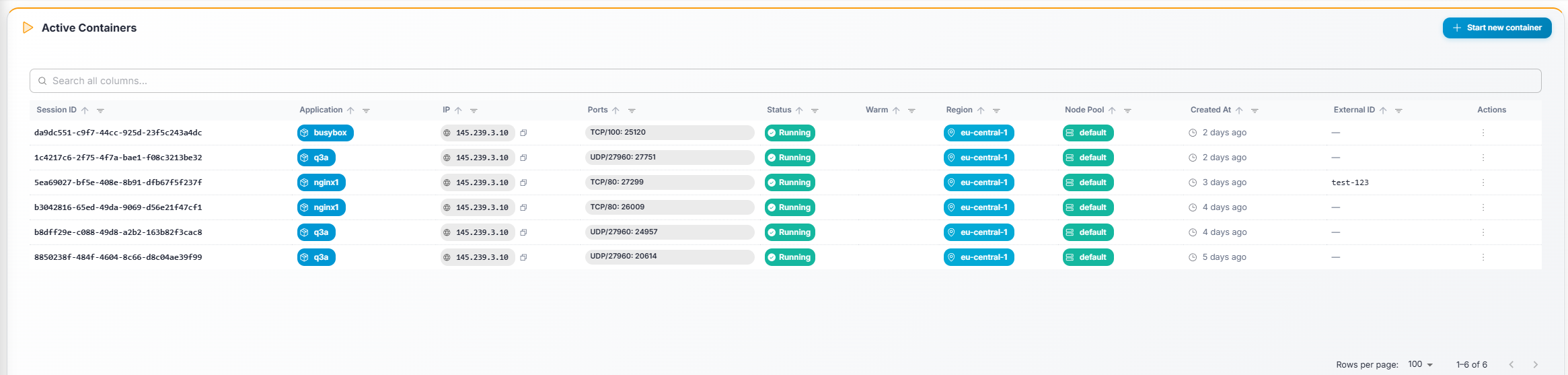
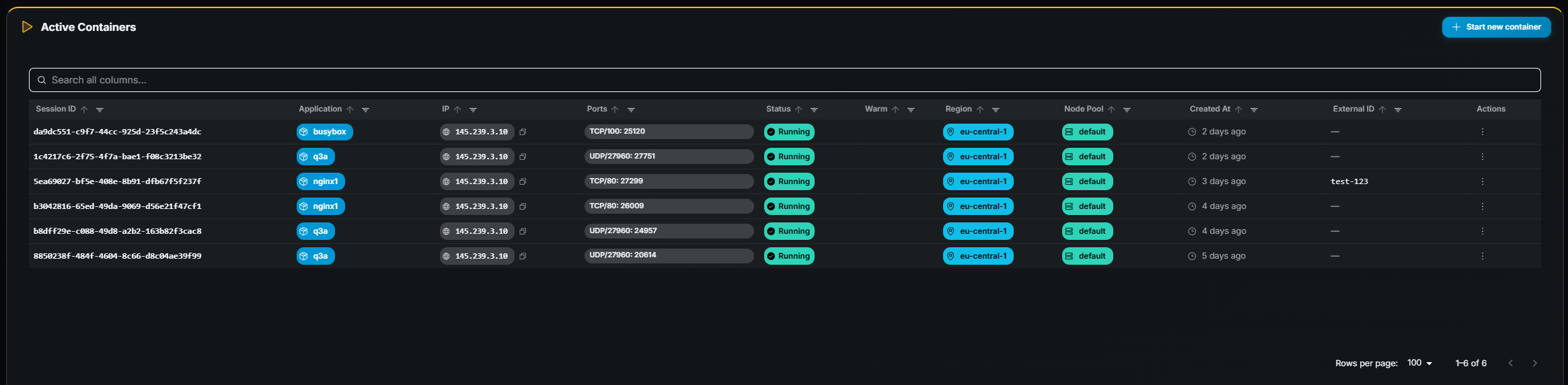 ## Table columns
| Column | Description |
|---|---|
| **Session ID** | Container name / identifier. |
| **Application** | Application the container belongs to. |
| **Hostname** | Node hostname where the container runs. |
| **IP** | Node IP address. |
| **Ports** | Mapped ports for this container. |
| **Status** | Current state — *Running* or *Starting*. |
| **Region** | Region where the container is deployed. |
| **Node Pool** | Node pool assignment. |
| **Created At** | When the container was started (relative time). |
## Starting a container
:::note
Requires container create permission. If you don't see the **Start** button,
contact your administrator.
:::
## Table columns
| Column | Description |
|---|---|
| **Session ID** | Container name / identifier. |
| **Application** | Application the container belongs to. |
| **Hostname** | Node hostname where the container runs. |
| **IP** | Node IP address. |
| **Ports** | Mapped ports for this container. |
| **Status** | Current state — *Running* or *Starting*. |
| **Region** | Region where the container is deployed. |
| **Node Pool** | Node pool assignment. |
| **Created At** | When the container was started (relative time). |
## Starting a container
:::note
Requires container create permission. If you don't see the **Start** button,
contact your administrator.
:::
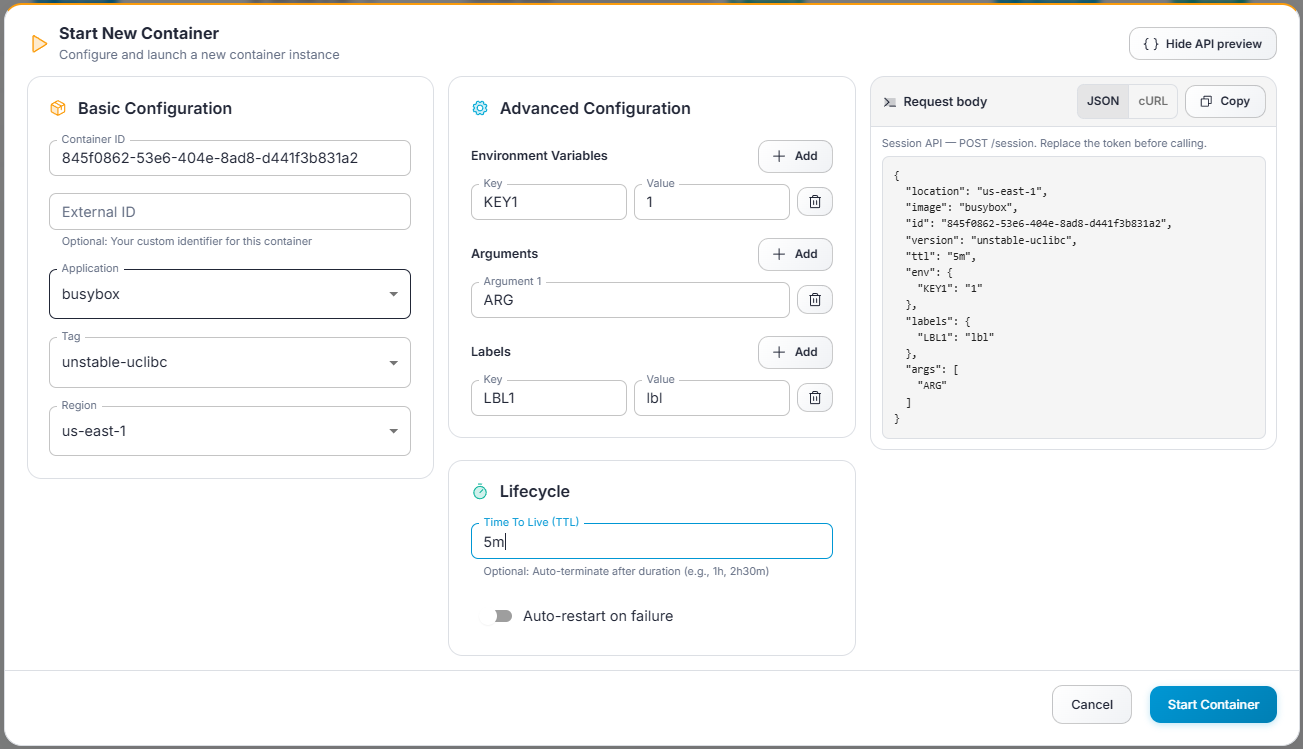
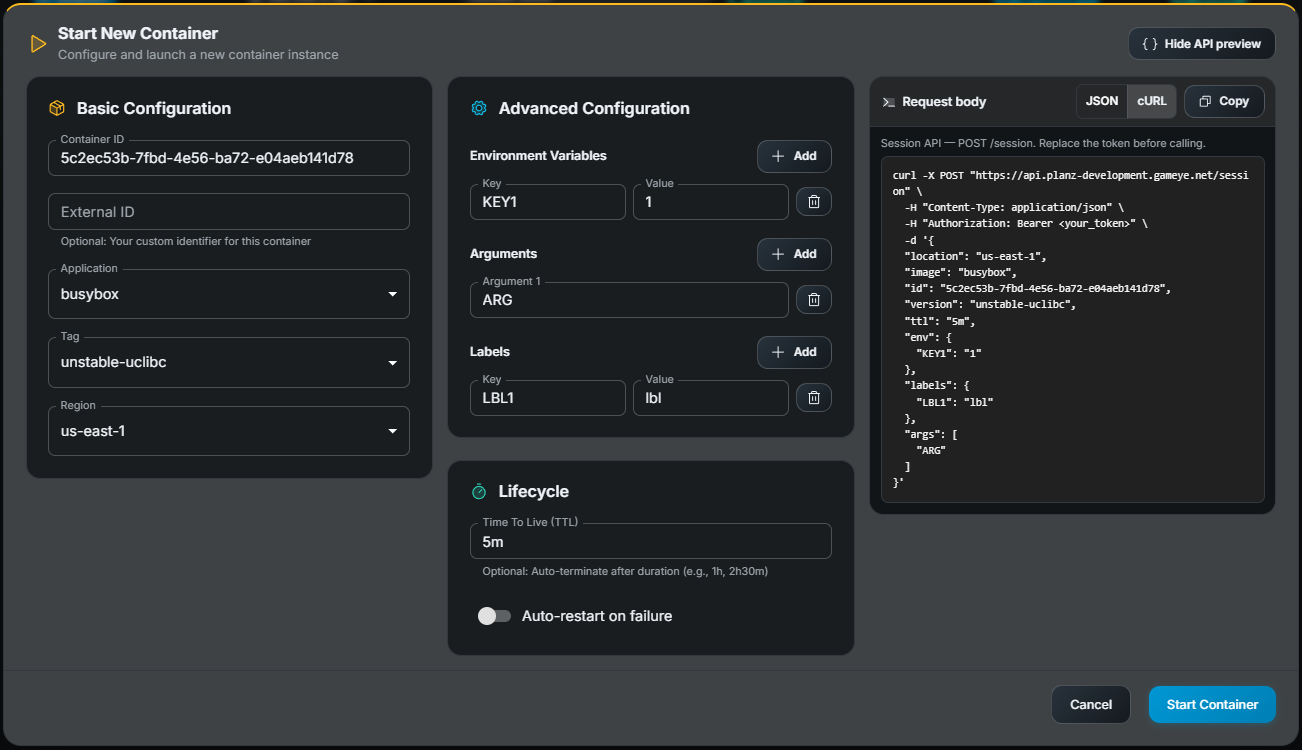 1. Click **Start** (top-right).
2. In the dialog, fill in the required fields:
- **Application** — Select the application to run.
- **Region** — Where to start the container.
- **Environment variables** *(optional)* — Key-value pairs to inject.
- **Arguments** *(optional)* — Command-line arguments.
- **Labels** *(optional)* — Key-value metadata.
3. Click **Submit**.
4. The new container appears in the table; it may show *Starting* briefly before
transitioning to *Running*.
:::note[Not appearing?]
The table refreshes periodically. Click the refresh button
or wait a few seconds. If the container still doesn't show, it may have failed
to start — check with your administrator.
:::
## Stopping a container
1. Find the container row.
2. Click **Stop** (requires stop/delete permission).
3. Confirm in the dialog.
## Opening container details
Click a row to navigate to the [Container Details](https://gameye.com/docs/admin-panel/container-details/) page.
---
# Application Details
URL: https://gameye.com/docs/admin-panel/application-details/
> Read-only overview of an application's full configuration in Gameye Admin — basic info, resources, regions, tags, port bindings, and S3 storage.
When you click **Details** (eye icon) on an application row, you open the
Application Details page. This is a read-only overview of the application's
full configuration.
1. Click **Start** (top-right).
2. In the dialog, fill in the required fields:
- **Application** — Select the application to run.
- **Region** — Where to start the container.
- **Environment variables** *(optional)* — Key-value pairs to inject.
- **Arguments** *(optional)* — Command-line arguments.
- **Labels** *(optional)* — Key-value metadata.
3. Click **Submit**.
4. The new container appears in the table; it may show *Starting* briefly before
transitioning to *Running*.
:::note[Not appearing?]
The table refreshes periodically. Click the refresh button
or wait a few seconds. If the container still doesn't show, it may have failed
to start — check with your administrator.
:::
## Stopping a container
1. Find the container row.
2. Click **Stop** (requires stop/delete permission).
3. Confirm in the dialog.
## Opening container details
Click a row to navigate to the [Container Details](https://gameye.com/docs/admin-panel/container-details/) page.
---
# Application Details
URL: https://gameye.com/docs/admin-panel/application-details/
> Read-only overview of an application's full configuration in Gameye Admin — basic info, resources, regions, tags, port bindings, and S3 storage.
When you click **Details** (eye icon) on an application row, you open the
Application Details page. This is a read-only overview of the application's
full configuration.
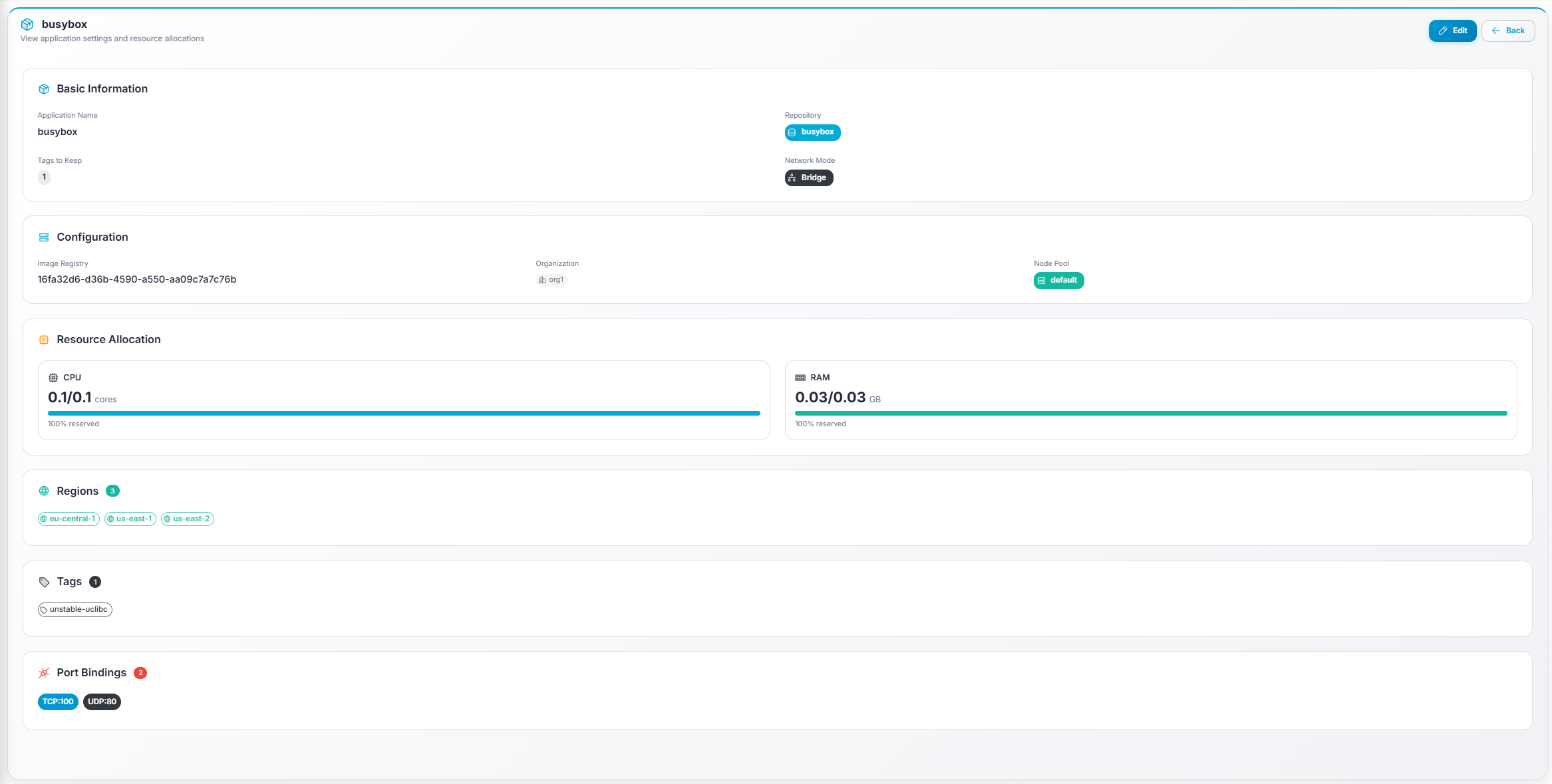
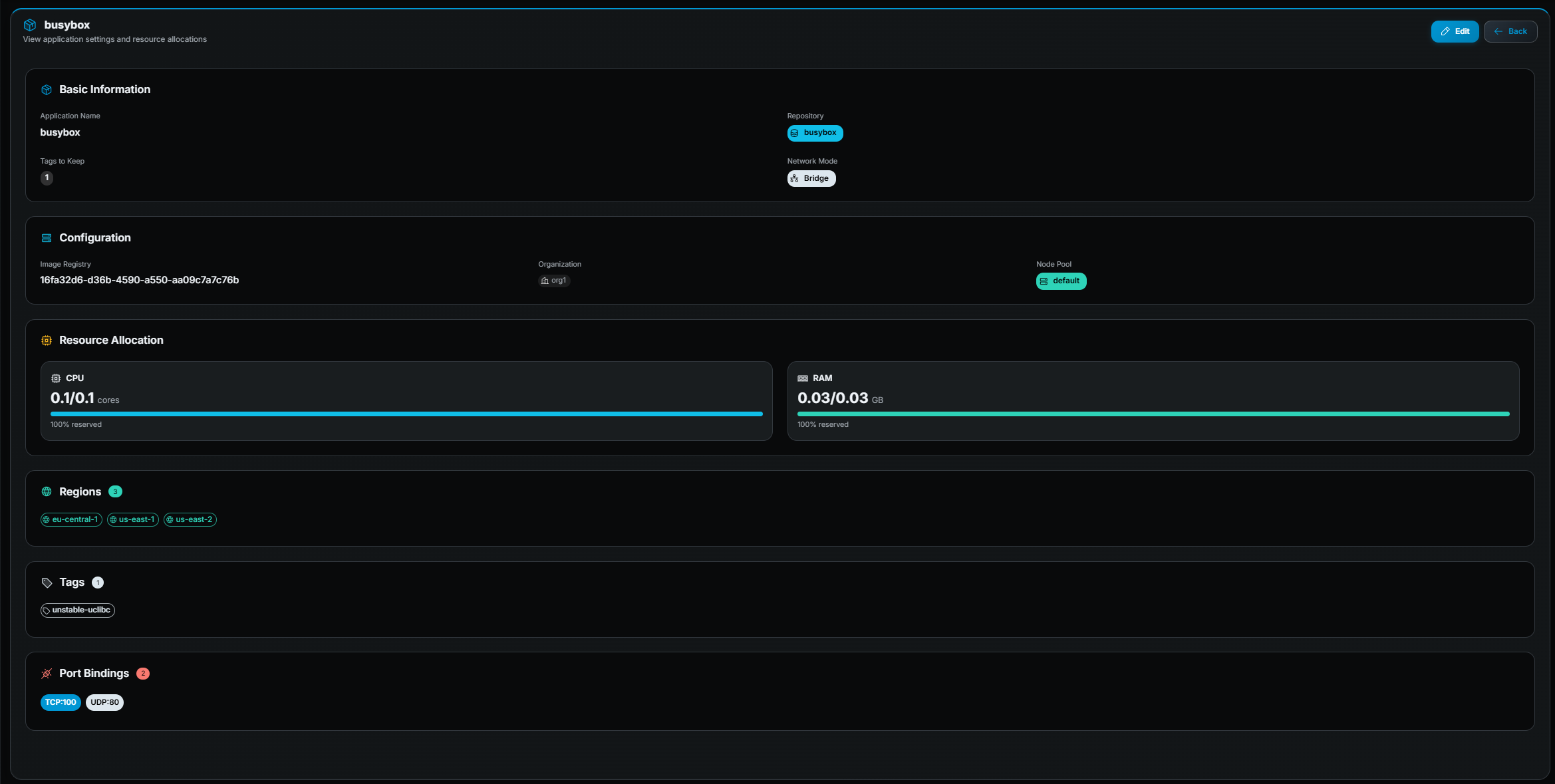 ## What you see
The page is organized into the following sections:
### Basic Information
| Field | Description |
|---|---|
| **Application Name** | The unique name of the application. |
| **Repository** | Docker Hub repository path. |
| **Tags to Keep** | How many image tags are retained on nodes. |
| **Network Mode** | `Host` or `Bridge`. |
### Configuration
| Field | Description |
|---|---|
| **Image Registry** | The configured image registry. |
| **Organization** | The organization this application belongs to. |
| **Node Pool** | The node pool assigned to this application. |
### Resource Allocation
Two cards showing CPU and RAM with:
- Reserved / Limit values (e.g. `2/4 cores`).
- A progress bar showing the reservation percentage.
### Regions
A list of region chips showing all regions assigned to the application, with a
count badge.
### Tags
A list of tag chips showing all Docker image tags currently associated with the
application, with a count badge.
### Port Bindings
A list of port chips in `PROTOCOL:PORT` format (e.g. `TCP:7777`, `UDP:7778`),
with a count badge.
### S3 log and artifact storage
Shown when your role can read S3 secrets. If no secret is attached, **S3
secret** is **None** and the other fields are empty.
| Field | Description |
|---|---|
| **S3 secret** | Name of the stored AWS credentials, or **None**. |
| **S3 bucket name** | Customer bucket session logs and artifacts are written to. |
| **S3 region** | Region of that bucket. |
| **Artifact paths** | Absolute container paths copied as artifacts. |
## Actions available
| Action | Description |
|---|---|
| **Edit** (pencil icon, top-right) | Open the edit form. Requires edit permission. |
| **Back** (arrow icon, top-right) | Return to the applications list. |
## Editing an application
1. Click **Edit** on the detail page or from the row action in the table.
2. Update any fields. All fields from the creation form are editable.
3. Click **Save**.
---
# Applications
URL: https://gameye.com/docs/admin-panel/applications/
> Browse and manage deployable application units in Gameye Admin, including repository, network mode, CPU, RAM, and exposed port configurations.
Applications represent the deployable units you run containers for. Each
application maps to a Docker image repository and defines the resource
requirements for containers.
## What you see
The page is organized into the following sections:
### Basic Information
| Field | Description |
|---|---|
| **Application Name** | The unique name of the application. |
| **Repository** | Docker Hub repository path. |
| **Tags to Keep** | How many image tags are retained on nodes. |
| **Network Mode** | `Host` or `Bridge`. |
### Configuration
| Field | Description |
|---|---|
| **Image Registry** | The configured image registry. |
| **Organization** | The organization this application belongs to. |
| **Node Pool** | The node pool assigned to this application. |
### Resource Allocation
Two cards showing CPU and RAM with:
- Reserved / Limit values (e.g. `2/4 cores`).
- A progress bar showing the reservation percentage.
### Regions
A list of region chips showing all regions assigned to the application, with a
count badge.
### Tags
A list of tag chips showing all Docker image tags currently associated with the
application, with a count badge.
### Port Bindings
A list of port chips in `PROTOCOL:PORT` format (e.g. `TCP:7777`, `UDP:7778`),
with a count badge.
### S3 log and artifact storage
Shown when your role can read S3 secrets. If no secret is attached, **S3
secret** is **None** and the other fields are empty.
| Field | Description |
|---|---|
| **S3 secret** | Name of the stored AWS credentials, or **None**. |
| **S3 bucket name** | Customer bucket session logs and artifacts are written to. |
| **S3 region** | Region of that bucket. |
| **Artifact paths** | Absolute container paths copied as artifacts. |
## Actions available
| Action | Description |
|---|---|
| **Edit** (pencil icon, top-right) | Open the edit form. Requires edit permission. |
| **Back** (arrow icon, top-right) | Return to the applications list. |
## Editing an application
1. Click **Edit** on the detail page or from the row action in the table.
2. Update any fields. All fields from the creation form are editable.
3. Click **Save**.
---
# Applications
URL: https://gameye.com/docs/admin-panel/applications/
> Browse and manage deployable application units in Gameye Admin, including repository, network mode, CPU, RAM, and exposed port configurations.
Applications represent the deployable units you run containers for. Each
application maps to a Docker image repository and defines the resource
requirements for containers.
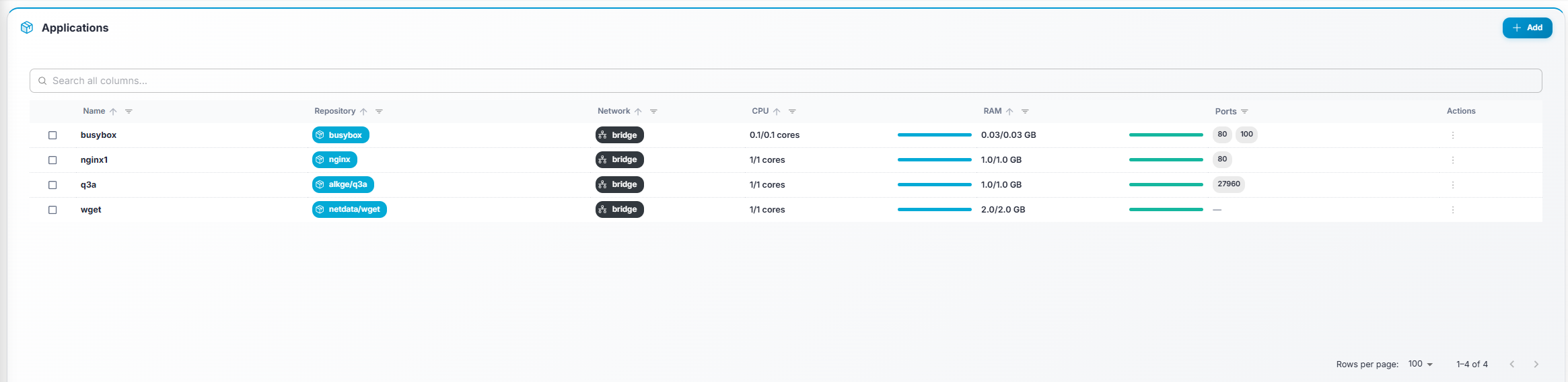
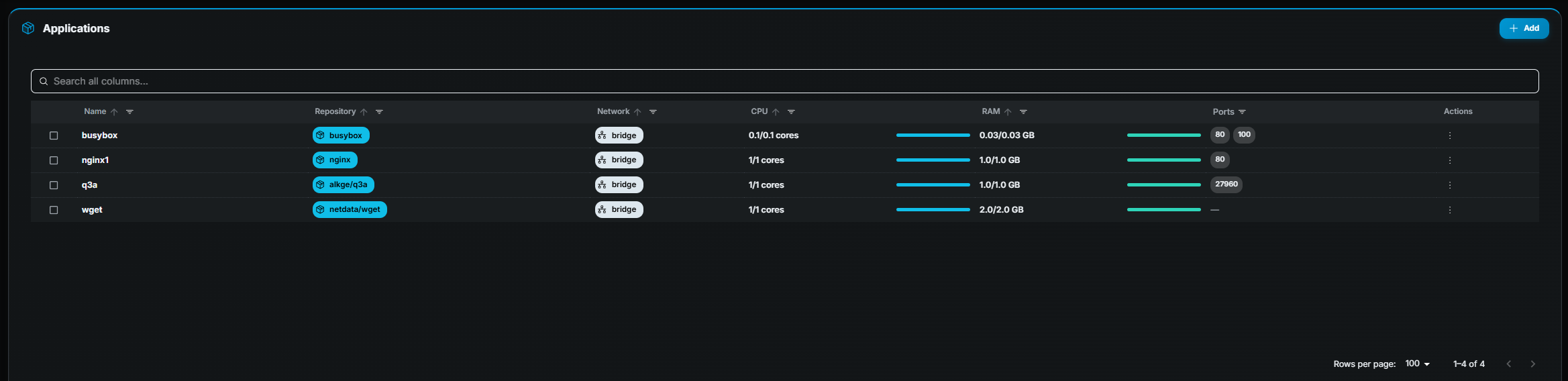 ## Table columns
| Column | Description |
|---|---|
| ☐ (checkbox) | Select one or more rows for bulk actions. |
| **Name** | Application name (bold). |
| **Repository** | Docker Hub repository URL, shown as a chip. |
| **Network** | Network mode (e.g. `host`, `bridge`). |
| **CPU** | Limit cores. |
| **RAM** | Limit in GB. |
| **Ports** | Up to four port chips; a "+N" chip if more exist. |
## Row actions
| Action | Description |
|---|---|
| **Details** (eye icon) | Open the [Application Details](https://gameye.com/docs/admin-panel/application-details/) page. Requires read permission. |
| **Edit** (pencil icon) | Open the edit form. Requires edit permission. |
| **Clone** (copy icon) | Create a new application pre-filled with this application's settings. Requires create permission. |
| **Delete** (trash icon) | Remove the application and its tags. Requires delete permission. A confirmation dialog appears. |
## Bulk actions
Select one or more applications using checkboxes. A toolbar appears at the top:
- **Mass Edit** — Opens a dialog where you can update shared fields (regions,
node pool, CPU, RAM, network mode, port bindings, registry, tags-to-keep) for
all selected applications at once. A confirmation step shows the changes before
applying. Mass edit does not change S3 log and artifact storage.
- **Update Tags** — Fetches the latest available Docker image tag for each
selected application and shows a comparison table (current tag → latest tag).
Click **Update Tags** to pull the newest tag for all applications that have an
update available.
## Creating an application
:::note
If you don't see the **Add** button, your role does not include application
create permission. Contact your administrator.
:::
1. Click **Add** (top-right).
2. Fill in the form fields:
- **Name** — Unique name for the application.
- **Repository** — Docker Hub repository (e.g. `mygame/server`).
- **Tags to keep** — How many image tags to retain (recommended: 2).
- **Network mode** — `host` or `bridge`.
- **Node pool** — Which pool of nodes this application should run on.
- **Regions** — One or more regions where containers may be started.
- **Port bindings** — Add ports with protocol (TCP/UDP) and container port.
- **CPU / RAM** — Limit values.
- **S3 log and artifact storage** — Optional. See below.
3. Click **Save**.
### S3 log and artifact storage
:::note
This section is hidden if your role cannot read S3 secrets. If you can create
or edit applications, that access is normally included.
:::
Use this section to write session logs, and selected files from the container,
to a bucket you own. Create the credentials first on
[S3 Secrets](https://gameye.com/docs/admin-panel/s3-secrets/).
- **S3 secret** — Credentials for your organization. Leave it empty to disable
storage. The secret must belong to the same organization as the application.
- **S3 bucket name** — Required when a secret is selected.
- **S3 region** — Required when a secret is selected (for example
`eu-central-1`).
- **Artifact paths** — Absolute paths inside the container to copy as
artifacts, such as `/var/game/artifacts`. Paths must be unique and at most
1024 characters. You can add up to 2 paths. Super-admins are not limited. If
an application already has more than 2, you can edit or remove them, but you
cannot add beyond the current count.
Clear the S3 secret and save to stop writing logs and artifacts for that
application.
:::caution[Billing Impact Warning]
**Changing CPU or RAM values has a direct impact on billing.**
Any modification to resource allocation will immediately affect your costs.
Before saving changes, make sure you fully understand the financial implications.
:::
---
# Common Screen Patterns
URL: https://gameye.com/docs/admin-panel/common-screen-patterns/
> UI patterns shared across Gameye Admin: tables, forms, confirmation dialogs, and the date range picker.
These UI patterns are shared across most pages.
## Tables
| Feature | How to use |
|---|---|
| **Search** | Type in the search field above the table. Results filter server-side as you type. |
| **Sort** | Click a sortable column header. Click again to toggle ascending ↔ descending. |
| **Pagination** | Use the page controls below the table to navigate. |
| **Rows per page** | Change the dropdown to show more or fewer rows. |
| **Row actions** | Hover a row to reveal an actions menu (e.g. Details, Edit, Clone, Delete). |
| **Checkbox selection** | Some tables allow selecting rows via checkboxes. A toolbar appears with bulk actions. |
## Forms (Create / Edit)
- **Required fields** show a validation error if left empty on save.
- **Save / Submit** persists the change; **Cancel / Back** discards it.
- Forms that include **port bindings** let you add multiple ports with a
protocol (TCP / UDP) and container port number.
## Confirmation dialogs
Destructive actions (**Delete**, **Stop**) always show a confirmation dialog
before proceeding. Read the message carefully — some deletions cascade (e.g.
deleting an application also removes its tags).
## Date range picker
The **date range picker** appears on the Dashboard and Container Details pages. It
controls the time range for charts, metrics, and logs.
| Feature | Description |
|---|---|
| **Quick presets** | Common ranges such as *Last 15 minutes*, *Last 1 hour*, *Last 24 hours*, *Last 7 days*. |
| **Relative dates** | Define a range relative to "now", e.g. `now-6h` to `now`. |
| **Absolute dates** | Pick exact start and end timestamps from a calendar. |
| **Auto-refresh** | Set an interval (e.g. every 30 s) to automatically refresh data. A spinner appears while refreshing. |
| **Manual refresh** | Click the refresh button next to the date picker. |
---
# Container Details
URL: https://gameye.com/docs/admin-panel/container-details/
> Deep-dive into a single container in Gameye Admin — info panel, live metrics (CPU, memory, network, disk), and real-time logs with ANSI color support.
The Container Details page gives a deep view into a single container — whether
it is currently running or has already finished. The page has three sections,
each reachable via jump-chips in the sticky header: **Info**, **Metrics**, and
**Logs**.
## Sticky header
- **Back button** — Returns to the previous page.
- **Status chip** — Shows *Running* (green) or *Finished* (grey).
- **Container name** (and external ID if available).
- **Section chips** — Click **Info**, **Metrics**, or **Logs** to scroll to that
section.
- **Date range picker** — Controls the time range for metrics and logs. Defaults
to the container's start time → now (if running) or start → finish (if
finished). A special *"Container start → Container end"* preset is available.
## Info panel
## Table columns
| Column | Description |
|---|---|
| ☐ (checkbox) | Select one or more rows for bulk actions. |
| **Name** | Application name (bold). |
| **Repository** | Docker Hub repository URL, shown as a chip. |
| **Network** | Network mode (e.g. `host`, `bridge`). |
| **CPU** | Limit cores. |
| **RAM** | Limit in GB. |
| **Ports** | Up to four port chips; a "+N" chip if more exist. |
## Row actions
| Action | Description |
|---|---|
| **Details** (eye icon) | Open the [Application Details](https://gameye.com/docs/admin-panel/application-details/) page. Requires read permission. |
| **Edit** (pencil icon) | Open the edit form. Requires edit permission. |
| **Clone** (copy icon) | Create a new application pre-filled with this application's settings. Requires create permission. |
| **Delete** (trash icon) | Remove the application and its tags. Requires delete permission. A confirmation dialog appears. |
## Bulk actions
Select one or more applications using checkboxes. A toolbar appears at the top:
- **Mass Edit** — Opens a dialog where you can update shared fields (regions,
node pool, CPU, RAM, network mode, port bindings, registry, tags-to-keep) for
all selected applications at once. A confirmation step shows the changes before
applying. Mass edit does not change S3 log and artifact storage.
- **Update Tags** — Fetches the latest available Docker image tag for each
selected application and shows a comparison table (current tag → latest tag).
Click **Update Tags** to pull the newest tag for all applications that have an
update available.
## Creating an application
:::note
If you don't see the **Add** button, your role does not include application
create permission. Contact your administrator.
:::
1. Click **Add** (top-right).
2. Fill in the form fields:
- **Name** — Unique name for the application.
- **Repository** — Docker Hub repository (e.g. `mygame/server`).
- **Tags to keep** — How many image tags to retain (recommended: 2).
- **Network mode** — `host` or `bridge`.
- **Node pool** — Which pool of nodes this application should run on.
- **Regions** — One or more regions where containers may be started.
- **Port bindings** — Add ports with protocol (TCP/UDP) and container port.
- **CPU / RAM** — Limit values.
- **S3 log and artifact storage** — Optional. See below.
3. Click **Save**.
### S3 log and artifact storage
:::note
This section is hidden if your role cannot read S3 secrets. If you can create
or edit applications, that access is normally included.
:::
Use this section to write session logs, and selected files from the container,
to a bucket you own. Create the credentials first on
[S3 Secrets](https://gameye.com/docs/admin-panel/s3-secrets/).
- **S3 secret** — Credentials for your organization. Leave it empty to disable
storage. The secret must belong to the same organization as the application.
- **S3 bucket name** — Required when a secret is selected.
- **S3 region** — Required when a secret is selected (for example
`eu-central-1`).
- **Artifact paths** — Absolute paths inside the container to copy as
artifacts, such as `/var/game/artifacts`. Paths must be unique and at most
1024 characters. You can add up to 2 paths. Super-admins are not limited. If
an application already has more than 2, you can edit or remove them, but you
cannot add beyond the current count.
Clear the S3 secret and save to stop writing logs and artifacts for that
application.
:::caution[Billing Impact Warning]
**Changing CPU or RAM values has a direct impact on billing.**
Any modification to resource allocation will immediately affect your costs.
Before saving changes, make sure you fully understand the financial implications.
:::
---
# Common Screen Patterns
URL: https://gameye.com/docs/admin-panel/common-screen-patterns/
> UI patterns shared across Gameye Admin: tables, forms, confirmation dialogs, and the date range picker.
These UI patterns are shared across most pages.
## Tables
| Feature | How to use |
|---|---|
| **Search** | Type in the search field above the table. Results filter server-side as you type. |
| **Sort** | Click a sortable column header. Click again to toggle ascending ↔ descending. |
| **Pagination** | Use the page controls below the table to navigate. |
| **Rows per page** | Change the dropdown to show more or fewer rows. |
| **Row actions** | Hover a row to reveal an actions menu (e.g. Details, Edit, Clone, Delete). |
| **Checkbox selection** | Some tables allow selecting rows via checkboxes. A toolbar appears with bulk actions. |
## Forms (Create / Edit)
- **Required fields** show a validation error if left empty on save.
- **Save / Submit** persists the change; **Cancel / Back** discards it.
- Forms that include **port bindings** let you add multiple ports with a
protocol (TCP / UDP) and container port number.
## Confirmation dialogs
Destructive actions (**Delete**, **Stop**) always show a confirmation dialog
before proceeding. Read the message carefully — some deletions cascade (e.g.
deleting an application also removes its tags).
## Date range picker
The **date range picker** appears on the Dashboard and Container Details pages. It
controls the time range for charts, metrics, and logs.
| Feature | Description |
|---|---|
| **Quick presets** | Common ranges such as *Last 15 minutes*, *Last 1 hour*, *Last 24 hours*, *Last 7 days*. |
| **Relative dates** | Define a range relative to "now", e.g. `now-6h` to `now`. |
| **Absolute dates** | Pick exact start and end timestamps from a calendar. |
| **Auto-refresh** | Set an interval (e.g. every 30 s) to automatically refresh data. A spinner appears while refreshing. |
| **Manual refresh** | Click the refresh button next to the date picker. |
---
# Container Details
URL: https://gameye.com/docs/admin-panel/container-details/
> Deep-dive into a single container in Gameye Admin — info panel, live metrics (CPU, memory, network, disk), and real-time logs with ANSI color support.
The Container Details page gives a deep view into a single container — whether
it is currently running or has already finished. The page has three sections,
each reachable via jump-chips in the sticky header: **Info**, **Metrics**, and
**Logs**.
## Sticky header
- **Back button** — Returns to the previous page.
- **Status chip** — Shows *Running* (green) or *Finished* (grey).
- **Container name** (and external ID if available).
- **Section chips** — Click **Info**, **Metrics**, or **Logs** to scroll to that
section.
- **Date range picker** — Controls the time range for metrics and logs. Defaults
to the container's start time → now (if running) or start → finish (if
finished). A special *"Container start → Container end"* preset is available.
## Info panel

 Displays key metadata in a grid:
| Field | Description |
|---|---|
| Status | Running / Finished. |
| Application | Application name. |
| Organization | Owning organization. |
| Region | Where the container is running. |
| Hostname | Node hostname. |
| IP Address | Node IP. |
| Tag | Docker image tag in use. |
| Node Pool | Pool assignment. |
| Started At | Start timestamp. |
| Finished At | End timestamp (only shown if the container has finished). |
| CPU Cores | Allocated CPU. |
| Memory | Allocated RAM. |
| External ID | External reference (if applicable). |
| Ports | Mapped port list. |
## Metrics
Displays key metadata in a grid:
| Field | Description |
|---|---|
| Status | Running / Finished. |
| Application | Application name. |
| Organization | Owning organization. |
| Region | Where the container is running. |
| Hostname | Node hostname. |
| IP Address | Node IP. |
| Tag | Docker image tag in use. |
| Node Pool | Pool assignment. |
| Started At | Start timestamp. |
| Finished At | End timestamp (only shown if the container has finished). |
| CPU Cores | Allocated CPU. |
| Memory | Allocated RAM. |
| External ID | External reference (if applicable). |
| Ports | Mapped port list. |
## Metrics
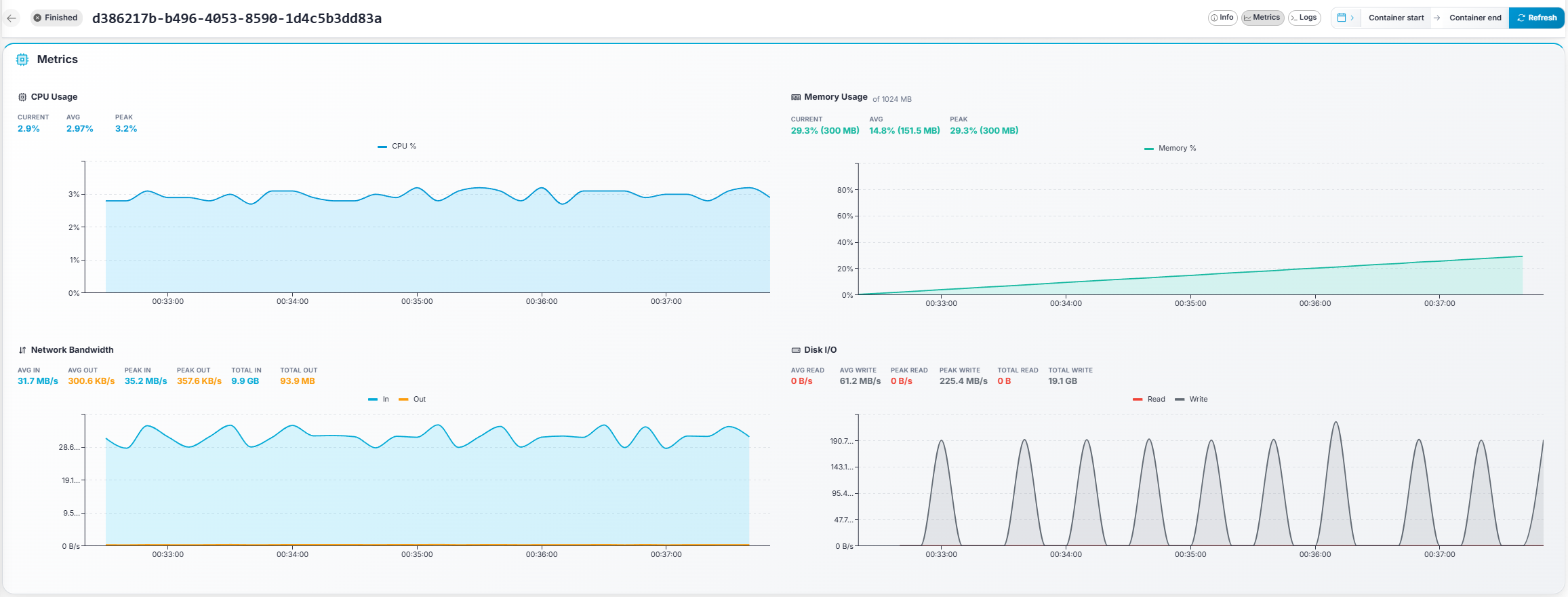
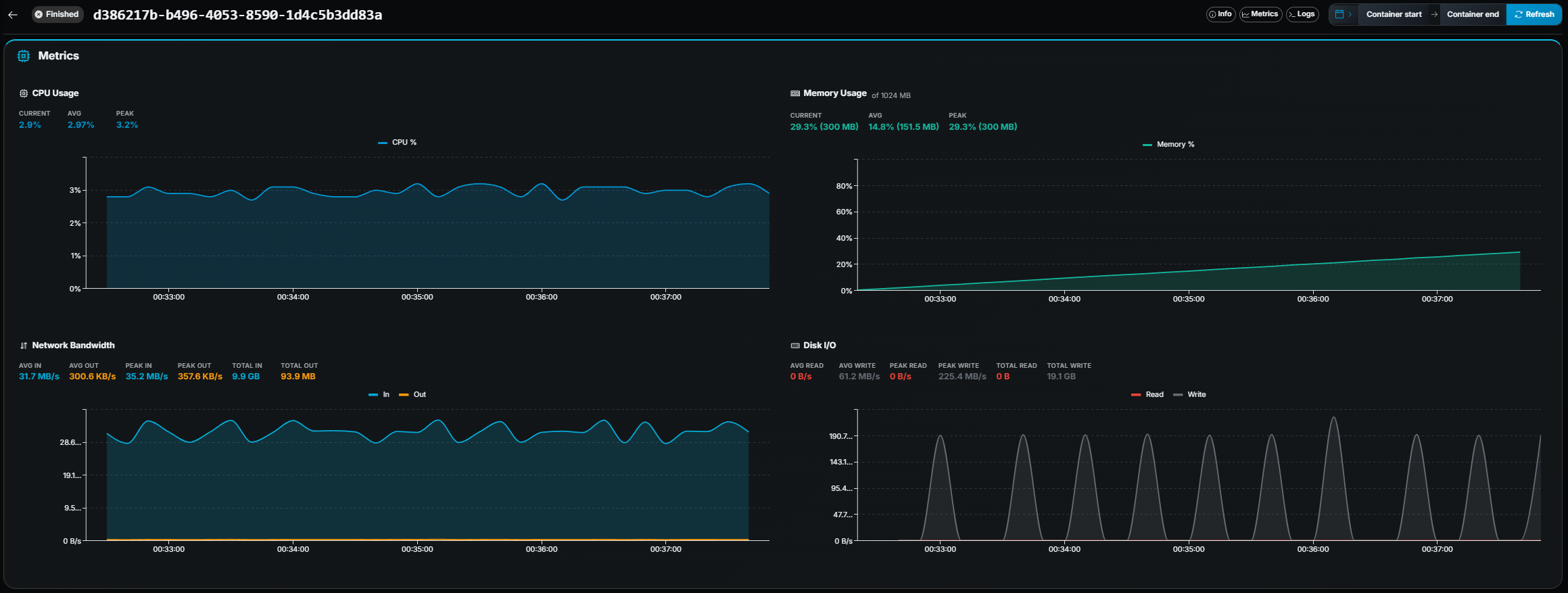 Four interactive line charts with summary statistics:
| Chart | Metrics shown |
|---|---|
| **CPU Usage** | CPU %, with Current / Avg / Peak stats. |
| **Memory Usage** | Memory %, with Current / Avg / Peak stats (and MB values when available). Shows the limit if a memory cap is set. |
| **Network Bandwidth** | In / Out bytes/s, with Avg / Peak / Total for each direction. |
| **Disk I/O** | Read / Write bytes/s, with Avg / Peak / Total for each direction. |
**Brush-to-zoom:** Click and drag on any chart to zoom into a time range. The
date range picker updates automatically.
## Logs
Four interactive line charts with summary statistics:
| Chart | Metrics shown |
|---|---|
| **CPU Usage** | CPU %, with Current / Avg / Peak stats. |
| **Memory Usage** | Memory %, with Current / Avg / Peak stats (and MB values when available). Shows the limit if a memory cap is set. |
| **Network Bandwidth** | In / Out bytes/s, with Avg / Peak / Total for each direction. |
| **Disk I/O** | Read / Write bytes/s, with Avg / Peak / Total for each direction. |
**Brush-to-zoom:** Click and drag on any chart to zoom into a time range. The
date range picker updates automatically.
## Logs
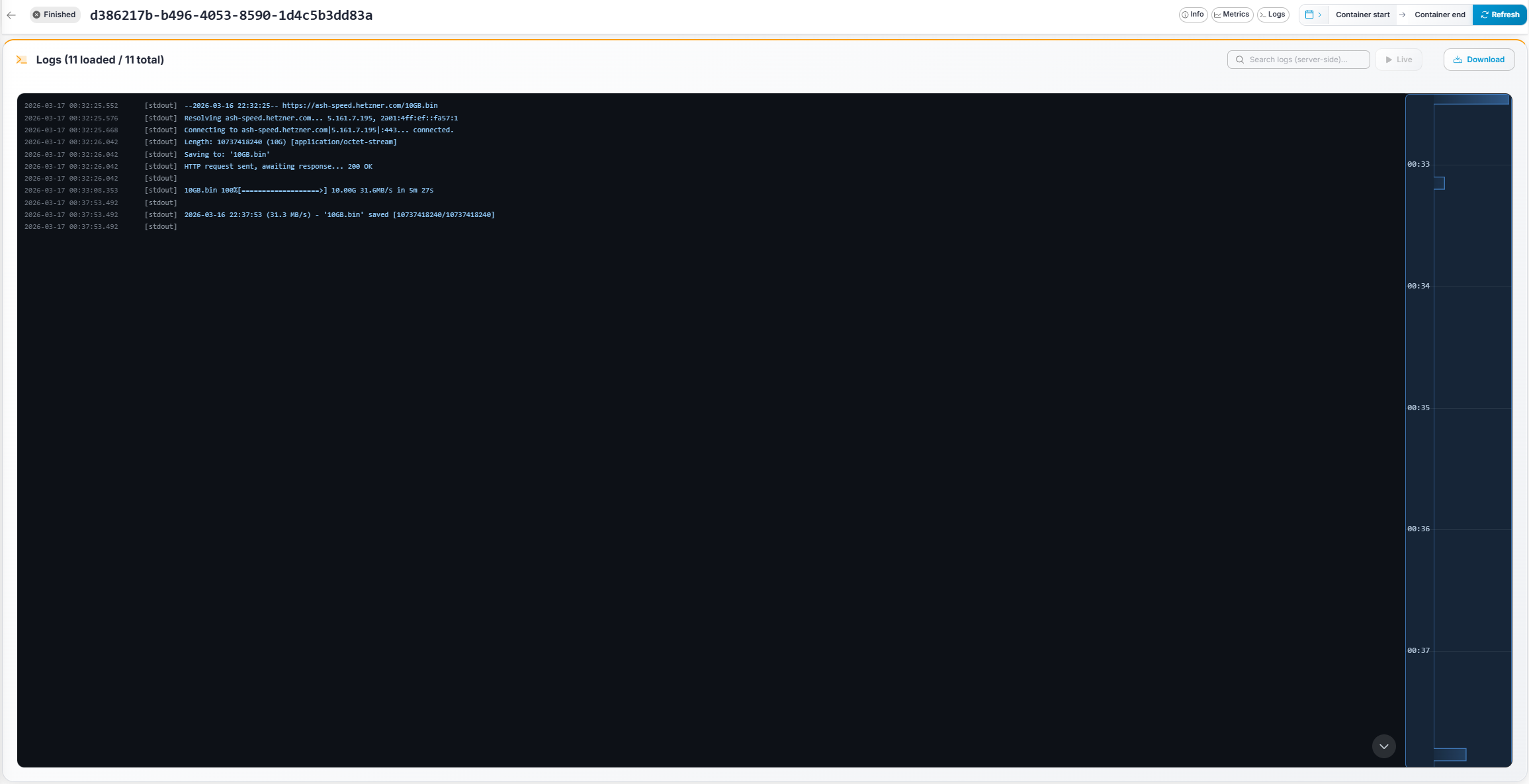
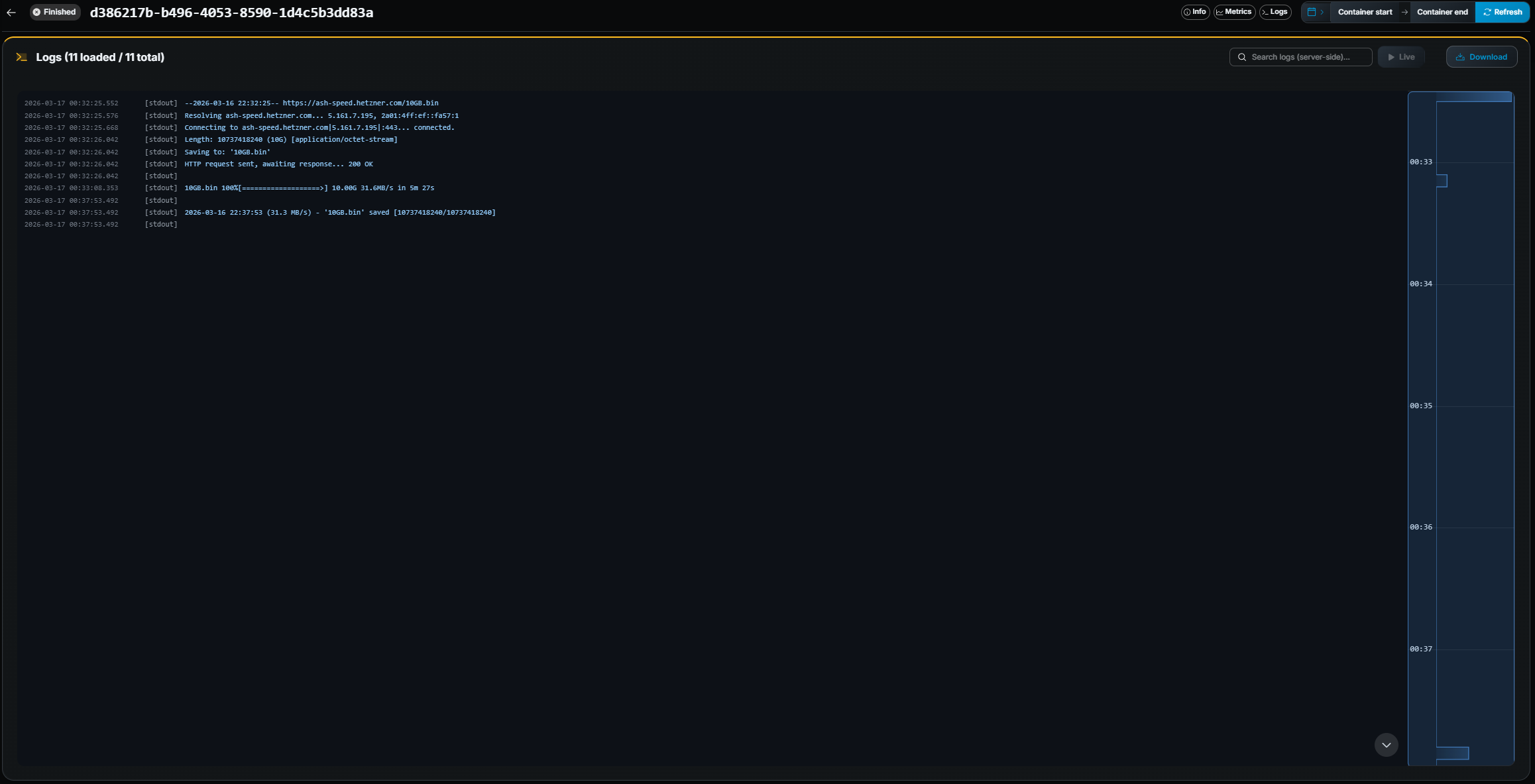 - **Server-side search** — Type a query in the search field. Matching logs are
highlighted and the total count updates.
- **ANSI color support** — Logs are rendered with full ANSI color codes, so
colored output from your game server is displayed correctly.
- **Live tail** — Click the **▶ Tail** button to stream new log lines in real
time. The log view auto-scrolls to the bottom. Click **⏸ Pause** to stop.
- **Infinite scroll** — Scroll up to load older log lines, scroll down to load
newer lines.
- **Download** — Click the **Download** button to download the full log file
(from container start to end) as a `.txt` file.
- **Log histogram minimap** — A small bar chart above the log panel shows log
density over time, giving a quick visual overview of when activity occurred.
- **New-logs notification** — If you scroll up while tailing, a notification
shows how many new lines arrived. Click it to jump to the latest.
---
# Containers History
URL: https://gameye.com/docs/admin-panel/containers-history/
> Review finished containers in Gameye Admin — session details, status, tags, and links to historical metrics and logs.
Containers History lets you review containers that have already finished.
- **Server-side search** — Type a query in the search field. Matching logs are
highlighted and the total count updates.
- **ANSI color support** — Logs are rendered with full ANSI color codes, so
colored output from your game server is displayed correctly.
- **Live tail** — Click the **▶ Tail** button to stream new log lines in real
time. The log view auto-scrolls to the bottom. Click **⏸ Pause** to stop.
- **Infinite scroll** — Scroll up to load older log lines, scroll down to load
newer lines.
- **Download** — Click the **Download** button to download the full log file
(from container start to end) as a `.txt` file.
- **Log histogram minimap** — A small bar chart above the log panel shows log
density over time, giving a quick visual overview of when activity occurred.
- **New-logs notification** — If you scroll up while tailing, a notification
shows how many new lines arrived. Click it to jump to the latest.
---
# Containers History
URL: https://gameye.com/docs/admin-panel/containers-history/
> Review finished containers in Gameye Admin — session details, status, tags, and links to historical metrics and logs.
Containers History lets you review containers that have already finished.
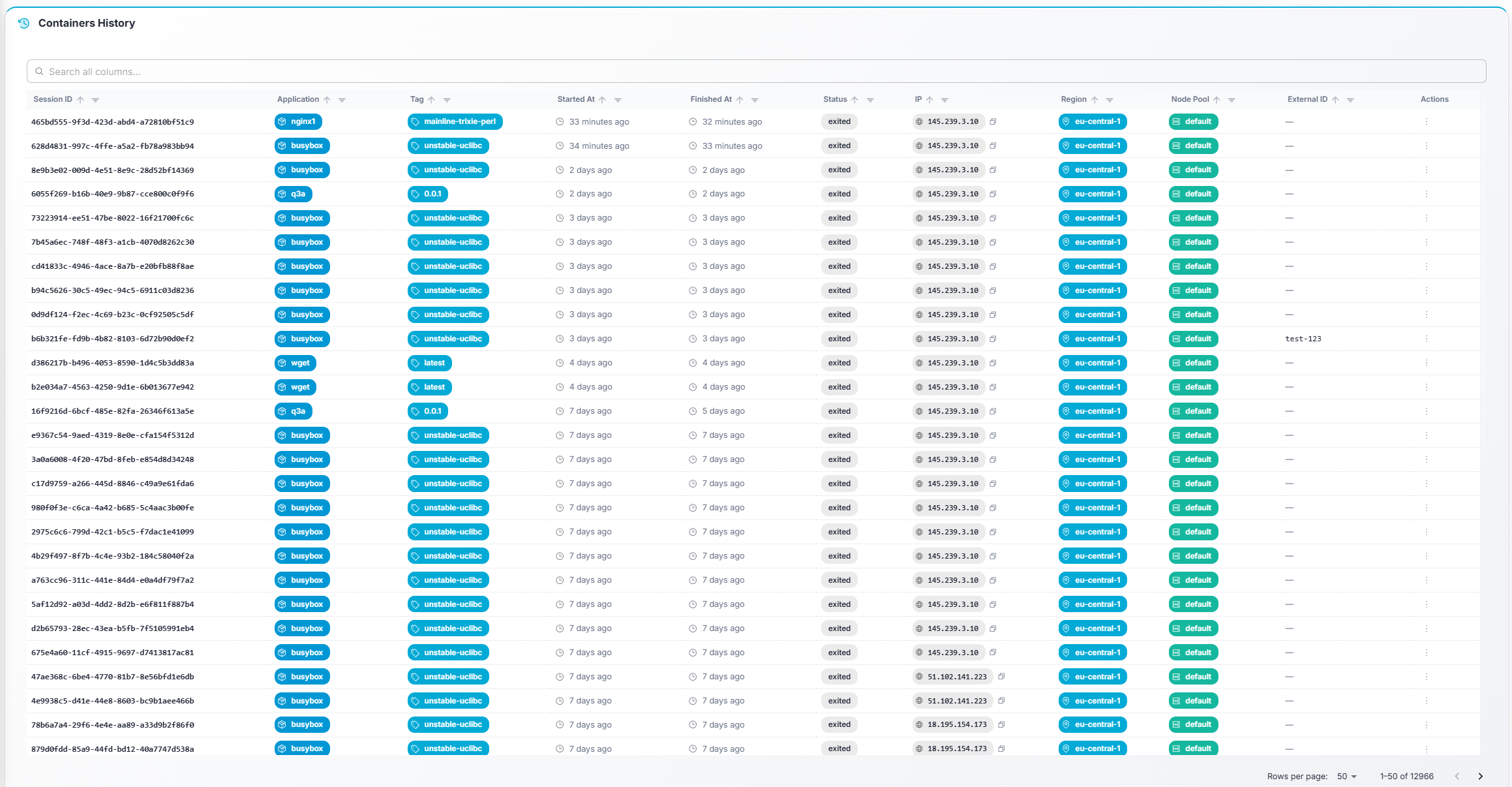
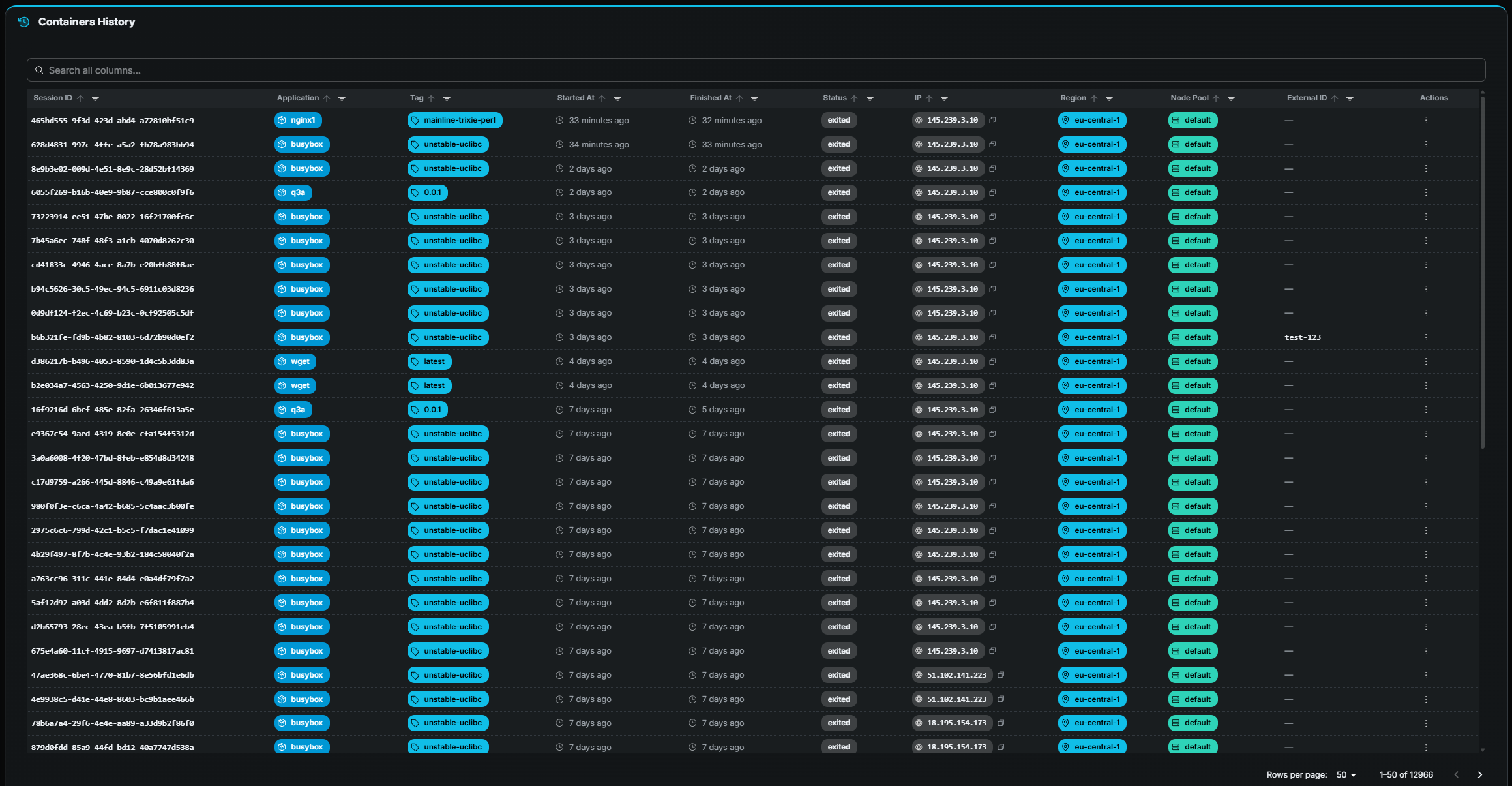 ## Table columns
| Column | Description |
|---|---|
| **Session ID** | Container name / identifier (monospace). |
| **Application** | Application the container belonged to. |
| **Tag** | Docker image tag that was used. |
| **Started At** | Start timestamp (relative time, hover for exact). |
| **Finished At** | End timestamp (relative time, hover for exact). |
| **Status** | Final state — typically *Finished*. May also show *Error* or *Crashed* if the container exited abnormally. Color-coded chips. |
| **IP** | Node IP address (copyable). |
| **Region** | Region where the container ran. |
| **Node Pool** | Node pool the container was assigned to. |
| **External ID** | External reference (if applicable). |
## Row actions
| Action | Description |
|---|---|
| **View Details** | Navigate to the [Container Details](https://gameye.com/docs/admin-panel/container-details/) page for this container, with full metrics and logs. |
| **Raw Data** | Open a modal showing the raw container data (useful for debugging). |
## Common interactions
- **Search, sort, and paginate** — Standard table interactions.
- **Click a row** — Same as **View Details**: opens the Container Details page.
---
# Dashboard
URL: https://gameye.com/docs/admin-panel/dashboard/
> The Gameye Admin Dashboard — summary metrics, filters, and container activity charts for your environment.
The Dashboard gives a high-level overview of your environment for a selected
time range.
## Table columns
| Column | Description |
|---|---|
| **Session ID** | Container name / identifier (monospace). |
| **Application** | Application the container belonged to. |
| **Tag** | Docker image tag that was used. |
| **Started At** | Start timestamp (relative time, hover for exact). |
| **Finished At** | End timestamp (relative time, hover for exact). |
| **Status** | Final state — typically *Finished*. May also show *Error* or *Crashed* if the container exited abnormally. Color-coded chips. |
| **IP** | Node IP address (copyable). |
| **Region** | Region where the container ran. |
| **Node Pool** | Node pool the container was assigned to. |
| **External ID** | External reference (if applicable). |
## Row actions
| Action | Description |
|---|---|
| **View Details** | Navigate to the [Container Details](https://gameye.com/docs/admin-panel/container-details/) page for this container, with full metrics and logs. |
| **Raw Data** | Open a modal showing the raw container data (useful for debugging). |
## Common interactions
- **Search, sort, and paginate** — Standard table interactions.
- **Click a row** — Same as **View Details**: opens the Container Details page.
---
# Dashboard
URL: https://gameye.com/docs/admin-panel/dashboard/
> The Gameye Admin Dashboard — summary metrics, filters, and container activity charts for your environment.
The Dashboard gives a high-level overview of your environment for a selected
time range.
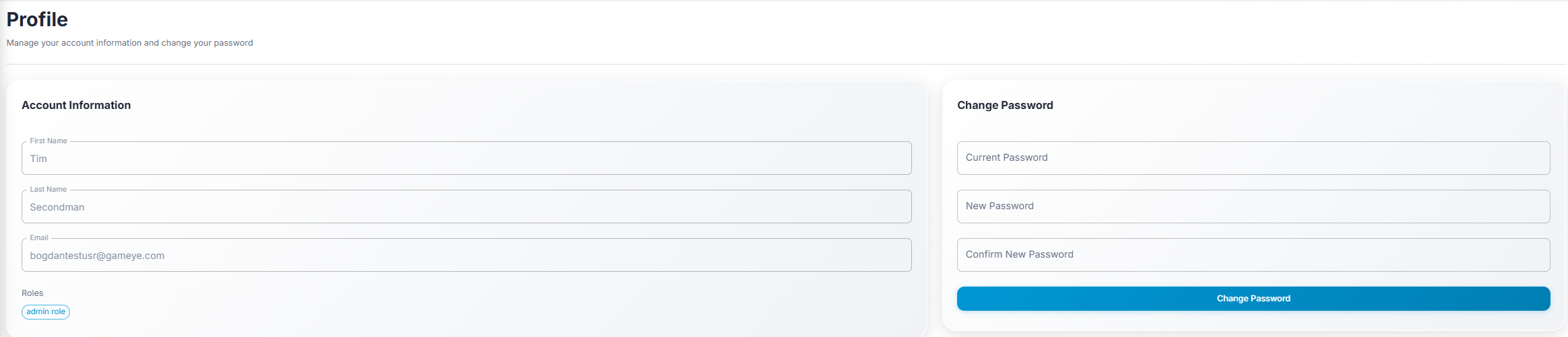
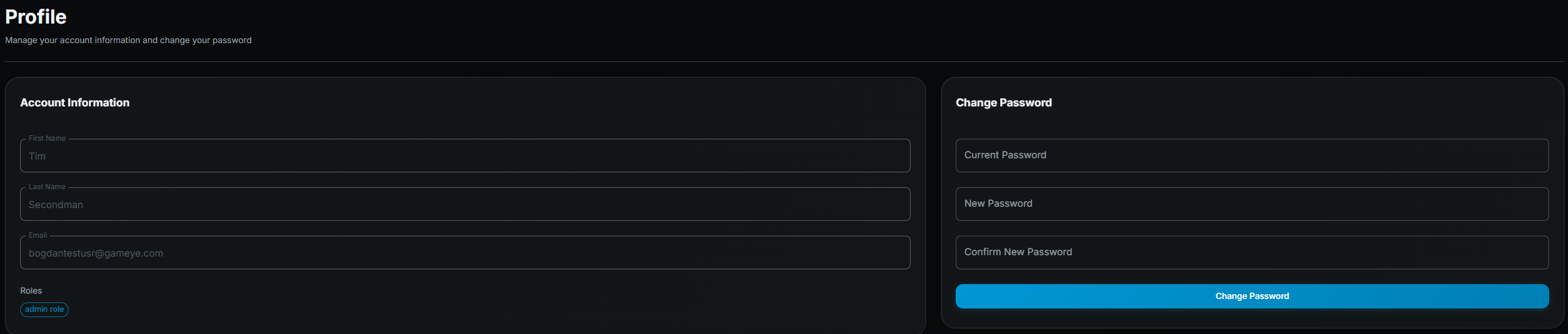 ## What you see
- **Account information** panel — Displays your name, email, organization, and
role.
- **Change password** form.
## How to change your password
1. Open **Profile** (click your name or avatar in the sidebar).
2. Enter your **current password**.
3. Enter and confirm your **new password**.
4. Click **Submit**.
---
# S3 Secrets
URL: https://gameye.com/docs/admin-panel/s3-secrets/
> Store AWS credentials in Gameye Admin and use them so session logs and selected container paths are written to your S3 bucket.
:::note
This page may not be visible if your role does not include S3 secret
permissions. It lives under **Infrastructure** in the sidebar.
:::
S3 secrets store the AWS credentials Gameye uses to write session logs, and
optional artifact files, into a bucket you own. Credentials are encrypted at
rest and are never shown again after you create the secret.
Each secret belongs to one organization. You attach it to an
[application](https://gameye.com/docs/admin-panel/applications/) together with a bucket name,
region, and the container paths to copy.
## What you see
- **Account information** panel — Displays your name, email, organization, and
role.
- **Change password** form.
## How to change your password
1. Open **Profile** (click your name or avatar in the sidebar).
2. Enter your **current password**.
3. Enter and confirm your **new password**.
4. Click **Submit**.
---
# S3 Secrets
URL: https://gameye.com/docs/admin-panel/s3-secrets/
> Store AWS credentials in Gameye Admin and use them so session logs and selected container paths are written to your S3 bucket.
:::note
This page may not be visible if your role does not include S3 secret
permissions. It lives under **Infrastructure** in the sidebar.
:::
S3 secrets store the AWS credentials Gameye uses to write session logs, and
optional artifact files, into a bucket you own. Credentials are encrypted at
rest and are never shown again after you create the secret.
Each secret belongs to one organization. You attach it to an
[application](https://gameye.com/docs/admin-panel/applications/) together with a bucket name,
region, and the container paths to copy.
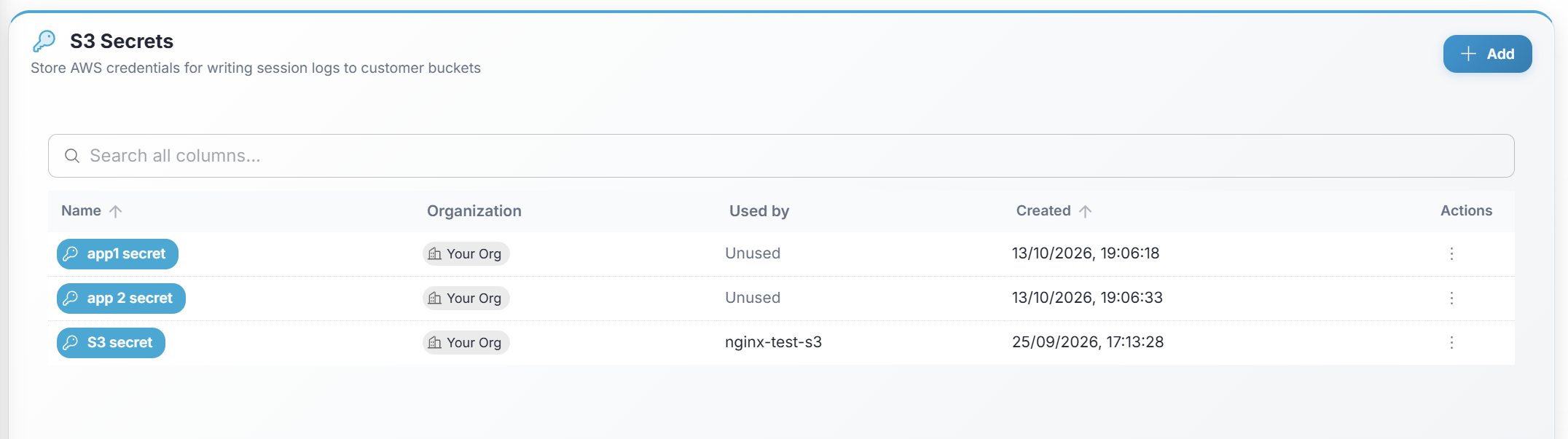
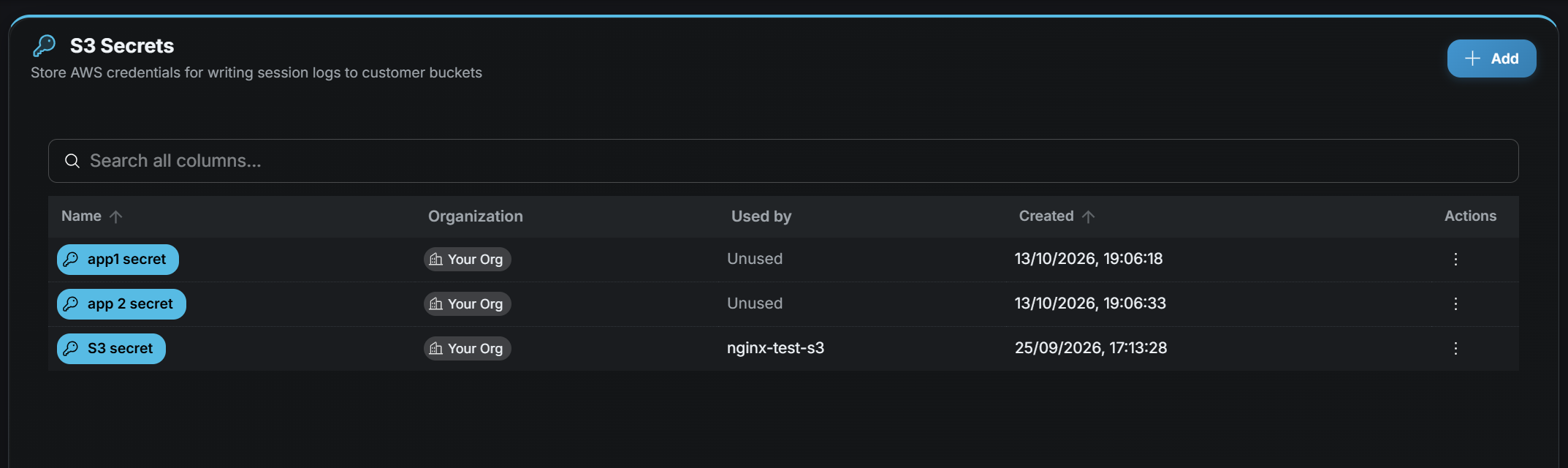 ## Table columns
Use the search bar above the table to filter secrets.
| Column | Description |
|---|---|
| **Name** | Secret name. |
| **Organization** | Organization the secret belongs to. |
| **Used by** | Applications that reference this secret, or **Unused**. |
| **Created** | When the secret was created. |
There is no edit or reveal action. To rotate a key, create a new secret, point
the application at it, then delete the old one.
## Creating a secret
:::note
If you don't see the **Add** button, your role does not include S3 secret
create permission. Contact your administrator.
:::
1. Click **Add** (top-right).
2. In the **Create S3 secret** dialog, fill in:
- **Name** — A label you will recognize when attaching the secret to an application.
- **Organization** — Locked to your organization.
- **S3 access key ID**
- **S3 secret access key**
3. Click **Create**.
The access key must be able to write objects to the bucket you will set on the
application. The key ID and secret are not displayed again.
## Deleting a secret
1. Click **Delete** (trash icon) on the secret row.
2. Confirm **Delete S3 secret**. The dialog warns that this cannot be undone.
If any application still uses the secret, deletion is blocked. The **Cannot
delete S3 secret** dialog lists those applications. Open each one, clear the
S3 secret on the application form, save, then delete the secret.
## Using a secret
Creating a secret does not copy anything by itself. On the application create
or edit form, open **S3 log and artifact storage**, pick the secret, and set
the bucket, region, and artifact paths. See
[Applications](https://gameye.com/docs/admin-panel/applications/).
---
# Tags
URL: https://gameye.com/docs/admin-panel/tags/
> View and manage Docker image tags associated with applications in Gameye Admin — grouped by application, with load status and Docker Hub integration.
Tags represent Docker image versions associated with an application. The Tags
page shows tags **grouped by application** in horizontal cards.
## Table columns
Use the search bar above the table to filter secrets.
| Column | Description |
|---|---|
| **Name** | Secret name. |
| **Organization** | Organization the secret belongs to. |
| **Used by** | Applications that reference this secret, or **Unused**. |
| **Created** | When the secret was created. |
There is no edit or reveal action. To rotate a key, create a new secret, point
the application at it, then delete the old one.
## Creating a secret
:::note
If you don't see the **Add** button, your role does not include S3 secret
create permission. Contact your administrator.
:::
1. Click **Add** (top-right).
2. In the **Create S3 secret** dialog, fill in:
- **Name** — A label you will recognize when attaching the secret to an application.
- **Organization** — Locked to your organization.
- **S3 access key ID**
- **S3 secret access key**
3. Click **Create**.
The access key must be able to write objects to the bucket you will set on the
application. The key ID and secret are not displayed again.
## Deleting a secret
1. Click **Delete** (trash icon) on the secret row.
2. Confirm **Delete S3 secret**. The dialog warns that this cannot be undone.
If any application still uses the secret, deletion is blocked. The **Cannot
delete S3 secret** dialog lists those applications. Open each one, clear the
S3 secret on the application form, save, then delete the secret.
## Using a secret
Creating a secret does not copy anything by itself. On the application create
or edit form, open **S3 log and artifact storage**, pick the secret, and set
the bucket, region, and artifact paths. See
[Applications](https://gameye.com/docs/admin-panel/applications/).
---
# Tags
URL: https://gameye.com/docs/admin-panel/tags/
> View and manage Docker image tags associated with applications in Gameye Admin — grouped by application, with load status and Docker Hub integration.
Tags represent Docker image versions associated with an application. The Tags
page shows tags **grouped by application** in horizontal cards.
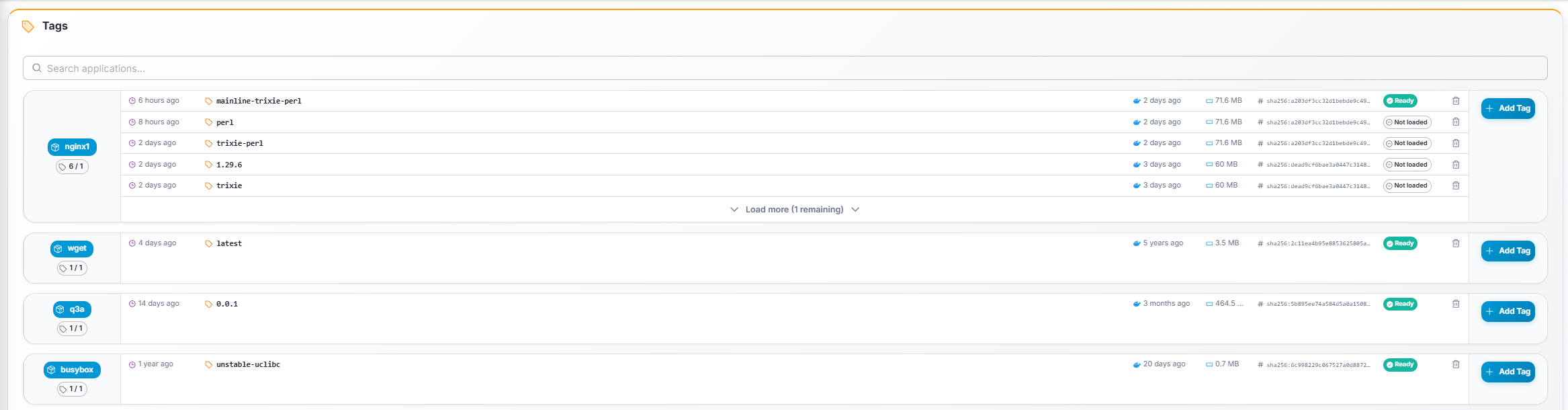
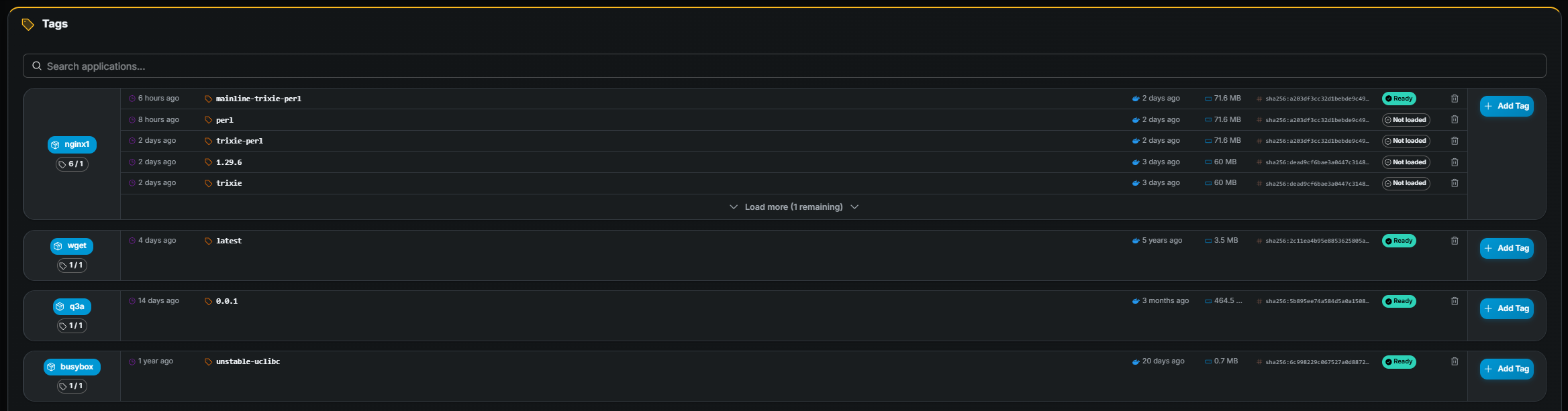 ## Search
Use the search field at the top to filter applications by name. The page
auto-refreshes every **10 seconds** so status changes (Preloading → Ready, etc.)
appear without manual reload.
## Card layout
Each application card displays:
- **Application name** chip (click to navigate to the application detail page).
- **Tag count / Tags to keep** (e.g. `3 / 5`).
- A tag table with the following columns:
| Column | Description |
|---|---|
| **Added** | When the tag was added (relative time). |
| **Version** | The image tag name (monospace). |
| **Docker Hub pushed** | When the tag was pushed to the registry. |
| **Size** | Compressed image size (MB). |
| **Digest** | Short SHA digest (hover for full value). |
| **Status** | Load state on nodes (see below). |
- **Add Tag** button (right side of the card). Requires tag create permission.
## Tag load status
| Status | Meaning |
|---|---|
| **Ready** | Image is fully downloaded on nodes and available for starting containers. |
| **Preloading** | Image is currently being pulled onto nodes. |
| **Unloading** | Image is being removed from nodes. |
| **Not loaded** | Image is registered but not yet pulled onto any node. |
## Adding a tag from Docker Hub
## Search
Use the search field at the top to filter applications by name. The page
auto-refreshes every **10 seconds** so status changes (Preloading → Ready, etc.)
appear without manual reload.
## Card layout
Each application card displays:
- **Application name** chip (click to navigate to the application detail page).
- **Tag count / Tags to keep** (e.g. `3 / 5`).
- A tag table with the following columns:
| Column | Description |
|---|---|
| **Added** | When the tag was added (relative time). |
| **Version** | The image tag name (monospace). |
| **Docker Hub pushed** | When the tag was pushed to the registry. |
| **Size** | Compressed image size (MB). |
| **Digest** | Short SHA digest (hover for full value). |
| **Status** | Load state on nodes (see below). |
- **Add Tag** button (right side of the card). Requires tag create permission.
## Tag load status
| Status | Meaning |
|---|---|
| **Ready** | Image is fully downloaded on nodes and available for starting containers. |
| **Preloading** | Image is currently being pulled onto nodes. |
| **Unloading** | Image is being removed from nodes. |
| **Not loaded** | Image is registered but not yet pulled onto any node. |
## Adding a tag from Docker Hub
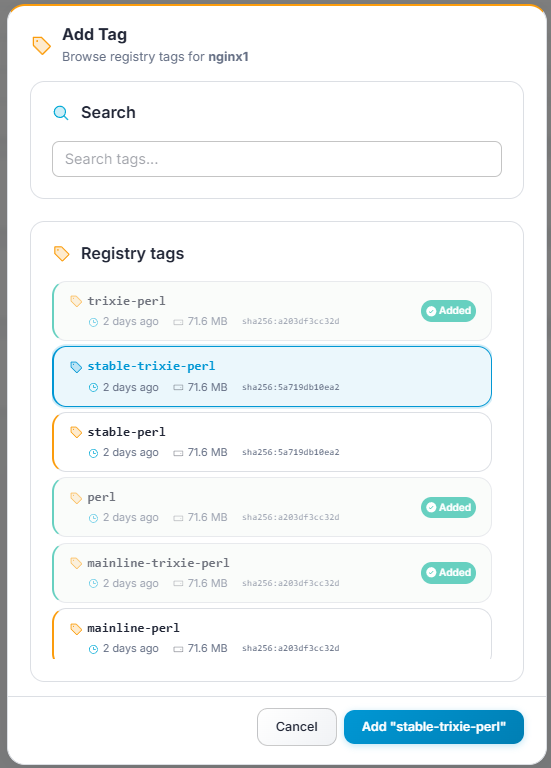
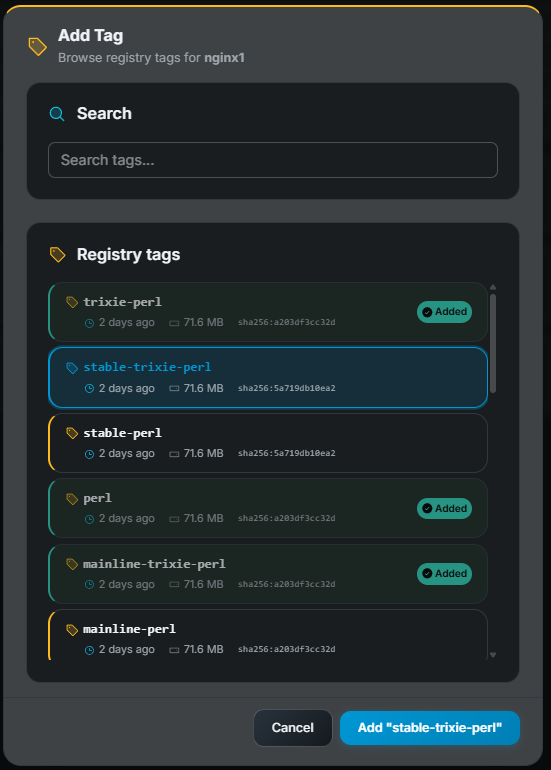 1. Click **Add Tag** on the application card (requires create permission).
2. A modal shows tags available in the Docker Hub registry for that application,
including their pushed date, size, and digest.
3. Search or scroll to find the desired tag.
4. Click to select it, then click **Confirm**.
## Deleting a tag
Click **Delete** (trash icon) on a tag row. Confirm the deletion in the dialog.
Requires tag delete permission.
---
# Troubleshooting
URL: https://gameye.com/docs/admin-panel/troubleshooting/
> Common Gameye Admin issues and how to resolve them — missing pages, hidden buttons, empty data, stuck tags, and more.
## I can't see a page in the menu
Your role does not include the required permission for that page. Menu items are
hidden (not greyed out) when you lack access. Ask your administrator to add the
missing permission to your role.
## I can't see an action button (Add / Edit / Delete / Start / Stop)
Your role grants read access but not the corresponding write permission for that
action. Ask your administrator to adjust your role.
## A page shows "No data"
- There may genuinely be no data yet (e.g. no containers have been started).
- Your organization may only have access to a subset of the data. If you belong
to a specific organization, you will only see resources linked to that
organization.
## I get an access error when opening a page
This usually means the URL requires a permission your role doesn't include.
Return to the Dashboard and use the sidebar to navigate. If the issue persists,
contact your administrator with the page URL.
## Tags are stuck in "Preloading"
Image downloads can take several minutes for large images. Wait and let the
auto-refresh (every 10 seconds) update the status. If a tag stays in
*Preloading* for an unusually long time, contact your administrator — a node may
be unreachable or the Docker Hub credentials may be misconfigured.
## Dashboard charts show "No data for this time range"
Adjust the time range using the date range picker. The default range is the last
24 hours; if no containers ran during that window, the charts will be empty. Try
*Last 7 days* or *Last 30 days*.
## A container I started doesn't appear in the table
The table refreshes periodically. Click the refresh button or wait a few
seconds. If the container still doesn't appear, it may have failed to start —
check with your administrator.
## I can't change my password
Make sure you enter your **current** password correctly. If you have forgotten
it, ask your administrator to reset it for you.
---
# Users
URL: https://gameye.com/docs/admin-panel/users/
> View and manage user accounts in Gameye Admin — create, edit, and assign roles to users within your organization.
:::note
This page may not be visible if your role does not include user
management permissions. Many normal-user roles do not have access to this page.
:::
Users are the accounts that can sign in to Gameye Admin.
1. Click **Add Tag** on the application card (requires create permission).
2. A modal shows tags available in the Docker Hub registry for that application,
including their pushed date, size, and digest.
3. Search or scroll to find the desired tag.
4. Click to select it, then click **Confirm**.
## Deleting a tag
Click **Delete** (trash icon) on a tag row. Confirm the deletion in the dialog.
Requires tag delete permission.
---
# Troubleshooting
URL: https://gameye.com/docs/admin-panel/troubleshooting/
> Common Gameye Admin issues and how to resolve them — missing pages, hidden buttons, empty data, stuck tags, and more.
## I can't see a page in the menu
Your role does not include the required permission for that page. Menu items are
hidden (not greyed out) when you lack access. Ask your administrator to add the
missing permission to your role.
## I can't see an action button (Add / Edit / Delete / Start / Stop)
Your role grants read access but not the corresponding write permission for that
action. Ask your administrator to adjust your role.
## A page shows "No data"
- There may genuinely be no data yet (e.g. no containers have been started).
- Your organization may only have access to a subset of the data. If you belong
to a specific organization, you will only see resources linked to that
organization.
## I get an access error when opening a page
This usually means the URL requires a permission your role doesn't include.
Return to the Dashboard and use the sidebar to navigate. If the issue persists,
contact your administrator with the page URL.
## Tags are stuck in "Preloading"
Image downloads can take several minutes for large images. Wait and let the
auto-refresh (every 10 seconds) update the status. If a tag stays in
*Preloading* for an unusually long time, contact your administrator — a node may
be unreachable or the Docker Hub credentials may be misconfigured.
## Dashboard charts show "No data for this time range"
Adjust the time range using the date range picker. The default range is the last
24 hours; if no containers ran during that window, the charts will be empty. Try
*Last 7 days* or *Last 30 days*.
## A container I started doesn't appear in the table
The table refreshes periodically. Click the refresh button or wait a few
seconds. If the container still doesn't appear, it may have failed to start —
check with your administrator.
## I can't change my password
Make sure you enter your **current** password correctly. If you have forgotten
it, ask your administrator to reset it for you.
---
# Users
URL: https://gameye.com/docs/admin-panel/users/
> View and manage user accounts in Gameye Admin — create, edit, and assign roles to users within your organization.
:::note
This page may not be visible if your role does not include user
management permissions. Many normal-user roles do not have access to this page.
:::
Users are the accounts that can sign in to Gameye Admin.
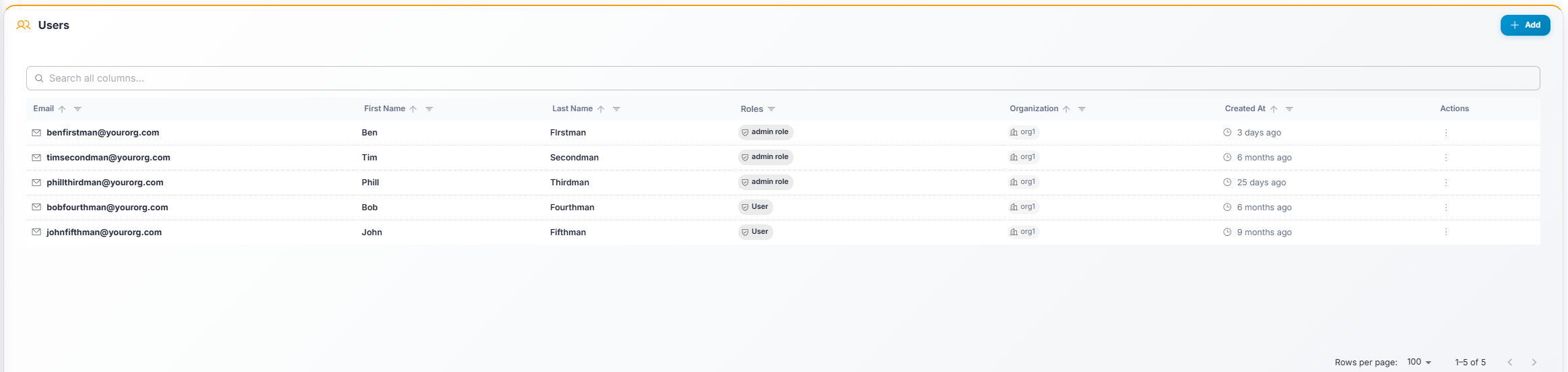
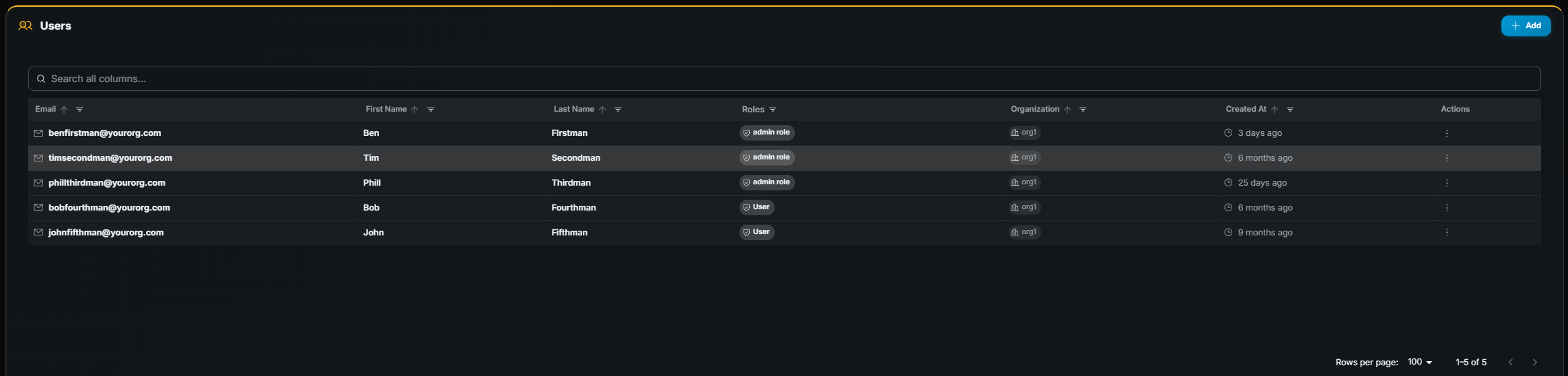 ## Table columns
Use the search bar above the table to filter by name or email.
| Column | Description |
|---|---|
| **Email** | Login email address. |
| **First Name** | User's first name. |
| **Last Name** | User's last name. |
| **Roles** | Assigned roles. |
| **Organization** | Organization the user belongs to. |
| **Created At** | Account creation date. |
| **Actions** | Row menu (⋮) with **Edit** and **Delete**. |
## Creating a user
Requires user create permission.
1. Click **+ Add** (top-right).
2. Fill in name, email, password, organization, and role.
3. Click **Save**.
## Editing a user
Requires user edit permission.
1. Open the row **Actions** menu (⋮) and choose **Edit**.
2. On the **Update User** page, change the desired fields (email, first name, last name, organization).
3. Click **Update User** to save.
## Role assignment
Each user is assigned one or more **roles**. Roles are collections of
permissions that determine what pages and actions the user can access. Contact
your administrator to understand which roles are available and what each role
grants.
## API tokens
The **Update User** page includes an **API Tokens** section below the user
details form. Use it to create and manage tokens for programmatic access to the
Gameye API. Each token can be scoped to specific permissions, giving fine-grained
control over what the token is allowed to do.
To manage API tokens, open **Users**, edit the relevant user account, then
scroll to **API Tokens** on the **Update User** page.
### Token table columns
| Column | Description |
|---|---|
| **Name** | A descriptive label you chose when creating the token. |
| **Token** | The token value (masked by default). Click the eye icon to reveal / hide it. |
| **Scopes** | Color-coded chips showing the API scopes assigned to this token. Scopes are grouped by category. |
| **Status** | **Active** (green) or **Disabled** (grey). |
| **Created** | Date the token was created. |
| **Actions** | Disable and Delete controls. |
### Creating a token
1. On the **Update User** page, scroll to the **API Tokens** section.
2. Click **+ Add Token**.
3. In the dialog:
- **Token name** — Enter a descriptive name (e.g. `ci-deploy`,
`monitoring-read-only`).
- **Scopes** — Check the scopes this token should have access to. Scopes are
organized by category; use the category checkbox to select or deselect all
scopes in a group at once.
4. Click **Create Token**.
5. The new token appears in the table. **Copy the token value immediately** — it
is displayed in full only at creation time.
:::caution[Security tip]
Treat API tokens like passwords. Do not share them in plain text or commit them
to source control. If a token is compromised, disable or delete it immediately.
:::
### Disabling / enabling a token
- Use the **disable** control in the **Actions** column on an active token to
temporarily revoke its access. The token status changes to *Disabled* and any
API calls using it will be rejected.
- Use the **enable** control on a disabled token to re-activate it.
Disabling is useful when you want to temporarily revoke access without
permanently deleting the token and losing its configuration.
### Deleting a token
Click the **delete** icon (trash) on the token row and confirm. This action is
**permanent** — the token cannot be recovered.
---
# Warm Pools
URL: https://gameye.com/docs/admin-panel/warm-pools/
> Configure warm pools in Gameye Admin — pre-start containers for instant player allocation by application and region.
Warm pools let you pre-start a fixed number of containers for a specific
application + region combination, so they are immediately available when a player
requests one.
## Table columns
Use the search bar above the table to filter by name or email.
| Column | Description |
|---|---|
| **Email** | Login email address. |
| **First Name** | User's first name. |
| **Last Name** | User's last name. |
| **Roles** | Assigned roles. |
| **Organization** | Organization the user belongs to. |
| **Created At** | Account creation date. |
| **Actions** | Row menu (⋮) with **Edit** and **Delete**. |
## Creating a user
Requires user create permission.
1. Click **+ Add** (top-right).
2. Fill in name, email, password, organization, and role.
3. Click **Save**.
## Editing a user
Requires user edit permission.
1. Open the row **Actions** menu (⋮) and choose **Edit**.
2. On the **Update User** page, change the desired fields (email, first name, last name, organization).
3. Click **Update User** to save.
## Role assignment
Each user is assigned one or more **roles**. Roles are collections of
permissions that determine what pages and actions the user can access. Contact
your administrator to understand which roles are available and what each role
grants.
## API tokens
The **Update User** page includes an **API Tokens** section below the user
details form. Use it to create and manage tokens for programmatic access to the
Gameye API. Each token can be scoped to specific permissions, giving fine-grained
control over what the token is allowed to do.
To manage API tokens, open **Users**, edit the relevant user account, then
scroll to **API Tokens** on the **Update User** page.
### Token table columns
| Column | Description |
|---|---|
| **Name** | A descriptive label you chose when creating the token. |
| **Token** | The token value (masked by default). Click the eye icon to reveal / hide it. |
| **Scopes** | Color-coded chips showing the API scopes assigned to this token. Scopes are grouped by category. |
| **Status** | **Active** (green) or **Disabled** (grey). |
| **Created** | Date the token was created. |
| **Actions** | Disable and Delete controls. |
### Creating a token
1. On the **Update User** page, scroll to the **API Tokens** section.
2. Click **+ Add Token**.
3. In the dialog:
- **Token name** — Enter a descriptive name (e.g. `ci-deploy`,
`monitoring-read-only`).
- **Scopes** — Check the scopes this token should have access to. Scopes are
organized by category; use the category checkbox to select or deselect all
scopes in a group at once.
4. Click **Create Token**.
5. The new token appears in the table. **Copy the token value immediately** — it
is displayed in full only at creation time.
:::caution[Security tip]
Treat API tokens like passwords. Do not share them in plain text or commit them
to source control. If a token is compromised, disable or delete it immediately.
:::
### Disabling / enabling a token
- Use the **disable** control in the **Actions** column on an active token to
temporarily revoke its access. The token status changes to *Disabled* and any
API calls using it will be rejected.
- Use the **enable** control on a disabled token to re-activate it.
Disabling is useful when you want to temporarily revoke access without
permanently deleting the token and losing its configuration.
### Deleting a token
Click the **delete** icon (trash) on the token row and confirm. This action is
**permanent** — the token cannot be recovered.
---
# Warm Pools
URL: https://gameye.com/docs/admin-panel/warm-pools/
> Configure warm pools in Gameye Admin — pre-start containers for instant player allocation by application and region.
Warm pools let you pre-start a fixed number of containers for a specific
application + region combination, so they are immediately available when a player
requests one.
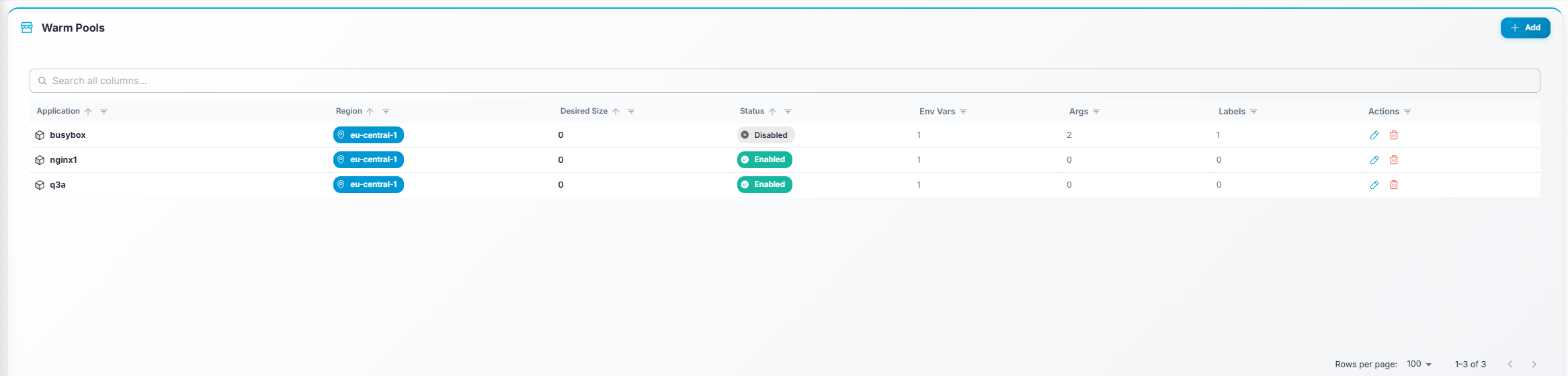
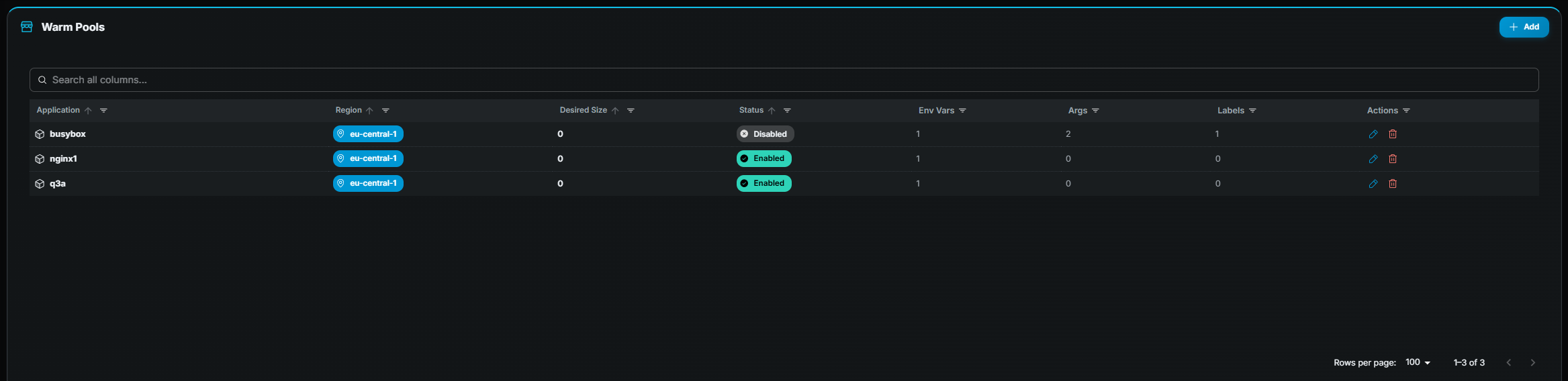 ## Table columns
| Column | Description |
|---|---|
| **Application** | Name of the application. |
| **Region** | Target region. |
| **Desired Size** | How many warm containers to keep running. |
| **Enabled** | Whether the warm pool is active. |
## Creating a warm pool
:::note
Requires warm-pool create permission. If you don't see the **Add** button,
contact your administrator.
:::
## Table columns
| Column | Description |
|---|---|
| **Application** | Name of the application. |
| **Region** | Target region. |
| **Desired Size** | How many warm containers to keep running. |
| **Enabled** | Whether the warm pool is active. |
## Creating a warm pool
:::note
Requires warm-pool create permission. If you don't see the **Add** button,
contact your administrator.
:::
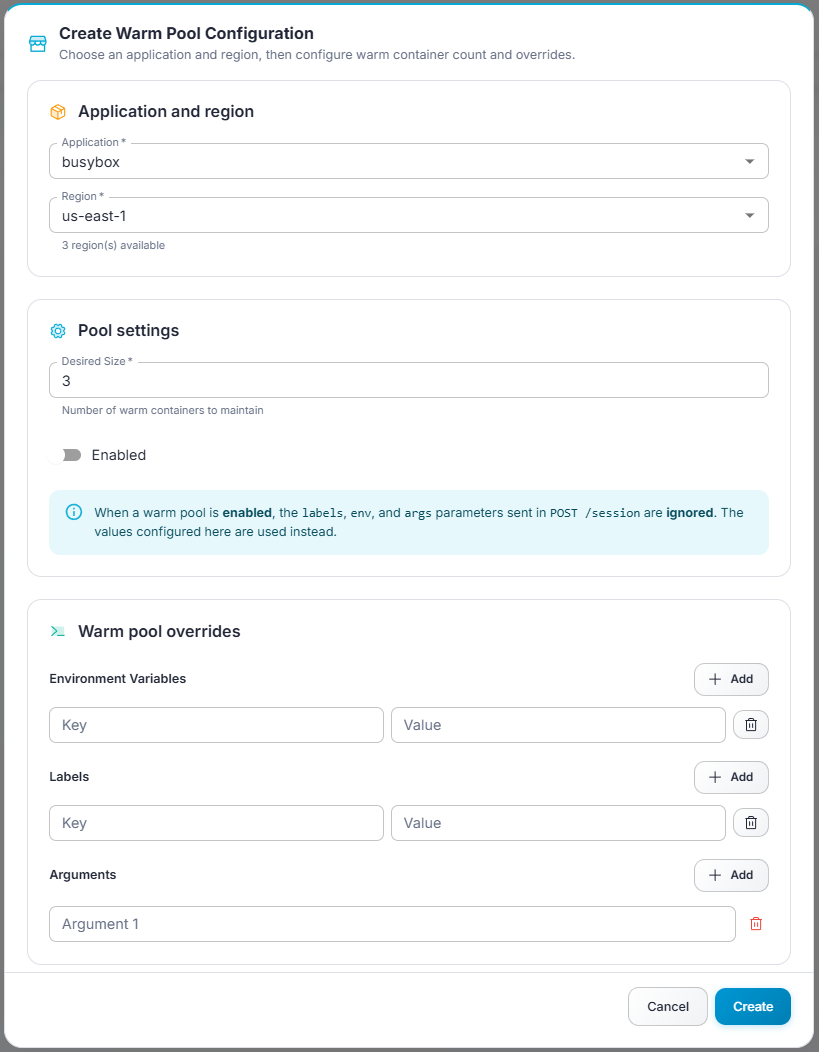
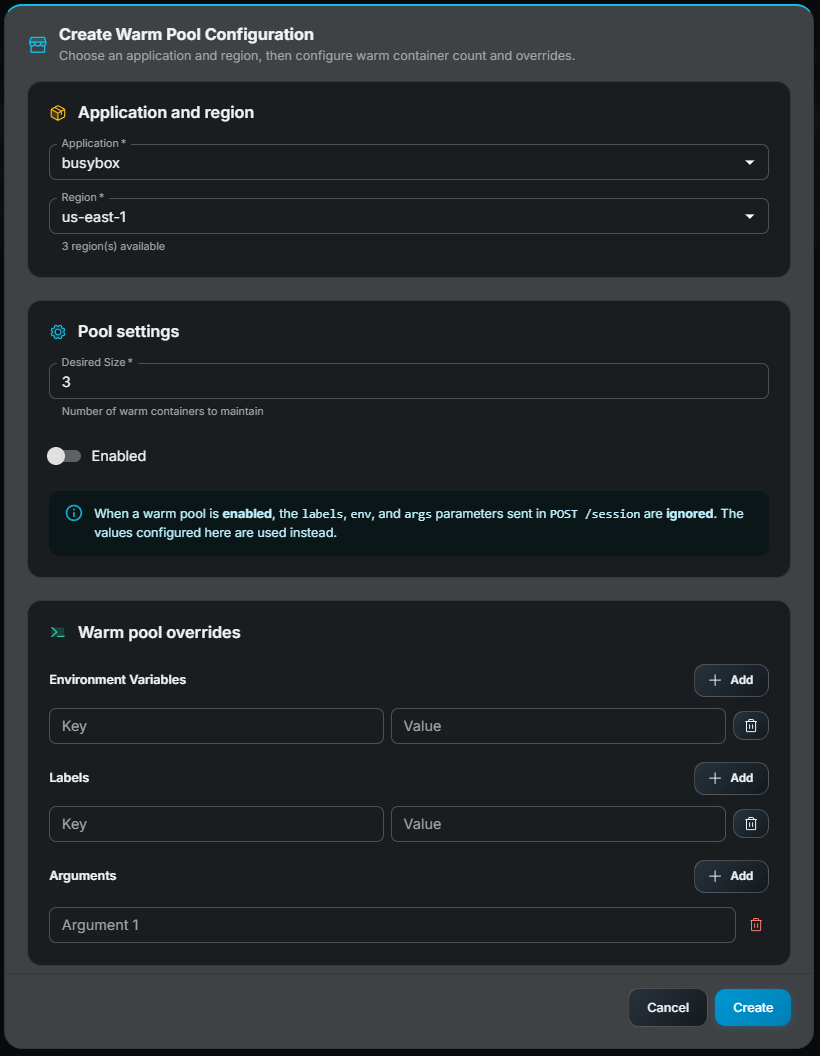 1. Click **Add** (top-right).
2. In the modal form:
- **Application** — Select an application. The region dropdown is then
filtered to regions assigned to that application.
- **Region** — Pick a region.
- **Desired Size** — Number of pre-started containers.
- **Enabled** — Toggle on/off.
- **Environment Variables** *(optional)* — Key-value pairs injected into
warm containers.
- **Arguments** *(optional)* — Command-line arguments passed to the
container entry point.
- **Labels** *(optional)* — Key-value metadata labels.
3. Click **Save**.
## Editing a warm pool
Click **Edit** (pencil icon) on the row. The same modal opens pre-filled with
current values. Requires edit permission.
## Deleting a warm pool
Click **Delete** (trash icon) on the row and confirm. Requires delete
permission. Once a warm pool is removed, the orchestrator will no longer
maintain pre-started containers for that application + region combination.
---
# Gameye Session API Overview
URL: https://gameye.com/docs/api-v2/
> Overview of the Gameye Session API: start and stop game sessions, check available regions, stream container logs, download artifacts, and verify image tags.
The Gameye Session API provides a simple, agnostic way to host containerized game sessions. It handles all the complexity of geographic distribution, capacity management, and scaling so you can focus on delivering great gaming experiences.
## Key Features
- **Global Deployment** - Host sessions in various regions worldwide to minimize latency
- **Containerized Sessions** - Each game session runs in its own isolated container
- **Easy Scaling** - No need to worry about server capacity or hardware management
- **Session Management** - Start, list, and stop game sessions with simple API calls
- **Artifact Collection** - Download files (like logs or save data) from game servers
- **Location Monitoring** - Check which regions are available for hosting your game
- **Tag Verification** - Verify if specific image versions are available in the fleet
- **Log Streaming** - Access server logs for debugging and monitoring
- **Enhanced Error Handling** - Detailed error responses with correlation IDs
## V2 Improvements
The latest version of our API includes significant improvements:
- **Standardized Region Names** - Using a mix of standardized region names including both cloud regions (like `eu-west-1`) and data center locations for clearer geographic understanding
- **Advanced Session Filtering** - New filtering options including the ability to exclude sessions based on specific criteria
- **Detailed Container States** - More granular status information for containers
- **Improved Error Responses** - Structured error format with correlation IDs for better debugging
- **Dedicated Port Range** - Updated port range (20000-30000) to prevent conflicts with Linux ephemeral ports
- **Optional Session IDs** - System can generate RFC4122-compliant UUIDs when session ID is not provided
- **Enhanced Logging Options** - Standard API access and advanced Elastic-based solution
## How It Works
1. **Authentication** - Every request requires a bearer token for authentication
2. **Session Creation** - You request a session in a specific region with your game image
3. **Session Allocation** - Gameye finds an available server in the requested region
4. **Container Deployment** - Your game server is deployed as a container
5. **Session Management** - You can list active sessions and stop them when needed
6. **Cleanup** - After stopping a session, you can download artifacts if needed
## Use Cases
- **Multiplayer Game Servers** - Host game matches in containers
- **Tournament Infrastructure** - Scale up for esports events
- **Global Gaming** - Provide low-latency experiences worldwide
- **Development & Testing** - Use the sandbox environment for testing
## Getting Started
To start using the API:
1. [Create or retrieve an API token](https://gameye.com/docs/api-v2/authentication/#obtaining-a-token) in the Admin Panel
2. Choose which environment to use (production or sandbox)
3. Make your first API call to create a session
Check the [**Authentication**](https://gameye.com/docs/api-v2/authentication/) guide to learn how to properly authenticate your requests.
## API Versioning
This documentation covers version 1.2.1 of the Gameye Session API, which incorporates the enhanced features described in our migration guide.
---
# Artifacts
URL: https://gameye.com/docs/api-v2/artifacts/
> Download files from terminated Gameye game server containers using the artifacts endpoint — retrieve logs, save files, or any session-generated data.
The artifacts endpoint allows you to download files from game session containers after they've been terminated. This is useful for retrieving logs, save files, or any other data generated during the session.
To have Gameye write session logs and selected container paths into your own S3 bucket, configure [S3 Secrets](https://gameye.com/docs/admin-panel/s3-secrets/) and the application's [S3 log and artifact storage](https://gameye.com/docs/admin-panel/applications/#s3-log-and-artifact-storage). The download endpoint below still works either way.
## Downloading Artifacts
### Endpoint
```text
GET /artifacts
```
### Query Parameters
| Parameter | Type | Required | Description |
| --------- | ------ | -------- | --------------------------------------------------------------------------------- |
| `session` | string | Yes | The ID of the session to download artifacts from |
| `path` | string | Yes | The absolute path inside the container to the file or folder you want to download |
### Example Request
```http
GET /artifacts?session=c595bc6f-8522-4a62-95cd-8742136643ea&path=/home/gameserver/logs/server.log HTTP/1.1
Host: api.production-gameye.gameye.net
Authorization: Bearer YOUR_TOKEN_HERE
```
### Response
When successful, the response will be a `200 OK` with the artifact file in `.tar.gz` format. The content type will be `application/x-tar`.
### Error Responses
| Status Code | Description |
| ----------- | --------------------------------------------------------------------------- |
| 401 | Unauthorized - Invalid bearer token |
| 404 | Not Found - Session doesn't exist or has been removed from the host machine |
### Error Response Example
```json
{
"statusCode": 404,
"code": "RESOURCE_NOT_FOUND",
"message": "Could not find a session with the given session id.",
"details": "It is possible that either the session has never existed at all or the container's lifespan on the machine has expired.",
"identifier": "3bc545b7-4750-47e6-a918-c93debc58663",
"path": "/artifacts",
"timestamp": "2023-04-01T12:00:00Z"
}
```
:::BlockQuote
🔍 **Tip**: Always include the `identifier` when contacting support about errors. This helps us quickly trace the exact issue in our systems.
:::
## Important Notes
Here are some key things to know about downloading artifacts:
1. **Session Must Be Stopped** - Artifacts are only available after a session has been terminated
2. **Limited Availability** - Artifacts are only available until the container is removed from its host machine. This means your logs may not be available indefinitely after termination.
3. **Path Format** - Use absolute Unix paths (starting with `/`) when specifying the path to the artifact
4. **Downloading Folders** - You can specify a folder path to download all of its contents
## Common Use Cases
- Downloading game server logs for debugging purposes
- Retrieving player statistics or match results
- Collecting crash dumps for analysis
- Backing up save files or game state
## Best Practices
- Download important artifacts as soon as possible after stopping a session
- Use specific paths to download only what you need
- Consider implementing automatic artifact collection in your workflow
- Parse and process the downloaded data to extract useful information
## Example Applications
### Downloading Server Logs
```http
GET /artifacts?session=c595bc6f-8522-4a62-95cd-8742136643ea&path=/home/gameserver/logs HTTP/1.1
```
### Retrieving a Specific Match Report
```http
GET /artifacts?session=c595bc6f-8522-4a62-95cd-8742136643ea&path=/home/gameserver/matches/match_123.json HTTP/1.1
```
### Getting a Crash Dump
```http
GET /artifacts?session=c595bc6f-8522-4a62-95cd-8742136643ea&path=/home/gameserver/crashdump.log HTTP/1.1
```
---
# Authentication
URL: https://gameye.com/docs/api-v2/authentication/
> How to authenticate with the Gameye Session API using Bearer Token authentication — add your API token to the Authorization header of every request.
All endpoints in the Gameye Session API require authentication. This guide explains how to properly authenticate your requests.
## Bearer Token Authentication
The Gameye Session API uses Bearer Token Authentication, which means you need to include an API token in the header of every request.
### How to Use Your Token
Add your token to the `Authorization` header in this format:
```text
Authorization: Bearer YOUR_TOKEN_HERE
```
### Example
```http
GET /session HTTP/1.1
Host: api.production-gameye.gameye.net
Authorization: Bearer eyJhbGciOiJIUzI1NiIsInR5cCI6IkpXVCJ9...
```
## Obtaining a Token
Create or retrieve an API token in the [Gameye Admin Panel](https://gameye.com/docs/admin-panel/):
1. Sign in to the Admin Panel.
2. Open **Users** and find the account that will own the token (use the search bar if needed).
3. Open the row **Actions** menu (⋮) and choose **Edit**.
4. On the **Update User** page, scroll to **API Tokens**:
- **New token:** click **+ Add Token**, set a name and scopes, then create the token. Copy the value immediately — the full token is only shown at creation time.
- **Existing token:** click the **eye** icon next to the masked token to reveal it.
5. Store the token securely (environment variables or a secret manager).
For scope selection, disabling or deleting tokens, and security practices, see [API tokens](https://gameye.com/docs/admin-panel/users/#api-tokens).
## Creating Scoped Tokens Programmatically
You can create short-lived, scoped tokens via the API itself using `POST /token`. This is useful for delegation — for example, generating a token with only `session:start` permission to hand to a game client, or creating tokens that expire after a match ends.
```bash title="cURL"
curl -X POST https://api.sandbox-gameye.gameye.net/token \
-H 'Authorization: Bearer YOUR_MASTER_TOKEN' \
-H 'Content-Type: application/json' \
-d '{
"name": "match-server-token",
"scopes": ["session:start", "session:read"],
"expires_after": "2h"
}'
```
The response contains the new token string. Valid time units for `expires_after` are `m` and `h` (e.g. `"30m"`, `"1h"`, `"2h30m"`); omit it for a token that never expires. A token can only delegate scopes it already holds — it cannot grant more permissions than the issuing token. The exception is `webhook:github`, which any token with `token:write` can grant.
See the [**POST /token reference**](https://gameye.com/docs/api-v2/reference/create-token/) for the full parameter list and error codes.
## Token Security
Here are some best practices for keeping your token secure:
- Never share your token in public repositories or client-side code
- Use environment variables to store your token in your applications
- Consider rotating your token periodically
- Use the sandbox environment for testing
## Authentication Errors
If authentication fails, you'll receive a `401 Unauthorized` response with details about the error. Common reasons for authentication failure include:
- Missing token
- Invalid token format
- Expired token
- Token doesn't have permission for the requested resource
### Example Error Response
```json
{
"statusCode": 401,
"code": "UNAUTHORIZED",
"message": "Authentication failed",
"details": "Invalid bearer token",
"path": "/session",
"identifier": "abc123",
"timestamp": "2023-04-01T12:00:00Z"
}
```
## Next Steps
Once you've set up authentication, you can:
- [**Create your first game session**]()
- [**Check available locations**]() for hosting your game
---
# Available Locations
URL: https://gameye.com/docs/api-v2/available-locations/
> Query the Gameye API for regions currently able to host your game image, including IP addresses you can ping to measure latency before session placement.
The available locations endpoint helps you determine which regions are currently able to host your game image. This is particularly useful for:
- Finding the best location for a new game session
- Checking server availability in different regions
- Measuring latency to different hosting locations
## Getting Available Locations
### Endpoint
```text
GET /available-location/{image}
```
### Path Parameters
| Parameter | Type | Required | Description |
| --------- | ------ | -------- | -------------------------------------------------------- |
| `image` | string | Yes | The ID of the game image you want to check locations for |
### Example Request
```http
GET /available-location/my-game-server HTTP/1.1
Host: api.production-gameye.gameye.net
Authorization: Bearer YOUR_TOKEN_HERE
```
### Success Response
On success, you'll receive a `200 OK` response with a list of available locations. Regions use standardized names for clearer geographic understanding:
```json
{
"locations": [
{
"id": "eu-west-1",
"ips": [
"203.0.113.42"
]
},
{
"id": "eu-central-1",
"ips": [
"198.51.100.24"
]
},
{
"id": "us-east-1",
"ips": [
"192.0.2.15"
]
}
]
}
```
### Error Responses
| Status Code | Description |
| ----------- | -------------------------------------------------------------- |
| 401 | Unauthorized - Invalid bearer token |
| 404 | Not Found - Image not found or you're not authorized to use it |
## Using Location Information
### IP Addresses for Latency Testing
Each location in the response includes a pingable IP address that you can use to test network latency. These IPs accept ICMP ping messages, allowing you to determine which location will provide the best performance for your players.
### Example: Ping Test
```bash
# Testing latency to EU West region
ping 203.0.113.42
# Testing latency to EU Central region
ping 198.51.100.24
```
## Best Practices
Here are some recommended practices when working with location data:
1. **Don't Cache Location Data** - The list of available locations may change, so it's best to request fresh data when needed rather than caching it
2. **Latency-Based Location Selection** - Test latency to each location to determine the best one for your players
3. **Fallback Locations** - Have backup locations in case your preferred location is unavailable
4. **Regular Availability Checks** - If your application needs to create sessions frequently, periodically check location availability
## Common Usage Patterns
### Player-Optimized Location Selection
1. Retrieve the list of available locations
2. Test latency from your player's location to each available location
3. Select the location with the lowest latency
4. Create a new session in that location
### Geographic Distribution
If you have players from different regions:
1. Group players by geographic proximity
2. Find the best available location for each group
3. Create sessions in multiple locations to minimize latency for all players
### Availability Monitoring
For applications that need high availability:
1. Regularly check which locations are available
2. If a previously available location becomes unavailable, redirect new sessions to alternative locations
---
# Log Streaming
URL: https://gameye.com/docs/api-v2/log-streaming/
> Stream stdout and stderr output from Gameye game server containers in real time using the log streaming endpoint — essential for debugging and monitoring.
The log streaming endpoint allows you to access the stdout and stderr output from your game server containers. This is invaluable for debugging issues, monitoring game server behavior, and gathering runtime information.
## Streaming Logs
### Endpoint
```text
GET /logs
```
### Query Parameters
| Parameter | Type | Required | Description |
| --------- | ------- | -------- | -------------------------------------------------------------------- |
| `id` | string | Yes | The unique ID of the session you want logs from |
| `follow` | boolean | No | Whether to keep the stream open for new log entries (default: false) |
### Example Request
```http
GET /logs?id=c595bc6f-8522-4a62-95cd-8742136643ea&follow=true HTTP/1.1
Host: api.production-gameye.gameye.net
Authorization: Bearer YOUR_TOKEN_HERE
```
### Success Response
On success, you'll receive a `200 OK` response with the log output as a text stream:
```text
2023-04-01T12:00:00Z [INFO] Game server starting...
2023-04-01T12:00:01Z [INFO] Loading map: de_dust2
2023-04-01T12:00:02Z [INFO] Waiting for players to connect...
2023-04-01T12:01:15Z [INFO] Player connected: Player1
2023-04-01T12:01:30Z [INFO] Player connected: Player2
...
```
### Error Responses
| Status Code | Description |
| ----------- | ----------------------------------- |
| 401 | Unauthorized - Invalid bearer token |
| 404 | Not Found - Session doesn't exist |
### Error Response Example
```json
{
"statusCode": 404,
"code": "RESOURCE_NOT_FOUND",
"message": "That session doesn't seem to exist.",
"details": "Double-check the ID.",
"identifier": "3bc545b7-4750-47e6-a918-c93debc58663",
"path": "/logs",
"timestamp": "2023-04-01T12:00:00Z"
}
```
:::BlockQuote
🔍 **Tip**: Always include the `identifier` when contacting support about errors. This helps us quickly trace the exact issue in our systems.
:::
:::note
**Why there is no full log dump endpoint.** Gameye previously supported a single endpoint that returned the complete log output for a session. It was removed due to memory pressure — game engines produce very high log volumes, potentially gigabytes per session. Use the stream endpoint and consume logs incrementally. For indexed, searchable log access, ask support about Kibana dashboard access.
:::
## Usage Modes
### Historical Logs
To get all available logs up to the current moment:
```http
GET /logs?id=c595bc6f-8522-4a62-95cd-8742136643ea HTTP/1.1
```
This will return all logs that the container has written to stdout/stderr so far and then close the connection.
### Live Log Streaming
To keep the connection open and receive new log entries as they occur:
```http
GET /logs?id=c595bc6f-8522-4a62-95cd-8742136643ea&follow=true HTTP/1.1
```
This is useful for real-time monitoring of game server activity.
## Enhanced Logging Options
Two options are available for accessing logs:
1. **Session logs API endpoint** (standard method)
- Described in this document
- Simple streaming of container logs
- Suitable for most use cases
2. **Elastic-based solution** (advanced)
- Real-time log access with advanced search capabilities
- Indexed and searchable logs
- Advanced filtering and analysis options
- Contact support for access to this feature
## Use Cases
### Debugging Issues
When players report problems, you can stream logs to:
- Identify error messages
- See warning signs
- Track down the source of the issue
### Monitoring Game Activity
Real-time log streaming can help you:
- See player connections and disconnections
- Monitor match progress
- Track game events
### Operational Insights
Logs can provide insights about:
- Server performance
- Resource usage
- Configuration issues
## Best Practices
1. **Stream Management** - For long-running streams with `follow=true`, implement proper timeout and reconnection logic in your client
2. **Log Parsing** - Consider implementing a log parser to extract structured data from the log stream
3. **Sequential Analysis** - For debugging complex issues, first get historical logs, then keep the stream open for follow-up activities
4. **Log Retention** - Remember that logs are only available while the session is running and shortly after it stops
5. **Consider Elastic Logging** - For advanced use cases, ask about our Elastic-based logging solution
## Implementation Examples
### Simple HTTP Client
```python
# Stream logs with follow mode
response = requests.get(
"https://api.production-gameye.gameye.net/logs",
params={"id": "c595bc6f-8522-4a62-95cd-8742136643ea", "follow": True},
headers={"Authorization": "Bearer YOUR_TOKEN_HERE"},
stream=True # Important for handling streaming responses
)
# Process the log stream
for line in response.iter_lines():
if line:
decoded_line = line.decode('utf-8')
print(decoded_line)
# Process log line here
```
### Web Dashboard Integration
For web applications, you might want to:
1. Fetch logs on demand when an admin views a session
2. Display logs in a scrollable, searchable interface
3. Highlight errors and warnings
4. Allow filtering by log level or keywords
---
# Open API spec
URL: https://gameye.com/docs/api-v2/open-api-spec/
> Download the Gameye Session API OpenAPI YAML spec for use with API clients, Postman, code generators, and developer tooling.
If you need these commands on hand, you can **download the Open API **[**YAML**](https://api.production-gameye.gameye.net/openapi.yaml) file.
The Gameye Session API offers an agnostic way of hosting containerized game sessions without needing to worry about geographic capacity or scalability issues. The API gives you a suite of features to host your multiplayer game.
### How do you authenticate?
All our endpoints need authorization. You can do this through Bearer Token Authentication.
You'll need to ask our support team for your Bearer Token. Then, make sure you add it in the header of each request.
For example, if you wanted to use the endpoint to list current sessions, you'd write:
::::CodeDrawer{title="Authorization: Bearer
1. Click **Add** (top-right).
2. In the modal form:
- **Application** — Select an application. The region dropdown is then
filtered to regions assigned to that application.
- **Region** — Pick a region.
- **Desired Size** — Number of pre-started containers.
- **Enabled** — Toggle on/off.
- **Environment Variables** *(optional)* — Key-value pairs injected into
warm containers.
- **Arguments** *(optional)* — Command-line arguments passed to the
container entry point.
- **Labels** *(optional)* — Key-value metadata labels.
3. Click **Save**.
## Editing a warm pool
Click **Edit** (pencil icon) on the row. The same modal opens pre-filled with
current values. Requires edit permission.
## Deleting a warm pool
Click **Delete** (trash icon) on the row and confirm. Requires delete
permission. Once a warm pool is removed, the orchestrator will no longer
maintain pre-started containers for that application + region combination.
---
# Gameye Session API Overview
URL: https://gameye.com/docs/api-v2/
> Overview of the Gameye Session API: start and stop game sessions, check available regions, stream container logs, download artifacts, and verify image tags.
The Gameye Session API provides a simple, agnostic way to host containerized game sessions. It handles all the complexity of geographic distribution, capacity management, and scaling so you can focus on delivering great gaming experiences.
## Key Features
- **Global Deployment** - Host sessions in various regions worldwide to minimize latency
- **Containerized Sessions** - Each game session runs in its own isolated container
- **Easy Scaling** - No need to worry about server capacity or hardware management
- **Session Management** - Start, list, and stop game sessions with simple API calls
- **Artifact Collection** - Download files (like logs or save data) from game servers
- **Location Monitoring** - Check which regions are available for hosting your game
- **Tag Verification** - Verify if specific image versions are available in the fleet
- **Log Streaming** - Access server logs for debugging and monitoring
- **Enhanced Error Handling** - Detailed error responses with correlation IDs
## V2 Improvements
The latest version of our API includes significant improvements:
- **Standardized Region Names** - Using a mix of standardized region names including both cloud regions (like `eu-west-1`) and data center locations for clearer geographic understanding
- **Advanced Session Filtering** - New filtering options including the ability to exclude sessions based on specific criteria
- **Detailed Container States** - More granular status information for containers
- **Improved Error Responses** - Structured error format with correlation IDs for better debugging
- **Dedicated Port Range** - Updated port range (20000-30000) to prevent conflicts with Linux ephemeral ports
- **Optional Session IDs** - System can generate RFC4122-compliant UUIDs when session ID is not provided
- **Enhanced Logging Options** - Standard API access and advanced Elastic-based solution
## How It Works
1. **Authentication** - Every request requires a bearer token for authentication
2. **Session Creation** - You request a session in a specific region with your game image
3. **Session Allocation** - Gameye finds an available server in the requested region
4. **Container Deployment** - Your game server is deployed as a container
5. **Session Management** - You can list active sessions and stop them when needed
6. **Cleanup** - After stopping a session, you can download artifacts if needed
## Use Cases
- **Multiplayer Game Servers** - Host game matches in containers
- **Tournament Infrastructure** - Scale up for esports events
- **Global Gaming** - Provide low-latency experiences worldwide
- **Development & Testing** - Use the sandbox environment for testing
## Getting Started
To start using the API:
1. [Create or retrieve an API token](https://gameye.com/docs/api-v2/authentication/#obtaining-a-token) in the Admin Panel
2. Choose which environment to use (production or sandbox)
3. Make your first API call to create a session
Check the [**Authentication**](https://gameye.com/docs/api-v2/authentication/) guide to learn how to properly authenticate your requests.
## API Versioning
This documentation covers version 1.2.1 of the Gameye Session API, which incorporates the enhanced features described in our migration guide.
---
# Artifacts
URL: https://gameye.com/docs/api-v2/artifacts/
> Download files from terminated Gameye game server containers using the artifacts endpoint — retrieve logs, save files, or any session-generated data.
The artifacts endpoint allows you to download files from game session containers after they've been terminated. This is useful for retrieving logs, save files, or any other data generated during the session.
To have Gameye write session logs and selected container paths into your own S3 bucket, configure [S3 Secrets](https://gameye.com/docs/admin-panel/s3-secrets/) and the application's [S3 log and artifact storage](https://gameye.com/docs/admin-panel/applications/#s3-log-and-artifact-storage). The download endpoint below still works either way.
## Downloading Artifacts
### Endpoint
```text
GET /artifacts
```
### Query Parameters
| Parameter | Type | Required | Description |
| --------- | ------ | -------- | --------------------------------------------------------------------------------- |
| `session` | string | Yes | The ID of the session to download artifacts from |
| `path` | string | Yes | The absolute path inside the container to the file or folder you want to download |
### Example Request
```http
GET /artifacts?session=c595bc6f-8522-4a62-95cd-8742136643ea&path=/home/gameserver/logs/server.log HTTP/1.1
Host: api.production-gameye.gameye.net
Authorization: Bearer YOUR_TOKEN_HERE
```
### Response
When successful, the response will be a `200 OK` with the artifact file in `.tar.gz` format. The content type will be `application/x-tar`.
### Error Responses
| Status Code | Description |
| ----------- | --------------------------------------------------------------------------- |
| 401 | Unauthorized - Invalid bearer token |
| 404 | Not Found - Session doesn't exist or has been removed from the host machine |
### Error Response Example
```json
{
"statusCode": 404,
"code": "RESOURCE_NOT_FOUND",
"message": "Could not find a session with the given session id.",
"details": "It is possible that either the session has never existed at all or the container's lifespan on the machine has expired.",
"identifier": "3bc545b7-4750-47e6-a918-c93debc58663",
"path": "/artifacts",
"timestamp": "2023-04-01T12:00:00Z"
}
```
:::BlockQuote
🔍 **Tip**: Always include the `identifier` when contacting support about errors. This helps us quickly trace the exact issue in our systems.
:::
## Important Notes
Here are some key things to know about downloading artifacts:
1. **Session Must Be Stopped** - Artifacts are only available after a session has been terminated
2. **Limited Availability** - Artifacts are only available until the container is removed from its host machine. This means your logs may not be available indefinitely after termination.
3. **Path Format** - Use absolute Unix paths (starting with `/`) when specifying the path to the artifact
4. **Downloading Folders** - You can specify a folder path to download all of its contents
## Common Use Cases
- Downloading game server logs for debugging purposes
- Retrieving player statistics or match results
- Collecting crash dumps for analysis
- Backing up save files or game state
## Best Practices
- Download important artifacts as soon as possible after stopping a session
- Use specific paths to download only what you need
- Consider implementing automatic artifact collection in your workflow
- Parse and process the downloaded data to extract useful information
## Example Applications
### Downloading Server Logs
```http
GET /artifacts?session=c595bc6f-8522-4a62-95cd-8742136643ea&path=/home/gameserver/logs HTTP/1.1
```
### Retrieving a Specific Match Report
```http
GET /artifacts?session=c595bc6f-8522-4a62-95cd-8742136643ea&path=/home/gameserver/matches/match_123.json HTTP/1.1
```
### Getting a Crash Dump
```http
GET /artifacts?session=c595bc6f-8522-4a62-95cd-8742136643ea&path=/home/gameserver/crashdump.log HTTP/1.1
```
---
# Authentication
URL: https://gameye.com/docs/api-v2/authentication/
> How to authenticate with the Gameye Session API using Bearer Token authentication — add your API token to the Authorization header of every request.
All endpoints in the Gameye Session API require authentication. This guide explains how to properly authenticate your requests.
## Bearer Token Authentication
The Gameye Session API uses Bearer Token Authentication, which means you need to include an API token in the header of every request.
### How to Use Your Token
Add your token to the `Authorization` header in this format:
```text
Authorization: Bearer YOUR_TOKEN_HERE
```
### Example
```http
GET /session HTTP/1.1
Host: api.production-gameye.gameye.net
Authorization: Bearer eyJhbGciOiJIUzI1NiIsInR5cCI6IkpXVCJ9...
```
## Obtaining a Token
Create or retrieve an API token in the [Gameye Admin Panel](https://gameye.com/docs/admin-panel/):
1. Sign in to the Admin Panel.
2. Open **Users** and find the account that will own the token (use the search bar if needed).
3. Open the row **Actions** menu (⋮) and choose **Edit**.
4. On the **Update User** page, scroll to **API Tokens**:
- **New token:** click **+ Add Token**, set a name and scopes, then create the token. Copy the value immediately — the full token is only shown at creation time.
- **Existing token:** click the **eye** icon next to the masked token to reveal it.
5. Store the token securely (environment variables or a secret manager).
For scope selection, disabling or deleting tokens, and security practices, see [API tokens](https://gameye.com/docs/admin-panel/users/#api-tokens).
## Creating Scoped Tokens Programmatically
You can create short-lived, scoped tokens via the API itself using `POST /token`. This is useful for delegation — for example, generating a token with only `session:start` permission to hand to a game client, or creating tokens that expire after a match ends.
```bash title="cURL"
curl -X POST https://api.sandbox-gameye.gameye.net/token \
-H 'Authorization: Bearer YOUR_MASTER_TOKEN' \
-H 'Content-Type: application/json' \
-d '{
"name": "match-server-token",
"scopes": ["session:start", "session:read"],
"expires_after": "2h"
}'
```
The response contains the new token string. Valid time units for `expires_after` are `m` and `h` (e.g. `"30m"`, `"1h"`, `"2h30m"`); omit it for a token that never expires. A token can only delegate scopes it already holds — it cannot grant more permissions than the issuing token. The exception is `webhook:github`, which any token with `token:write` can grant.
See the [**POST /token reference**](https://gameye.com/docs/api-v2/reference/create-token/) for the full parameter list and error codes.
## Token Security
Here are some best practices for keeping your token secure:
- Never share your token in public repositories or client-side code
- Use environment variables to store your token in your applications
- Consider rotating your token periodically
- Use the sandbox environment for testing
## Authentication Errors
If authentication fails, you'll receive a `401 Unauthorized` response with details about the error. Common reasons for authentication failure include:
- Missing token
- Invalid token format
- Expired token
- Token doesn't have permission for the requested resource
### Example Error Response
```json
{
"statusCode": 401,
"code": "UNAUTHORIZED",
"message": "Authentication failed",
"details": "Invalid bearer token",
"path": "/session",
"identifier": "abc123",
"timestamp": "2023-04-01T12:00:00Z"
}
```
## Next Steps
Once you've set up authentication, you can:
- [**Create your first game session**]()
- [**Check available locations**]() for hosting your game
---
# Available Locations
URL: https://gameye.com/docs/api-v2/available-locations/
> Query the Gameye API for regions currently able to host your game image, including IP addresses you can ping to measure latency before session placement.
The available locations endpoint helps you determine which regions are currently able to host your game image. This is particularly useful for:
- Finding the best location for a new game session
- Checking server availability in different regions
- Measuring latency to different hosting locations
## Getting Available Locations
### Endpoint
```text
GET /available-location/{image}
```
### Path Parameters
| Parameter | Type | Required | Description |
| --------- | ------ | -------- | -------------------------------------------------------- |
| `image` | string | Yes | The ID of the game image you want to check locations for |
### Example Request
```http
GET /available-location/my-game-server HTTP/1.1
Host: api.production-gameye.gameye.net
Authorization: Bearer YOUR_TOKEN_HERE
```
### Success Response
On success, you'll receive a `200 OK` response with a list of available locations. Regions use standardized names for clearer geographic understanding:
```json
{
"locations": [
{
"id": "eu-west-1",
"ips": [
"203.0.113.42"
]
},
{
"id": "eu-central-1",
"ips": [
"198.51.100.24"
]
},
{
"id": "us-east-1",
"ips": [
"192.0.2.15"
]
}
]
}
```
### Error Responses
| Status Code | Description |
| ----------- | -------------------------------------------------------------- |
| 401 | Unauthorized - Invalid bearer token |
| 404 | Not Found - Image not found or you're not authorized to use it |
## Using Location Information
### IP Addresses for Latency Testing
Each location in the response includes a pingable IP address that you can use to test network latency. These IPs accept ICMP ping messages, allowing you to determine which location will provide the best performance for your players.
### Example: Ping Test
```bash
# Testing latency to EU West region
ping 203.0.113.42
# Testing latency to EU Central region
ping 198.51.100.24
```
## Best Practices
Here are some recommended practices when working with location data:
1. **Don't Cache Location Data** - The list of available locations may change, so it's best to request fresh data when needed rather than caching it
2. **Latency-Based Location Selection** - Test latency to each location to determine the best one for your players
3. **Fallback Locations** - Have backup locations in case your preferred location is unavailable
4. **Regular Availability Checks** - If your application needs to create sessions frequently, periodically check location availability
## Common Usage Patterns
### Player-Optimized Location Selection
1. Retrieve the list of available locations
2. Test latency from your player's location to each available location
3. Select the location with the lowest latency
4. Create a new session in that location
### Geographic Distribution
If you have players from different regions:
1. Group players by geographic proximity
2. Find the best available location for each group
3. Create sessions in multiple locations to minimize latency for all players
### Availability Monitoring
For applications that need high availability:
1. Regularly check which locations are available
2. If a previously available location becomes unavailable, redirect new sessions to alternative locations
---
# Log Streaming
URL: https://gameye.com/docs/api-v2/log-streaming/
> Stream stdout and stderr output from Gameye game server containers in real time using the log streaming endpoint — essential for debugging and monitoring.
The log streaming endpoint allows you to access the stdout and stderr output from your game server containers. This is invaluable for debugging issues, monitoring game server behavior, and gathering runtime information.
## Streaming Logs
### Endpoint
```text
GET /logs
```
### Query Parameters
| Parameter | Type | Required | Description |
| --------- | ------- | -------- | -------------------------------------------------------------------- |
| `id` | string | Yes | The unique ID of the session you want logs from |
| `follow` | boolean | No | Whether to keep the stream open for new log entries (default: false) |
### Example Request
```http
GET /logs?id=c595bc6f-8522-4a62-95cd-8742136643ea&follow=true HTTP/1.1
Host: api.production-gameye.gameye.net
Authorization: Bearer YOUR_TOKEN_HERE
```
### Success Response
On success, you'll receive a `200 OK` response with the log output as a text stream:
```text
2023-04-01T12:00:00Z [INFO] Game server starting...
2023-04-01T12:00:01Z [INFO] Loading map: de_dust2
2023-04-01T12:00:02Z [INFO] Waiting for players to connect...
2023-04-01T12:01:15Z [INFO] Player connected: Player1
2023-04-01T12:01:30Z [INFO] Player connected: Player2
...
```
### Error Responses
| Status Code | Description |
| ----------- | ----------------------------------- |
| 401 | Unauthorized - Invalid bearer token |
| 404 | Not Found - Session doesn't exist |
### Error Response Example
```json
{
"statusCode": 404,
"code": "RESOURCE_NOT_FOUND",
"message": "That session doesn't seem to exist.",
"details": "Double-check the ID.",
"identifier": "3bc545b7-4750-47e6-a918-c93debc58663",
"path": "/logs",
"timestamp": "2023-04-01T12:00:00Z"
}
```
:::BlockQuote
🔍 **Tip**: Always include the `identifier` when contacting support about errors. This helps us quickly trace the exact issue in our systems.
:::
:::note
**Why there is no full log dump endpoint.** Gameye previously supported a single endpoint that returned the complete log output for a session. It was removed due to memory pressure — game engines produce very high log volumes, potentially gigabytes per session. Use the stream endpoint and consume logs incrementally. For indexed, searchable log access, ask support about Kibana dashboard access.
:::
## Usage Modes
### Historical Logs
To get all available logs up to the current moment:
```http
GET /logs?id=c595bc6f-8522-4a62-95cd-8742136643ea HTTP/1.1
```
This will return all logs that the container has written to stdout/stderr so far and then close the connection.
### Live Log Streaming
To keep the connection open and receive new log entries as they occur:
```http
GET /logs?id=c595bc6f-8522-4a62-95cd-8742136643ea&follow=true HTTP/1.1
```
This is useful for real-time monitoring of game server activity.
## Enhanced Logging Options
Two options are available for accessing logs:
1. **Session logs API endpoint** (standard method)
- Described in this document
- Simple streaming of container logs
- Suitable for most use cases
2. **Elastic-based solution** (advanced)
- Real-time log access with advanced search capabilities
- Indexed and searchable logs
- Advanced filtering and analysis options
- Contact support for access to this feature
## Use Cases
### Debugging Issues
When players report problems, you can stream logs to:
- Identify error messages
- See warning signs
- Track down the source of the issue
### Monitoring Game Activity
Real-time log streaming can help you:
- See player connections and disconnections
- Monitor match progress
- Track game events
### Operational Insights
Logs can provide insights about:
- Server performance
- Resource usage
- Configuration issues
## Best Practices
1. **Stream Management** - For long-running streams with `follow=true`, implement proper timeout and reconnection logic in your client
2. **Log Parsing** - Consider implementing a log parser to extract structured data from the log stream
3. **Sequential Analysis** - For debugging complex issues, first get historical logs, then keep the stream open for follow-up activities
4. **Log Retention** - Remember that logs are only available while the session is running and shortly after it stops
5. **Consider Elastic Logging** - For advanced use cases, ask about our Elastic-based logging solution
## Implementation Examples
### Simple HTTP Client
```python
# Stream logs with follow mode
response = requests.get(
"https://api.production-gameye.gameye.net/logs",
params={"id": "c595bc6f-8522-4a62-95cd-8742136643ea", "follow": True},
headers={"Authorization": "Bearer YOUR_TOKEN_HERE"},
stream=True # Important for handling streaming responses
)
# Process the log stream
for line in response.iter_lines():
if line:
decoded_line = line.decode('utf-8')
print(decoded_line)
# Process log line here
```
### Web Dashboard Integration
For web applications, you might want to:
1. Fetch logs on demand when an admin views a session
2. Display logs in a scrollable, searchable interface
3. Highlight errors and warnings
4. Allow filtering by log level or keywords
---
# Open API spec
URL: https://gameye.com/docs/api-v2/open-api-spec/
> Download the Gameye Session API OpenAPI YAML spec for use with API clients, Postman, code generators, and developer tooling.
If you need these commands on hand, you can **download the Open API **[**YAML**](https://api.production-gameye.gameye.net/openapi.yaml) file.
The Gameye Session API offers an agnostic way of hosting containerized game sessions without needing to worry about geographic capacity or scalability issues. The API gives you a suite of features to host your multiplayer game.
### How do you authenticate?
All our endpoints need authorization. You can do this through Bearer Token Authentication.
You'll need to ask our support team for your Bearer Token. Then, make sure you add it in the header of each request.
For example, if you wanted to use the endpoint to list current sessions, you'd write:
::::CodeDrawer{title="Authorization: Bearer 
 :::note[Something wrong?]
If you see an error after signing in, double-check your
credentials. If you've forgotten your password, ask your administrator to
reset it.
:::
---
## Step 2 — Explore the dashboard
Take a moment to orient yourself:
- The **sidebar** on the left is your main navigation. The items you see depend
on your role's permissions.
- The **Dashboard** page shows summary metrics (running containers, CPU / RAM
allocation, warm containers) and time-series charts.
- The **date range picker** in the top-right lets you change the time window.
Try clicking a quick preset like *Last 7 days* to see if there is any
historical data.
:::note[Something wrong?]
If you see an error after signing in, double-check your
credentials. If you've forgotten your password, ask your administrator to
reset it.
:::
---
## Step 2 — Explore the dashboard
Take a moment to orient yourself:
- The **sidebar** on the left is your main navigation. The items you see depend
on your role's permissions.
- The **Dashboard** page shows summary metrics (running containers, CPU / RAM
allocation, warm containers) and time-series charts.
- The **date range picker** in the top-right lets you change the time window.
Try clicking a quick preset like *Last 7 days* to see if there is any
historical data.
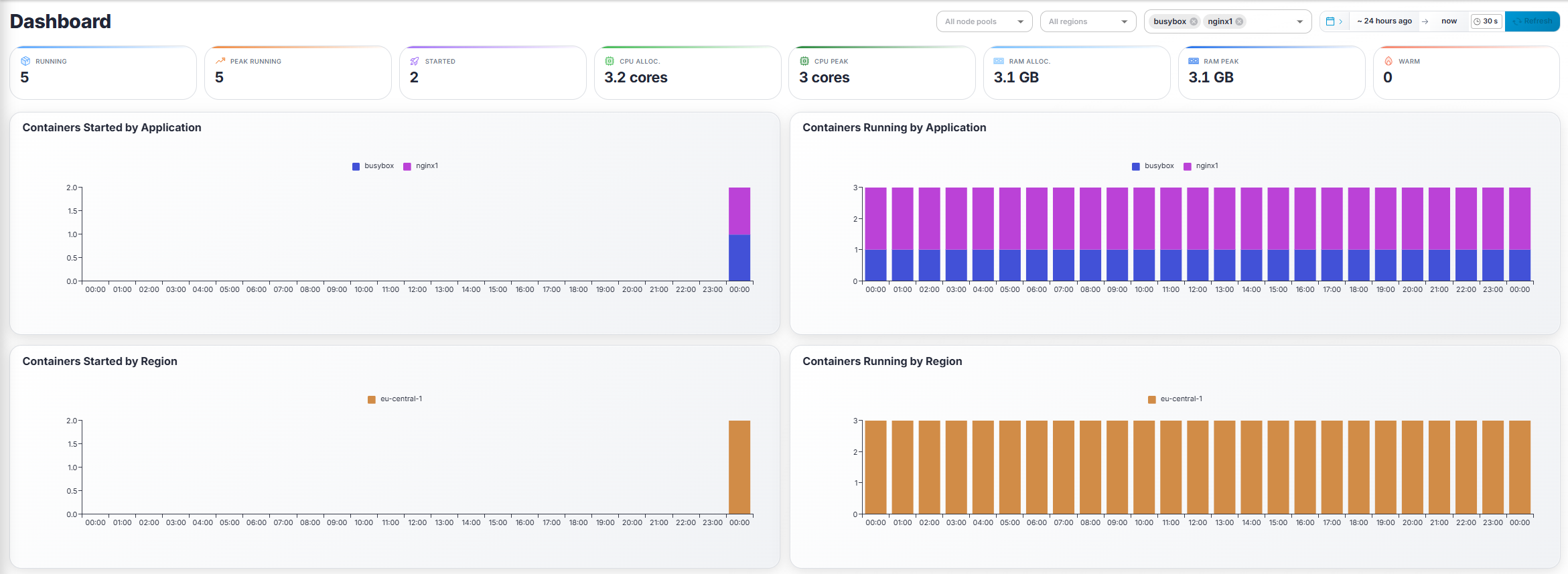
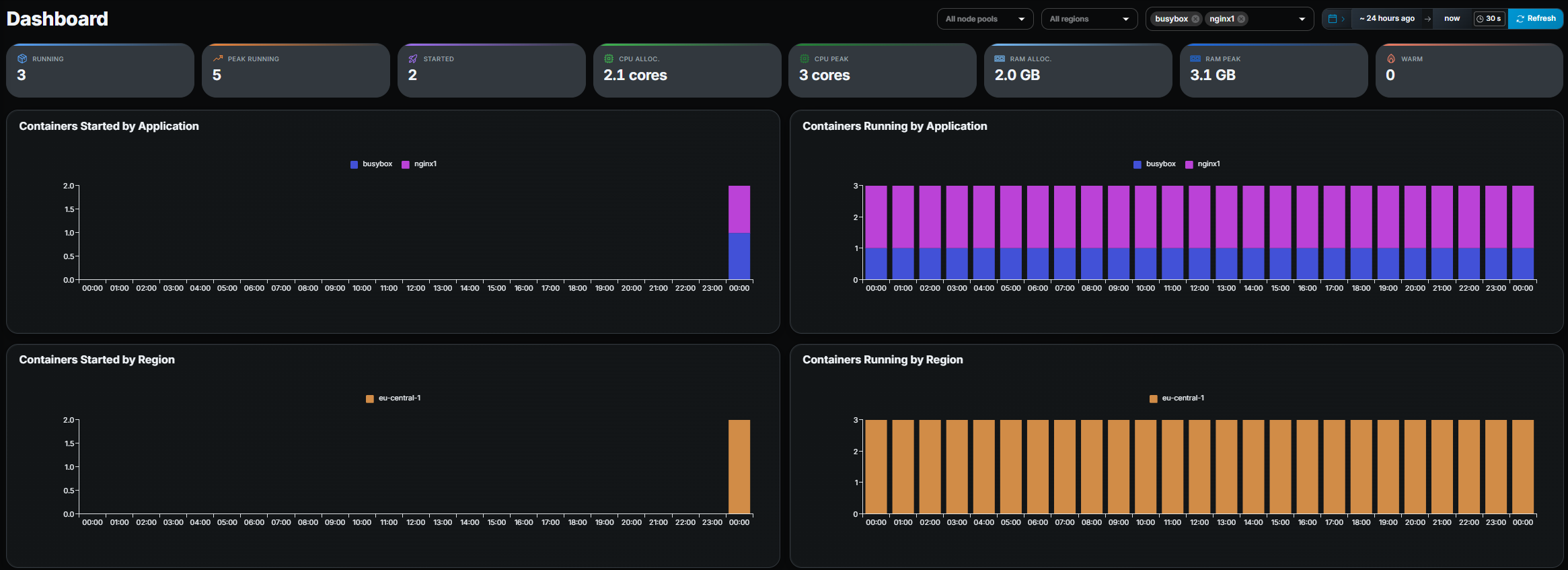 :::tip
If the sidebar only shows a few items, your role may be limited.
Contact your administrator if you need access to additional pages.
:::
---
## Step 3 — Create an application
An **application** represents a deployable game-server image and its
configuration (resources, regions, ports, etc.).
:::note
If you don't see the **Add** button on the Applications page, your role does
not include the required create permission. Ask your administrator to grant it
before continuing.
:::
1. Navigate to **Applications** in the sidebar.
2. Click the **Add** button (top-right).
3. Fill in the form:
| Field | What to enter |
|---|---|
| **Application Name** | A unique, descriptive name (e.g. `my-game`). You use this name as `image` when starting sessions through the API. |
| **Registry** | Where the image is hosted: Docker Hub. |
| **Repository URL** | Your Docker Hub repository, without a tag (e.g. `mygame/server`). |
| **Tags to Keep** | How many of the most recent image tags to keep on nodes. Recommended: **2** (the current and previous version, for quick rollback). |
| **Network Mode** | `bridge` (recommended: Gameye maps your container ports to free ports on the node) or `host` (the container uses the node's network and must listen on the ports Gameye assigns). See [Choose your network mode](https://gameye.com/docs/getting-started/2-docker-file/#2-choose-your-network-mode). |
| **Node pool** | Select the node pool your containers should run on. If unsure, ask your administrator. |
| **Regions** | Select one or more regions where containers may be started. |
| **Port bindings** | Click **Add Port** to define each port your server exposes. Set the **protocol** (TCP or UDP) and **container port** (1–65535). |
| **CPU Limit (cores)** | Maximum CPU cores a container may use. |
| **RAM Limit (MB)** | Maximum RAM (MB) a container may use. |
4. Click **Save**.
:::tip
If the sidebar only shows a few items, your role may be limited.
Contact your administrator if you need access to additional pages.
:::
---
## Step 3 — Create an application
An **application** represents a deployable game-server image and its
configuration (resources, regions, ports, etc.).
:::note
If you don't see the **Add** button on the Applications page, your role does
not include the required create permission. Ask your administrator to grant it
before continuing.
:::
1. Navigate to **Applications** in the sidebar.
2. Click the **Add** button (top-right).
3. Fill in the form:
| Field | What to enter |
|---|---|
| **Application Name** | A unique, descriptive name (e.g. `my-game`). You use this name as `image` when starting sessions through the API. |
| **Registry** | Where the image is hosted: Docker Hub. |
| **Repository URL** | Your Docker Hub repository, without a tag (e.g. `mygame/server`). |
| **Tags to Keep** | How many of the most recent image tags to keep on nodes. Recommended: **2** (the current and previous version, for quick rollback). |
| **Network Mode** | `bridge` (recommended: Gameye maps your container ports to free ports on the node) or `host` (the container uses the node's network and must listen on the ports Gameye assigns). See [Choose your network mode](https://gameye.com/docs/getting-started/2-docker-file/#2-choose-your-network-mode). |
| **Node pool** | Select the node pool your containers should run on. If unsure, ask your administrator. |
| **Regions** | Select one or more regions where containers may be started. |
| **Port bindings** | Click **Add Port** to define each port your server exposes. Set the **protocol** (TCP or UDP) and **container port** (1–65535). |
| **CPU Limit (cores)** | Maximum CPU cores a container may use. |
| **RAM Limit (MB)** | Maximum RAM (MB) a container may use. |
4. Click **Save**.
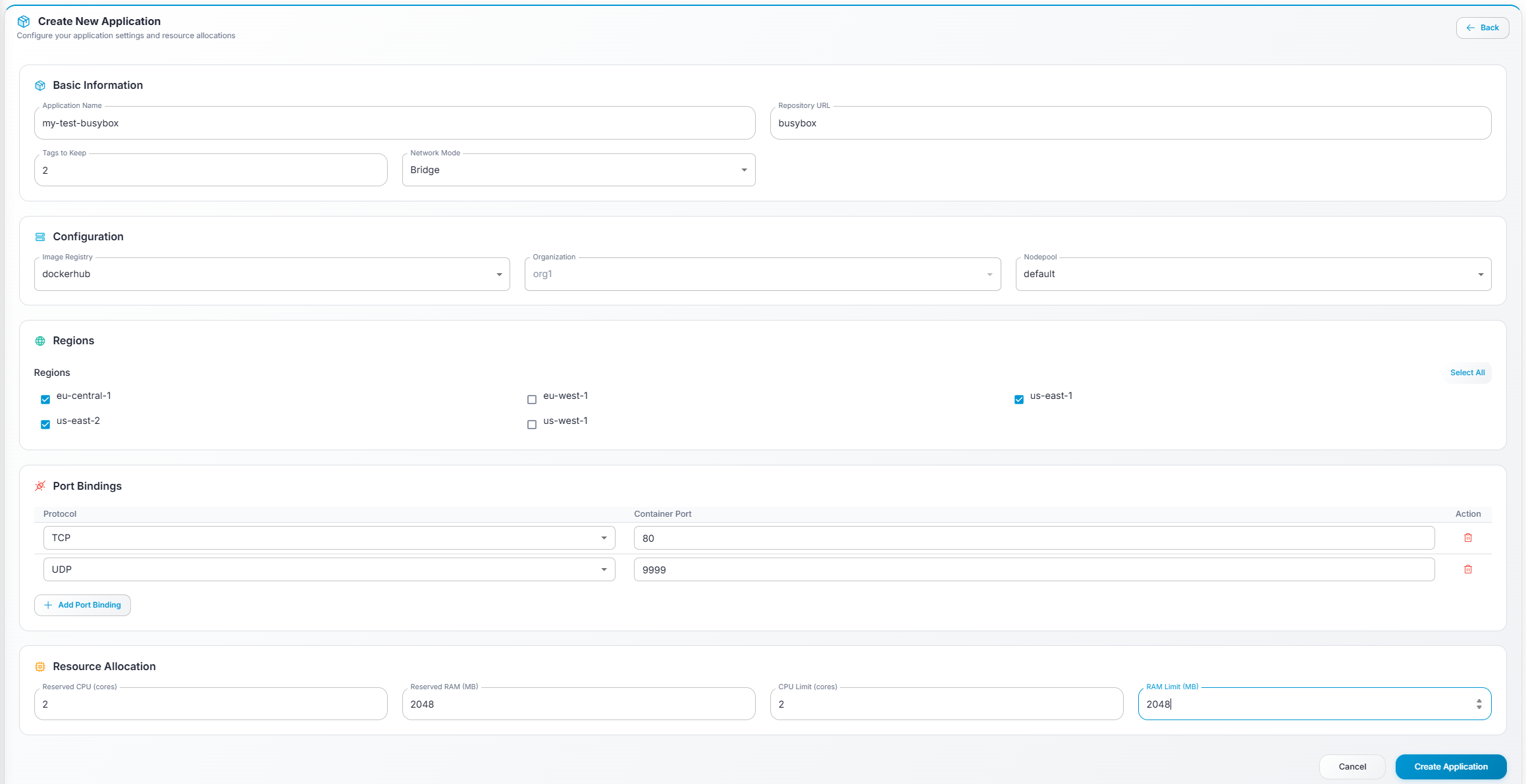
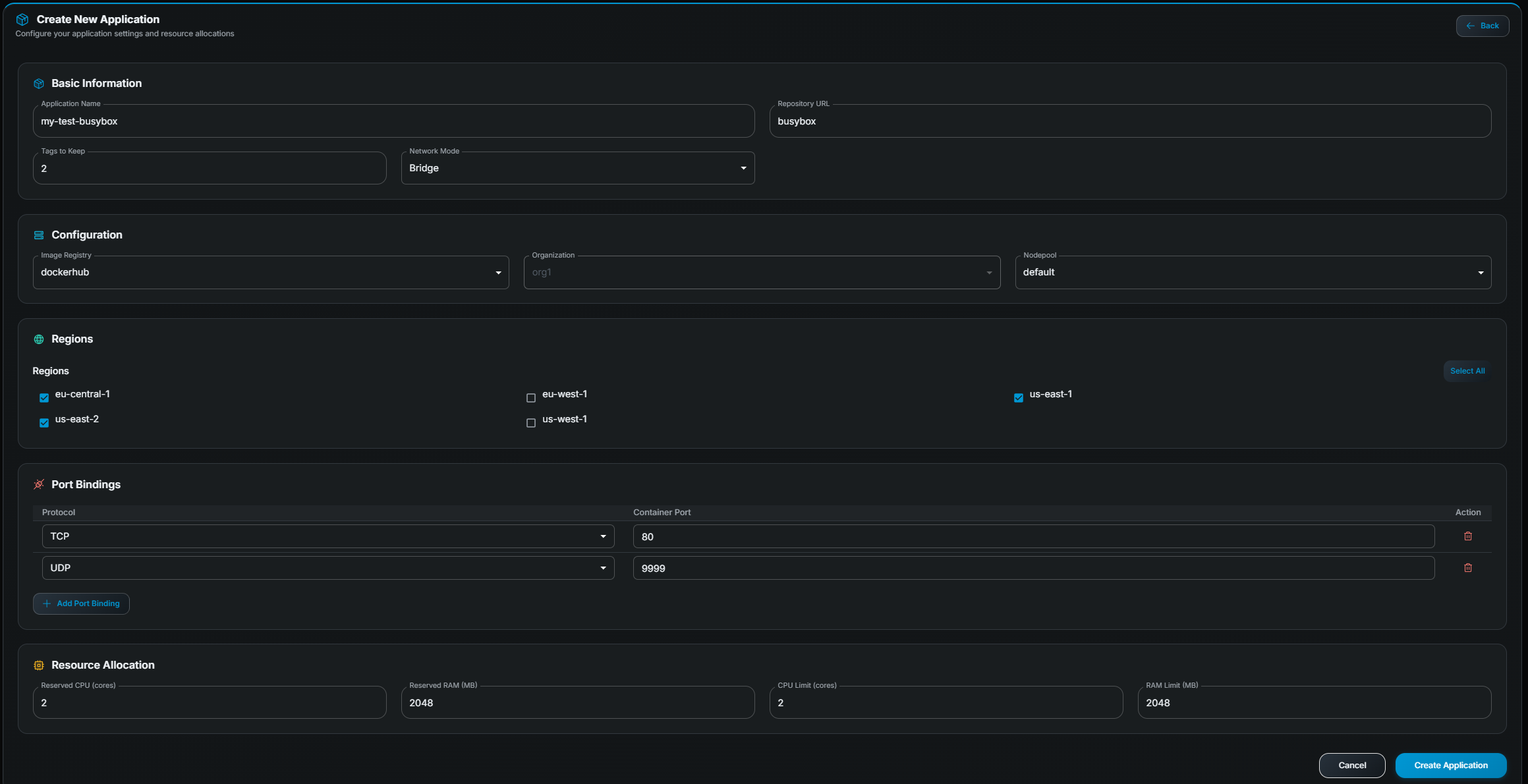 ### Verify it worked
Your new application now appears in the Applications table. Verify the
**repository**, **CPU/RAM**, and **port** settings are correct before
proceeding. If anything looks wrong, click **Edit** (pencil icon) on the row to
fix it.
:::note
Not seeing your application? Make sure you didn't accidentally filter the
table. Clear the search field and check that no column filters are active.
:::
---
## Step 4 — Get your image tag loaded
The application you just created points to a Docker Hub repository, but no image
version has been selected yet. A **tag** is a specific Docker image version
(e.g. `v1.2.3` or `latest`). Before a container can start, the image must be
**pulled onto nodes**.
There are three ways to make this happen:
### Option A — Webhook auto-pull *(recommended)*
If the Docker Hub webhook is configured (see [step 1](https://gameye.com/docs/getting-started/1-docker-hub/#3-add-the-gameye-webhook)),
pushing a new image to your repository automatically triggers the orchestrator
to pull the image. You don't need to do anything in the admin panel.
1. Push a new image tag to Docker Hub:
```bash
docker push mygame/server:v1.2.3
```
2. Open the **Tags** page in the admin panel.
3. Within a few moments the new tag appears under your application with a
**Preloading** status.
4. Wait for the status to change to **Ready** (the page auto-refreshes every
10 seconds).
:::note[Tag not appearing?]
Verify that (1) the Docker Hub webhook is correctly
configured, (2) the `gameyedocker` user has read access to your repository,
and (3) the image was pushed successfully. If the tag still doesn't show after
2 minutes, contact your administrator.
:::
### Option B — Update Tags from the Applications page
Use this when you want to pull the latest tag for one or more applications.
1. Go to **Applications**.
2. Select one or more applications using the checkboxes.
3. Click **Update Tags** in the toolbar that appears.
4. A dialog shows each application's current tag and the latest available tag
on Docker Hub.
5. Click **Update Tags** to pull the new tags.
6. Check the **Tags** page to monitor the loading progress.
### Option C — Add a tag manually from the Tags page
Use this when you want to load a specific (non-latest) tag.
:::note
Requires tag create permission. If you don't see the **Add Tag** button,
contact your administrator.
:::
1. Go to **Tags**.
2. Find the application card.
3. Click **Add Tag** (right side of the card).
4. A modal lists all tags available in the Docker Hub registry, with search,
pushed date, size, and digest.
5. Select the desired tag and click **Confirm**.
6. The tag appears in the card with a **Preloading** status. Wait for it to
become **Ready**.
:::note[Still preloading after several minutes?]
Large images can take time to
download. If the status doesn't change to *Ready* within 5–10 minutes, contact
your administrator — a node may be unreachable.
:::
---
## Step 5 — Test-start a container
Once at least one tag shows **Ready**, you can start a container to verify your setup is working. This is a manual test — in production, your sessions will be started via the API.
:::note
If you don't see the **Start** button, your role does not include container
create permission. Ask your administrator.
:::
1. Navigate to **Active Containers**.
2. Click the **Start** button (top-right).
3. In the dialog, fill in the required fields:
- **Application** — The application you created.
- **Region** — Where to run the container.
- **Environment variables** *(optional)* — Key-value pairs to inject.
- **Arguments** *(optional)* — Command-line arguments.
- **Labels** *(optional)* — Key-value metadata.
4. Click **Submit**.
5. The container appears in the table. It may briefly show *Starting* before
transitioning to *Running*.
:::note[Container not appearing?]
The table refreshes periodically. Click the
refresh button or wait a few seconds. If it still doesn't show, the container
may have failed to start — check with your administrator.
:::
:::note[API permission error?]
If starting a session returns a permission or authorization error, check that your user has an API token configured with the required scopes. See [API tokens](https://gameye.com/docs/admin-panel/users/#api-tokens) in the Users page for how to create and manage tokens.
:::
:::tip
You can also start containers programmatically via the **Orchestrator
API**. See the [OpenAPI specification](https://api.production-gameye.gameye.net/openapi.yaml)
for available endpoints. The API creates containers directly using the
application configuration you set up in Step 3 — the admin panel is not
required.
:::
---
## Step 6 — Monitor your container
1. In **Active Containers**, click the row of your running container.
2. You are taken to the **Container Details** page.
### Verify it worked
Your new application now appears in the Applications table. Verify the
**repository**, **CPU/RAM**, and **port** settings are correct before
proceeding. If anything looks wrong, click **Edit** (pencil icon) on the row to
fix it.
:::note
Not seeing your application? Make sure you didn't accidentally filter the
table. Clear the search field and check that no column filters are active.
:::
---
## Step 4 — Get your image tag loaded
The application you just created points to a Docker Hub repository, but no image
version has been selected yet. A **tag** is a specific Docker image version
(e.g. `v1.2.3` or `latest`). Before a container can start, the image must be
**pulled onto nodes**.
There are three ways to make this happen:
### Option A — Webhook auto-pull *(recommended)*
If the Docker Hub webhook is configured (see [step 1](https://gameye.com/docs/getting-started/1-docker-hub/#3-add-the-gameye-webhook)),
pushing a new image to your repository automatically triggers the orchestrator
to pull the image. You don't need to do anything in the admin panel.
1. Push a new image tag to Docker Hub:
```bash
docker push mygame/server:v1.2.3
```
2. Open the **Tags** page in the admin panel.
3. Within a few moments the new tag appears under your application with a
**Preloading** status.
4. Wait for the status to change to **Ready** (the page auto-refreshes every
10 seconds).
:::note[Tag not appearing?]
Verify that (1) the Docker Hub webhook is correctly
configured, (2) the `gameyedocker` user has read access to your repository,
and (3) the image was pushed successfully. If the tag still doesn't show after
2 minutes, contact your administrator.
:::
### Option B — Update Tags from the Applications page
Use this when you want to pull the latest tag for one or more applications.
1. Go to **Applications**.
2. Select one or more applications using the checkboxes.
3. Click **Update Tags** in the toolbar that appears.
4. A dialog shows each application's current tag and the latest available tag
on Docker Hub.
5. Click **Update Tags** to pull the new tags.
6. Check the **Tags** page to monitor the loading progress.
### Option C — Add a tag manually from the Tags page
Use this when you want to load a specific (non-latest) tag.
:::note
Requires tag create permission. If you don't see the **Add Tag** button,
contact your administrator.
:::
1. Go to **Tags**.
2. Find the application card.
3. Click **Add Tag** (right side of the card).
4. A modal lists all tags available in the Docker Hub registry, with search,
pushed date, size, and digest.
5. Select the desired tag and click **Confirm**.
6. The tag appears in the card with a **Preloading** status. Wait for it to
become **Ready**.
:::note[Still preloading after several minutes?]
Large images can take time to
download. If the status doesn't change to *Ready* within 5–10 minutes, contact
your administrator — a node may be unreachable.
:::
---
## Step 5 — Test-start a container
Once at least one tag shows **Ready**, you can start a container to verify your setup is working. This is a manual test — in production, your sessions will be started via the API.
:::note
If you don't see the **Start** button, your role does not include container
create permission. Ask your administrator.
:::
1. Navigate to **Active Containers**.
2. Click the **Start** button (top-right).
3. In the dialog, fill in the required fields:
- **Application** — The application you created.
- **Region** — Where to run the container.
- **Environment variables** *(optional)* — Key-value pairs to inject.
- **Arguments** *(optional)* — Command-line arguments.
- **Labels** *(optional)* — Key-value metadata.
4. Click **Submit**.
5. The container appears in the table. It may briefly show *Starting* before
transitioning to *Running*.
:::note[Container not appearing?]
The table refreshes periodically. Click the
refresh button or wait a few seconds. If it still doesn't show, the container
may have failed to start — check with your administrator.
:::
:::note[API permission error?]
If starting a session returns a permission or authorization error, check that your user has an API token configured with the required scopes. See [API tokens](https://gameye.com/docs/admin-panel/users/#api-tokens) in the Users page for how to create and manage tokens.
:::
:::tip
You can also start containers programmatically via the **Orchestrator
API**. See the [OpenAPI specification](https://api.production-gameye.gameye.net/openapi.yaml)
for available endpoints. The API creates containers directly using the
application configuration you set up in Step 3 — the admin panel is not
required.
:::
---
## Step 6 — Monitor your container
1. In **Active Containers**, click the row of your running container.
2. You are taken to the **Container Details** page.
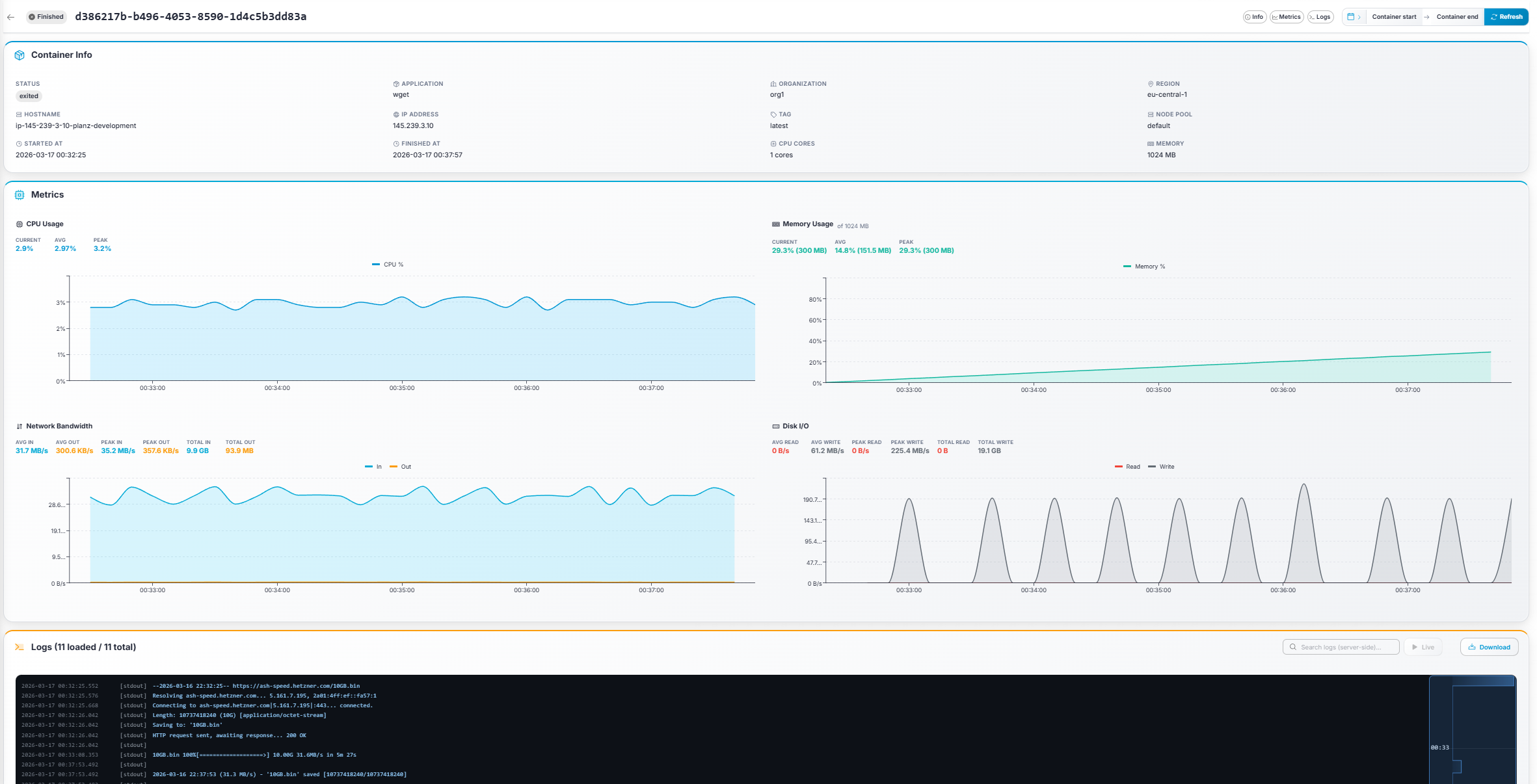
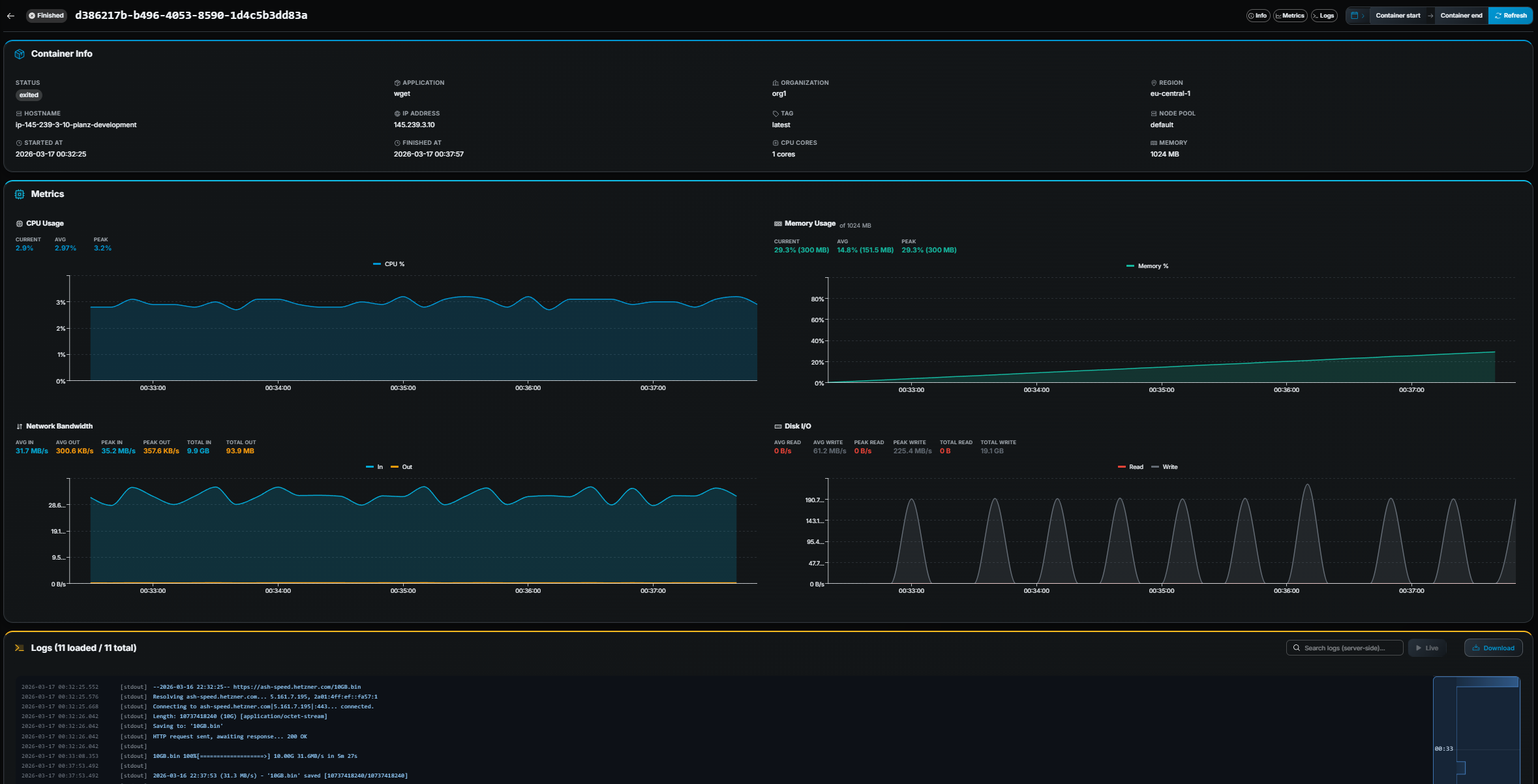 ### What you can do here
| Section | What it shows |
|---|---|
| **Info** | Container metadata: application, region, hostname, IP, ports, tag, CPU/RAM, start time. |
| **Metrics** | Live line charts for **CPU**, **Memory**, **Network** (in/out), and **Disk I/O**. Each chart shows current, average, and peak values. |
| **Logs** | Real-time container logs with full ANSI color support. |
Use the **section chips** in the sticky header to jump between Info, Metrics,
and Logs.
### Useful log features
- **Search** — Type in the search field to filter logs server-side.
- **Live tail** — Click **▶ Tail** to stream new log lines in real time.
- **Download** — Click **Download** to save the complete log as a `.txt` file.
- **Histogram minimap** — The small bar chart above the log panel shows log
density over time.
:::note[No metrics data?]
Make sure the date range picker time range covers the
container's lifetime. Use the *"Container start → Container end"* preset for
the best results.
:::
### Stopping the container
When you're done, go back to **Active Containers**, click **Stop** on the
container row, and confirm.
---
## Next steps
You've completed the basic onboarding. Here are some features to explore next:
- **[Warm Pools](https://gameye.com/docs/admin-panel/warm-pools/)** — Pre-start containers so they
are ready for instant player allocation. Great for reducing wait times.
- **[Bulk operations](https://gameye.com/docs/admin-panel/applications/#bulk-actions)** — Use Mass Edit and Update
Tags to manage multiple applications at once.
- **[Containers History](https://gameye.com/docs/admin-panel/containers-history/)** — Review past
containers and investigate issues by inspecting historical metrics and logs.
- **[Dashboard filters](https://gameye.com/docs/admin-panel/dashboard/)** — Use application, region,
and node pool filters combined with the date range picker to build custom
operational views.
- **[Profile](https://gameye.com/docs/admin-panel/profile/)** — Change your password at any time.
- **[Orchestrator API](https://api.production-gameye.gameye.net/openapi.yaml)**
— Integrate container management into your own systems programmatically.
- **[Start with the API](https://gameye.com/docs/getting-started/4-api-call/)** — Want to automate
container management? Learn how to launch sessions programmatically.
If you run into issues, check the
[Troubleshooting](https://gameye.com/docs/admin-panel/troubleshooting/) section of the User Manual or
contact your administrator.
---
# 4. Start with the API
URL: https://gameye.com/docs/getting-started/4-api-call/
> Step 4 of getting started with Gameye: create an API token, find where your image can run, start a session, connect a client, and stop the session.
In production, your backend or matchmaker starts every session through the Gameye API. This page takes you from an API token to a running session and back.
You need an application with at least one tag loaded on nodes. Create it in the [Admin Panel](https://gameye.com/docs/getting-started/3-admin-panel/#step-3--create-an-application) or with the [create application](https://gameye.com/docs/api-v2/reference/create-application/) endpoint.
For every endpoint and field, see the [API V2 overview](https://gameye.com/docs/api-v2/) and the [OpenAPI specification](https://api.production-gameye.gameye.net/openapi.yaml).
---
## 1. Get an API token
Create a token in the Admin Panel under [Users → API tokens](https://gameye.com/docs/admin-panel/users/#api-tokens), or with the [create token](https://gameye.com/docs/api-v2/reference/create-token/) endpoint. Give it the scopes this guide uses:
| Scope | Used for |
|---|---|
| `regions:read` | Finding the regions where your image can run |
| `session:start` | Starting sessions |
| `session:read` | Listing and inspecting sessions |
| `session:stop` | Stopping sessions |
Send it as a bearer token. The examples below assume it is in `$GAMEYE_TOKEN`:
```bash
export GAMEYE_TOKEN="
### What you can do here
| Section | What it shows |
|---|---|
| **Info** | Container metadata: application, region, hostname, IP, ports, tag, CPU/RAM, start time. |
| **Metrics** | Live line charts for **CPU**, **Memory**, **Network** (in/out), and **Disk I/O**. Each chart shows current, average, and peak values. |
| **Logs** | Real-time container logs with full ANSI color support. |
Use the **section chips** in the sticky header to jump between Info, Metrics,
and Logs.
### Useful log features
- **Search** — Type in the search field to filter logs server-side.
- **Live tail** — Click **▶ Tail** to stream new log lines in real time.
- **Download** — Click **Download** to save the complete log as a `.txt` file.
- **Histogram minimap** — The small bar chart above the log panel shows log
density over time.
:::note[No metrics data?]
Make sure the date range picker time range covers the
container's lifetime. Use the *"Container start → Container end"* preset for
the best results.
:::
### Stopping the container
When you're done, go back to **Active Containers**, click **Stop** on the
container row, and confirm.
---
## Next steps
You've completed the basic onboarding. Here are some features to explore next:
- **[Warm Pools](https://gameye.com/docs/admin-panel/warm-pools/)** — Pre-start containers so they
are ready for instant player allocation. Great for reducing wait times.
- **[Bulk operations](https://gameye.com/docs/admin-panel/applications/#bulk-actions)** — Use Mass Edit and Update
Tags to manage multiple applications at once.
- **[Containers History](https://gameye.com/docs/admin-panel/containers-history/)** — Review past
containers and investigate issues by inspecting historical metrics and logs.
- **[Dashboard filters](https://gameye.com/docs/admin-panel/dashboard/)** — Use application, region,
and node pool filters combined with the date range picker to build custom
operational views.
- **[Profile](https://gameye.com/docs/admin-panel/profile/)** — Change your password at any time.
- **[Orchestrator API](https://api.production-gameye.gameye.net/openapi.yaml)**
— Integrate container management into your own systems programmatically.
- **[Start with the API](https://gameye.com/docs/getting-started/4-api-call/)** — Want to automate
container management? Learn how to launch sessions programmatically.
If you run into issues, check the
[Troubleshooting](https://gameye.com/docs/admin-panel/troubleshooting/) section of the User Manual or
contact your administrator.
---
# 4. Start with the API
URL: https://gameye.com/docs/getting-started/4-api-call/
> Step 4 of getting started with Gameye: create an API token, find where your image can run, start a session, connect a client, and stop the session.
In production, your backend or matchmaker starts every session through the Gameye API. This page takes you from an API token to a running session and back.
You need an application with at least one tag loaded on nodes. Create it in the [Admin Panel](https://gameye.com/docs/getting-started/3-admin-panel/#step-3--create-an-application) or with the [create application](https://gameye.com/docs/api-v2/reference/create-application/) endpoint.
For every endpoint and field, see the [API V2 overview](https://gameye.com/docs/api-v2/) and the [OpenAPI specification](https://api.production-gameye.gameye.net/openapi.yaml).
---
## 1. Get an API token
Create a token in the Admin Panel under [Users → API tokens](https://gameye.com/docs/admin-panel/users/#api-tokens), or with the [create token](https://gameye.com/docs/api-v2/reference/create-token/) endpoint. Give it the scopes this guide uses:
| Scope | Used for |
|---|---|
| `regions:read` | Finding the regions where your image can run |
| `session:start` | Starting sessions |
| `session:read` | Listing and inspecting sessions |
| `session:stop` | Stopping sessions |
Send it as a bearer token. The examples below assume it is in `$GAMEYE_TOKEN`:
```bash
export GAMEYE_TOKEN="